

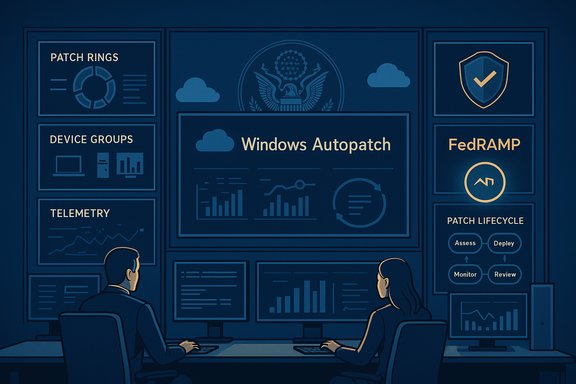
The arrival of Windows Autopatch for US government tenants marks a meaningful shift in how federal and state agencies can manage Windows updates: Microsoft has signaled that the cloud‑based, Intune‑integrated Autopatch service — already used by many enterprises — is now authorized for use inside government‑grade tenancy, with the service added to the Azure FedRAMP High provisional Authorization to Operate (P‑ATO). This change makes it possible to delegate much of the repetitive work of patch control and ringed rollouts to an automated service while keeping final approval authority in agency hands, but it also brings new operational prerequisites, auditing and ATO considerations that every government IT leader must plan for before enrollment.
Windows Autopatch is a cloud service that orchestrates Windows, feature, driver and Microsoft 365 application updates through Microsoft Intune, Windows Update for Business and Autopatch’s own deployment rings. For enterprises the value proposition has long been simple: safer, staged rollouts driven by automated ring promotion, built‑in telemetry and reporting, and integration with Intune compliance and policy surfaces. The government announcement extends that capability into government‑authorized clouds — a big operational win for teams that must balance security, uptime, and compliance. Autopatch also enables Microsoft’s hotpatch flow for eligible Windows 11 devices, where selected security fixes can be applied without an immediate restart, reducing user disruption on mission‑critical endpoints.
This article explains what the authorization means, unpacks the technical and compliance prerequisites, verifies the feature set and operational behaviors against available documentation, and provides a practical, step‑by‑step plan that government IT teams can use to pilot and adopt Windows Autopatch safely.
That said, this is not a “set‑and‑forget” play. The service introduces new dependencies (Intune enrollment, licensing, VBS enablement), reporting nuances and ATO considerations. Agencies should adopt Autopatch where the operational benefits outweigh the onboarding work — starting with a conservative pilot and expanding only after verifying reporting, third‑party vendor compatibility, and ATO artifacts.
Windows Autopatch for US government tenants is an important operational tool — it streamlines update orchestration, accelerates security fixes through hotpatching and integrates reporting into Intune. Implementation requires careful planning, license verification, device baseline hardening and ATO alignment. Agencies that plan conservatively, pilot deliberately and map Autopatch telemetry into their compliance frameworks will capture the productivity and security gains while maintaining the controls regulatory environments demand.
Source: Microsoft - Message Center Windows Autopatch for the US government: How to get started - Windows IT Pro Blog
 Background / Overview
Windows Autopatch is a cloud service that orchestrates Windows, feature, driver and Microsoft 365 application updates through Microsoft Intune, Windows Update for Business and Autopatch’s own deployment rings. For enterprises the value proposition has long been simple: safer, staged rollouts driven by automated ring promotion, built‑in telemetry and reporting, and integration with Intune compliance and policy surfaces. The government announcement extends that capability into government‑authorized clouds — a big operational win for teams that must balance security, uptime, and compliance. Autopatch also enables Microsoft’s hotpatch flow for eligible Windows 11 devices, where selected security fixes can be applied without an immediate restart, reducing user disruption on mission‑critical endpoints.This article explains what the authorization means, unpacks the technical and compliance prerequisites, verifies the feature set and operational behaviors against available documentation, and provides a practical, step‑by‑step plan that government IT teams can use to pilot and adopt Windows Autopatch safely.
What “FedRAMP High P‑ATO” actually means for Autopatch
The authorization and the agency ATO lifecycle
A FedRAMP High provisional Authorization to Operate (P‑ATO) added to an Azure service indicates that the cloud provider has completed the FedRAMP assessment and that the capability can be used by federal agencies under a provisional boundary. However, tenant‑level authorization remains the agency’s responsibility: obtaining a tenant‑level Authority to Operate (ATO) requires the agency to complete its System Security Plan (SSP), continuous monitoring, and any compensating controls the agency’s Authorizing Official requires. In plain terms: the P‑ATO clears a major hurdle but does not replace agency ATO work.- Practical implication: Autopatch being on the FedRAMP High P‑ATO means the service is eligible for federal use, but each agency must still assess and accept the risk for their systems before enrolling mission data and devices.
- Checklist action: Include Autopatch in your SSP mapping and continuous monitoring plan, and validate how Autopatch telemetry and reporting satisfy your audit and logging requirements.
Tenancy nuance: GCC vs GCC‑High vs DoD
Microsoft’s government tenancy model is segmented: standard Government Community Cloud (GCC), GCC‑High, and DoD IL5/IL6 have different compliance baselines and personnel controls. At announcement time, Autopatch is being rolled into the government offering designed for US government tenants but is not yet supported in GCC‑High or DoD environments; Microsoft is working to expand coverage to those clouds. Agencies operating under GCC‑High or DoD missions must not assume immediate availability and should plan to validate timelines with their Microsoft account and compliance teams before a migration. Treat any timeline statements as planning guidance and verify with official release notes for the exact service boundary.What Autopatch gives government IT teams (feature checklist)
Autopatch integrates tightly with Intune and Microsoft’s update stack to deliver:- Controlled Windows Update deployment by content type and device scope (quality updates, feature updates, drivers).
- Ring‑based automation that stages devices into test/pilot/production rings with Microsoft‑managed rollout automation while preserving final administrative approval.
- Hotpatching: the ability to apply some security fixes without forcing a restart on eligible Windows 11 Enterprise devices, accelerating protection and reducing reboot frequency. Hotpatch months and quarterly baseline months create a cadence that targets far fewer forced restarts per year for eligible endpoints.
- The ability to pause or expedite monthly quality updates or drivers for groups of devices when vendor compatibility or operational needs require it.
- Simplified compliance reporting in the Intune admin center; Autopatch surfaces per‑policy and per‑device rollout telemetry. (Note: some published Microsoft collateral references low reporting latency figures — those specific latency claims should be validated against your tenant telemetry and Microsoft service documentation during pilot.
Technical prerequisites and hard requirements (verify these first)
Before any enrollment, verify the following prerequisites for devices you intend to manage via Autopatch:- Licensing entitlements: Devices must be assigned supported commercial government SKUs. Hotpatch and Autopatch require enterprise‑grade licensing lines (for clients: Windows 11 Enterprise E3/E5 variants, Microsoft 365 Enterprise bundles, or equivalent entitlements). Confirm the exact SKUs with your Microsoft licensing representative.
- Device baseline and OS edition: Hotpatch‑eligible devices must run the required Windows 11 Enterprise baseline (Windows 11 24H2/25H2 baseline rules apply) and be on the current cumulative baseline that Microsoft requires for hotpatch offers; devices that have drifted behind the baseline will instead receive standard cumulative updates (LCU) that require restarts.
- Management: Devices must be enrolled in Microsoft Intune and/or Windows Autopatch; Autopatch orchestrates hotpatch deployment for devices assigned to the appropriate quality update policy. If a device is not managed by Intune/Autopatch, it will not receive hotpatch‑style updates.
- Platform security features: Virtualization‑based Security (VBS) must be enabled on client machines to be offered hotpatches; Arm64 devices may require disabling Compiled Hybrid PE (CHPE) as a one‑time configuration to become eligible. Validate firmware (TPM, virtualization support) across device models before enrolling them.
- Network and proxy allowances: Ensure devices and management services can reach the Microsoft update, activation and telemetry endpoints required by Autopatch and Intune. Agencies with controlled egress must allowlisted domains per Microsoft guidance and validate TLS pass‑through.
Step‑by‑step: how to get started with Windows Autopatch in a government tenant
Below is a recommended, verified workflow that agencies can follow to pilot Autopatch. Each step is concise and practical.- Inventory and classify (Days 0–7)
- Export device inventory from Intune/ConfigMgr and tag devices by Windows edition, build, UEFI/TPM, VBS support and business criticality.
- Identify mission‑critical systems (medical devices, SCADA consoles, classified/isolated hosts) and mark them out of scope for initial pilots.
- Confirm tenant and procurement readiness (Days 0–7)
- Verify Autopatch license entitlements and the availability of Autopatch for your specific government tenancy (GCC vs GCC‑High/DoD). If your tenancy is GCC‑High or DoD, confirm timeline and availability with Microsoft — do not assume immediate support.
- Validate the tenant's FedRAMP P‑ATO documentation and map Autopatch components into your SSP.
- Prepare network and compliance surfaces (Days 0–14)
- Allowlist required endpoints for Windows Update, Intune and Autopatch telemetry in agency egress filtering and proxies.
- Confirm required roles and RBAC assignments for Autopatch service accounts and administrators. Autopatch integrates with Intune RBAC — set least privilege roles for change approvers, device managers and auditors.
- Create pilot groups and policy scaffolding (Days 7–21)
- In Intune, create Windows Autopatch groups (or equivalent Autopatch device registration groups) and assign a conservative pilot set of 50–200 representative devices covering major hardware models and business app families.
- Alternatively, if you prefer fine control, create individual policies instead of Autopatch groups: update rings, Windows quality updates (hotpatch toggle), expedited quality updates, Windows feature updates and driver/firmware policies. Any device targeted by a policy will appear in the corresponding reports.
- Enable hotpatch policy (pilot) and monitor (Days 14–35)
- Create a Windows quality update policy in Intune with Hotpatch allowed for the pilot group; assign and validate that the pilot devices are eligible and report readiness. Monitor the Hotpatch quality update report for install status, failures and compliance velocity.
- Validate third‑party tooling and scanners (Days 14–35)
- Test vulnerability scanners, EDR and asset management tools for correct interpretation of hotpatched states. Many tools rely on on‑disk versions and might require updates to reconcile in‑memory patches vs on‑disk versions. Update SIEM dashboards and asset tools to recognize hotpatch KB identifiers or reporting fields.
- Expand rings and operationalize (Months 2–6)
- If the pilot is successful, progressively expand to early adopters and then broad deployments. Use Autopatch’s ring promotions or Intune policy scoping to orchestrate staged rollouts.
- Maintain quarterly baseline windows for restarts; hotpatching reduces but does not remove the need for periodic reboots when baseline LCUs or firmware changes are required.
- Update ATO and compliance artifacts (ongoing)
- Add Autopatch telemetry sources to your continuous monitoring, log retention and audit trails. Ensure your ATO package includes change‑control records for Autopatch approvals and per‑update decision logs.
Practical recommendations, best practices and common pitfalls
Start conservative and test broadly
Pilot with a representative set of hardware, security agent versions and business applications rather than with the newest or oldest devices only. Include EDR, VPN, printing and other I/O‑heavy workloads in the pilot ring to catch compatibility regressions early.Treat hotpatch as complementary — not a panacea
Hotpatch applies only security‑scoped fixes that can be safely applied in memory. Feature changes, many driver updates, firmware changes and larger kernel updates still require LCUs and restarts. Plan quarterly baseline maintenance windows accordingly.Validate reporting, telemetry and tooling
Some third‑party vulnerability scanners and asset managers may not recognize hotpatched states by default. Update scanners, mappings and SIEM rules so your compliance dashboards reflect the true protection state of endpoints. Built-in Autopatch reporting is designed to help, but cross‑tool validation is essential.Prepare rollback and remediation runbooks
Hotpatch uninstall and fallback typically require manual action and may ultimately require a baseline re‑install with a restart. Prepare documented playbooks, and practice a rollback at least once in the pilot to evaluate the operational load.Be explicit about ATO and auditability
Autopatch automates decisions but does not remove accountability. Ensure your change control records explicitly include Autopatch automatic approvals, expedited deploys, and any manual overrides for auditability in your SSP and continuous monitoring program.Risks, limitations and what to watch
- Mixed estate divergence: Devices that cannot meet hotpatch prerequisites (incorrect baseline, missing VBS or unsupported hardware) will continue to receive LCUs. This creates a mixed estate that complicates reporting and vulnerability posture. Inventory and remediation are needed to minimize divergence.
- Third‑party compatibility: Some vendors may not support in‑memory patching semantics or may flag hotpatched devices as “unpatched” if they rely on file‑version checks. Coordinate with security vendors during pilot.
- Rollback complexity: Because hotpatch changes are applied to runtime memory, rollback is not atomic. Reverting often requires a baseline reinstallation and restart. Have tested incident response and rollback playbooks.
- ATO and auditing nuance: P‑ATO status does not eliminate agency ATO tasks. Ensure your SSP maps Autopatch telemetry to NIST control families and records decisions for auditors.
- GCC‑High / DoD availability: If you operate under GCC‑High or DoD tenancy, do not assume immediate service parity; validate timelines and service scopes with Microsoft and your procurement/compliance team.
How to verify claims and what to validate during pilot (explicit verification checklist)
- Confirm device eligibility:
- OS build, edition and baseline match Microsoft’s hotpatch prerequisites. Check Intune inventory and winver outputs.
- Confirm licensing:
- Assigned users/devices hold the required enterprise entitlements that unlock Autopatch and hotpatch behaviors. Cross‑check licensing via your Microsoft licensing portal.
- Validate network reachability:
- Confirm required update and telemetry endpoints are reachable from pilot networks, and proxy/TLS appliances allow the necessary SNI/TLS passthrough.
- Test reporting latency and accuracy:
- Microsoft documentation and product pages sometimes reference very low reporting latency; measure actual reporting latency for your tenant and verify that Intune/Autopatch reports match independent endpoint telemetry. If you see discrepancies, file a support case and update your monitoring mapping.
- Validate third‑party tool behavior:
- Run vulnerability scans, EDR checks, and asset inventories both before and after hotpatch application to verify how each tool reports the endpoint state and adapt mappings accordingly.
Final analysis: Why this matters — and when you should adopt
Windows Autopatch’s arrival in government‑authorized clouds brings a powerful automation option to agencies that wrestle with scale, patch velocity and constrained maintenance windows. For mission areas where uptime, continuity of operations and rapid vulnerability remediation matter most (call centers, emergency services workstations, clinical devices), Autopatch combined with hotpatch can materially reduce disruptions and shrink windows of exposure for security vulnerabilities.That said, this is not a “set‑and‑forget” play. The service introduces new dependencies (Intune enrollment, licensing, VBS enablement), reporting nuances and ATO considerations. Agencies should adopt Autopatch where the operational benefits outweigh the onboarding work — starting with a conservative pilot and expanding only after verifying reporting, third‑party vendor compatibility, and ATO artifacts.
- Adopt quickly if: You operate a large distributed fleet with modern hardware, Intune management already in place, and you need to reduce user downtime and accelerate security patching.
- Be cautious if: You have a large population of legacy or specialized devices (medical, industrial control, isolated classified systems), you rely on third‑party tooling that has not validated hotpatch semantics, or you operate under GCC‑High/DoD clouds where Autopatch may not yet be available.
Windows Autopatch for US government tenants is an important operational tool — it streamlines update orchestration, accelerates security fixes through hotpatching and integrates reporting into Intune. Implementation requires careful planning, license verification, device baseline hardening and ATO alignment. Agencies that plan conservatively, pilot deliberately and map Autopatch telemetry into their compliance frameworks will capture the productivity and security gains while maintaining the controls regulatory environments demand.
Source: Microsoft - Message Center Windows Autopatch for the US government: How to get started - Windows IT Pro Blog
