

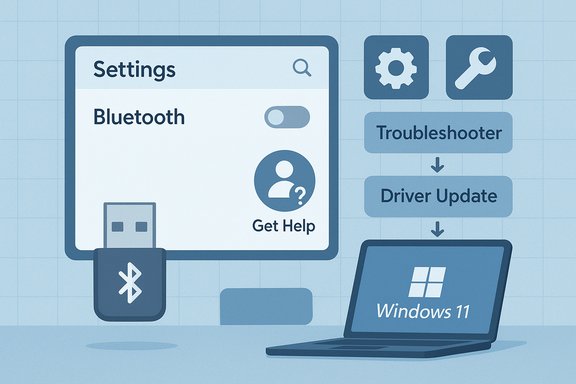
Microsoft’s official troubleshooting for a missing Bluetooth icon or a grayed‑out Bluetooth toggle in Windows is short and practical: start with the automated troubleshooter, confirm Windows isn’t blocking the radio (Airplane mode, hardware switch), update or reinstall the Bluetooth driver, and let Windows Update supply any missing driver packages. These four high‑leverage checks cover the majority of cases where the Bluetooth option simply disappears from Settings or Quick Settings — but they’re only the start of a methodical escalation path that separates simple UI glitches from driver/firmware mismatches and hardware failures.
Bluetooth on Windows is a stack made of three moving parts: the physical radio, the driver stack (chipset/OEM drivers and Windows’ Bluetooth class driver), and several Windows services that present and manage Bluetooth devices. When Windows “can’t detect or enable Bluetooth,” the symptom is usually a missing toggle or an unavailable Add device flow in Settings; the root cause can be anything from a paused service to a bad driver pushed by a recent update. Microsoft’s guidance mirrors the standard escalation model: UI troubleshooter → driver update → check system settings (Airplane mode) → Windows Update.
This article expands that official advice into a practical, reproducible troubleshooting playbook for consumers, power users, and IT professionals. It verifies each step against independent community and technical reporting, explains hidden pitfalls (OEM utilities, MDM, power‑management), and shows how to recover from more serious outcomes such as a lost internal adapter or a driver rollback that goes wrong.
Best practice summary:
Conclusion
The missing Bluetooth icon is a symptom, not a diagnosis. Microsoft’s short guidance gives the correct first moves — automated troubleshooter, driver updates, Airplane mode check, and Windows Update — while community and vendor reporting fills in the escalation: services, power management, hidden device cleanup, and hardware diagnostics. Follow the reproducible checklist here, document changes on managed devices, and escalate to OEM support when the internal adapter no longer appears or behaves after these steps. Pragmatic, incremental troubleshooting will restore functionality in most cases and keep risk to a minimum.
Source: Microsoft Support Fix Bluetooth disappeared in Windows - Microsoft Support
 Background / Overview
Bluetooth on Windows is a stack made of three moving parts: the physical radio, the driver stack (chipset/OEM drivers and Windows’ Bluetooth class driver), and several Windows services that present and manage Bluetooth devices. When Windows “can’t detect or enable Bluetooth,” the symptom is usually a missing toggle or an unavailable Add device flow in Settings; the root cause can be anything from a paused service to a bad driver pushed by a recent update. Microsoft’s guidance mirrors the standard escalation model: UI troubleshooter → driver update → check system settings (Airplane mode) → Windows Update.This article expands that official advice into a practical, reproducible troubleshooting playbook for consumers, power users, and IT professionals. It verifies each step against independent community and technical reporting, explains hidden pitfalls (OEM utilities, MDM, power‑management), and shows how to recover from more serious outcomes such as a lost internal adapter or a driver rollback that goes wrong.
Quick first steps (what to try in 5–10 minutes)
These steps fix the majority of Bluetooth problems and are safe on consumer and managed machines (but read the managed‑device caveats later).- Run the automated Bluetooth troubleshooter (Windows 11 Get Help or Settings troubleshooters). This runs basic diagnostics and can restart services.
- Open Quick Settings (Windows + A) and toggle Bluetooth Off → On. If the tile is missing, open Settings > Bluetooth & devices and check the main toggle.
- Verify Airplane mode is Off. Airplane mode disables radios, including Bluetooth. Open Quick Settings or Settings and make sure the toggle is off.
- Restart the Bluetooth peripheral (headphones, mouse, keyboard) and put it in pairing mode. Low battery or a device stuck in a previous pairing are common causes of “not visible” behavior.
Step 1 — Run the automated Bluetooth troubleshooter (Windows 11 Get Help)
What it does
The Get Help app or Settings > System > Troubleshoot > Other troubleshooters > Bluetooth runs diagnostics and attempts to restart services, reinitialize adapters, and apply simple fixes automatically.How to run it
- Open Start and type “Get Help” (Windows 11) or go to Settings > System > Troubleshoot > Other troubleshooters > Bluetooth.
- Run the Bluetooth troubleshooter and follow prompts.
Why it helps
The troubleshooter automates the basic checklist (restarts Bluetooth Support Service, checks adapter presence, refreshes device list) and often restores the Settings toggle without driver surgery. Use this before making driver or service changes.Step 2 — Update or reinstall Bluetooth drivers (Device Manager)
Driver mismatch is the most common cause when Bluetooth disappears after a Windows upgrade or cumulative update. Microsoft and chipset vendors recommend OEM/Intel/Qualcomm/Realtek drivers rather than generic third‑party updaters.Procedure (safe, incremental)
- Press Windows + X → Device Manager.
- Expand Bluetooth and locate the adapter (names commonly include “Intel Wireless Bluetooth,” “Realtek Bluetooth,” or “Qualcomm Bluetooth”).
- Right‑click the adapter → Update driver → Search automatically for drivers.
- If Windows finds an update, install and restart when prompted.
If updating fails
- Use the adapter’s Properties → Driver tab → Roll Back Driver if the problem began immediately after a driver update.
- If Roll Back is not available, choose Uninstall device → reboot → let Windows reinstall the adapter automatically. If Windows does not reinstall, use Device Manager → Action → Scan for hardware changes.
- If automatic reinstall fails, download the OEM driver package from your laptop or chipset vendor and install it manually (prefer vendor download pages and official support utilities).
Practical notes & gotchas
- Avoid third‑party driver updaters; they can introduce mismatched stacks. Prefer the vendor tool (Intel Driver & Support Assistant, OEM support pages).
- On some machines the Bluetooth radio is part of the wireless NIC; updating the Wi‑Fi/chipset driver can also restore Bluetooth. Confirm the adapter’s hardware ID if you must fetch drivers manually.
Step 3 — Verify Airplane Mode, hardware switches, and Quick Settings
Some laptops expose physical kill switches or Fn‑key combos that soft‑disable radios. Additionally, Airplane mode globally disables Bluetooth and Wi‑Fi.- Quick settings: Win + A → check the Bluetooth tile; expand to reveal hidden tiles if needed.
- Settings app: Win + I → Bluetooth & devices → confirm the Bluetooth toggle is On.
- Hardware killswitch / function key: consult your OEM documentation if the keyboard has an airplane or wireless icon — it may disable the radio at the firmware level.
- If you suspect the hardware switch has been flipped, a full power cycle (shutdown, remove battery if removable, wait 30 seconds, restart) can reinitialize integrated radios.
Step 4 — Use Windows Update (drivers delivered through Microsoft Update)
Some Bluetooth drivers are delivered via Windows Update. When updating Windows, a driver package may change which features are exposed in Settings.- Settings > Windows Update > Check for updates.
- Install any offered driver or optional updates, reboot, and re-check Bluetooth.
Advanced checks: services, power management, and hidden devices
If the previous steps fail, escalate carefully.Bluetooth Support Service
- Run services.msc → find Bluetooth Support Service (bthserv) → restart it and set Startup type to Automatic (or Automatic (Delayed Start).
- If the service is stopped or set to Disabled, Bluetooth will not function properly. Restarting the service is a common remediation.
Power Management
- Device Manager → Bluetooth adapter → Properties → Power Management → uncheck Allow the computer to turn off this device to save power for the adapter and for related HID entries. Aggressive power‑save settings can suspend the adapter and cause the toggle to disappear.
Show hidden devices / remove ghosts
- Device Manager → View → Show hidden devices. Uninstall greyed (stale) Bluetooth entries, then reboot. Stale stacks can block the modern Settings UI and break pairing flows.
When to suspect hardware: dongle test and BIOS/UEFI
If a known‑good external USB Bluetooth dongle works but the built‑in adapter does not, suspect a hardware failure (internal radio or firmware). Steps:- Plug a supported USB Bluetooth dongle into a direct USB port — avoid hubs.
- If Windows detects the dongle and Bluetooth returns, the internal adapter likely failed or is disabled at firmware/BIOS level.
- Check BIOS/UEFI settings for an internal radio toggle or Wireless LAN/Bluetooth settings.
- If under warranty, contact OEM support, as hardware replacement may be required.
Diagnostics for power users and IT professionals
If the adapter or pairing still fails, gather diagnostics before making major changes or opening an RMA.- Event Viewer: Windows Logs → System — filter for errors when you attempt to Add device or toggle Bluetooth. Look for driver or DCOM errors.
- Hardware Ids: Device Manager → adapter → Details → Hardware Ids — record the VID/PID to fetch exact OEM drivers.
- SFC and DISM: run sfc /scannow and dism /online /cleanup-image /restorehealth to repair corrupted system components that could affect Settings/UWP behavior. These are standard system file repair steps.
- Powercfg reports: powercfg /energy can surface power policy issues that suspend devices unexpectedly.
Recovery options when Bluetooth broke after a Windows update
If Bluetooth disappeared after a specific Windows quality update, there are three measured remediation options:- Roll back the driver (Device Manager → Driver tab → Roll Back) — simplest, if available.
- Uninstall the problematic cumulative update (Settings > Windows Update > Update history > Uninstall updates) or use System Restore to restore to a pre‑update point. Pause updates until a vendor‑approved fix arrives.
- Repair install (in‑place upgrade) if system components are corrupted and no driver rollback restores the Bluetooth stack. This preserves apps/files while refreshing system components. Use as a last resort after backups.
Special considerations for corporate/managed devices
Managed devices may have MDM or Group Policy controls that restrict Bluetooth. Before changing drivers or services on a corporate laptop:- Coordinate with IT — changing service startup types or uninstalling drivers may break compliance and inventory reporting.
- Use MDM controls for fleet-wide policies rather than manual per‑device changes.
- Document any changes you make and have a rollback plan (how to re‑enable services and restore driver versions).
What Microsoft’s short guide omits (and why it matters)
Microsoft’s support summary is concise and accurate but intentionally minimal. Independent coverage and community threads reveal a few areas users commonly need more detail on:- OEM driver packages: Microsoft’s automated driver retrieval may not include the latest vendor firmware or enhancements (LE Audio support, codec fixes). Downloading and installing the vendor package is often required.
- Service‑level impacts: Disabling Bluetooth support services can break dependent features; Microsoft treats service restarts as diagnostic moves, not permanent configuration changes.
- Hardware failure scenarios: The support page doesn’t walk through a dongle test or BIOS checks; community threads show those are essential when the adapter disappears entirely.
Risks, trade‑offs, and unverifiable claims
- Battery savings from disabling Bluetooth: while turning off Bluetooth can reduce power usage, the exact savings are hardware and usage dependent and cannot be reliably quantified without device-specific testing. Treat any single‑figure claim as unverifiable.
- Disabling services or drivers: device re‑enabling by OEM utilities or MDM policies can override manual changes. On managed devices, ad hoc edits can cause compliance failures. Always coordinate with IT and document changes.
- LE Audio and feature claims: LE Audio improvements require both OS support and compatible firmware in headsets; a Bluetooth 5.x radio alone does not guarantee LE Audio capability. This is an ecosystem dependency, not just an OS setting. Flag such claims as conditional until you verify both ends support the feature.
A reproducible escalation checklist (copyable)
- Quick: Win + A → toggle Bluetooth Off → On; run Get Help troubleshooter.
- Devices: Restart peripheral, ensure pairing mode, remove old pairings on other hosts.
- Drivers: Device Manager → Bluetooth → Update driver → Search automatically; if failed, install OEM driver from vendor.
- System: Check Airplane mode, hardware killswitch, services.msc → restart Bluetooth Support Service.
- Advanced: Show hidden devices, uninstall stale entries, run SFC/DISM, check Event Viewer.
- Hardware test: Try a known‑good USB Bluetooth dongle; verify BIOS radio settings; contact OEM for repair if internal adapter fails.
When to escalate to vendor support or repair
- Internal adapter missing from Device Manager entirely (no hidden device entry, no yellow flags) and a USB dongle works: hardware likely faulty — open an OEM support ticket.
- Bluetooth problems after a quality update affecting many corporate devices: coordinate with IT to test rollback before broad remediation. Use System Restore or uninstall the update only with approvals.
- Complex error events surfaced in Event Viewer or failed SFC/DISM repairs: collect logs and escalate with the recorded timestamps and error IDs to vendor support for deeper analysis.
Final verdict — practical guidance and best practices
Microsoft’s four‑step support approach is the right starting point: automated troubleshooter, check Airplane mode, update drivers, and run Windows Update. For most users, that will restore the Bluetooth toggle and normal pairing behavior. Where the official page stops, experienced troubleshooters and vendor guidance continue: check services, power management, show hidden devices, and, if needed, reinstall or roll back drivers from the OEM.Best practice summary:
- Start small and test after each step. Fast, reversible actions (toggle, troubleshooter, restart peripheral) solve most cases.
- Prefer OEM drivers and official vendor support utilities for chipset drivers. Avoid blanket third‑party driver updaters.
- Document and coordinate changes on managed devices. Service or driver edits can break compliance tools.
- If in doubt, perform a dongle test to separate hardware from software issues; collect Event Viewer and hardware ID diagnostics before contacting support.
Conclusion
The missing Bluetooth icon is a symptom, not a diagnosis. Microsoft’s short guidance gives the correct first moves — automated troubleshooter, driver updates, Airplane mode check, and Windows Update — while community and vendor reporting fills in the escalation: services, power management, hidden device cleanup, and hardware diagnostics. Follow the reproducible checklist here, document changes on managed devices, and escalate to OEM support when the internal adapter no longer appears or behaves after these steps. Pragmatic, incremental troubleshooting will restore functionality in most cases and keep risk to a minimum.
Source: Microsoft Support Fix Bluetooth disappeared in Windows - Microsoft Support
