

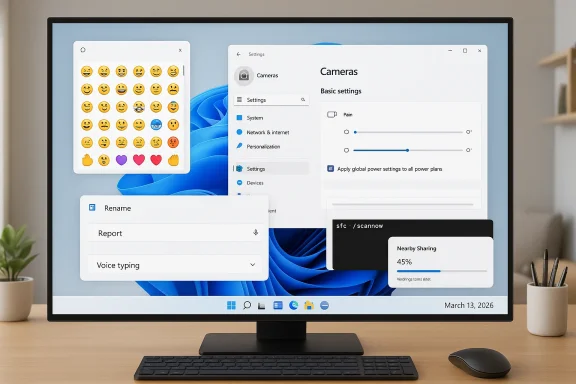
Microsoft’s Canary Channel received a new optional flight on March 13, 2026: Windows Insider Preview Build 29550.1000, the next step in the experimental 29500-series platform stream that Microsoft is using to test early, platform‑level changes. The build is short and pragmatic in its public notes, but it carries several tactile improvements—most visibly, a staged rollout of Emoji 16.0 glyphs in the emoji panel, new pan and tilt controls for supported cameras inside Settings, a change that applies global power setting edits to all power plans, and small but meaningful usability and reliability tweaks such as voice typing inside File Explorer rename boxes, faster Settings Home load times, improved Nearby Sharing for large files, and increased reliability for sfc /scannow. Insiders should treat this as an experimental platform snapshot: features are being delivered under controlled rollouts, behavior may vary by device and driver support, and some claims are documented only in Microsoft’s release notes until broader coverage and hands‑on testing appear.
The Canary Channel is Microsoft’s earliest, most experimental Insider stream. In early 2026 Microsoft split some Canary traffic into a parallel path that hosts very early platform development in the new 29500-series—devices that opt into the optional 29500 build series may be moved into that active development cadence. Build 29550.1000 is an optional Canary release on that 29500-series track, primarily intended for testers who want to run active platform work well ahead of features being committed to broader preview rings.
This matters because the Canary Channel historically includes:
Practical realities to expect:
Benefits include:
When you see a single canonical blog note for an experimental Canary change, plan to validate the behavior on representative hardware and under your management controls before deriving operational conclusions.
Microsoft’s Canary Channel continues to be the proving ground for small but meaningful refinements that can quietly improve millions of daily interactions. Build 29550.1000 is another step in that direction: not transformational, but full of practical touches that improve accessibility, device ergonomics, and system persistence. As always with Insiders, proceed with curiosity—backed by images, tests, and measured deployments—so you can separate neat experiments from features that will survive the gauntlet and ship to general availability.
Source: Microsoft - Windows Insiders Blog Announcing Windows 11 Insider Preview Build for Canary Channel 29550.1000
 Background and context
The Canary Channel is Microsoft’s earliest, most experimental Insider stream. In early 2026 Microsoft split some Canary traffic into a parallel path that hosts very early platform development in the new 29500-series—devices that opt into the optional 29500 build series may be moved into that active development cadence. Build 29550.1000 is an optional Canary release on that 29500-series track, primarily intended for testers who want to run active platform work well ahead of features being committed to broader preview rings.This matters because the Canary Channel historically includes:
- Rapid, low‑barrier experimentation where features can appear, change, and disappear.
- Staged rollouts using Control Feature Rollout; not all Insiders will see every change immediately.
- Minimal documentation in many cases, with functionality often gated by device signals, drivers, or backend services.
- A requirement that leaving Canary often needs a clean OS install, so migration decisions should be made deliberately.
What Microsoft lists as new in Build 29550.1000
The official release notes for the Canary blog post published March 13, 2026 call out the following items as “changes and improvements being gradually rolled out with toggles on”:- Emoji: A staged rollout of the Emoji 16.0 set into the emoji panel.
- Camera Settings: Basic pan and tilt controls for supported cameras exposed in Settings → Bluetooth & devices → Cameras (under “Basic settings”).
- Power: Edits to global power settings (Display, Sleep, Hibernate timeouts, Power/Sleep button, and lid close actions) made in Settings are now applied to all power plans.
- File Explorer: Voice typing (Win + H) is now available when renaming files.
- Settings: Improved Settings Home load performance and reliability fixes navigating to Privacy & Security.
- Nearby Sharing: Improved reliability for sending larger files.
- Other reliability improvements, including improved behavior for sfc /scannow.
Emoji 16.0 in Windows: what shipped, why it’s messy, and what to expect
What the build brings
Microsoft confirms a rollout of Emoji 16.0 glyphs into the Windows emoji panel in this Canary flight. Emoji 16.0 is the Unicode‑standard release that added a carefully curated set of new glyphs (a small number of base emoji plus their variations) and was formally approved in the Unicode 16.0 cycle. Microsoft’s change adds one new emoji from each major category to the Windows emoji panel, matching the selective approach some vendors use for incremental emoji updates.Cross‑platform reality: rendering is fragmented
Emoji are Unicode code points that require an updated font or emoji renderer to show as colorful glyphs. The operating system provides a font (for Windows, the Segoe UI Emoji / Fluent Emoji implementation) and an emoji panel, but many apps and web platforms render emoji using their own font stacks or images. The consequence: even when Windows has glyphs for new emoji, those characters may render as glyphs in some apps and as empty boxes or fallback glyphs in others.Practical realities to expect:
- Some native Microsoft apps will show the new glyphs immediately; others—especially components using older rendering surfaces—may not render them until those components are updated.
- Web apps and cross‑platform services may show different results depending on whether they supply their own emoji font (for example, some messaging clients use their own emoji images).
- The emoji panel and general font availability are distinct: having glyphs in the system font does not guarantee uniform rendering across all contexts.
Why this matters
- For everyday users, new emoji expand expression options and are largely harmless delight features.
- For communicators and designers, platform inconsistencies mean emoji can look very different to recipients—testing for cross‑platform rendering remains important for brand and UI work that relies on pictograms.
- For developers building text UIs or chat apps, the arrival of new Unicode points is a reminder to test font fallbacks and rendering surfaces.
Takeaway
Emoji 16.0 is arriving in Windows 11 via this Canary flight, but don’t expect global, instant parity across every app and surface. The phased rollout and the complex web of renderers across the ecosystem mean real‑world behavior will be mixed for a while.Camera pan and tilt controls in Settings: a welcome usability win with limits
What Microsoft added
Build 29550.1000 exposes pan and tilt controls for supported cameras directly in the Settings app under Bluetooth & devices → Cameras → Basic settings for the selected camera. This is the kind of quality‑of‑life feature that removes the need to install vendor‑specific utilities for simple framing adjustments.How this works in practice
- Not every webcam or integrated camera supports pan and tilt programmatically. The camera must expose PTZ (pan/tilt/zoom) controls to the OS—commonly via the UVC (USB Video Class) standard or through vendor drivers that surface PTZ APIs.
- For many consumer webcams the “tilt” and “pan” controls are virtual (digital cropping/center selection) rather than true mechanical motors. For hardware with physical motors—conference room PTZ cameras or certain external webcams—these controls map to actual hardware movement.
- If your camera supports PTZ but the controls don’t appear, driver or firmware updates (from the manufacturer) are the most likely fix.
Benefits
- Removes friction for hybrid meeting participants who need to reframe themselves quickly without opening vendor software.
- Helps IT manage meeting-room cameras where small orientation tweaks used to require a third‑party console.
- Standardizes a common workflow into Settings so users can access it in a consistent place.
Risks and limitations
- Permissions and privacy: exposing remote control of camera orientation in Settings is benign when local and controlled, but enterprises and endpoints should review policies that govern camera access. Malicious or misconfigured drivers that allowed unauthorized PTZ control would be a serious privacy issue—so driver provenance and Microsoft’s driver signing policies matter here.
- Driver fragmentation: behavior will vary across OEMs. The Settings surface can only control what the driver/API exposes; inconsistent vendor implementations will produce inconsistent experiences.
- Unexpected motor movement: in meeting rooms with mechanical PTZ cameras, accidental changes can interrupt sessions or physically bump cameras—operators should test limits and default positions.
What to do if you test it
- Confirm your camera lists PTZ or pan/tilt capabilities in its specs.
- Install the latest vendor drivers and firmware and then open Settings → Bluetooth & devices → Cameras to look for the Basic settings section.
- Test on a local machine and in a meeting call to check behavior across APIs (WebRTC apps vs native apps).
- For enterprise rollouts, test with managed devices and ensure driver delivery and signature checks are in place.
Global power settings applying to all power plans: why it could be helpful—and why to test
What Microsoft changed
Microsoft’s release notes state that edits to global power settings in Settings—covering Display timeout, Sleep, Hibernate, Power/Sleep button actions, and lid close actions—are now applied to all power plans. The stated goal is to “improve persistence of chosen settings.”Why that matters
Historically, Windows has supported multiple power plans (balanced, power saver, high performance, and custom plans), and certain settings can be plan‑specific or global depending on the UI and underlying API. Applying edits to all plans can avoid situations where a user changes a timeout in Settings only to find the change reverted when another plan becomes active (for instance, when plugging/unplugging or when switching performance profiles).Benefits include:
- Better persistence of user preferences across context changes (battery vs plugged in).
- Simpler mental model for consumers: changing a setting in Settings changes the setting, full stop.
- Less surprise in hybrid workflows where power plans were toggled automatically by OEM or user scripts.
Potential problems and edge cases
- Administrative control and Group Policy: Enterprise admins frequently manage power settings via Group Policy, Intune, or PowerCfg scripts that apply to specific plans. A change that centrally updates all plans may conflict with those controls unless Microsoft preserves policy precedence.
- Scripts and management frameworks: tools that programmatically rely on per‑plan differences may see unexpected behavior if all plans are homogenized by a Settings change.
- Unverified at scale: at the time of this writing, this claim is documented in Microsoft’s Canary blog note. That makes the official release the primary source; broader community testing and OEM documentation will be needed to confirm interactions with management tooling.
How to test and mitigate risk
- On a test device subject to your standard management policies, change a global power setting in Settings and observe whether:
- The change affects both Balanced and High Performance plans.
- Group Policy or MDM policies reassert themselves on the next refresh or reboot.
- Use powercfg /query and powercfg /list to programmatically inspect plan values before and after changes.
- For enterprises, pilot the change with a controlled cohort and ensure that automation scripts and configuration baselines still behave as intended.
Caution
Because coverage from independent hands‑on reports is limited for this exact setting change, treat the blog claim as primary and confirm in your environment before broad adoption.Voice typing in File Explorer rename fields: small change, big accessibility win
What changed
Build 29550.1000 explicitly enables voice typing (Win + H) while renaming files in File Explorer. That means the ephemeral inline rename box—historically an edge case for the dictation overlay—now accepts dictated input.Why this is useful
- Accessibility: users with motor impairment or those relying on dictation can now rename files without keyboard input.
- Efficiency: dictation can be faster than typing for many quick rename operations.
- Consistency: voice typing’s expansion into more UI contexts makes the feature feel more integrated.
Technical notes and caveats
- File naming rules: the rename box must still enforce the filesystem’s constraints (e.g., forbidden characters like \ / : * ? " < > | and preserving file extensions). The voice typing overlay must coexist with those checks and should not produce invalid filenames.
- Focus handling: the inline rename control is ephemeral (it appears inline in Explorer and disappears on Enter or loss of focus). Implementations had to ensure Win + H reliably converges focus, opens the overlay, and correctly inserts dictated text.
- Not a universal replacement for batch renaming: voice typing helps one-by-one renames but is not a substitute for scripts or bulk rename utilities.
How to try it
- Select any file in File Explorer and press F2 to rename (or right‑click → Rename).
- While the inline rename box is open, press Win + H to open the voice typing overlay and dictate the filename.
- Verify that the resulting filename is valid and that the extension behavior matches your expectations.
Settings performance, Nearby Sharing, sfc /scannow reliability: small fixes that reduce friction
Microsoft lists a series of reliability and performance improvements in Build 29550.1000:- Faster Settings Home loading and improved navigation reliability into Privacy & Security.
- Improved reliability when updating necessary components prompted under System → Advanced → File Explorer.
- Improved reliability configuring custom tools in Bluetooth & Devices → Wheel.
- Improved reliability for Nearby Sharing of larger files.
- Improved reliability of running sfc /scannow.
Canary Channel reality checks and risk profile
If you’re considering running Build 29550.1000 on a test device, keep these points top of mind:- Canary builds are unstable by design. Expect regressions, missing features, and limited documentation.
- Many items are delivered via Control Feature Rollout, so your device may never see certain changes—even in Canary. Microsoft monitors telemetry and ramps changes gradually.
- Some features in Canary are experimental and may never ship in final releases. Design decisions made here can be reversed.
- To leave the Canary Channel you will generally need to perform a clean install of Windows 11; plan accordingly.
- Driver and OEM support will determine the real‑world availability of hardware‑dependent features (camera PTZ, WebP wallpaper behavior, etc.).
- For enterprise environments: never push Canary builds to production endpoints. Use lab estates and pilot cohorts, and treat Canary features as exploratory.
Practical guidance: how to test Build 29550.1000 safely
- Use a disposable or lab machine with up‑to‑date backups and image recovery.
- Opt in to the optional 29500 series only if you understand the rollback implications.
- Create a snapshot or full image before updating so you can recover quickly to a known good state.
- Test feature areas of interest in isolation:
- Emoji: test rendering across native Office apps, Web browsers, and third‑party messaging clients to measure real‑world coverage.
- Camera pan/tilt: verify vendor driver support and hardware behavior (digital vs mechanical PTZ).
- Power settings: use powercfg and MDM/Group Policy policies to confirm interactions.
- File Explorer voice typing: test with files that have extensions, long names, and forbidden characters to ensure expected validation.
- Monitor event logs and telemetry while enabling experimental components—some changes can increase diagnostic noise (e.g., if you later test inbox Sysmon in related preview updates).
- If you manage devices, document the test results and craft an impact assessment before allowing pilot users to try this build.
What’s missing or unverified (a cautionary note)
Microsoft’s blog post is the authoritative source for this specific Canary build. A number of tech outlets and hands‑on reports from earlier March updates corroborate related platform items (for example, March 2026 Patch Tuesday and preview KBs that introduced Sysmon as an optional inbox feature, built‑in network speed test, WebP wallpaper support, and other small productivity fixes). However, some specific claims in the Canary release—particularly the exact mechanism of “apply to all power plans” changes—are primarily documented in the Canary blog note and require broader, third‑party hands‑on confirmation in the wild.When you see a single canonical blog note for an experimental Canary change, plan to validate the behavior on representative hardware and under your management controls before deriving operational conclusions.
What this reveals about Microsoft’s update strategy
Build 29550.1000 and the surrounding March 2026 preview activity illustrate a pragmatic focus by Microsoft: deliver many small, practical improvements while simultaneously preparing platform changes that require early testing. The mix includes:- Accessibility and UX polish (voice typing in rename, Settings performance).
- Consumer convenience (Emoji 16.0 in the panel, Nearby Sharing optimization).
- Platform manageability and robustness (power-settings behavior, reliability fixes).
- Hardware feature integration (camera PTZ controls).
Final verdict: why Insiders and IT pros should care
Build 29550.1000 is not a sweeping release, but it’s consequential in ways that matter to daily workflows and device management:- Emoji 16.0 makes Windows more current with Unicode’s emoji standards—but expect mixed rendering in the ecosystem.
- Camera pan/tilt in Settings is a real ergonomic improvement for hybrid workrooms and personal webcams, provided device drivers cooperate.
- Applying global power edits to all plans promises simpler persistence, but enterprise admins should validate policy interactions.
- Voice typing for File Explorer renames improves accessibility and small‑task efficiency.
- Reliability fixes across Settings, Nearby Sharing, and sfc /scannow reduce friction and support overhead.
Quick reference: how to try the notable items in Build 29550.1000
- Opt into the Canary Channel’s optional 29500-series via Settings → Windows Update → Windows Insider Program and install the optional update when it appears.
- Emoji 16.0: open the emoji panel with Win + . and look for the new glyphs; test rendering across apps.
- Camera pan/tilt: Settings → Bluetooth & devices → Cameras → select a supported camera → Basic settings → pan/tilt controls (if hardware/driver supports it).
- Power settings: change Display, Sleep, or lid/Power button actions in Settings → System → Power and sleep and confirm values across powercfg /list.
- Voice typing in rename: select a file → F2 → Win + H → dictate filename.
- Nearby Sharing: try sending a large file to another Windows PC with Nearby Sharing enabled to verify transfer stability.
- sfc /scannow: run from an elevated Command Prompt and confirm reliability improvements reported by Microsoft.
Microsoft’s Canary Channel continues to be the proving ground for small but meaningful refinements that can quietly improve millions of daily interactions. Build 29550.1000 is another step in that direction: not transformational, but full of practical touches that improve accessibility, device ergonomics, and system persistence. As always with Insiders, proceed with curiosity—backed by images, tests, and measured deployments—so you can separate neat experiments from features that will survive the gauntlet and ship to general availability.
Source: Microsoft - Windows Insiders Blog Announcing Windows 11 Insider Preview Build for Canary Channel 29550.1000
