Windows Copilot App Adds Optional Password Autofill in Sidepane

  • Thread Author
Microsoft's Copilot App for Windows is now offering an optional password and form-data sync inside its built-in browser for Windows Insiders — a convenience feature that folds autofill into the Copilot sidepane but also changes the threat model for anyone who stores credentials on their PC.

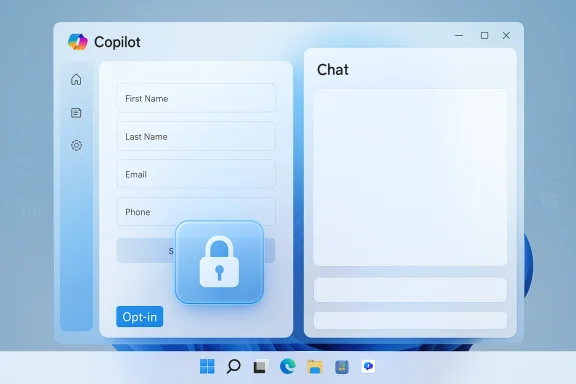
Blue Copilot UI showing a left form panel and a right chat panel.Background / Overview​

Microsoft rolled this change out to Windows Insiders as part of a Copilot app preview that docks web pages inside a conversation sidepane, saves tabs with conversations, and — if you opt in — brings password and form‑data autofill into the Copilot App’s browser. The rollout is tied to Copilot app package version 146.0.3856.39 and was described in Microsoft’s Insider notes and community reporting.
At a glance, the feature is intended to reduce context switching: when Copilot opens links for you, the pages appear in a WebView‑style sidepane adjacent to the chat, and saved tabs remain linked to that conversation for follow‑up prompts like “summarize the three tabs I opened.” Optional password and form‑data sync then allows the Copilot App browser to autofill logins just as a regular browser would. Microsoft emphasizes the opt‑in nature of these features and that Copilot will request permission before reading tab content.
That description — and the language Microsoft uses — matters, because there’s a difference between the assistant “seeing” raw secrets and the assistant using an autofill vault to let you log in. Microsoft’s messaging suggests Copilot will surface the autofill capability inside the app rather than ingesting plaintext passwords into the assistant’s reasoning context. Even so, the functional change is significant: your credential storage may now be accessible to a different application surface with different persistence, telemetry, and administration characteristics.

What Microsoft says — key points from the Insider notes​

  • Copilot can open clicked links inside the Copilot App in a sidepane next to the conversation instead of launching the system’s default browser. Tabs you open in that sidepane are scoped to the conversation and may be saved with it.
  • Copilot will request permission before it reads the content of those tabs; the access is described as per‑conversation rather than global.
  • An optional password and form‑data sync can be enabled so that the Copilot App browser can autofill login fields, streamlining multi‑step web workflows. Microsoft frames this as opt‑in and as similar to browser autofill behavior.
  • Microsoft is iterating in Insider builds and notes that some features may be added, reworked, or temporarily removed during the preview phase.
These statements are important because they define the initial guardrails: explicit consent, scoping to conversations, and opt‑in credential sync. However, the announcement leaves several implementation details incomplete — and those gaps are where policy, governance, and risk assessments must focus.

How it likely works (technical reconstruction)​

Based on Microsoft’s existing architecture and the behavior described in the Insider write‑ups, we can infer several technical facts:
  • The Copilot sidepane uses Microsoft’s Edge rendering stack (WebView2 or an equivalent) to render pages inside the Copilot App, inheriting much of Edge’s browser compatibility and content‑safety surface.
  • Per‑conversation tab persistence implies a mapping between a conversation ID and a set of saved tab metadata (URLs, maybe snapshots or extracts). That persistence is what enables follow‑up prompts that reference earlier tabs.
  • Password/form‑data sync, as described, most likely exposes an autofill vault to the Copilot App browser rather than copying plaintext credentials into the assistant’s memory. In other words, the app would use an encrypted store or credential token to perform autofill operations. Which encrypted store is used — Edge’s vault, Windows Credential Manager, or a separate Copilot store — is not yet documented publicly.
These inferences are plausible but important to treat as provisional: Microsoft has not published exhaustive technical documentation on where saved tab content or vaulted credentials are stored, whether any snapshots are backed up to the cloud, or whether autofill operations are purely local. Those details materially affect risk.

What’s good about this (strengths and benefits)​

  • Less context switching: For research, drafting, and multi‑step web flows, the sidepane + saved‑tabs model can speed common tasks. If you frequently jump between chat and web, having everything side‑by‑side is ergonomic and productivity‑positive.
  • Autofill convenience: Long, complex passwords and multi‑field forms are tedious. Autofill integration reduces friction, especially when the Copilot conversation itself is generating or referencing web content while you act on it. That’s the feature’s core productivity argument.
  • Scoped permission model: Microsoft’s per‑conversation scoping and consent prompts are better than a model that grants an assistant unfettered global access to all your tabs and data. The scope limitation reduces the immediate blast radius relative to a fully‑global permission.
  • Admin controls are emerging: Microsoft is adding Group Policy/Intune controls and has introduced removal policies for the consumer Copilot app in Insider builds, giving IT teams some levers to pilot and govern the experience. Those controls aren’t complete, but they exist.
These are real advantages for users who value integrated workflows; the question becomes whether the design and controls sufficiently reduce the new risks the feature introduces.

Where the risks lie (threat models and privacy concerns)​

Even if Copilot never “sees” your passwords in plaintext, the feature changes the defender’s calculus. Key risks include:
  • Credential exposure through app compromise or account takeover. Enabling password sync creates a new high‑value target: an attacker who compromises the Copilot App process, the local profile, or the linked Microsoft account could potentially leverage the autofill capability to access accounts. This is materially different from an assistant that only reads visible page text.
  • Persistence and cloud backups. Tabs saved to conversations create a record that may persist beyond the browsing session. If those conversation records or tab snapshots are synced to the cloud for cross‑device continuity, those artifacts could be discoverable or retained in backups, creating compliance and data sprawl concerns. Microsoft has not clarified retention and sync behavior.
  • Prompt injection and malicious pages. When an assistant reads and acts on web pages, adversarial content can attempt prompt injection or trick the assistant into revealing contextual data or performing actions. An autofill engine that runs inside a chat‑tied browser increases the possible attack surface for cleverly crafted pages.
  • Unclear vault and escrow model. It’s not yet documented whether the Copilot App uses the same encrypted vault as Edge or Windows Credential Manager, or whether it uses a separate store whose keys are protected the same way. That detail is critical: the vault’s key management, escrow/backup mechanisms, and recovery flows determine how resilient the system is to account recovery attacks and what an attacker can access after compromising credentials.
  • Enterprise policy gap. Administrators need deterministic, auditable controls. The current Group Policy/Intune knobs and the RemoveMicrosoftCopilotApp policy help, but they are not yet a complete, single-stop solution for enterprise lockdown. Enterprises should expect to layer AppLocker/WDAC and conditional access controls to achieve durable prevention.
These risks don’t mean the feature is inherently unsafe, but they do change assumptions: enabling password sync is not the same as letting a sidebar read page text. It introduces a new pathway to your credentials that needs governance, testing, and mitigation.

Practical guidance for everyday users and Insiders​

If you’re in the Windows Insiders program and tempted to try password sync in Copilot, follow these steps and precautions:
  • Update to the specified Copilot preview version (or later) to get the sidepane experience and review the official permission prompts.
  • Read permission dialogs carefully. Do not enable password/form‑data sync casually — treat it like enabling any credential store for a new app.
  • Prefer dedicated password managers for high‑value accounts. Use a reputable password manager (local vault or third‑party like Bitwarden, 1Password, etc.) if you rely on long, unique passwords and want stronger separation between credentials and single platform apps.
  • Enable strong account security: turn on multi‑factor authentication for your Microsoft account, use hardware security keys where possible, and monitor account sign‑ins and device activity. These steps reduce the impact of an account compromise.
  • Test with non‑sensitive sites first. Before enabling autofill for bank, corporate, or critical accounts, try it with throwaway logins to understand how the sidepane behaves and how saved tabs appear in conversations.
  • Regularly audit and delete saved conversations that contain sensitive artifacts. Treat saved Copilot conversations as records — they may persist longer than ephemeral browsing.
A cautious posture works well during the preview phase: use the feature only when you understand the storage and sync semantics and have controls in place to mitigate risk.

Guidance for administrators and enterprise IT​

Enterprises must treat Copilot’s expanded web access and optional credential integration as a governance event. Recommended steps:
  • Pilot first in a controlled ring. Validate retention, telemetry, and cloud sync behavior before rolling out more broadly.
  • Update acceptable‑use policies and DLP rules to explicitly address AI assistants and what data may be shown to them. Ensure that DLP tools can detect or block credential autofill or the sidepane from processing sensitive pages.
  • Use layered enforcement: combine Group Policy (including the RemoveMicrosoftCopilotApp policy where applicable), AppLocker/WDAC rules, and Intune app management to prevent undesired installs or to control who can run the Copilot App on managed endpoints. These controls are not yet a single universal switch; layering is necessary.
  • Enforce MFA and conditional access for Microsoft accounts and tenant access. If credentials can be leveraged by the Copilot App, strengthen identity controls to minimize risk from account compromise.
  • Work with legal/compliance to assess retention and eDiscovery impact. Saved tabs and conversation history may become discoverable artifacts; define retention windows and deletion processes accordingly.
The bottom line for enterprises: don’t default to permissive — validate, pilot, and codify controls before enabling the feature for production users.

Comparing Copilot autofill to existing password managers and browsers​

  • Edge and modern browsers already provide an autofill feature tied to a browser vault. The functional experience inside Copilot’s sidepane is similar from a user perspective: autofill fields are filled when you instruct the browser to do so. The critical difference is the surface: autofill is now available in a different app context that stores conversations and possibly tab snapshots.
  • Dedicated password managers (Bitwarden, 1Password, LastPass) generally isolate secrets to a separate process or vault with strong key derivation, and they offer hardware‑key support and granular re‑authentication for critical items. That separation reduces the likelihood that a general‑purpose assistant app can access credentials without explicit user re‑auth. For people who prioritize security over convenience, continuing to use a separate manager remains the best practice.
  • If Copilot’s autofill implements the same vault and key protection as Edge, the risk delta is smaller; if it uses a different store with weaker protections or cloud escrow behavior, risk increases. Microsoft has not yet published a technical spec that definitively answers this, so assume the conservative model until documentation proves otherwise.

Concrete threat scenarios (what can go wrong)​

  • An attacker lures a user to a malicious site that mimics a login form. If the Copilot App’s autofill is enabled and the assistant doesn’t sufficiently validate the domain or the form’s authenticity, the user could be tricked into populating credentials into a fake page. Prompt injection and UI spoofing are real concerns here.
  • A malware or local exploit compromises the Copilot App process. If the app has access to an autofill token or to saved tab snapshots, the attacker might extract credential tokens or use autofill to authenticate to services. Robust process isolation and hardware‑bound keys reduce this risk.
  • Tenant-level or cloud backup policies cause conversation and tab snapshots to be retained in places that are not covered by the organization’s existing DLP or retention settings. That could surface internal research, credentials-in-documents, or other sensitive artifacts during discovery. Administrators must validate retention paths and eDiscovery behavior.
These scenarios are not hypothetical exercises alone — they are practical attack paths that organizations and cautious users should map against their defense‑in‑depth controls.

What Microsoft should clarify (and what to look for next)​

To safely evaluate this feature, Microsoft should provide clear, public technical documentation that answers:
  • Where are saved tabs and per‑conversation snapshots stored (local only, Microsoft cloud, or hybrid)? What are the retention policies?
  • Which credential vault does Copilot use for autofill (Edge vault, Windows Credential Manager, or a separate store)? How are keys derived and protected?
  • What telemetry is generated when Copilot reads tabs or performs autofill? Can organizations audit and exclude such telemetry?
  • What UI cues and consent flows are required before the assistant reads a tab or uses autofill? Are these persistent, discoverable, and revocable?
  • Which Group Policy and Intune controls will be available at general availability to manage Copilot App installation, operation, and feature gating?
Until Microsoft provides definitive answers to these points, cautious users and administrators should assume conservative defaults and avoid enabling password sync for high‑value accounts.

Practical checklist before enabling password sync in Copilot​

  • Verify Copilot app version and read the Insider release notes for feature specifics.
  • Confirm whether your organization permits the Copilot App on managed devices; if not, don’t enable the feature.
  • Enable MFA and consider hardware security keys for the accounts protecting your device and password vault.
  • Test autofill only with low‑value accounts to understand behavior and persistence.
  • Audit and delete any saved conversations containing sensitive tabs after use.

Final assessment and recommendation​

The Copilot App’s password sync feature reflects the larger industry trend of embedding AI assistants more deeply into user workflows, and the productivity gains are real — especially for research, drafting, and multi‑step web tasks. Microsoft’s opt‑in model, per‑conversation scoping, and emerging admin controls are reasonable initial safeguards.
That said, the feature also changes the threat model. Enabling password sync is not merely a convenience toggle; it adds a new axis through which credentials can be exposed if implementation or controls are incomplete. Until Microsoft publishes clear documentation about vault storage, key management, telemetry, and retention, the prudent position for security professionals and privacy‑conscious users is to defer enabling password sync for high‑value accounts and to prefer dedicated password managers with explicit hardware‑bound protections.
For Windows Insiders: test the feature, read the prompts, and treat saved conversations as records. For enterprises: pilot in a controlled ring, layer administrative controls, update DLP/acceptable‑use policies, and demand the technical clarifications above before a broad rollout. The convenience is attractive — but with credentials, convenience must be balanced against a careful, evidence‑based risk assessment.
In short: try the Copilot sidepane for its productivity benefits, but keep your password manager close and your security controls closer.

Source: XDA Microsoft wants to sync your passwords with Copilot, and I’m not sure how I feel about it
 

Microsoft’s Copilot app for Windows is getting closer to becoming a full‑blown workspace: starting March 4, 2026, the Copilot team began rolling out a side‑pane web view that opens links alongside conversations — and, if you opt in, Copilot can now sync passwords and form data so pages you open inside the app can autofill just like a browser.

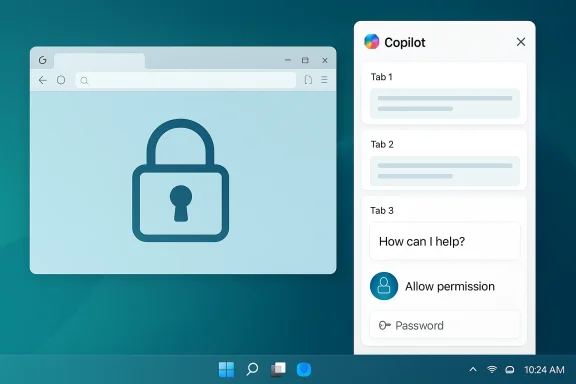
A browser window with a large lock icon sits beside a Copilot panel on a Windows desktop.Background / Overview​

Microsoft announced the update on the Windows Insider blog on March 4, 2026. The change is framed as a productivity feature: links clicked inside a Copilot conversation will open in a docked sidepane instead of launching an external browser, and tabs will be saved with the conversation so you can return to them later. Microsoft explicitly says Copilot will request permission before reading page content and that password and form‑data sync is optional and must be enabled by the user. The initial rollout is staged to Windows Insiders (Copilot app builds at or above the 146.0.3856.39 channel build) and Microsoft says availability will expand gradually.
This update is significant for three reasons:
  • It converts a chat‑first assistant into a persistent, tabbed research surface;
  • It brings autofill convenience to that surface by letting Copilot access saved credentials and form data, if you explicitly enable it; and
  • It changes the threat model and admin controls for both consumer and managed Windows devices, because the Copilot app becomes another surface that can render web content and interact with account secrets.
Below I summarize what Microsoft released, verify key technical claims, analyze the security and privacy implications, compare the change to other AI assistants, and give practical guidance for end users and enterprise administrators.

What Microsoft actually shipped (verified)​

Microsoft’s official Windows Insider post describes the new behavior in plain terms: when a link is opened in Copilot, the content appears in a sidepane next to the conversation instead of launching the system default browser. With user permission, Copilot will be able to access the context of the tabs opened inside that conversation so you can ask follow‑ups like “summarize these pages” or “draft an email using information from these tabs.” Tabs opened in a conversation are persisted with that conversation for later review.
Crucially, Microsoft’s announcement also states that password and form‑data sync is available if you choose to enable it. The company indicates the new experiences are delivered in Copilot app builds starting with the 146.0.3856.39 family for Insiders, and that the update bundles performance and reliability improvements alongside the new features. Independent coverage from multiple outlets and Insider commentary confirm the same core details: sidepane browsing, per‑conversation context access (permissioned), tab persistence, and an optional password/form autofill capability tied to the Copilot surface.
A few notes about claims that circulated in early reporting:
  • The build number Microsoft cites in its post — 146.0.3856.39 and higher — is the authoritative reference in the announcement. Other numeric strings appearing in some posts (for example, “1.25121.xx.x”) were not corroborated by Microsoft’s release notes and appear to be either reporter shorthand or inaccurate. Treat those alternate version strings as unverified.
  • Microsoft’s post explicitly frames password/form sync as opt‑in. The company does not publish the exact internal mechanism (Edge vault vs. separate Copilot vault) in the initial Insider note; that detail remains unspecified at launch.

How this likely works (technical reconstruction)​

Microsoft’s Copilot sidepane is almost certainly built on the same browser rendering stack that powers Microsoft Edge (for example, WebView2 or an embedded Edge engine). That approach is consistent with how Microsoft has embedded web content in Windows apps historically and explains why the Copilot surface behaves much like a lightweight browser.
Key technical elements likely in play:
  • The sidepane is an embedded web view tied to the Copilot conversation context. Tabs opened in that pane are associated with a conversation ID, which allows Copilot to re‑open and reference those pages later.
  • Password and form‑data autofill almost certainly rely on the existing sync framework used for Edge and Microsoft Password Manager — meaning stored credentials are encrypted on the device and synchronized via your Microsoft account when sync is enabled. Microsoft’s existing Edge documentation shows that sensitive data types are encrypted before sync and associated with the account ID used for sync.
  • Per‑conversation permission is enforced at the Copilot app layer: Copilot can render pages by default but will request explicit permission before reading the content for summarization or using it as context to answer queries.
  • The app preserves state (tabs and possibly snapshots or extracts) with conversations, which creates persistent artifacts tied to your Copilot history.
Two consequences follow from that architecture:
  • The Copilot app surface inherits much of Edge’s compatibility and autofill capability, which makes it highly convenient; and
  • It also inherits — or creates new — security and data governance considerations because credentials and per‑conversation artifacts can now be accessed in a context outside the main Edge browser.

UX and product strategy: why Microsoft is doing this​

From a product perspective, the move makes sense. The single biggest friction when using an LLM assistant for research or drafting is context switching: create a prompt, get a link, open the link in a browser, lose the conversation thread, then come back and feed results back to the assistant. Docking web pages alongside the chat creates a contiguous workflow: read, ask Copilot to summarize, get suggestions or a draft, and keep all the context saved with that conversation.
This approach differentiates Copilot in three ways:
  • Persistence: each conversation becomes a research workspace that can retain tabs and page context.
  • Actionability: Copilot can operate on page content directly — summarize, extract data, or draft responses — without manual copy‑paste.
  • Convenience: optional password autofill reduces friction for multi‑step tasks that require authentication.
One strategic implication is that Microsoft is consciously blurring the line between an assistant and a browser. Edge already integrates Copilot features; now Copilot is adding browser‑like functionality. For Microsoft, this can increase user engagement across its ecosystem — Copilot can deliver seamless workflows that rely on your Microsoft account to span devices and sessions.

Security and privacy: what’s new (and what to worry about)​

Turning Copilot into a mini browser and enabling password sync into that surface changes the attack surface and data flow. Below are the most important risks, alongside what Microsoft’s statements and existing platform protections imply.
Major risks and threat models
  • Account compromise: if your Microsoft account is compromised, an attacker could obtain access not only to cloud data and Edge‑synced passwords but also to Copilot conversations and any tabs or saved artifacts tied to those conversations. Enabling password sync increases the value of an account takeover.
  • App compromise or local malware: if the Copilot process is exploited or a local device is compromised, Autofill capabilities could be used to inject credentials into a malicious page rendered inside Copilot. Unlike a browser extension sandbox, a standalone app with embedded web content adds another process to protect.
  • Prompt injection and malicious pages: because Copilot can read web page content (with permission), adversarial content on web pages could attempt to manipulate the assistant’s outputs. Copilot must remain resilient to content‑based prompt injections when operating over arbitrary web pages.
  • Data persistence and backups: saved tabs and extracted content tied to conversations could be retained longer than expected, creating privacy and compliance headaches for users and organizations unless retention policies are clear.
  • Administrative control gaps: for enterprises, determining how to control, disable, or audit the Copilot password sync and sidepane becomes critical. Policies must prevent accidental leakage or unauthorized use.
What platform protections exist today
  • Microsoft’s Edge and account sync frameworks employ device‑side encryption before sync and store sensitive data in encrypted form on Microsoft servers; this is a material protection if implemented consistently in Copilot.
  • Microsoft’s announcement emphasizes permissioned access: Copilot must ask to read page content and the password/form sync is optional and opt‑in.
  • Enterprises have administrative controls for Copilot across Microsoft 365 and on Windows devices via Group Policy and Intune. Recent admin tools evolve rapidly and can allow suppression or removal of Copilot in managed environments, though rollout timing and granular policy coverage vary.
What remains unspecified (and therefore risky)
  • Microsoft did not disclose the precise credential storage model for Copilot at launch: whether Copilot calls Edge’s password vault, Windows Credential Manager, or a separate Copilot vault is unclear in the initial notes. That detail matters for forensic, backup, and retention behavior.
  • Retention policy for conversation artifacts and tab snapshots was not fully documented in the initial release; enterprises will want clarity on where conversation data lives, how long it is retained, and how it is encrypted at rest and during transfer.
  • The ability to completely opt out of the sidepane behavior was not documented; some reports suggested users cannot revert the behavior that opens links in Copilot once the update lands. That specific claim could not be confirmed in Microsoft’s announcement and should be treated as unverified until Microsoft publishes settings documentation.

How this compares to other AI assistants​

Other major chat assistants have offered browsing capabilities, but the form factor matters. Historically:
  • ChatGPT has had a browsing tool and plugins that let the assistant fetch web content, but that capability typically operates by the assistant making web requests and returning content — users still switch to a browser for full page interaction and authentication. ChatGPT’s browsing tools generally do not provide a persistent tabbed web surface with built‑in password autofill inside the chat window by default.
  • Google’s Gemini and Anthropic’s Claude provide web access options and integrations, but neither has widely shipped a persistent sidepane in a desktop app that acts like a mini browser with optional password sync tied to a user account in the same way Microsoft is testing for Copilot.
  • Third‑party integrations and browser extensions can add browsing to an assistant, but they usually rely on the host browser’s credential stores rather than introducing a new, separate autofill surface.
In short: the combination of an embedded sidepane that preserves tabs per conversation and an opt‑in password/form sync inside that surface is a relatively novel product choice. It trades extra convenience for additional surface area that requires careful security and governance.

Practical guidance: what end users should do now​

If you use Windows 11 and are in the Windows Insider program (or see this feature arrive in general builds later), follow these steps to assess and protect yourself:
  • Check whether the feature is available
  • Open the Copilot app, click your profile icon, and check About or Settings for a build number. Microsoft identified the new Insider builds starting with the 146.0.3856.39 families in its announcement.
  • Don’t enable password sync without a plan
  • Treat the password sync as high‑value: only enable it if you understand the account being used for sync and you have strong protections (MFA, device security).
  • Use a second Microsoft account for experimental features
  • If you are testing new Copilot features, do so with a non‑primary account that has limited entitlements and few critical stored credentials.
  • Harden your Microsoft account and device
  • Enable multi‑factor authentication (MFA) for your Microsoft account.
  • Use Windows Hello with a PIN or biometric, and enable device encryption (BitLocker) where available.
  • Keep Windows and Copilot updated; deploy recommended security patches promptly.
  • Prefer a dedicated password manager for cross‑platform sync
  • If you use a third‑party password manager (1Password, Bitwarden, LastPass), consider relying on its browser extensions for trusted autofill rather than enabling Copilot’s password sync — at least until the precise backend storage and retention behaviors are documented.
  • Review Copilot conversation history and clear sensitive artifacts
  • If Copilot saves tabs and extracts to conversations, periodically review the conversation history and delete or clear items that store sensitive information.

Practical guidance: what IT admins and security teams should do​

Enterprise environments must treat this as a platform change that requires policy, monitoring, and possibly technical controls.
Immediate steps for IT and security teams:
  • Review and update policy: Confirm whether Copilot is allowed under your organization’s acceptable use and data protection policies. If not, plan to block or restrict it.
  • Use Intune and Group Policy controls: Microsoft provides Group Policy/Intune controls for Copilot and Windows AI surfaces; use them to disable Copilot or restrict its installation on managed devices if needed.
  • Control account binding and licensing: For managed tenants, control which accounts have Copilot licenses and whether users can sync personal Microsoft accounts to enterprise devices.
  • Enable conditional access and session monitoring: Require Conditional Access policies for device‑compliant sign‑in and enforce MFA for account logins that permit password sync.
  • Audit and detect: Update endpoint detection rules to flag unusual access to Copilot processes, and ensure logging captures sign‑in and sync events associated with the Microsoft account used on devices.
  • Educate users: Communicate the risks and provide guidance on enabling optional features only for non‑sensitive tasks, testing in isolated profiles, and using password managers when appropriate.
If your organization processes regulated data, consult legal and compliance teams before enabling per‑conversation web capture or password sync in Copilot on corporate devices.

Feature gaps, questions Microsoft should answer (and what to watch for)​

The March 4, 2026 announcement is a preview; several operational and security details remain outstanding. These are the questions we will watch Microsoft answer in follow‑up documentation and release notes:
  • Which credential vault does Copilot use for autofill — Edge’s password store, Windows Credential Manager, a Copilot‑specific store, or an encrypted token service? This affects backup, export, and forensic behavior.
  • How long are conversation artifacts and tab snapshots retained? Are they persisted to the cloud and subject to tenant retention policies?
  • Can end users globally disable the sidepane behavior (open links in Copilot) and revert to opening links in their default browser? Microsoft’s initial note did not document a user toggle.
  • What additional admin controls will appear in Microsoft 365 admin center, Intune, and Group Policy to granularly manage Copilot’s sidepane and password sync behavior?
  • How will Copilot handle cross‑device continuity for conversations that include page context and saved tabs — especially on mobile or Mac clients?
Expect Microsoft to publish deeper documentation, admin‑facing guidance, and possibly policy ADMX/Intune templates as the feature moves from Insider preview to broader availability. Administrators and privacy officers should treat this release as a prompt to re‑evaluate AI governance controls.

The broader picture: convenience versus control​

The Copilot sidepane and optional password sync represent the tension playing out across the tech industry: integrating AI deeply into workflows delivers clear productivity gains, but it also concentrates personal and corporate data in new surfaces that need fresh governance.
For users, the proposition is attractive: imagine doing research, opening sources, and immediately asking the assistant to summarize or draft text — without manually juggling tabs or copy/paste. For Microsoft, bundling this inside Copilot keeps users inside its ecosystem and simplifies multi‑device continuity.
But product designers and enterprise defenders must square convenience against attack surface. When an assistant can access page content and perform autofill inside an app, the organization must treat that app with the same scrutiny it applies to browsers and password managers. That means rigorous authentication, strong device posture checks, clear retention policies, and the ability to turn features off at scale.

Conclusion — what to do today​

Microsoft’s March 4, 2026 Insider preview turns Copilot into a more capable, browser‑like workspace and adds optional password and form‑data sync to reduce friction. The change is powerful and likely to reshape how people research and act inside a single AI‑first surface, but it also expands the security and governance perimeter.
If you are a consumer:
  • Don’t enable password sync casually; harden your Microsoft account first.
  • Test new features with throwaway or limited accounts before moving sensitive workflows into Copilot.
If you are an IT or security leader:
  • Audit policy settings, Intune configurations, and Conditional Access rules now.
  • Treat Copilot artifacts as governed assets — confirm retention and encryption behaviors and ensure compliance with applicable regulations.
This is a classic platform inflection point: the productivity upside is real, but so are the operational and security costs. As Microsoft broadens Copilot’s role from chat helper to persistent workspace, the smart play for organizations and cautious users alike is to apply the same controls and hygiene to Copilot that you already apply to browsers and password managers — and to demand clear, documented answers about credential handling, retention, and admin controls as the feature leaves Insider preview.

Source: Windows Latest Microsoft Copilot on Windows 11 can now sync your passwords as AI gets a built-in mini browser
 

Back
Top