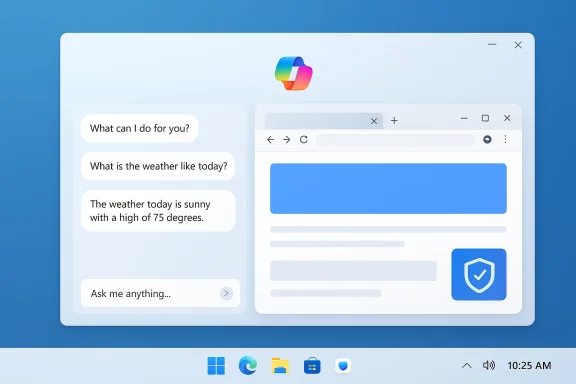
Microsoft is rolling a subtle but consequential change to the Copilot app on Windows for Windows Insiders: links you open from a conversation now appear in a sidepane alongside the chat instead of dumping you into a separate browser window. That simple shift — plus saved per‑conversation tabs and an optional password/form‑data sync — is designed to keep context intact and make Copilot a smoother, more capable research and drafting partner, but it also raises new questions about privacy, enterprise control, and where sensitive data lives when an AI assistant can “see” the web pages you open.
Microsoft has been steadily evolving Copilot from a single chat surface into a family of integrated experiences across Windows, Edge, and Microsoft 365. Over the last 18 months the company introduced Copilot modes in Edge that could access open tabs with user consent, Copilot apps on multiple platforms, and new learning and audio features such as personalized Podcasts and a voice‑enabled Study/ Learn mode. The update announced to Windows Insiders on March 4, 2026, continues that trajectory by moving web content into the Copilot app itself so the assistant and the web content can be viewed and used side‑by‑side.
This change is being rolled out to Insiders in all channels in the Copilot app package version 146.0.3856.39 and higher. Microsoft says availability will expand gradually and that some features are being added while others may be temporarily removed as the team iterates ahead of general availability.
Benefits for typical workflows:
Key privacy considerations
Administrative controls and options
How Copilot’s sidepane compares:
Before enabling the new features
This update is deliberately targeted at Windows Insiders so Microsoft can gather feedback and iterate. That makes it an ideal time for both power users and enterprise IT teams to test the feature in controlled settings, validate how data is handled, and build governance into rollout plans. If you care about privacy or you manage corporate devices, treat the optional credential sync with extra caution and confirm your policies before enabling Copilot’s broader web access on production machines.
The convenience is real — but so is the responsibility to verify where the assistant’s “sight” extends, how long it remembers what you’ve shown it, and how you can take back control when you need to.
Source: Microsoft - Windows Insiders Blog Copilot App on Windows: Opening web links alongside your conversations begins rolling out to Windows Insiders
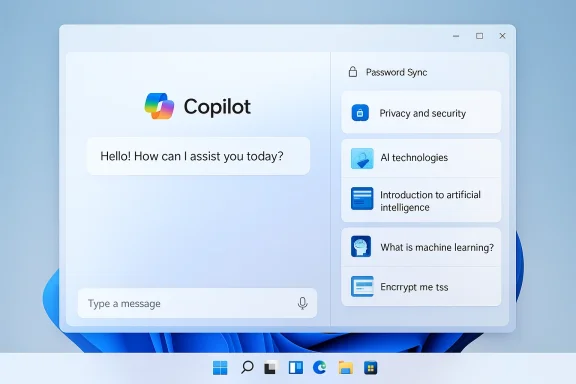 Background
Microsoft has been steadily evolving Copilot from a single chat surface into a family of integrated experiences across Windows, Edge, and Microsoft 365. Over the last 18 months the company introduced Copilot modes in Edge that could access open tabs with user consent, Copilot apps on multiple platforms, and new learning and audio features such as personalized Podcasts and a voice‑enabled Study/ Learn mode. The update announced to Windows Insiders on March 4, 2026, continues that trajectory by moving web content into the Copilot app itself so the assistant and the web content can be viewed and used side‑by‑side.This change is being rolled out to Insiders in all channels in the Copilot app package version 146.0.3856.39 and higher. Microsoft says availability will expand gradually and that some features are being added while others may be temporarily removed as the team iterates ahead of general availability.
What’s new in this Insider update
- Copilot opens links in a sidepane beside your conversation instead of launching the default browser window.
- With your explicit permission, Copilot can access the context of the tabs you open in that conversation — and that context is scoped to that conversation.
- Tabs opened inside a conversation are saved with the conversation so you can return to the same set of pages later.
- An optional password and form‑data sync can be enabled to let Copilot fill forms and streamline actions inside the sidepane.
- The update brings performance and reliability improvements to the Copilot app and folds in features from Copilot.com such as Podcasts and Study and Learn mode — while Microsoft may pause or rework other features during iteration.
How it changes the user experience
The UX intent is straightforward: reduce context switching. Instead of toggling between a browser and a conversation, you get an integrated workspace where Copilot can reference what you’ve opened without you having to paste links or copy text.Benefits for typical workflows:
- Faster summarization and synthesis: ask Copilot to compare several hotel listings, and it can reference each tab without you switching windows.
- Cleaner drafting: open the pages you want Copilot to base a draft on, and then prompt it to write a message or report that references those exact pages.
- Persistent research: reopen a conversation later and find the tabs you were using saved with the chat history.
- Screen real estate: the sidepane reduces the available width for web content compared with a full browser window, which could affect pages that are layout‑heavy.
- Tab management friction: saving tabs into conversations is powerful for repeatable projects, but accidental retention could create clutter or retraceable browsing records.
- Cross‑device expectations: it’s not yet clear how or whether per‑conversation tabs will sync across devices the way browser tabs can when you sign in; that will affect mobility for multi‑device users.
Under the hood: what’s likely happening
Microsoft does not publish every implementation detail in a short Insider blog post, but we can reasonably infer several technical elements from the behavior and Microsoft’s existing architecture for Windows and Edge integrations.- The sidepane is almost certainly powered by Microsoft’s web‑embedding technologies (for example, a WebView2 or equivalent engine) to render pages inside the app while reusing Edge’s rendering and security model.
- Scope isolation is emphasized: Copilot’s access to tab content is limited “to that conversation.” That implies a per‑conversation context store that maps the browsing session to the conversation ID.
- Permission gating: the assistant will request consent before reading tab content. The platform will need runtime UI indicators to show when Copilot is viewing or listening.
- Optional credential integration: password and form‑data sync suggests an encrypted, user‑authorized credential token or vault integration that Copilot can access on behalf of the user when enabled.
Security and privacy: practical implications and risks
This is the most consequential section for many readers. The convenience of letting an AI “see” your open tabs and save them with a conversation is real — but so are risks.Key privacy considerations
- Scope of access. Microsoft states Copilot will access the context of the tabs in that conversation only, and only with permission. That scope reduces the blast radius compared with an assistant that can see all browser tabs globally, but it does not eliminate risk: once Copilot can read a page, that page’s content becomes part of the assistant’s context for that conversation.
- Saved tabs = persistent records. Tabs saved with a conversation can persist longer than ephemeral browsing. If conversations are backed up to a cloud account, those page snapshots or references may be retained beyond your local session. Users should assume saved research can be recovered unless Microsoft explicitly says otherwise.
- Optional password/form data sync. This is the feature that will make some users and security teams nervous. Syncing passwords and form data into an assistant changes the threat model: now a compromise of the app or the account it's attached to could expose credentials. Microsoft notes the sync is optional, but if enabled it adds a new high‑value target.
- Where is data processed? It matters whether Copilot’s analysis of page content happens purely locally, on Microsoft servers, or in a hybrid mode. Cloud processing can enable richer capabilities and cross‑session memory, but also increases exposure to data residency and compliance issues.
- Visual indicators and consent. Good design practice (and Microsoft’s prior statements) calls for clear visual cues when Copilot is viewing or listening. Users should look for explicit permission dialogs, persistent indicators, and easy revocation controls.
- Phishing and credential capture: automated filling of forms by an assistant can be abused if a malicious site mimics a trusted form; attackers may try to trick the assistant into exposing or auto‑submitting sensitive data.
- Account compromise: an attacker who gains access to your Microsoft account could potentially read conversations and saved tabs, and, if password sync is enabled, access stored credentials.
- Data sprawl and compliance: saved tabs associated with chats may be retained in backups, logs, or cloud archives, creating compliance headaches for organizations subject to data retention rules or discovery requests.
- Explicit opt‑in permission model for tab access and for credential sync.
- Visual cues when Copilot is viewing or listening.
- Enterprise controls and Group Policy/MDM settings to restrict Copilot features or remove the app from managed devices.
- Isolation of per‑conversation context rather than global access across all apps and tabs.
- The precise data retention policy for saved tabs and whether saved page content is stored in user account cloud storage or locally.
- Whether password sync uses the same encrypted vault used by Edge/Windows credential managers and how keys are protected.
- The telemetry and logs generated when Copilot reads pages — which fields are recorded and for how long.
Enterprise and administration: control, compliance, and deployment guidance
Enterprises should evaluate this update as both a productivity opportunity and a governance event. Copilot has evolved from a consumer convenience to an enterprise touchpoint that can interact with web content and credentials.Administrative controls and options
- Group Policy / Intune controls. Microsoft has been adding controls to manage Copilot behavior: policies exist to disable Windows Copilot features, and new policies are appearing that permit administrators to remove the Copilot app from managed endpoints in Insider builds, subject to certain conditions.
- RemoveMicrosoftCopilotApp / TurnOffWindowsCopilot. Recent Insider channels introduced a policy to remove the free Copilot app from managed devices under specified conditions, and the legacy TurnOffWindowsCopilot setting remains relevant for blocking certain in‑OS integrations.
- AppLocker / App control. Standard app‑blocking tools and MDM‑level AppLocker rules remain effective ways to control unwanted app execution on enterprise devices.
- Conditional access and DLP. Organizations should evaluate how Copilot interacts with cloud services. If Copilot can open pages and access content, DLP tools that block data from leaving the corporate perimeter or that prevent auto‑fill of corporate credentials may need adjustment.
- Pilot first. Run the Copilot sidepane feature in a controlled pilot group to observe behavior, retention, and telemetry.
- Review retention and export behavior. Determine whether saved tabs are retained in cloud storage or backups, and how long they persist.
- Adjust policies. If necessary, use Group Policy or Intune to restrict Copilot on managed machines until governance and controls are in place.
- Educate users. Train employees not to enable password sync and to treat saved chats with care; encourage separation of personal and work accounts.
- Integrate with DLP. Ensure your DLP rules and conditional access policies account for new channels through which data can be read or filled.
Comparison with other browser and assistant approaches
Microsoft’s approach mirrors a broader industry trend: embed AI assistants into browsing contexts so they can act on pages without leaving the user’s flow.How Copilot’s sidepane compares:
- Similar to the Copilot Mode previously introduced in Edge: both aim to combine chat and web context with visual indicators and permission gates.
- Similar in concept to Google’s AI in Chrome (Gemini/Auto Browse) and to other AI browsers and sidebars: these products also ask for permission to access tabs and perform actions.
- Distinguishing factor: Copilot ties tab context to a conversation that is saved, rather than only to an open browser session. That per‑conversation persistence is a workflow advantage, but also increases the duration that content remains associated with a user’s AI history.
- If you need transient assistance on active browsing only, browser sidebars may suffice.
- If you prefer project‑level continuity — where a conversation can act as a workspace with saved references — Copilot’s per‑conversation tab persistence is attractive.
Practical guidance: what Insiders and everyday users should do now
If you’re a Windows Insider thinking about trying this feature, here are concrete steps and safety practices.Before enabling the new features
- Update to Copilot app version 146.0.3856.39 or higher to get the sidepane experience.
- Read the permissions prompts carefully. Do not enable password or form data sync unless you understand how credentials are stored and protected.
- Use separate accounts: avoid signing into work accounts in the Copilot conversation sidepane on personal devices.
- Test with non‑sensitive websites first to get a feel for how Copilot reads and summarizes page content.
- Treat saved conversations as a form of record: they can retain references or snippets of pages you used.
- Use the app’s feedback mechanism (profile → Give feedback) to report any unexpected behavior or privacy concerns.
- Regularly audit saved chats and delete any conversation that contains sensitive work artifacts.
- Prefer your browser’s built‑in password vault for sensitive corporate credentials until you understand Copilot’s encryption and recovery model.
- If you must enable password sync for productivity reasons, enable multi‑factor authentication on your account and consider using a hardware security key for additional protection.
What to watch for next
- Documentation on retention and processing. Microsoft needs to publish technical guidance on where saved tab content is stored, what is uploaded to Microsoft’s services (if anything), and how long it’s retained.
- Enterprise policy consolidation. Expect additional Group Policy/Intune controls as enterprises discover edge cases and demand deterministic controls over AI assistants on managed endpoints.
- Feature parity and reintroduction. Microsoft said some Copilot.com features will be added to the app, while others may be pulled back during iteration. Watch which features return for general availability and which are reworked.
- Regulatory and compliance conversations. Features that permit an assistant to access tabs and credentials will continue to draw scrutiny from privacy and compliance stakeholders, especially across regulated industries.
- Usability tuning. Early sidepane behavior will likely evolve — Microsoft will iterate UI, tab management, and visual indicators based on Insider feedback.
Bottom line
The Copilot app’s new sidepane behavior represents a meaningful evolution in how assistants and web content interact on Windows. For users, it promises a more fluid way to research, compare, and draft without losing context. For enterprises and privacy‑conscious users, it raises new questions about data access, retention, and the security of credentials if password sync is enabled.This update is deliberately targeted at Windows Insiders so Microsoft can gather feedback and iterate. That makes it an ideal time for both power users and enterprise IT teams to test the feature in controlled settings, validate how data is handled, and build governance into rollout plans. If you care about privacy or you manage corporate devices, treat the optional credential sync with extra caution and confirm your policies before enabling Copilot’s broader web access on production machines.
The convenience is real — but so is the responsibility to verify where the assistant’s “sight” extends, how long it remembers what you’ve shown it, and how you can take back control when you need to.
Source: Microsoft - Windows Insiders Blog Copilot App on Windows: Opening web links alongside your conversations begins rolling out to Windows Insiders