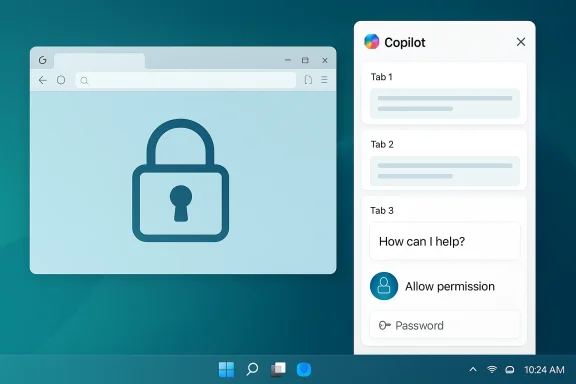
Microsoft's Copilot App for Windows is now offering an optional password and form-data sync inside its built-in browser for Windows Insiders — a convenience feature that folds autofill into the Copilot sidepane but also changes the threat model for anyone who stores credentials on their PC.
Microsoft rolled this change out to Windows Insiders as part of a Copilot app preview that docks web pages inside a conversation sidepane, saves tabs with conversations, and — if you opt in — brings password and form‑data autofill into the Copilot App’s browser. The rollout is tied to Copilot app package version 146.0.3856.39 and was described in Microsoft’s Insider notes and community reporting.
At a glance, the feature is intended to reduce context switching: when Copilot opens links for you, the pages appear in a WebView‑style sidepane adjacent to the chat, and saved tabs remain linked to that conversation for follow‑up prompts like “summarize the three tabs I opened.” Optional password and form‑data sync then allows the Copilot App browser to autofill logins just as a regular browser would. Microsoft emphasizes the opt‑in nature of these features and that Copilot will request permission before reading tab content.
That description — and the language Microsoft uses — matters, because there’s a difference between the assistant “seeing” raw secrets and the assistant using an autofill vault to let you log in. Microsoft’s messaging suggests Copilot will surface the autofill capability inside the app rather than ingesting plaintext passwords into the assistant’s reasoning context. Even so, the functional change is significant: your credential storage may now be accessible to a different application surface with different persistence, telemetry, and administration characteristics.
That said, the feature also changes the threat model. Enabling password sync is not merely a convenience toggle; it adds a new axis through which credentials can be exposed if implementation or controls are incomplete. Until Microsoft publishes clear documentation about vault storage, key management, telemetry, and retention, the prudent position for security professionals and privacy‑conscious users is to defer enabling password sync for high‑value accounts and to prefer dedicated password managers with explicit hardware‑bound protections.
For Windows Insiders: test the feature, read the prompts, and treat saved conversations as records. For enterprises: pilot in a controlled ring, layer administrative controls, update DLP/acceptable‑use policies, and demand the technical clarifications above before a broad rollout. The convenience is attractive — but with credentials, convenience must be balanced against a careful, evidence‑based risk assessment.
In short: try the Copilot sidepane for its productivity benefits, but keep your password manager close and your security controls closer.
Source: XDA Microsoft wants to sync your passwords with Copilot, and I’m not sure how I feel about it
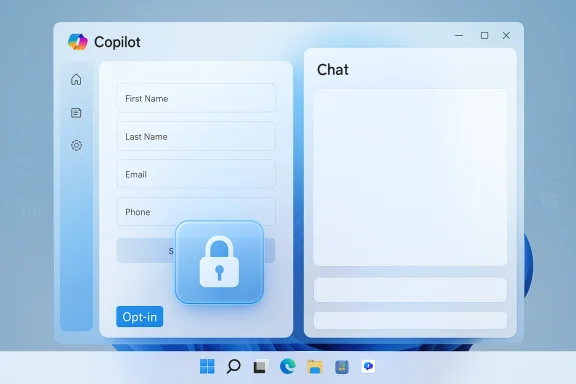 Background / Overview
Microsoft rolled this change out to Windows Insiders as part of a Copilot app preview that docks web pages inside a conversation sidepane, saves tabs with conversations, and — if you opt in — brings password and form‑data autofill into the Copilot App’s browser. The rollout is tied to Copilot app package version 146.0.3856.39 and was described in Microsoft’s Insider notes and community reporting.At a glance, the feature is intended to reduce context switching: when Copilot opens links for you, the pages appear in a WebView‑style sidepane adjacent to the chat, and saved tabs remain linked to that conversation for follow‑up prompts like “summarize the three tabs I opened.” Optional password and form‑data sync then allows the Copilot App browser to autofill logins just as a regular browser would. Microsoft emphasizes the opt‑in nature of these features and that Copilot will request permission before reading tab content.
That description — and the language Microsoft uses — matters, because there’s a difference between the assistant “seeing” raw secrets and the assistant using an autofill vault to let you log in. Microsoft’s messaging suggests Copilot will surface the autofill capability inside the app rather than ingesting plaintext passwords into the assistant’s reasoning context. Even so, the functional change is significant: your credential storage may now be accessible to a different application surface with different persistence, telemetry, and administration characteristics.
What Microsoft says — key points from the Insider notes
- Copilot can open clicked links inside the Copilot App in a sidepane next to the conversation instead of launching the system’s default browser. Tabs you open in that sidepane are scoped to the conversation and may be saved with it.
- Copilot will request permission before it reads the content of those tabs; the access is described as per‑conversation rather than global.
- An optional password and form‑data sync can be enabled so that the Copilot App browser can autofill login fields, streamlining multi‑step web workflows. Microsoft frames this as opt‑in and as similar to browser autofill behavior.
- Microsoft is iterating in Insider builds and notes that some features may be added, reworked, or temporarily removed during the preview phase.
How it likely works (technical reconstruction)
Based on Microsoft’s existing architecture and the behavior described in the Insider write‑ups, we can infer several technical facts:- The Copilot sidepane uses Microsoft’s Edge rendering stack (WebView2 or an equivalent) to render pages inside the Copilot App, inheriting much of Edge’s browser compatibility and content‑safety surface.
- Per‑conversation tab persistence implies a mapping between a conversation ID and a set of saved tab metadata (URLs, maybe snapshots or extracts). That persistence is what enables follow‑up prompts that reference earlier tabs.
- Password/form‑data sync, as described, most likely exposes an autofill vault to the Copilot App browser rather than copying plaintext credentials into the assistant’s memory. In other words, the app would use an encrypted store or credential token to perform autofill operations. Which encrypted store is used — Edge’s vault, Windows Credential Manager, or a separate Copilot store — is not yet documented publicly.
What’s good about this (strengths and benefits)
- Less context switching: For research, drafting, and multi‑step web flows, the sidepane + saved‑tabs model can speed common tasks. If you frequently jump between chat and web, having everything side‑by‑side is ergonomic and productivity‑positive.
- Autofill convenience: Long, complex passwords and multi‑field forms are tedious. Autofill integration reduces friction, especially when the Copilot conversation itself is generating or referencing web content while you act on it. That’s the feature’s core productivity argument.
- Scoped permission model: Microsoft’s per‑conversation scoping and consent prompts are better than a model that grants an assistant unfettered global access to all your tabs and data. The scope limitation reduces the immediate blast radius relative to a fully‑global permission.
- Admin controls are emerging: Microsoft is adding Group Policy/Intune controls and has introduced removal policies for the consumer Copilot app in Insider builds, giving IT teams some levers to pilot and govern the experience. Those controls aren’t complete, but they exist.
Where the risks lie (threat models and privacy concerns)
Even if Copilot never “sees” your passwords in plaintext, the feature changes the defender’s calculus. Key risks include:- Credential exposure through app compromise or account takeover. Enabling password sync creates a new high‑value target: an attacker who compromises the Copilot App process, the local profile, or the linked Microsoft account could potentially leverage the autofill capability to access accounts. This is materially different from an assistant that only reads visible page text.
- Persistence and cloud backups. Tabs saved to conversations create a record that may persist beyond the browsing session. If those conversation records or tab snapshots are synced to the cloud for cross‑device continuity, those artifacts could be discoverable or retained in backups, creating compliance and data sprawl concerns. Microsoft has not clarified retention and sync behavior.
- Prompt injection and malicious pages. When an assistant reads and acts on web pages, adversarial content can attempt prompt injection or trick the assistant into revealing contextual data or performing actions. An autofill engine that runs inside a chat‑tied browser increases the possible attack surface for cleverly crafted pages.
- Unclear vault and escrow model. It’s not yet documented whether the Copilot App uses the same encrypted vault as Edge or Windows Credential Manager, or whether it uses a separate store whose keys are protected the same way. That detail is critical: the vault’s key management, escrow/backup mechanisms, and recovery flows determine how resilient the system is to account recovery attacks and what an attacker can access after compromising credentials.
- Enterprise policy gap. Administrators need deterministic, auditable controls. The current Group Policy/Intune knobs and the RemoveMicrosoftCopilotApp policy help, but they are not yet a complete, single-stop solution for enterprise lockdown. Enterprises should expect to layer AppLocker/WDAC and conditional access controls to achieve durable prevention.
Practical guidance for everyday users and Insiders
If you’re in the Windows Insiders program and tempted to try password sync in Copilot, follow these steps and precautions:- Update to the specified Copilot preview version (or later) to get the sidepane experience and review the official permission prompts.
- Read permission dialogs carefully. Do not enable password/form‑data sync casually — treat it like enabling any credential store for a new app.
- Prefer dedicated password managers for high‑value accounts. Use a reputable password manager (local vault or third‑party like Bitwarden, 1Password, etc.) if you rely on long, unique passwords and want stronger separation between credentials and single platform apps.
- Enable strong account security: turn on multi‑factor authentication for your Microsoft account, use hardware security keys where possible, and monitor account sign‑ins and device activity. These steps reduce the impact of an account compromise.
- Test with non‑sensitive sites first. Before enabling autofill for bank, corporate, or critical accounts, try it with throwaway logins to understand how the sidepane behaves and how saved tabs appear in conversations.
- Regularly audit and delete saved conversations that contain sensitive artifacts. Treat saved Copilot conversations as records — they may persist longer than ephemeral browsing.
Guidance for administrators and enterprise IT
Enterprises must treat Copilot’s expanded web access and optional credential integration as a governance event. Recommended steps:- Pilot first in a controlled ring. Validate retention, telemetry, and cloud sync behavior before rolling out more broadly.
- Update acceptable‑use policies and DLP rules to explicitly address AI assistants and what data may be shown to them. Ensure that DLP tools can detect or block credential autofill or the sidepane from processing sensitive pages.
- Use layered enforcement: combine Group Policy (including the RemoveMicrosoftCopilotApp policy where applicable), AppLocker/WDAC rules, and Intune app management to prevent undesired installs or to control who can run the Copilot App on managed endpoints. These controls are not yet a single universal switch; layering is necessary.
- Enforce MFA and conditional access for Microsoft accounts and tenant access. If credentials can be leveraged by the Copilot App, strengthen identity controls to minimize risk from account compromise.
- Work with legal/compliance to assess retention and eDiscovery impact. Saved tabs and conversation history may become discoverable artifacts; define retention windows and deletion processes accordingly.
Comparing Copilot autofill to existing password managers and browsers
- Edge and modern browsers already provide an autofill feature tied to a browser vault. The functional experience inside Copilot’s sidepane is similar from a user perspective: autofill fields are filled when you instruct the browser to do so. The critical difference is the surface: autofill is now available in a different app context that stores conversations and possibly tab snapshots.
- Dedicated password managers (Bitwarden, 1Password, LastPass) generally isolate secrets to a separate process or vault with strong key derivation, and they offer hardware‑key support and granular re‑authentication for critical items. That separation reduces the likelihood that a general‑purpose assistant app can access credentials without explicit user re‑auth. For people who prioritize security over convenience, continuing to use a separate manager remains the best practice.
- If Copilot’s autofill implements the same vault and key protection as Edge, the risk delta is smaller; if it uses a different store with weaker protections or cloud escrow behavior, risk increases. Microsoft has not yet published a technical spec that definitively answers this, so assume the conservative model until documentation proves otherwise.
Concrete threat scenarios (what can go wrong)
- An attacker lures a user to a malicious site that mimics a login form. If the Copilot App’s autofill is enabled and the assistant doesn’t sufficiently validate the domain or the form’s authenticity, the user could be tricked into populating credentials into a fake page. Prompt injection and UI spoofing are real concerns here.
- A malware or local exploit compromises the Copilot App process. If the app has access to an autofill token or to saved tab snapshots, the attacker might extract credential tokens or use autofill to authenticate to services. Robust process isolation and hardware‑bound keys reduce this risk.
- Tenant-level or cloud backup policies cause conversation and tab snapshots to be retained in places that are not covered by the organization’s existing DLP or retention settings. That could surface internal research, credentials-in-documents, or other sensitive artifacts during discovery. Administrators must validate retention paths and eDiscovery behavior.
What Microsoft should clarify (and what to look for next)
To safely evaluate this feature, Microsoft should provide clear, public technical documentation that answers:- Where are saved tabs and per‑conversation snapshots stored (local only, Microsoft cloud, or hybrid)? What are the retention policies?
- Which credential vault does Copilot use for autofill (Edge vault, Windows Credential Manager, or a separate store)? How are keys derived and protected?
- What telemetry is generated when Copilot reads tabs or performs autofill? Can organizations audit and exclude such telemetry?
- What UI cues and consent flows are required before the assistant reads a tab or uses autofill? Are these persistent, discoverable, and revocable?
- Which Group Policy and Intune controls will be available at general availability to manage Copilot App installation, operation, and feature gating?
Practical checklist before enabling password sync in Copilot
- Verify Copilot app version and read the Insider release notes for feature specifics.
- Confirm whether your organization permits the Copilot App on managed devices; if not, don’t enable the feature.
- Enable MFA and consider hardware security keys for the accounts protecting your device and password vault.
- Test autofill only with low‑value accounts to understand behavior and persistence.
- Audit and delete any saved conversations containing sensitive tabs after use.
Final assessment and recommendation
The Copilot App’s password sync feature reflects the larger industry trend of embedding AI assistants more deeply into user workflows, and the productivity gains are real — especially for research, drafting, and multi‑step web tasks. Microsoft’s opt‑in model, per‑conversation scoping, and emerging admin controls are reasonable initial safeguards.That said, the feature also changes the threat model. Enabling password sync is not merely a convenience toggle; it adds a new axis through which credentials can be exposed if implementation or controls are incomplete. Until Microsoft publishes clear documentation about vault storage, key management, telemetry, and retention, the prudent position for security professionals and privacy‑conscious users is to defer enabling password sync for high‑value accounts and to prefer dedicated password managers with explicit hardware‑bound protections.
For Windows Insiders: test the feature, read the prompts, and treat saved conversations as records. For enterprises: pilot in a controlled ring, layer administrative controls, update DLP/acceptable‑use policies, and demand the technical clarifications above before a broad rollout. The convenience is attractive — but with credentials, convenience must be balanced against a careful, evidence‑based risk assessment.
In short: try the Copilot sidepane for its productivity benefits, but keep your password manager close and your security controls closer.
Source: XDA Microsoft wants to sync your passwords with Copilot, and I’m not sure how I feel about it