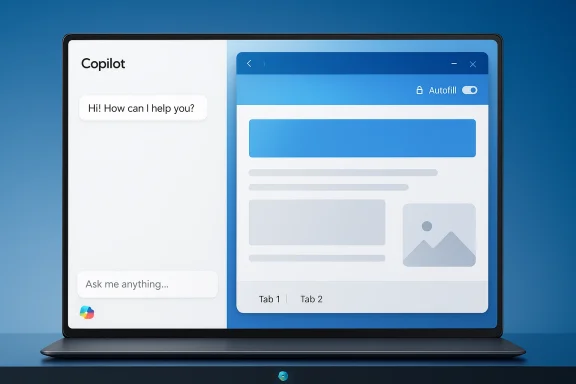
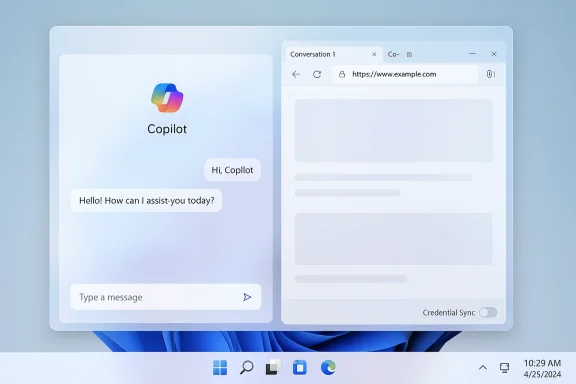
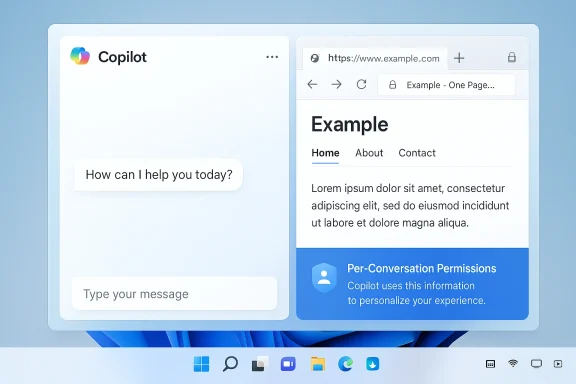
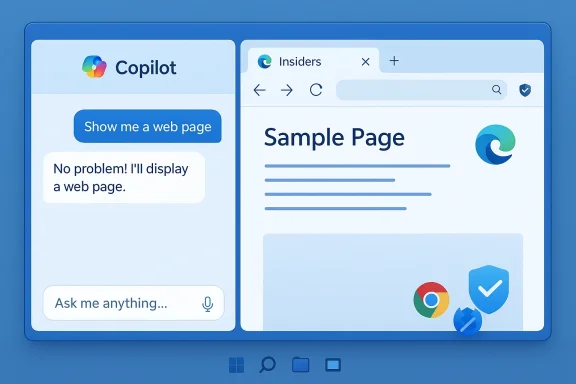
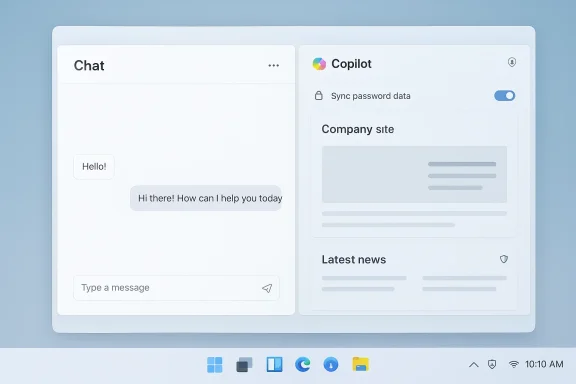
Microsoft is quietly reshaping how Copilot and the web interact on Windows 11: in the latest Insider preview the Copilot app can open web links in a docked side pane next to your conversation, save per‑conversation tabs, and — if you opt in — surface saved passwords and form data so the assistant can act on web content without forcing you into a separate browser window. This change is rolling out to Windows Insiders as part of Copilot app package version 146.0.3856.39 and is explicitly designed to reduce context switching between browsing and chat — but it also raises immediate questions about privacy, enterprise control, and where sensitive web data gets processed and stored. ([blogs.windows.com]s.com/windows-insider/2026/03/04/copilot-app-on-windows-opening-web-links-alongside-your-conversations-begins-rolling-out-to-windows-insiders/)
Microsoft has been steadily folding Copilot into more locations across Windows, Edge, and Microsoft 365 for more than two years. The company’s stated aim has been to make the assistant a continuous productivity layer — not just a separate chat box — and to give it access to contextual signals like open pages, emails, and files when users permit it. The new side‑pane behavior is the latest step in that trajectory: instead of opening a target web link in your default browser, Copilot will render it inside the Copilot app in a web sidepane tied to the current conversation. Tabs you open inside a conversation are saved with that conversation for later retrievrequest permission to read the content of those tabs so it can summarize, synthesize, or draft text that references them.
This update is being previewed to all Windows Insider channels and will be expanded gradually; Microsoft frames it as an improvement in productivity continuity rather than a replacement for a full browser. The integration uses Edge’s rendering stack under the hood and, for now, operates inside the Copilot app context rather than any arbitrary third‑party browser.
Microsoft’s messaging emphasizes per‑conversation scoping: Copilot asks before it reads tab conssion is limited to the conversation in which the tabs were opened. That model reduces the assistant’s reach compared with a global tab‑reading permot eliminate risk because any page Copilot can read becomes part of that conversation’s context and therefore could be retained or processed further by the systemlogs.windows.com]
Source: Thurrott.com Microsoft is Testing Web Integration in Copilot on Windows 11
 Background / Overview
Microsoft has been steadily folding Copilot into more locations across Windows, Edge, and Microsoft 365 for more than two years. The company’s stated aim has been to make the assistant a continuous productivity layer — not just a separate chat box — and to give it access to contextual signals like open pages, emails, and files when users permit it. The new side‑pane behavior is the latest step in that trajectory: instead of opening a target web link in your default browser, Copilot will render it inside the Copilot app in a web sidepane tied to the current conversation. Tabs you open inside a conversation are saved with that conversation for later retrievrequest permission to read the content of those tabs so it can summarize, synthesize, or draft text that references them.This update is being previewed to all Windows Insider channels and will be expanded gradually; Microsoft frames it as an improvement in productivity continuity rather than a replacement for a full browser. The integration uses Edge’s rendering stack under the hood and, for now, operates inside the Copilot app context rather than any arbitrary third‑party browser.
What changed in this Insider preview
Key user‑facing features
- Copilot opens clicked links in a side pane adjacent to your conversation instead of launching a separate browser window. This keeps the chat and the web content visible at the same time.
- With explicit permission, Copilot can read the content of tabs opened in that conversation — and that contextual access is scoped to the conversation. That allows follow‑up prompts such as “summarize the three tabs I opened” or “draft an email referencing the highlights.”
- Tabs you open in a conversation are saved with that conversation so they’re available when you return to the same chat later.
- Optional sync of passwords and form data to streamline multi‑step web work inside Copilot; this is an opt‑in capability and requires explicit enabling.
- The update rolled as Copilot app version 146.0.3856.39 and includes various performance and reliability improvements, plus the addition of features from Copilot.com such as Podcasts and Study & Learn mode; Microsoft notes some features may be temporarily removed while the team iterates.
How the new side‑pane behavior works (technical breakdown)
Rendering and security model
The side pane is implemented as an embedded web view that reuses Microsoft Edge’s rendering engine (WebView2 or a similar stack), meaning pages render the same way they would in Edge but inside the Copilot app. This approach gives Microsoft the benefits of a hardened rendering model and consistent web compat behavior whilerated with the conversation context. It also means the security model and content filtering behaviors of Edge are largely inherited, but the exact telemetry and content‑processing boundaries are shaped by Copilot’s additional context‑sharing mechanics. ([blogs.windows.com](Copilot App on Windows: Opening web links alongside your conversations begins rolling out to Windows Insiders## Scoped context and permissionsMicrosoft’s messaging emphasizes per‑conversation scoping: Copilot asks before it reads tab conssion is limited to the conversation in which the tabs were opened. That model reduces the assistant’s reach compared with a global tab‑reading permot eliminate risk because any page Copilot can read becomes part of that conversation’s context and therefore could be retained or processed further by the systemlogs.windows.com]
Persistence and synchronization
Tabs are saved with the conversation to support persistent research sessions. It’s not yet fully documented whether saved tabs are stored purely locally, synced to a Microsoft account, or backed up to cloud infrastructure for cross‑device continuity; Microsoft’s rollout notes leave that distinction open, and community analyses treat it as a pending implementation detail to be clarified in documentation. Where and how the saved tab metadata and page snapshots are stored matter for privacy and compliance.The UX promise — and real tradeoffs
Microsoft’s design goal is clear: reduce context switching. For common tasks — researching, drafting messages, comparing product pages, summarizing multiple sources — an integrated view where you can open pages and immediately ask Copilot to synthesize them is powerful. Typical benefits include:- Faster summarization and synthesis when Copilot can see multiple source pages concurrently.
- Cleaner drafting workflows: open the reference pages, ask Copilot to write a shareable draft that cites or uses those sources.
- Persistent research sessions that resume where you left off, with tabs saved to the conversation rather than scattered across browser windows.
- Screen real estate: a docked side pane reduces horizontal space for the web page; complex, layout‑heavy sites may feel cramped.
- Tab management friction: tabs tied to conversatio if users forget they’re saved; accidental retention creates a traceable browsing history that persists beyond ephemeral research.
- Mental model shifts: users are conditioned to think of the browser as the canonical place for web content. Moving page rendering into an assistant app requires new expectations around navigation, privacy prompts, and session lifecycle.
Privacy and security — the hard questions
The most consequential questions about this change are not “can it summarize?” but “what does Copilot see, store, and process, and where?” The high‑level facts Microsoft has stated are helpful but incomplete.Known design points
- Copilot requests consent before reading tab content and scopes that access to the conversation in which the tabs were opened.
- Password and form data sync is explicitly optional and requires enabling; it’s not automatic.
Unresolved or unclear pprivacy‑conscious users and admins)
- Processing locus: Microsoft’s announcement does not specify whether the text Copilot extracts from pages opened in the side pane is processed entirely on‑device, sent to Microsoft cloud services for model grounding, or handled via a hybrid model. The distinction matters for regulatory compliance (HIPAA, GDPR), enterprise data loss prevention, and sovereignty requirements. Independent commentary flags this as an open question until Microsoft publishes detailed technical documentation. Treat any claim about pure local processing as unverified until Microsoft confirms it.
- Persistence and telemetry: saving tabs with conversations implies persistence of page references and possibly snapshots. If saved conversations are synced across devices via a Microsoft account or tenant service, those snapshots could be retained in cloud backups. Microsoft has not yet described retention policies or the exact telemetry surface for saved tabs.
- Credential handling: optional password and form data sync is convenient but increases attack surface. Security‑minded administrators will want to know whether the vaulting mechanism uses the Windows Credentials Manager, Microsoft Edge’s saved credentials, or a separate encrypted store; and whether vault data is escrowed to the cloud in a way that requires additional tenant controls. Microsoft’s short announcement does not enumerate the implementation details.
- Third‑party content and cross‑prompt injection: when an AI assistant reads web pages and can act on them, adversarial web content could attempt to manipulate the assistant (prompt injection) or craft content that triggers unintended behaviors. Microsoft’s broader Copilot documentation has acknowledged novel security risks in agentic or web‑interactive flows; this new integration amplifies those considerations.
Enterprise management: what admins can (and can’t) do today
Enterprises have been asking Microsoft for more control over Copilot for months. Microsoft has started to provide admin levers, but these controls are often intentionally conservative and scoped — a pragmatic compromise between user convenience and enterprise governance.What Microsoft has shipped so far (preview controls)
- A Group Policy named RemoveMicrosoftCopilotApp was introduced in Insider Preview (Build 26220.7535 / KB5072046), enabling a one‑time uninstall of the consumer Copilot app under very specific conditions. That policy is co it triggers only when all gating conditions are met (for example, the consumer app was provisioned rather than user‑installed and has not been launched in the last 28 days). It is not a persistent block; users could reinstall the app unless administrators layer additional controls.
- Microsoft 365 tenant‑level controls exist for managing Copilot app provisioning and Copilot access for unlicensed users; blocking the Copilot app via the “Integrated Apps” control can be tenant‑wide, but it has implications for licensed users and other surfaces. Admins are advised to use integrated app controls, app management in Teams/Outlook, and Intune policies to tailor who receives which Copilot experience.
Practical enterprise controls (recommended layered approach)
- Pilot the new feature in a small, controlled ring and validate the behavior on test devices. Use Insider channels for early validation.
- If you need to remove the consumer Copilot app from provisioned devices, test and deploy the RemoveMicrosoftCopilotApp Group Policy carefully — remember the 28‑day inactivitystraints. It is designed for surgical cleanup, not for blanket prohibition.
- For durable prevention of reinstallation or uncontrolled use, combine the Group Policy approach with *AppLockerer Application Control (WDAC)** rules and MDM‑deployed App‑restriction policies. AppLocker provides an enforcement mechanism that survives user reinstallation attempts.
- Use Microsoft 365 admin center and Teams admin controls to manage tenant‑level Copilot provisioning and block unlicensed access where appropriate. This prevents tenant provisioning from reintroducing the consumer app.
- Update internal acceptable‑use and DLP policies to clarify whether users may use Copilot with sensitive data and instruct them about the consent prompts they will see when the assision to read web tabs.
Threat models and mitigations
If your organization must limit exposure, consider these short, prioritized mitigations:- Assume any web content be temporarily processed by cloud services. Treat the feature as equivalent to past web‑grounded Copilot features in terms of processing locus until Microsoft clarifies otherwise. Mitigation: restrict Copilot usage in high‑risk groups and ensure DLP policies block sensitive page content from being processed by external services.
- For endpoints requiring strict application whitelisting, deploy AppLocker/WDAC rules that prevent the consumer Copilot app or the Copilot side‑pane host from running. Mitigation: enforce via Intune/MDM for scale.
- Monitor for abusive web content and promMitigation:* educate users to treat assistant actions skeptically, enable logging and audit trails where possible, and apply web‑content filtering to limit exposure to high‑risk sites.
- Validate credential handling: until the credential sync behavior is fully documented, avoid enabling password/form sync on machines that handle regulated credentials. Mitigation: enforce a policy that restricts enabling credential sync to approved groups only.
How this compares to other browser‑anchored Copilot experiences
Microsoft has previously added Copilot features to the Edge side pane (page summarization, contextual prompts) and to integrated Copilot modes across Microsoft 365 apps. This new behavior differs in two ways:- The assistant is now hosting web pages inside the Copilot app (an app‑anchored embedded browser) rather than being a side pane inside Edge; that shi and permission flows occur.
- Per‑conversation tab saving introduces persistent research artifacts tied to chat history rather than just ephemeral tab state in a browser. That improves workflow continuity but increases the potential for long‑lived records of browsing activity.
Practical advice for everyday users
- Treat the Copilot side‑pane as an opt‑in productivity experiment. If you rely on private or sensitive websites (banking, medical, HR portals), avoid opening those pages inside the Copilot side pane until Microsoft publishes clear processing and retention guarantees.
- Review consent prompts carefully. When Copilot asks to read tab contents, that’s the moment to decide whether you want those pages to become part of the assistant’s context. If you’re unsure, deny and use a conventional browser window instead.
- Use browser privacy featte mode) if you need ephemeral browsing; note however that the integration and saved‑tabs behavior may not honor this the way a normal browser session does — test before trusting.
- If you enable credentials or form‑data sync for convenience, document the decision and understand how your organization expects credentials to be managed. Prefer platform password managers and vaults with documented protections.
Critical analysis — strengths, weaknesses, and the broader implications
Strengths
- The feature directly addresses a genuine pain point: context switching between browser and assistant. For knowledge‑work flows (research, drafting, competitive checks), being able to open multiple pages and ask Copilot to synthesize them without manual copy‑paste is objectively valuable.
- Technical consistency with Edge’s rendering stack reduces compatibility surprises; embedding a proven web engine inside Copilot preserves rendering fidelity for modern sites.
- Microsoft’s staged rollout via Insiders and the inclusion of permission prompts show that the company is aware of the privacy, UX, and enterprise governance tradeoffs and is choosing to iterate rather than rush.
Weaknesses and risks
- The lack of explicit documentation about where and how page content is processed and retained is the single largest omission. That technical detail determines compliance posture for many organizations; until it’s published, admins must assume conservative defaults and proceed cautiously.
- The administrative control available today (a one‑time uninstall policy) is pragmatic but not sufficient as a durable enforcement mechanism in large, heterogeneous environments. Enterprises that require deterministic controls will have to assemble layered mitigations (AppLocker/WDAC, tenant provisioning settings, Intune restrictions) — a higher operational cost.
- The new interaction model increases the attack surface for prompt‑injection and adversarial web content, and existing DLP and threat detection tooling may not be ready to monitor assistant‑driven flows without configuration changes.
Strategic implications
Microsoft is betting that a persistent, multi‑surface Copilot — one that can see the web and act across apps — will deliver enough productivity upside to offset user friction and governance costs. For consumers and individual knowledge workers, the convenience tradeoff may be worthwhile. For regulated enterprises, the burden of proof lies with Microsoft: provide clear technical documentation, retention and telemetry policies, and admin controls that can be relied upon in production environments. Until those are available, cautious, controlled pilots are the right approach.What to watch next
- Microsoft’s forthcoming technical documentation explaining whether side‑pane page content is processed on‑device or in the cloud, and the retention/backup policies for saved tabs. This is the clearest gating item for broad enterprise adoption.
- New or expanded admin policies that provide permanent blocking or durable prevention of the consumer Copilot app or the side‑pane behavior, beyond the current one‑time uninstall capability.
- Signals from Insiders about real‑world usability: how often users accept the permission prompts, whether saved tabs are beneficial or burdensome, and whether the feature interferes with multi‑device workflows.
Conclusion
Microsoft’s move to render web content inside the Copilot app and tie tabs to conversations is a meaningful evolution of the assistant: it stitches browsing and chat into a single, project‑scoped workspace that can speed research and drafting. That convenience is real and likely to be welcomed by many users. But the change is also a clear escalation in scope for an assistant that can now see and persist web sessions — and with that power come real governance, privacy, and security responsibilities. For individuals, the rule is simple: treat the side‑pane as opt‑in and protect sensitive browsing. For IT teams, the rule is systemic: pilot the feature, assume conservative processing defaults, and combine Microsoft’s early admin policies with AppLocker/WDAC and tenant controls for durable protection. Microsoft’s staged rollout and permission prompts show awareness of these tensions, but until the company publishes definitive technical details about processing and retention, security‑minded organizations should proceed with caution.Source: Thurrott.com Microsoft is Testing Web Integration in Copilot on Windows 11