

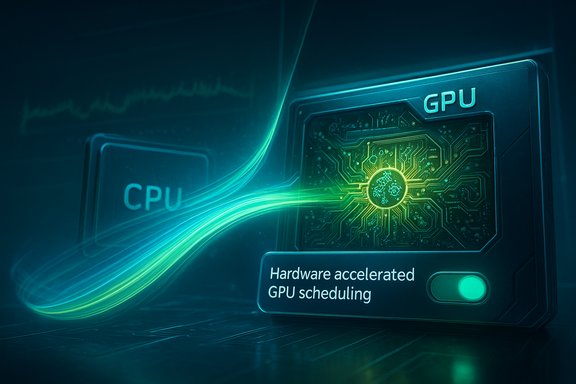
Hardware‑accelerated GPU scheduling (HAGS) moved from an experimental OS feature to a mainstream Windows option that promises lower scheduling latency by handing some of the GPU scheduling work back to the graphics card itself — but the real world has been messy: vendor support is uneven, driver maturity matters, and user reports show improvements, regressions, and everything in between. The central takeaway for enthusiasts and administrators is practical: update drivers and Windows, test carefully, and prefer measured benchmarking over gut instinct when deciding whether to leave HAGS on or off.
Hardware‑accelerated GPU scheduling was introduced alongside Windows Display Driver Model (WDDM) 2.7 and surfaced publicly with the Windows 10 May 2020 Update (version 2004). At a technical level, HAGS gives the GPU a dedicated scheduler that can accept, prioritize, and manage command streams and memory without having the CPU serialize every step — the goal being reduced CPU overhead, fewer scheduling stalls, and theoretically lower input/display latency. Microsoft’s developer blog announced the feature and its intent, and the WDDM 2.7 capability bits document formalizes the OS‑level support. The feature is exposed in Windows Settings (System → Display → Graphics → Change default graphics settings → Hardware‑accelerated GPU scheduling) and can also be toggled via the registry for systems that don’t present the GUI switch. But support is not automatic: hardware must contain the right scheduler support and vendors must ship drivers that expose HwSch to Windows. That subtle, two‑part dependency explains the varied user experience.
Where the article is incomplete or misleading:
HKEY_LOCAL_MACHINE\SYSTEM\CurrentControlSet\Control\GraphicsDrivers
reg add "HKLM\SYSTEM\CurrentControlSet\Control\GraphicsDrivers" /v HwSchMode /t REG_DWORD /d 2 /f
Check the current key with:
reg query "HKLM\SYSTEM\CurrentControlSet\Control\GraphicsDrivers" /v HwSchMode
But again: prefer the GUI first, then registry only when necessary — and document changes.
Hardware‑accelerated GPU scheduling is a modern tool in Windows’ performance toolbox: useful, sometimes valuable, never a universal default. For power users and system administrators the right approach is conservative experimentation — measure, record, and revert if necessary. The feature is mature enough to be worth testing, but the broad lesson remains unchanged: real gains come from a balanced system, up‑to‑date drivers, and a methodical testing approach rather than toggling settings on faith.
Source: 9meters Hardware Accelerated GPU Scheduling On or Off? - 9meters
 Background / Overview
Hardware‑accelerated GPU scheduling was introduced alongside Windows Display Driver Model (WDDM) 2.7 and surfaced publicly with the Windows 10 May 2020 Update (version 2004). At a technical level, HAGS gives the GPU a dedicated scheduler that can accept, prioritize, and manage command streams and memory without having the CPU serialize every step — the goal being reduced CPU overhead, fewer scheduling stalls, and theoretically lower input/display latency. Microsoft’s developer blog announced the feature and its intent, and the WDDM 2.7 capability bits document formalizes the OS‑level support. The feature is exposed in Windows Settings (System → Display → Graphics → Change default graphics settings → Hardware‑accelerated GPU scheduling) and can also be toggled via the registry for systems that don’t present the GUI switch. But support is not automatic: hardware must contain the right scheduler support and vendors must ship drivers that expose HwSch to Windows. That subtle, two‑part dependency explains the varied user experience.How HAGS actually works
The scheduling problem HAGS targets
Traditionally, the CPU batches draw calls, manages priority and memory, then hands the batch to the GPU for execution. Even on modern systems this handoff and bookkeeping cost CPU cycles and add micro‑latency, particularly in CPU‑bound scenarios where the processor becomes the bottleneck. HAGS creates a small, dedicated GPU hardware scheduler — essentially an assistant inside the GPU — that can accept and prioritize command streams with less CPU intervention, reducing per‑frame scheduling overhead.Practical effect — what changes
- Reduced CPU overhead in GPU command submission paths.
- Potential improvement in frame‑time consistency and input latency in CPU‑sensitive workloads.
- Little to no change in raw maximum FPS in many titles; improvements, when present, often show up in minimums and frame pacing.
Compatibility: which GPUs and OS versions support HAGS?
Windows requirements
- Minimum OS support: Windows 10, version 2004 (May 2020 Update) or later because WDDM 2.7 is required. Microsoft’s driver model documentation defines the capability bits introduced in WDDM 2.7 (HwSchSupported, HwSchEnabled, etc..
Vendor and GPU support (summary)
- NVIDIA: Support for HAGS began with the Pascal architecture (GTX 10‑series) and later; NVIDIA documentation confirms HAGS availability from the Release 450 driver series onward, covering Pascal and newer GPUs when used with Windows 10 May 2020 Update or later. Driver version and DCH packaging can affect the toggle availability.
- AMD: AMD’s adoption was more staggered. AMD added explicit HAGS support for selected Radeon RX 7000 series models in later Adrenalin drivers, and historical coverage shows AMD enabling HAGS in driver updates for certain card families rather than blanket support across all older models. Expect support to be model‑ and driver‑dependent.
- Intel: Modern Intel discrete and integrated GPUs (notably Arc B‑series and newer driver sets) do support HAGS in reachable Windows builds; Intel’s support notes indicate Arc B‑series GPUs expose the capability on Windows 11 builds and certain driver releases. Historically Intel’s roadmap and wording evolved as they released Arc drivers.
What the 9meters (user‑supplied) summary got right — and where it’s incomplete
The supplied 9meters piece captures the essential tradeoffs: HAGS can reduce CPU overhead and input latency, yet results are inconsistent across machines and titles; users should test on their own hardware. That practical advice is sound. It correctly states the GUI path to toggle the setting and the registry fallback (HwSchMode), and lists common benefits and downsides.Where the article is incomplete or misleading:
- The statement that “Intel GPUs do not support HAGS” is overly broad and now inaccurate for current Intel Arc drivers — Intel’s documentation shows Arc‑series variants supporting HAGS under specific Windows/driver combinations. Treat vendor claims as time‑dependent and confirm for your exact model.
- The AMD support statement (RX 7700 series and newer) is a simplification. AMD’s roll‑out targeted select RX 7000 series parts and specific driver releases; it’s safest to check AMD’s driver notes for your exact model and driver version rather than rely on a single generational cutoff.
Enabling and disabling HAGS — GUI, registry and command line
GUI (recommended)
- Settings → System → Display.
- Scroll to Graphics (Windows 11: Graphics → Change default graphics settings).
- Toggle Hardware‑accelerated GPU scheduling on or off.
- Restart the PC.
Registry (advanced / fallback)
For systems without the GUI toggle, an advanced option is the registry value under:HKEY_LOCAL_MACHINE\SYSTEM\CurrentControlSet\Control\GraphicsDrivers
- Create or edit a DWORD (32‑bit) named HwSchMode.
- Commonly reported values:
- 2 — attempt to enable HAGS (many guides and Microsoft community responses recommend this to make the option appear).
- 1 or 0 — values reported in various guides for disabling; vendor/OS behaviour can vary so prefer toggling in Settings when possible. There is inconsistent community guidance on whether 0 or 1 is the canonical “off” value; the safest approach is to use the GUI toggle if present, and if using the registry back up the key first.
Command line / automation
For remote administration you can use reg.exe to set HwSchMode, for example:reg add "HKLM\SYSTEM\CurrentControlSet\Control\GraphicsDrivers" /v HwSchMode /t REG_DWORD /d 2 /f
Check the current key with:
reg query "HKLM\SYSTEM\CurrentControlSet\Control\GraphicsDrivers" /v HwSchMode
But again: prefer the GUI first, then registry only when necessary — and document changes.
Testing methodology — how to know whether HAGS helps you
The single most common mistake is relying on subjective impressions. A disciplined test will show whether the setting helps your system and titles.- Baseline: update Windows and GPU drivers to the latest stable packages supported by the vendor.
- Record your baseline metrics with HAGS off:
- Average FPS, 1% lows, 0.1% lows (use PresentMon, FRAPS, or in‑game benchmarks).
- Input latency (use tools like NVIDIA FrameView, or measure perceived latency in controlled tests).
- CPU and GPU utilization and per‑core CPU load.
- Frame time variance/standard deviation.
- Toggle HAGS on via Settings, reboot, and repeat the same benchmark runs.
- Compare:
- Focus on 1%/0.1% lows and frame time stability more than tiny average‑FPS deltas.
- Watch for increases in memory usage, GPU or driver errors, and system instability during the runs.
Known benefits, common regressions, and practical risks
Benefits (what users actually see)
- Slight reduction in CPU overhead and scheduler noise in CPU‑bound scenarios.
- Sometimes steadier frame times and improved minimums, which can make gameplay feel smoother.
- Reduced input/display latency in some competitive titles on affected systems.
Regressions and risks
- Some driver versions introduced regressions: graphical glitches, higher memory use, stuttering, or even crashes in rare cases. Community and vendor responses have repeatedly shown regressions tied to specific driver/OS updates. When regressions appear, toggling HAGS off commonly restores previous behavior.
- Not a universal win. On balanced systems (fast CPU + fast GPU), the CPU wasn’t the bottleneck and HAGS typically produces negligible gains.
- Registry values and undocumented behaviors vary between driver models and OS builds — registry tinkering has occasionally been suggested as a workaround, but it should be a last resort.
Vendor‑specific caveats
- NVIDIA: Historically broad HAGS coverage (Pascal/Turing/Ampere/…); driver updates are the most common source of fixes and regressions. Use official support notes and hotfixes when rollback is necessary.
- AMD: The company enabled HAGS later and selectively for RX 7000 series models; AMD’s approach means some Radeon owners never see a GUI toggle until a specific driver release includes support. Check the official release notes for your Adrenalin driver.
- Intel: Arc drivers have explicit support in documented Intel KB articles for Arc B‑series and newer combinations; expect Intel’s support statements to reference specific driver builds and Windows versions (Windows 11 vs Windows 10).
Practical checklist: when to enable, when to disable
- Turn HAGS ON if:
- Your GPU vendor and driver explicitly list support for your model.
- You run CPU‑bound games or applications where CPU scheduling overhead is measurable.
- You have a recent Windows build and are comfortable testing and benchmarking.
- Turn HAGS OFF if:
- You see stuttering, graphical corruption, or crashes after enabling.
- Your system is already stable and fast and you don’t want to risk introducing driver‑dependent regressions.
- Your vendor does not list the GPU as supported in current drivers.
Advanced troubleshooting and recovery
- If enabling HAGS causes issues: update to the latest stable vendor driver or roll back to the previously stable driver used in your benchmarks.
- If a hotfix is offered by a vendor (for example, NVIDIA hotfix drivers in response to OS updates), read the release notes and understand the hotfix’s scope; hotfixes trade faster turnaround for narrower QA.
- Use Display Driver Uninstaller (DDU) for a clean driver reinstall when switching between vendors or troubleshooting stubborn driver artifacts.
- Keep a record of working driver builds and Windows versions as your “known good” baseline.
Verdict and practical recommendation
Hardware‑accelerated GPU scheduling is a legitimate OS‑level feature with a clear technical rationale and documented platform support in WDDM 2.7. In practice it is neither a universal performance panacea nor a guaranteed problem; it is a lever that can help in certain CPU‑bound and latency‑sensitive scenarios but can also expose immature driver interactions on some hardware. For readers seeking a single rule:- Update Windows and GPU drivers, then test HAGS with disciplined benchmarks. If it helps frame pacing or latency in your real‑world games/workload, keep it enabled; if not, disable it and wait for better drivers.
Quick reference: safe, repeatable test plan (step‑by‑step)
- Update Windows to the latest stable cumulative build.
- Install the vendor’s current stable GPU driver (not a beta unless you need a hotfix).
- Close background applications; disable overlays and recording.
- Run a 3–5 minute repeatable benchmark or in‑game run; log average FPS, 1%/0.1% lows, GPU/CPU utilization, and temperatures.
- Toggle HAGS on via Settings and reboot.
- Repeat the exact benchmark run 3 times and compute median metrics.
- Compare lows and frame‑time variance first, then check average FPS.
- If regressions or instability appear, toggle HAGS off and test again; if problems persist, roll back the driver and consult vendor release notes.
Hardware‑accelerated GPU scheduling is a modern tool in Windows’ performance toolbox: useful, sometimes valuable, never a universal default. For power users and system administrators the right approach is conservative experimentation — measure, record, and revert if necessary. The feature is mature enough to be worth testing, but the broad lesson remains unchanged: real gains come from a balanced system, up‑to‑date drivers, and a methodical testing approach rather than toggling settings on faith.
Source: 9meters Hardware Accelerated GPU Scheduling On or Off? - 9meters
