

If a new Xbox Ally, Xbox Ally X, or any Windows-based handheld just joined your household, setting up parental controls now will save you headaches later — from accidental purchases to late-night gaming sessions. This guide walks through a practical, device-focused setup using Microsoft Family Safety and Xbox Family Settings, explains the difference between Windows and Xbox controls, and provides a ready-to-follow checklist and recommended settings so parents can get a secure, manageable configuration in under an hour.
Handheld gaming PCs like the ROG Ally, ROG Ally X, MSI Claw, and Lenovo Legion Go run Windows 11, which means parental controls are applied through Microsoft’s family tools rather than SteamOS-specific systems. These Windows controls integrate with Xbox family tools to cover both device-level restrictions and online/Xbox ecosystem behavior. This distinction matters: Windows controls manage local device use (screen time, apps, web filters, sign-in), while Xbox controls manage multiplayer, messaging, and store purchases inside the Xbox ecosystem.
Before you begin, the essentials:
Example A — Young child (6–9)
Setting these controls up once will usually keep your household secure and your wallet safe — and it will give your children a structured environment to enjoy gaming without it taking over the day.
Source: Windows Central https://www.windowscentral.com/hard...ow-to-set-up-parental-controls-for-xbox-ally/
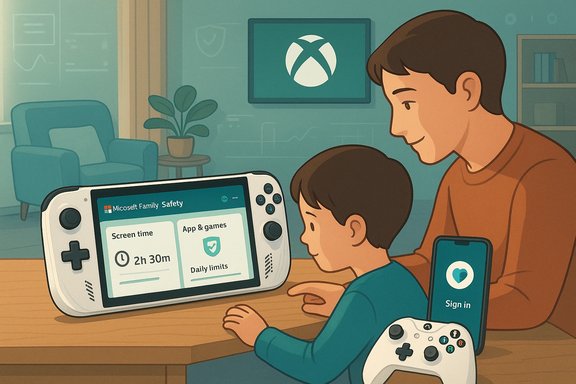 Background / Overview
Handheld gaming PCs like the ROG Ally, ROG Ally X, MSI Claw, and Lenovo Legion Go run Windows 11, which means parental controls are applied through Microsoft’s family tools rather than SteamOS-specific systems. These Windows controls integrate with Xbox family tools to cover both device-level restrictions and online/Xbox ecosystem behavior. This distinction matters: Windows controls manage local device use (screen time, apps, web filters, sign-in), while Xbox controls manage multiplayer, messaging, and store purchases inside the Xbox ecosystem.Before you begin, the essentials:
- A Microsoft account for each person you’ll manage (parent and child).
- The child’s account must be added to a Microsoft Family group.
- The child must sign in at least once on the handheld for device-level rules to appear.
How the system is designed (quick primer)
Understanding the layers will save time when troubleshooting:- Microsoft Family Safety (Family group & Family Safety app / web): Central management for screen time, app and game limits, web filtering, and spending controls across Windows and Xbox-linked accounts. It offers activity reporting and schedules per device.
- Windows settings on the handheld: The child’s account must be present on the device (Settings > Accounts > Family / Family & other users). Many device-specific settings (Allow sign-in, local device lock) are controlled here and will sync with the Family Safety profile once the account is associated.
- Xbox Family Settings / Xbox Family Settings app: Controls that focus on Xbox features — content rating enforcement, multiplayer/communication restrictions, friend requests, and purchase approvals in Microsoft/Xbox stores. This is a complementary layer to Family Safety.
What you need before you start
- Parent (organizer) Microsoft account — used to create and manage the family group.
- Child’s Microsoft account (or create one during setup). Children under eligible ages can be created as managed child accounts.
- The handheld device turned on and connected to the internet; the child signs into their Microsoft account at least once.
- Optional: Microsoft Family Safety app installed on your phone for on-the-go management.
Step-by-step: Create a Microsoft Family group (web or mobile)
You can set up a Family group from the web or the Microsoft Family Safety mobile app. Here’s a concise, reliable sequence:- Sign in to your Microsoft account (you’ll be the organizer).
- Open the Microsoft Family Safety page or the Family Safety app.
- Choose Add a family member and select Member (or Child when applicable).
- Enter the child’s Microsoft account email, or generate a child account if needed, then send the invite.
- Have the child accept the invitation from their email or by signing into their account on the handheld.
Add the child account to the handheld (Windows 11 handheld steps)
To ensure the device appears under Family Safety and can be managed, add the child’s Microsoft account to the handheld itself:- Log in to the handheld with your parent account first (recommended).
- Open Settings (Start > Settings).
- Go to Accounts > Family (or Family & other users).
- Under Family, select the child’s account and choose Allow sign-in (this allows the child to sign in on the device).
- Sign out, then sign in as the child and complete any device-first-run steps. You may need to restart the device for the account to appear in your Family dashboard.
Enable activity sharing and activity reporting
To see activity, web browsing summaries, and app usage:- On the child’s profile (via the Family Safety website or app), ensure Activity sharing is toggled to Yes.
- Then, enable Activity reporting on the child’s profile from the organizer’s account to receive weekly summaries and on-demand usage logs. Activity reporting will surface screen time, apps used, and Edge browsing history (when Edge is in use).
Configuring Parental Controls (via Microsoft Family Safety — web)
Once the child is part of your Family group and signed into the device, the Family Safety web interface gives these key options:- Screen time: Set daily schedules and per-device limits for Windows and Xbox. Choose different limits for weekdays and weekends, or block specific times (homework, bedtime). Make sure to choose the handheld under the “Windows” device list when applying rules.
- Apps & games: Block or limit specific applications or set age-appropriate limits for app downloads from the Microsoft Store. You can block access to apps entirely or set per-app daily usage caps.
- Web & search: Enable SafeSearch, block inappropriate websites, and create allow/block lists. Edge includes a Kids Mode for child-friendly browsing; however, Family Safety’s web filters provide more centralized enforcement across devices.
- Spending: Configure purchase approvals and add money to a child’s account (digital allowance). Microsoft sends requests to the parent to approve purchases when approval is required.
Configuring Parental Controls (via Microsoft Family Safety app — mobile)
The mobile app mirrors the web interface and is often faster for on-the-go changes:- Open the Microsoft Family Safety app and select the child’s profile.
- Under Devices, select the Windows handheld device and set Screen time, App & game limits, Web browsing filters, and spending limits.
- Activity reporting and location sharing are also available from the mobile app.
Xbox Family Settings: control the online/Xbox side
Because handhelds like the Xbox Ally run Windows but integrate with the Xbox ecosystem, add Xbox Family Settings for fuller control of online behaviour:- Download the Xbox Family Settings app (iOS/Android).
- Sign in with your organizer Microsoft account; the app should recognize family members you already added.
- Choose the child’s profile and adjust Xbox-specific options: multiplayer permissions, voice/text communication settings, content age ratings, friend requests, and purchase approvals inside the Xbox/Microsoft Store.
Practical examples and recommended settings
Below are practical, ready-to-use examples to apply or adapt for common age groups. Modify them to fit your family routine.Example A — Young child (6–9)
- Screen time: 60–90 minutes per day, blocked after 8:00 PM.
- App restrictions: Only educational and kid-friendly apps allowed; block social and chat apps.
- Web: Strict SafeSearch, whitelist educational sites; enable Edge Kids Mode when browsing.
- Purchases: Require approval for all purchases; no saved payment methods.
- Screen time: 90–120 minutes weekdays; 2–3 hours weekends. Enforce homework block from 4:00–6:00 PM.
- App restrictions: Allow age-appropriate games but block M-rated content.
- Communication: Disable multiplayer voice until you approve friends.
- Purchases: Approval required; give small weekly allowance if appropriate.
- Screen time: More flexible, but enforce sleep block (e.g., no device use after 11:00 PM).
- App restrictions: Allow more apps but monitor activity reporting.
- Communication: Allow friends but review friend lists regularly.
- Purchases: Purchase approvals for high-value items; set monthly spending cap.
Troubleshooting: common pitfalls and fixes
- Device not showing up under Family Safety? Confirm the child signed into the device with the same Microsoft account and Allow sign-in was enabled in Settings > Accounts; restart the device if needed.
- Activity reporting shows limited browsing data? Activity reporting is most comprehensive when your child uses Microsoft Edge; other browsers may not provide the same depth of reporting. Encourage Edge or use web filtering to restrict other browsers.
- Child bypassing restrictions with a local account or another email? Use managed child accounts (not local accounts) and avoid sharing parent credentials. If needed, create a dedicated child account with a strong password and parental controls enforced.
- Unexpected device lockouts or schedule glitches? Rare bugs can temporarily lock devices; review settings and, if needed, temporarily disable strict schedules to restore access and then reapply adjusted limits. If problems persist, sign out and sign back in, or remove and re-add the device to the family group.
Router-level controls and other safety layers
Parental controls are strongest when built as layers. In addition to Microsoft tools:- Use router-level parental controls to enforce network-wide filters and schedules; this prevents device-level circumvention via alternate user accounts or offline pages.
- Consider Edge’s Kids Mode for quick, focused browser lockdowns in shared browsing scenarios.
Security, privacy, and potential risks
- Account security: Use strong, unique passwords and enable two-factor authentication on the parent Microsoft account to prevent unauthorized changes to family settings.
- Privacy trade-off: Activity reporting collects usage data to enable monitoring. Be transparent with children about what is tracked to build trust.
- Regional differences: Some Family Safety features vary by region and Microsoft may change UI and feature sets; if a specific toggle or option is missing, it may be region- or version-dependent. Flag any missing or changed features to Microsoft support for clarification.
Administrative checklist (fast, actionable)
- Create a Microsoft account for the child (or have them provide one).
- Add them to your Family group (web or Family Safety app).
- On the handheld: Settings > Accounts > Family — allow the child to sign in, then sign in as the child. Restart if necessary.
- Enable activity sharing and activity reporting on the child’s profile.
- Apply screen-time rules for “Windows” devices (choose the handheld specifically) and set app limits.
- Install Xbox Family Settings and set online/communication/purchase rules.
- Test restrictions by attempting to launch blocked content and trying to make a purchase (the system will prompt for approval).
- Keep the Family Safety app on your phone for live approvals and request handling.
Final notes and best practices
Parental controls are tools to support healthy digital habits; the most effective approach combines technical controls with clear boundaries and regular conversations about online behaviour. Use activity reports as a conversation starter rather than a surveillance log. Review settings every few months — as children age, their needs change and controls should evolve with them. Microsoft’s Family Safety and Xbox Family Settings provide a comprehensive set of capabilities for Windows handhelds like the Xbox Ally, but remember to layer router-based protections and keep client software updated to minimize exploits and ensure the controls function as expected.Setting these controls up once will usually keep your household secure and your wallet safe — and it will give your children a structured environment to enjoy gaming without it taking over the day.
Source: Windows Central https://www.windowscentral.com/hard...ow-to-set-up-parental-controls-for-xbox-ally/
