

Windows Hello has quietly moved from a novelty to a practical, everyday security layer for millions of Windows users — fast enough to feel effortless, secure enough that it actually changes how people behave at their desk, and flexible enough to underpin Microsoft’s broader push toward passwordless sign-in.
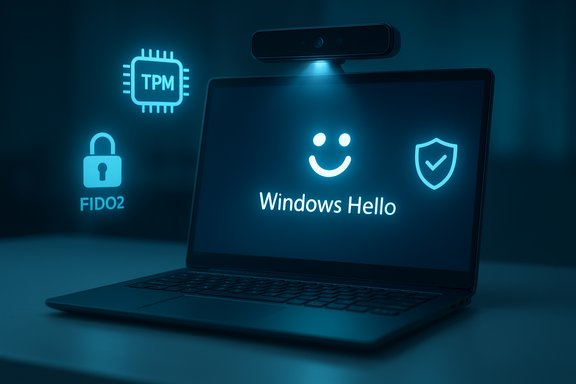
Windows Hello debuted as part of Microsoft’s Windows 10 vision: a hardware-backed, biometric-first approach designed to make sign‑in faster and safer than passwords. The system shipped with the Windows 10 launch cycle in mid‑2015 and has since evolved into a keystone of Microsoft’s passwordless strategy, now tied into FIDO2/passkey workflows and enterprise Windows Hello for Business deployments. The platform’s central promise is simple: your device plus you form the key, rather than a string of characters stored somewhere on the network. Under the hood, Windows Hello is not a single sensor or piece of software; it’s a layered ecosystem that mixes hardware (IR cameras, fingerprint readers, TPMs), local cryptography, and OS-level policies so that biometric templates and device credentials never leave the machine. That local-first model is the single most important security property of Hello.
(Community and how‑to tips and troubleshooting guides — including step‑by‑step setup, Dynamic Lock pairing instructions, and common fixes for recognition problems — are widely available in Windows documentation and community forums and are helpful when first switching from passwords to Windows Hello.
Windows Hello has earned its place in the toolbox: not a magic bullet, but a practical, well‑engineered component that, when paired with sensible policies and quality hardware, makes modern Windows sign‑in both faster and safer.
Source: Pocket-lint Windows Hello has become an important part of how I use my PC
 Background / Overview
Windows Hello debuted as part of Microsoft’s Windows 10 vision: a hardware-backed, biometric-first approach designed to make sign‑in faster and safer than passwords. The system shipped with the Windows 10 launch cycle in mid‑2015 and has since evolved into a keystone of Microsoft’s passwordless strategy, now tied into FIDO2/passkey workflows and enterprise Windows Hello for Business deployments. The platform’s central promise is simple: your device plus you form the key, rather than a string of characters stored somewhere on the network. Under the hood, Windows Hello is not a single sensor or piece of software; it’s a layered ecosystem that mixes hardware (IR cameras, fingerprint readers, TPMs), local cryptography, and OS-level policies so that biometric templates and device credentials never leave the machine. That local-first model is the single most important security property of Hello. How Windows Hello works — the technical essentials
Biometrics, depth cameras, and anti-spoofing
Windows Hello supports three mainstream sign-in modes for consumers: facial recognition, fingerprint, and PIN (the PIN is a device-local credential, not a password). Facial recognition in Windows Hello is typically implemented with an infrared (IR) or near‑infrared (NIR) camera that produces depth and texture data. This matters: a plain RGB webcam that only captures 2D images can be spoofed with a photograph, while an IR depth camera enables anti‑spoofing by detecting three‑dimensional facial geometry. Depth + IR = stronger anti‑spoofing. Fingerprint systems in modern laptops often use a match‑on‑chip design, where the sensor does initial matching internally and only provides a signed “yes/no” verdict to the host. In other deployments the OS performs matching against encrypted templates stored locally. Either way, biometric templates are stored and encrypted on the device rather than being uploaded to Microsoft or other online services.The PIN and TPM: why a short code can be safer than a password
A Windows Hello PIN is device bound — it is tied to the local device and, when available, to the Trusted Platform Module (TPM). That means a PIN that’s intercepted on a network (or reused across services) doesn’t let an attacker authenticate from another machine. The PIN acts as a local user gesture that unlocks private keys in the TPM; those keys are what actually authenticate you to apps, websites (via FIDO2), and the OS. The TPM adds tamper resistance and rate‑limiting against brute force.Passkeys and the passwordless future
Windows Hello integrates with modern passwordless standards: it can act as a FIDO2 authenticator and store passkeys that let you sign into websites and apps without passwords. That’s a strategic advantage: Hello isn’t just a desktop convenience but a bridge into a cross‑platform, phishing‑resistant credential model.Why many people (myself included) prefer Hello: speed, security, and behavior change
- Speed and friction reduction. Unlocking with a glance or a touch is measurably faster than typing long, complex passwords — and when an OS auto‑locks frequently, that time savings becomes high value.
- Local-first security model. Biometric templates and PINs don’t roam off‑device. This dramatically reduces the value of large server-side data breaches for an attacker.
- Encourages safer behaviour. Because biometric login is convenient, people are more likely to keep devices auto‑locking enabled and to use multi‑factor options like Dynamic Lock (which auto‑locks when a paired phone moves away). That reduces simple, opportunistic attacks such as someone seizing an unattended laptop.
Hardware realities and setup: what to buy and what to expect
Required hardware and practical tips
- For facial recognition you need a Hello‑compatible IR/NIR camera (depth sensing). Many modern laptops ship with one; desktop users can add an IR webcam.
- Fingerprint readers are either built into laptops or available as USB modules. The market also offers integrated security keys (FIDO2) with built‑in fingerprint readers.
- If your PC is missing compatible hardware, external IR webcams and USB fingerprint readers are available cheaply; however, quality and reliability vary. Buy well‑reviewed devices from trusted vendors for consistent results.
Enhanced Sign‑in Security (ESS) and external peripherals
Windows 11 introduced an Enhanced Sign‑in Security ecosystem that uses Virtualization‑Based Security (VBS) and TPM features to further protect biometric data. ESS may restrict or block use of external fingerprint readers or cameras unless they are fully supported by ESS; this is a deliberate design tradeoff for stronger platform security. If you rely on third‑party peripherals, modern Windows settings give you an explicit toggle to enable support for external devices, but doing so may relax some ESS protections. For many users the safest path is to choose devices that explicitly support ESS or to plug and enroll an external device before finalizing OSS/VBS/ESS settings.Known reliability limits and UX friction
- Recognition failure rates vary. Facial recognition can struggle with dramatic appearance changes (heavy makeup, facial hair, hats), poor lighting, or cameras with limited range. Fingerprint sensors can be picky with wet/dirty fingers or poorly positioned swipes. These are practical, not theoretical, problems. Expect to re‑enroll or use multiple fingers and to use the “Improve recognition” options.
- Camera range and ergonomics. Some built‑in IR cameras have short focal distances; if you use a laptop on a stand or place your device further from your face, you may need to lean in or adjust a webcam. Not all Hello cameras are equal; range and field of view matter for daily comfort.
- PIN fallback remains a requirement. Because biometrics can fail, Windows forces a PIN as the fallback. The security of your Hello setup is therefore strongly influenced by your PIN policy and your habits around it.
Real attacks and credible limitations: what the security research shows
Windows Hello raises the technical bar, but researchers have demonstrated realistic attack paths — especially against improperly designed or implemented fingerprint sensor ecosystems.The Raspberry Pi man‑in‑the‑middle attack (what happened in 2023)
Independent security researchers (Blackwing Intelligence and others) demonstrated practical attacks on several laptops by physically disassembling devices and connecting sensors to a Raspberry Pi running custom code. Using that man‑in‑the‑middle approach, they were able to:- Intercept and analyze the sensor‑to‑host protocol.
- Enumerate valid fingerprint IDs stored on match‑on‑chip sensors.
- Enroll attacker fingerprints into the sensor’s database or replay/forge authentication verdicts so that the host thought a legitimate authentication had occurred.
- It required physical access and partial disassembly of the device — not a casual “plug‑and‑play” exploit.
- It exploited vendor implementation errors as much as Windows architecture.
- It is practical for targeted, high‑value attacks (think corporate executives, high‑privilege accounts), but not the run‑of‑the‑mill laptop theft scenario.
What this means for everyday users
- For typical users in normal threat environments (coffee shop, home, office with normal physical security) the attack is unlikely.
- For high‑value targets, especially those who travel with sensitive data, physical device protection and layered authentication (security keys, full‑disk encryption, restricted access policies) are essential.
- The research highlights the importance of hardware vendor quality and firmware updates: the supply chain and device firmware matter as much as the OS.
Cross‑checking key claims (what documentation confirms)
- Biometric templates and PINs are stored locally and encrypted; biometric databases are created per‑sensor and encrypted with AES, and in many cases keys are protected by TPM. These are documented Microsoft design choices.
- The Windows Hello PIN default and policy behavior differ by context: management/Intune documentation shows administrators can set PIN minimum length and complexity. Some Microsoft docs note default behavior can be a six‑digit minimum in managed scenarios, while legacy CSP settings and PassportForWork defaults allow a minimum of four characters; enterprises are advised to raise the minimum to six (or more) for added security. In short: default length depends on the provisioning context — check Intune/group policy and raise to six or more for safety.
- Enhanced Sign‑in Security and SDCP exist to close gaps where malicious peripherals or bad sensor firmware could expose biometric streams; Microsoft recommends ESS and hardware that supports Secure Device Connection Protocol. The platform includes a toggle to allow or disallow external camera/fingerprint use when ESS is on.
Practical hardening checklist — make Hello strong and reliable
- Use devices with a proven hardware security stack
- Prefer laptops or webcams that explicitly advertise Windows Hello compatibility and ESS/SDCP support.
- Enable TPM and ESS (if available) on devices used in higher‑risk environments
- ESS tightens the platform; for external peripherals you may need to toggle settings intentionally.
- Set a stronger PIN policy
- Enforce a minimum of 6+ characters or require alphanumeric/special characters in enterprise settings. Avoid short and obvious PINs like “0000” or birthdays.
- Use passkeys / FIDO2 security keys for very high‑value accounts
- Physical keys add phishing resistance and can act as a secondary factor beyond biometrics.
- Keep firmware and drivers updated
- Sensor firmware and driver updates can close vulnerabilities in vendor implementations of SDCP/TLS.
- Practice physical security
- Prevent device tampering and theft. Hardware MITM attacks require physical access and disassembly in many of the demonstrated cases.
- Combine Hello with system protections
- Full‑disk encryption (BitLocker), UEFI secure boot, and OS updates reduce the value of a stolen or tampered device.
Deployment notes for IT and power users
- Enterprise admins should treat Windows Hello as part of a multi‑layer identity program — it’s not a drop‑in replacement for other controls for high‑risk accounts without additional safeguards (TPM enforcement, SDCP validation, FIDO2 adoption).
- IT policy controls (via Intune/Group Policy) let administrators enforce PIN complexity, require TPM, disable certain biometric methods, and control Enhanced Sign‑in Security behavior. Review those settings before mass‑deploying Hello across an organization.
- Consumer setups should balance convenience and security: enable Hello for daily sign‑in, set a reasonably long PIN, register more than one finger (or face with and without glasses), and keep a security key for accounts that matter most.
Balanced assessment — strengths, practical limits, and the risk profile
Strengths
- Convenience that drives security: People use security they don’t hate. Hello’s convenience encourages safer habits (auto‑lock, less password reuse).
- Local trust model: Biometric templates and PINs are not broadcast or stored on remote servers; cryptographic keys are rooted in the device’s TPM. This greatly reduces the effectiveness of mass credential‑harvest attacks.
- Path to passwordless: Integration with FIDO2 and passkeys aligns Hello with industry trends toward phishing‑resistant authentication.
Limits and risks
- Physical attacks remain possible. The Raspberry Pi MITM research demonstrates that hardware‑level attacks against sensors are feasible when an attacker has physical access and time. This doesn’t invalidate Hello for most users, but it underscores the need for layered defenses and physical device protections.
- Vendor implementation matters. Microsoft provides SDCP and ESS, but the security guarantees depend on vendors implementing and supporting them correctly. Devices and peripherals from disreputable or unsupported vendors may weaken the overall chain.
- UX variability. Recognition reliability, camera range, and sensor ergonomics vary widely across devices. Expect a learning curve and occasional re‑enrollment.
Summary and final recommendation
Windows Hello is an effective, modern sign‑in system that meaningfully improves both security and convenience for everyday Windows users. Its core design — local storage of biometric templates, TPM‑backed PINs, and integration with FIDO2/passkeys — gives users a robust alternative to passwords that reduces the surface for remote credential theft and phishing attacks. Microsoft’s design choices and documentation back these claims. That said, Hello is not invincible. Security researchers have shown that targeted, physical attacks against poorly implemented or insufficiently protected sensor hardware can bypass biometric authentication. The practical takeaway is simple: use Windows Hello, but do so with modern hardware, a strong PIN policy (6+ characters or better), device encryption, and, where appropriate, physical protections and secondary factors such as FIDO2 security keys. Keep drivers and firmware updated and prefer hardware that supports Microsoft’s Enhanced Sign‑in Security and Secure Device Connection Protocol. For those who value convenience and improved day‑to‑day security — and for whom remote attacks are the dominant threat — Windows Hello is a clear win. For high‑value targets with a risk of targeted physical tampering, Hello should be one element of a broader, defense‑in‑depth strategy that includes hardware security, device control, and multi‑factor protections.(Community and how‑to tips and troubleshooting guides — including step‑by‑step setup, Dynamic Lock pairing instructions, and common fixes for recognition problems — are widely available in Windows documentation and community forums and are helpful when first switching from passwords to Windows Hello.
Windows Hello has earned its place in the toolbox: not a magic bullet, but a practical, well‑engineered component that, when paired with sensible policies and quality hardware, makes modern Windows sign‑in both faster and safer.
Source: Pocket-lint Windows Hello has become an important part of how I use my PC
