

Microsoft’s latest Insider flights have quietly added a Dark Mode switch to Quick Settings — but the toggle is tucked inside a new Energy saver submenu rather than exposed as its own tile, a design choice that both answers a long-standing usability complaint and raises fresh questions about discoverability and context-driven UI choices. erview
For years Windows users have asked for two simple conveniences: a truly consistent system-wide dark theme and an easier, faster way to flip between light and dark without hunting through Settings. Microsoft added a system-level dark appearance years ago, but the implementation remained partial — some legacy dialogs and Win32 surfaces still flashed bright white even when Dark Mode was enabled. Recent Insider Preview builds addressed the first problem by extending dark theming into previously stubborn dialogs; the new Quick Settings discovery addresses the second by giving users a much faster route to toggle themes from the taskbar.
This article takes a close look at iew builds, why Microsoft may have grouped the toggle under Energy saver, how this compares to other platforms, the trade-offs for users and IT, and practical steps Windows fans and admins can take today — along with a candid assessment of the risks and limitations you should watch for as this feature moves through staged testing.
Key points confirmed in those reports:
Windows’ prior model required a trip through Settings:
Admins should consider:
Be mindful of these practical caveats:
Microsoft’s staged testing and the wider quality‑of‑life emphasis announced for Windows this year make this the right kind of small, pragmatic improvement — provided Microsoft listens to the user feedback the Insider channel generates and adjusts the UX before broad rollout. In the meantime, testers can join the Insider program to try the feature, PowerToys offers a robust interim solution, and admins should prepare for new policy surfaces tied to energy management.
The change is emblematic of how Windows evolves today: increments of polish and utility, vetted in public flighting channels, and refined through community feedback. If Microsoft balances battery rationale with user expectations — by either exposing a dedicated tile or improving discoverability and labeling — this will be one of those quiet, widely appreciated upgrades that silently improves millions of daily workflows.
Source: Pocket-lint Windows is finally adding the dark mode option I've been waiting for
For years Windows users have asked for two simple conveniences: a truly consistent system-wide dark theme and an easier, faster way to flip between light and dark without hunting through Settings. Microsoft added a system-level dark appearance years ago, but the implementation remained partial — some legacy dialogs and Win32 surfaces still flashed bright white even when Dark Mode was enabled. Recent Insider Preview builds addressed the first problem by extending dark theming into previously stubborn dialogs; the new Quick Settings discovery addresses the second by giving users a much faster route to toggle themes from the taskbar.
This article takes a close look at iew builds, why Microsoft may have grouped the toggle under Energy saver, how this compares to other platforms, the trade-offs for users and IT, and practical steps Windows fans and admins can take today — along with a candid assessment of the risks and limitations you should watch for as this feature moves through staged testing.
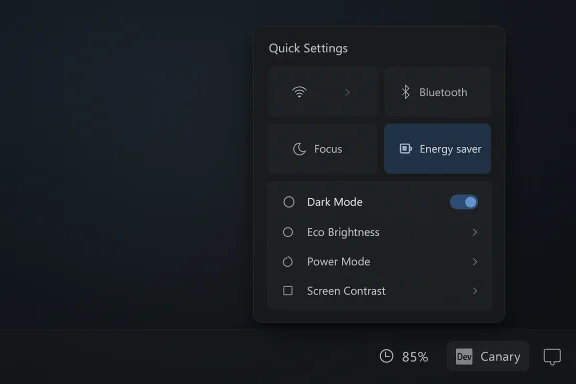 What appeared in Insider builds
The discovery and attribution
Community feature hunters spotted the UI change in recent Dev-channel preview builds: a new Energy saver tile in Quick Settings that expands into a submenu containing several power- and display-related controls — notably a Dark Mode quick action. Observers who shared screenshots and hands‑on notes traced the find back to active testers and UI researchers in the Windows insider community. The discovery has been widely discussed by community forums and preview-watchers.Key points confirmed in those reports:
- The Dark Mode toggle appears insnergy saver** page rather than as a primary Quick Settings tile.
- The submenu groups related options such as Eco Brightness, Power Mode, and (in some test builds) Screen Contrast controls alongside the Dark Mode switch.
- Implementation is staged and gated: the control is present in code in Dev-channel flights but not necessarily enabled for all Insider systems; feature flags and server-side staging determine visibility.
Which builds and devices showed it?
Reports across community channels that examined multiple test flights at Dev/Canary preview builds (insider builds in the 26xxx–27xxx series, depending on the test snapshot). Some functionality is only surfaced on battery-equipped devices, which makes sense if the feature is being framed as part of an energy strategy; desktop machines without batteries did not always show the Energy saver submenu in early tests. Those distribution details emphasize the experimental, staged nature of the rollout.Why Microsoft might put Dark Mode inside Energy saver
At first blush, placing a visual-personalization control inside a power-management submenu e. But there are pragmatic reasons Microsoft may be exploring that carve‑out:- Dark themes can save measurable energy on OLED and emissive panels by reducing the number of lit pixels. Grouping theme toggles with energy controls lets Microsoft present theme as one lever in a device‑level power strategy.
- Consolidating battery-related options reduces Quick Settings clutter while exposing richer controls in an expandable area for users who want more depth than a single tile can offer.
- Staging the change behind Energy saver limits the visible surface area for rapid experimentation and telemetry collection — Microsoft can test behavior, telemetry, and regression frequency on a narrower set of impacted flows.
How this compares to mobile and rival desktop platforms
Both Android and iOS expose Dark Mode toggles in their quick/fast-access panels: Android lets you place a Dar the notification shade, and iOS allows a Dark Mode control to be added to Control Center. That makes theme switching immediate on phones and tablets; macOS also exposes theme controls more directly through menu bar or Control Center shortcuts. Apple’s own documentation shows how users can add the Dark Mode control to the Control Center for instant access, illustrating the model many users expect.Windows’ prior model required a trip through Settings:
- Settings > Personalization > Colors > Choose your mode (select Dark).
That path remains the system baseline today, and it’s still the definitive place to set the OS-wide appearance — which is why adding a Quick Settings toggle matters even if it’s placed inside Energy saver. Microsoft support documentation and multiple how‑to guides still point users to Settings for permanent changes.
Practical implications for users and administrators
Benefits
- Faster access: Even tucked inside Energy saver, a Quick Settings toggle cuts the number of clicks needed to flip themes during long work sessions.
- Battery-awareness: On laptops with OLED screens, switching to Dark Mode as part of an energy profile can deliver tangible watts saved over time.
- Consistency fixes are arriving: Preview builds that darken legacy file‑operation dialogs and other holdouts mean less jarring wDark Mode is enabled, enhancing the overall experience.
Risks and shortcomings
- Discoverability: Burying Dark Mode in Energy saver creates a discoverability mismatch. Users who expect a top-level theme tile will be confused or assume the OS still lacks a quick toggle.
- Context confusion: Theme switching is often an accessibility or ergonomics choice (reducing eye strain), not purely a battery optimization. Grouping it with energy features may make some users think it only applies to battery-conserving scenarios.
- Staged rollouts and regressions: Experimental features in Dev/Canary builds can be buggy; Microsoft uses server-side flags to gate features, and the visible behavior in a preview build is not a guarantee of final UX. History shows that fea or removed prior to wide release.
- Device gating: Early tests show the option may only appear on battery-equipped devices initially, meaning many desktop users won’t seeondering why.
Cross‑checks and independent validation
To avoid amplifying a single report, I cross-referenced multiple community and editorial sources:- Community Insider threads and feature hunters documented the Energy saver submenu and the Dark Mode quick action in Dev flights; those hands‑on fragments were collected and archived in community thread extracts.
- Independent Windows-focused outlets and preview trackers have covered the same changes and emphasized both staging and gating behavior across Dev/Beta channels. Those discussions align with the community findings and note the same placement under Energy saver.
How to try this now (for enthusiasts and testers)
If you want to see whether your Insider preview presents the new Dark Mode toggle, follow these steps. Be aware that Dev/Canary builds are experimental and can introduce instabilities.- Join the Windows Insider Program (if you aren’t already) and enroll the device in the Dev Channel for the most aggressive preview builds.
- Update Windows to the latest available Insider build and reboot.
- Click Quick Settings on the taskbar (the network/volume/battery cluster).
- Look for an Energy saver tile with a chevron or expandable affordance.
- If present, open the Energy saver submenu and scan for a Dark Mode or Dark/Light quick action. Toggle it to test behavior.
- If you don’t see it, the feature may be gated on Microsoft’s side; some testers have needed to wait for a server-side flag or try on a battery-equipped laptop to reproduce the UI.
Enterprise perspective: Intune, policy and manageability
Microsoft has been extending energy-management controls into enterprise tooling. Recent Insider activity included administrative controls for energy saver through Microsoft Intune and Group Policy in some preview builds, which suggests enterprises will be able to govern power-related behaviors centrally. If Dark Mode is indeed framed as part of Energy saver, expect policy knobs and MDM controls to follow — a positive for IT teams that want consistent device behavior across fleets.Admins should consider:
- Whether a theme toggle should be controllable via policy (for standardization or accessibility compliance).
- How theme changes interact with company imaging, sign-in screens, kiosk modes, and accessibility requirements.
- Testing with representative hardware, especially where display technology (OLED vs LCD) affects the power trade-offs.
Broader context: Microsoft’s 2026 shift toward quality-of-life improvements
Microsoft publicly signaled a renewed focus on making Windows “better in ways that are meaningful for people,” reallocating engineering attention to performance, reliability, and core UX polish. Reorganizing Quick Settings and finishing the Dark Mode story fits that stated aim: small, pragmatic changes that improve daily life. Multiple outlets have reported about Microsoft’s strategic pivot and senior leadership comments describing the shift. If the Energy saver toggle becomes part of a broader campaign to tidy the OS and reduce friction, it will be a welcome course correction.Design critique: pros, cons, and suggested refinements
What Microsoft got right
- Consolidation: Grouping power-relevant options into Energy saver reduces top-level clogical home for battery-oriented display settings.
- Telemetry-friendly rollout: Staged enablement via feature flags minimizes risk and helps Microsoft iterate before a wide roll‑out.
- Continuity: Extending Dark Mode into legacy dialogs and system prompts addresses the much‑criticized “white flash” problem, improving the overall polish.
What needs rethinking
- Discoverability: Many users expect a single-click Dark Mode quick action in Quick Settings. Making it secondary creates friction and contradicts established patterns on mobile platforms.
- Context framing: Theme changes are often an accessibility or comfort preference; burying them under energy settings risks miscommunicating intent.
- Surface parity: Desktop users on non-battery machines could be confused if the toggle is only visible on laptops. The UX should ensure parity or clearly explain device-dependent behavior.
Suggested refinements (for Microsoft)
- Offer both: include a dedicated Dark Mode quick tile by default, and keep the Energy saver submenu for advanced power-related controls (Eco Brightness, Power Mode, etc.).
- Provide explicit labeling: if Dark Mode remains in Energy saver for energy-savings rationale, label it with a short explanatory tooltip (e.g., “Reduce screen energy use on OLED displays”).
- Accessibility toggle: expose a persistent accessibility-friendly quick action (or keyboard shortcut) that’s separate from energy controls so users who rely on high-contrast or dark themes can flip immediately.
Safety, privacy and regression considerations
This is primarily a UI and UX change, so direct privacy implications are minimal. However, any new Quick Settings control that surfaces system settings can introduce new telemetry vectors; Microsoft’s staged approach should help identify unintended telemetry spikes or regressions.Be mindful of these practical caveats:
- Experimental builds can introduce regressions unrelated to the Dark Mode toggle itself; always test in a controlled environment before upgrading production machines.
- If you rely on third-party utilities that interact with theme settings (such as PowerToys’ Light Switch or other automation tools), coordinate testing because multiple controllers can lead to oscillation or unexpected behavior. Community incidents have shown that updates to theme-scheduling tools can accidentally toggle themes for users en masse.
Workarounds and alternatives today
If you can’t wait for Microsoft’s Quick Settings toggle, there are stable alternatives:- PowerToys Light Switch (official PowerToys module) — adds an automatic or hotkey-driven scheduler to switch between Light and Dark. Microsoft’s PowerToys is now delivering the first-party Light Switch module that many users wanted. Use it if you want scheduled changes or a single hotkey toggle.
- Third-party utilities (Auto Dark Mode, Task Scheduler scripts) — these have been popular stopgaps for users who need scheduled switches or faster toggles.
- For accessibility, keep the Settings > Personalization > Colors path in mind as the canonical configuration point (useful for admins who need to script or enforce policies).
What to watch next
- Will Microsoft move Dark Mode out of Energy saver and add a dedicated Quick Settings tile, or keep it nested? Community response and telemetry will influence the decision.
- How broadly will Microsoft enable the toggle (Dev → Beta → Release Preview → stable)? Timeline and channel rollout patterns will determine when mainstream users see the change.
- Will admins get policy-level controls for theme toggling tied to energy profiles via Intune or Group Policy? Early previews hint at Intune integration for Energy saver controls.
- Will Microsoft provide clear documentation and discoverability (tooltips, help text) that explains the energy-related rationale for the toggle? Good documentation could reduce confusion.
Conclusion
A Quick Settings Dark Mode toggle is a modest change with outsized daily impact — especially for people who work long hours on Windows laptops. Putting that toggle behind an Energy saver submenu is defensible from a battery-optimization perspective, but it introduces a discoverability mismatch for users who expect theme switching to be a first-class quick action.Microsoft’s staged testing and the wider quality‑of‑life emphasis announced for Windows this year make this the right kind of small, pragmatic improvement — provided Microsoft listens to the user feedback the Insider channel generates and adjusts the UX before broad rollout. In the meantime, testers can join the Insider program to try the feature, PowerToys offers a robust interim solution, and admins should prepare for new policy surfaces tied to energy management.
The change is emblematic of how Windows evolves today: increments of polish and utility, vetted in public flighting channels, and refined through community feedback. If Microsoft balances battery rationale with user expectations — by either exposing a dedicated tile or improving discoverability and labeling — this will be one of those quiet, widely appreciated upgrades that silently improves millions of daily workflows.
Source: Pocket-lint Windows is finally adding the dark mode option I've been waiting for
