

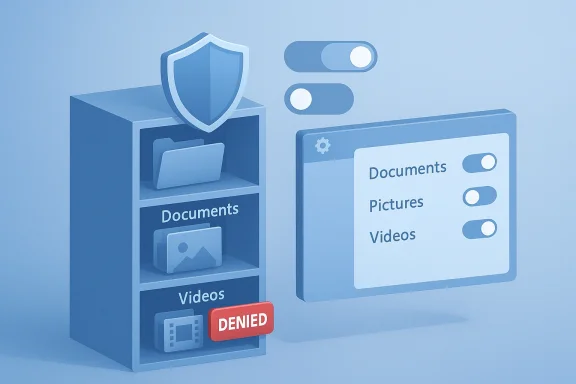
Windows gives you explicit control over which apps can read, edit, and save files in your Pictures, Videos, and Documents libraries — and, importantly, Windows will create an app‑specific folder when you deny broad access so the app can still store its output without seeing the rest of your files.
Windows stores personal files in a handful of well-known library locations — Documents, Pictures, Videos (and Music, Downloads, Desktop) — and these folders are where most apps look when they open, edit, or save content. For decades Windows apps have needed programmatic ways to enumerate and access files in those locations, and modern app models (UWP/WinRT, packaged WinUI apps) expose discrete capability declarations for this purpose.
At the same time, Microsoft has layered user‑facing privacy controls into Settings so that the end user — not the app developer — decides which installed software can access those personal libraries. The Microsoft Support guidance explains the basic user model: apps should declare the permission they need on their Store listing, and users can grant or deny library access via Settings. If denied, Windows isolates an app’s storage into a unique folder so the app can still save files without having blanket read access to the entire library.
IT should also control device‑level defaults (for example, whether app permissions are changeable by the user) via Group Policy or MDM profiles, and restrict the ability to enable risky capabilities in managed devices.
In short: treat library permissions as you would any sensitive system privilege. Audit them periodically, prefer explicit file‑picker workflows, avoid granting broad access unless absolutely necessary, and be cautious about cloud and AI integrations that may create secondary channels for data movement. If you adopt those practices, Windows’ library controls will give you strong, pragmatic protection without dramatically reducing app usefulness.
Source: Microsoft Support Pictures, videos, and documents library access and privacy - Microsoft Support
 Background
Windows stores personal files in a handful of well-known library locations — Documents, Pictures, Videos (and Music, Downloads, Desktop) — and these folders are where most apps look when they open, edit, or save content. For decades Windows apps have needed programmatic ways to enumerate and access files in those locations, and modern app models (UWP/WinRT, packaged WinUI apps) expose discrete capability declarations for this purpose.At the same time, Microsoft has layered user‑facing privacy controls into Settings so that the end user — not the app developer — decides which installed software can access those personal libraries. The Microsoft Support guidance explains the basic user model: apps should declare the permission they need on their Store listing, and users can grant or deny library access via Settings. If denied, Windows isolates an app’s storage into a unique folder so the app can still save files without having blanket read access to the entire library.
How Windows implements library access and the technical plumbing
Capability declarations and app types
There are two important technical realities to understand:- UWP/WinRT and packaged apps can declare library capabilities in their package manifest (for example, picturesLibrary or videosLibrary). That declaration requests programmatic access to the entire library, enabling an app to enumerate files without using file pickers. Microsoft’s documentation explains these capability names and the recommended alternatives (file picker) when full library enumeration is unnecessary.
- Win32 / traditional desktop apps generally rely on system file APIs and user consent via Settings or the file picker. Microsoft has introduced the broadFileSystemAccess capability for packaged desktop scenarios that require wide filesystem access, but this capability is powerful and controlled tightly at install/runtime and in Settings. The guidance stresses that file pickers are preferable whenever possible to avoid granting broad access.
What happens when you deny access
Microsoft’s support text contains an important UX detail: when you deny an app access to a library (say, Pictures), Windows may create a unique folder inside that library where the app can write files it needs to store. This folder is isolated for that app and prevents it from enumerating or reading other files in the same library, which reduces the privacy exposure while letting the app perform essential tasks (for example, saving an edited photo). That behavior is an intentional compromise between security and usability.The user controls — what you can and should do in Settings
If you want to inspect or change an app’s ability to access your Documents, Pictures, or Videos, this is the straightforward path in modern Windows:- Open Settings.
- Go to Privacy & security (Windows 11) or Privacy (Windows 10).
- Choose Documents, Pictures, or Videos.
- Toggle global access on/off, and then toggle per‑app access when available.
Quick checklist — audit your library permissions
- Turn off Allow apps to access your X library if you don’t use Store apps with that library.
- Use the per‑app toggles to grant access to trusted apps only.
- If a desktop app needs broad access, consider using the file picker or temporarily granting access only while the task runs.
- Review permissions after major app updates — capabilities can change between versions.
App behaviors, exceptions, and developer considerations
File picker vs. library capability
Microsoft strongly recommends using the file picker UI rather than declaring a library capability unless your scenario truly needs programmatic enumeration of the entire library. The file picker gives the user fine‑grained control: they explicitly select the file(s) or folder(s) the app may access, which is a far safer default for privacy. For app authors, this is the preferred design pattern because users are more comfortable granting access when it’s explicit and transient.broadFileSystemAccess and administrative controls
The broadFileSystemAccess capability grants an app the same file access rights as the signed‑in user. Microsoft’s docs and developer notes highlight two important safeguards:- The capability must be declared in the app manifest, and users must explicitly enable the corresponding permission in Settings.
- Microsoft has changed default behaviors historically (for example, toggling defaults across Windows releases) and may continue to refine defaults and review processes for Store apps that request powerful capabilities. Granting broad filesystem access should be a deliberate decision.
Store approval and policy
Because broad access can expose sensitive data, Microsoft’s Store review policies may reject or scrutinize apps that request library capabilities unnecessarily. Developers who genuinely need library access should document and justify the usage; otherwise, the file picker approach is both easier to get approved and better for user trust.Practical privacy and security analysis — what's strong, what remains risky
What’s good about the current model
- User control: The Settings UI centralizes privacy toggles so users can see and change which apps have access to each library. This improves transparency and makes it simple to revoke access.
- Least‑privilege by default for many scenarios: Encouraging the file picker and discouraging unnecessary library capability declarations nudges apps toward least privilege, reducing accidental exfiltration or mass scanning of personal files.
- App isolation when access is denied: The unique‑folder mechanism is a pragmatic design that limits what denied apps can see while still enabling useful behavior like saving edited files. This reduces the friction of refusing permissions without breaking core workflows.
Remaining risks and attack surfaces
- Broad capabilities are powerful: An app that legitimately needs broadFileSystemAccess can, once granted, read or modify many files. That power is necessary for some use cases (backup tools, search utilities), but it’s also a high‑risk permission window. Admins and informed users should treat it as closely as they would an installer or driver-level privilege.
- Cloud sync and cross‑service exposure: Many built‑in apps (Photos, Media Player, Clipchamp) and third‑party apps integrate with cloud services like OneDrive or iCloud to store or sync media. When you connect those cloud accounts, you may be granting a second pathway for data to leave the device — often under a different set of privacy terms. That means local library controls are necessary but not sufficient to understand full data flows.
- AI agents and emergent features: Newer features in Windows — such as agentic AI experiences and integrated assistants — may ask for file access to provide productivity features. Microsoft and security reporters have emphasized that agents won’t have default access and should ask for permission, but the agent model is evolving and could complicate consent models if not implemented transparently. Users should be cautious about enabling experimental agent features until permission flows are crystal clear. This is an area in active development and merits cautious scrutiny.
- Misconfigured or malicious apps: Any privileged app (especially desktop apps not installed from the Store) can be a risk if misconfigured or malicious. Platform protections help, but user behavior (installing random software, running unknown installers with elevated privileges) remains the root cause of many breaches.
Step‑by‑step: audit and harden your device (practical guide)
Follow this structured approach to limit unnecessary file access while keeping your workflow intact.1) Conduct a permissions inventory
- Open Settings -> Privacy & security -> Documents/Pictures/Videos.
- Note any apps you don’t recognize or no longer use.
- For each app, ask: Does this app need continuous access to all files in this library? If not, revoke it.
2) Prefer file pickers and explicit exports
- When an app asks to open a file, prefer the file picker rather than granting blanket access.
- When saving sensitive exports, save locally and then upload to cloud storage under your control when needed. This avoids giving an app ongoing read access.
3) Manage cloud integrations consciously
- In Photos, Media Player, and similar apps, check whether OneDrive or iCloud connections are enabled.
- If you must use cloud features, limit what folders are synced and review the cloud provider’s sharing settings and retention policies.
4) Be conservative with broadFileSystemAccess
- Only grant broadFileSystemAccess to apps you trust completely (backup/AV tools from reputable vendors).
- After the task is complete, consider revoking it if continuous access isn’t required.
5) Use OS‑level protections for ransomware and data loss
- Enable Controlled Folder Access (part of Microsoft Defender’s ransomware protections) to restrict which apps can modify protected folders.
- Keep regular backups and versioned cloud copies so you can recover from accidental deletions or encryption.
Special considerations for organizations and shared devices
For business users, OneDrive and SharePoint libraries provide different semantics: files stored in corporate OneDrive are typically private by default to the account owner but are managed under organizational policies (retention, eDiscovery, sharing). Admins should document which enterprise apps require library or tenant‑wide permissions and enforce least privilege with conditional access and App Governance. Microsoft’s guidance for managing document privacy in OneDrive/SharePoint is aimed squarely at these scenarios.IT should also control device‑level defaults (for example, whether app permissions are changeable by the user) via Group Policy or MDM profiles, and restrict the ability to enable risky capabilities in managed devices.
Developer and vendor responsibilities
App makers have an outsized role in this model. The most privacy‑respecting apps will:- Use the file picker whenever possible.
- Declare only the minimum capabilities required and clearly explain why in the Store listing.
- Provide an in‑app explanation for requested permissions and fallback behaviors when permissions are denied.
- Respect user revocation: apps should handle permission changes gracefully, with informative UI rather than crashes or cryptic errors.
Cross‑referenced verification of key claims
- The statement that Windows will create a unique folder for denied apps inside libraries so they can still save data while being restricted from the rest of the library is explicitly documented in the Microsoft Support article about library access and privacy.
- The recommendation to prefer the file picker and the semantics of manifest capabilities such as picturesLibrary, videosLibrary, and broadFileSystemAccess are documented in Microsoft’s developer documentation (App capability declarations and WinRT file‑access docs). Those pages also explain that broadFileSystemAccess is powerful and that file pickers are the safer choice.
- The practical Settings navigation and per‑app toggles are described in official Support and widely reported how‑to coverage (Microsoft Support and Windows Central), which confirms both the UI flow and the available controls across Windows 10 and Windows 11.
What to watch for next (and a final caution)
- Expect continued refinement around agentic AI features and how they request and consume files. Microsoft’s early statements indicate explicit consent dialogs and per‑agent permissions, but the model is nascent and subject to change; watch for updates to Settings and support documentation before enabling experimental agent features on devices with sensitive data.
- Keep an eye on Store policy and capability review changes. Microsoft periodically updates how capabilities like picturesLibrary or broadFileSystemAccess are evaluated on submission; these shifts can alter which apps get approved to access wide swathes of user data. Developers and security teams should monitor policy updates.
- For administrators, the long game is governance: use MDM/Group Policy to set sensible defaults, inventory app permissions across fleets, and require code‑signing or cataloged vendor lists for apps that must access broad filesystem areas.
Conclusion
Windows’ library access model strikes a practical balance: it gives users centralized controls and forces developers to justify broad file access while providing a fallback that lets apps save files without exposing the rest of your library. That model—combined with file pickers, capability declarations, and Store review—creates a layered privacy approach that works well if users and administrators actively manage permissions and developers follow least‑privilege principles.In short: treat library permissions as you would any sensitive system privilege. Audit them periodically, prefer explicit file‑picker workflows, avoid granting broad access unless absolutely necessary, and be cautious about cloud and AI integrations that may create secondary channels for data movement. If you adopt those practices, Windows’ library controls will give you strong, pragmatic protection without dramatically reducing app usefulness.
Source: Microsoft Support Pictures, videos, and documents library access and privacy - Microsoft Support
