

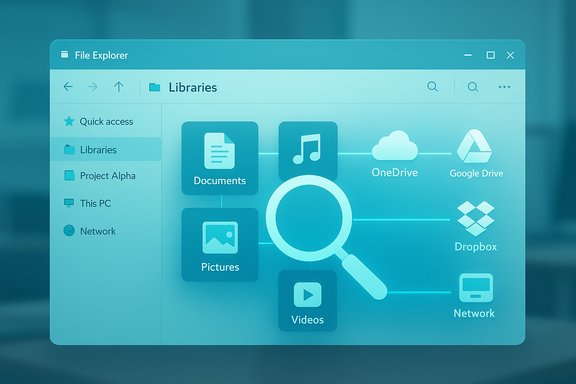
Windows libraries are one of those quietly powerful Windows features that too many people assume are obsolete—hidden by default in some Windows 11 builds—yet when configured deliberately they can turn scattered folders, network shares, and cloud sync locations into a single, searchable workspace that speeds everyday file work and backs up the things that matter most.
Background
Windows libraries were introduced as a user-friendly abstraction to gather related content from multiple physical locations into a single logical view. Unlike a real folder, a library is a virtual container: it shows the contents of several folders side‑by‑side without moving files or duplicating data. Microsoft’s documentation describes libraries as aggregators for local and remote storage, and they behave in File Explorer much like ordinary folders—except the resources they present can come from different drives or network paths. By default Windows presents four familiar libraries—Documents, Music, Pictures, and Videos—but you can create custom libraries for projects, mixes of cloud storage, or any other organizational grouping. Some Windows 11 builds don’t show the Libraries node in the navigation pane by default, so the feature can be easy to miss even though the underlying capability is still supported. Community troubleshooting posts and Microsoft’s support channels both reflect that the visibility of the Libraries node depends on UI settings and build variations.Overview: what libraries do and why they matter
- Libraries aggregate multiple folders into a unified view without moving or copying your files.
- Libraries are indexed, so searches run across all included locations quickly.
- Libraries can be customized (add/remove folders, set default save location, change icons, and optimize view types).
- File History treats libraries as first‑class backup candidates—folders included in libraries are included in File History backups by default.
How to show, create, and configure libraries (practical steps)
Enable the Libraries node in File Explorer
- Open File Explorer (Win + E).
- Click the three‑dot menu on the toolbar and choose Options (or open File Explorer Options via the Control Panel).
- Select the View tab, scroll to the bottom of Advanced settings, and check Show libraries (or use View → Show → Navigation pane → Show libraries depending on your build). After enabling, a Libraries node appears in the left navigation pane.
Tip: if Libraries still aren’t visible, type shell:Libraries in the Explorer address bar or the Run box and press Enter to open the Libraries folder directly.
Add folders to an existing library and set save locations
- Right‑click a library (for example, Pictures) and choose Properties.
- Click Add to include any folder from local drives, external disks, network locations, or cloud‑sync folders.
- Use Set save location to choose the default folder the library will use for Save/Save As operations. That setting matters because when you save from an application to the library, the file lands in the Save Location you selected.
Create your own library
- Right‑click inside the Libraries window and choose New → Library.
- Name it (for example, “Client Presentations” or “Holiday Photos”) and open Properties to include folders and set the default save location.
- Optionally change the library icon so it’s visually distinct in the navigation pane.
Quick include from File Explorer
- Right‑click any folder anywhere in File Explorer, choose Include in library, and pick the target library—no need to open Properties each time. This is the fastest way to aggregate disparate folders under one view.
Practical workflows that actually make libraries worth using
1) One view for multi‑cloud photos and media
Many users split storage across OneDrive, Google Drive, Dropbox, or smaller cloud drives. By including each cloud sync folder in a single Pictures (or custom Photo) library, you get one consolidated gallery for browsing and searching without migrating or duplicating files. This removes the friction when you’re working with limited free accounts across multiple services.2) Project libraries for files that live in different places
When working on a presentation, website, or video project you might have assets in Documents, a shared network folder, and an external drive. Create a project library (e.g., “Website Redesign Q4”) and include all those folders. You can then:- Search the entire project scope instantly (indexing helps).
- Save new assets directly to the project’s default save location.
- Remove the library later without touching the original files.
3) Back up non‑standard folders via File History
File History backs up the contents of libraries and a set of known folders (Desktop, Documents, Pictures, Contacts, Favorites). If you have important data outside those locations, include those folders in a library and File History will pick them up. This is an often‑overlooked workaround to make File History cover custom paths without copying files manually.4) Faster, scoped searching
Because Windows indexes library contents, searches within a library are fast and focused. If global search returns too many irrelevant results, open a library and search there to significantly reduce noise and find the file you need quicker. This technique is especially helpful when the OS index is broad or when you keep ephemeral files in common system locations.Step‑by‑step recipe: set up a “Project” library and put it under File History
- Open File Explorer and enable Libraries if hidden.
- Create a new library called Project — Alpha. Right‑click → New → Library.
- Right‑click Project — Alpha → Properties → Add. Include:
- C:\Users[you]\Documents\Projects\Alpha
- D:\Media\AlphaAssets (external drive)
- \NAS\Shared\Alpha (network share)
- C:\Users[you]\OneDrive\Alpha (cloud sync folder)
Each location appears under Library locations; choose Set save location to pick the preferred default.
- Confirm File History is turned on (Control Panel → File History) and that your backup target (external drive or network share) is selected. Because File History includes libraries by default, those included folders will be covered. Run a manual backup to confirm files are present in the FileHistory repository.
Strengths: where libraries shine
- Non‑destructive aggregation: You get unified access without moving or duplicating files.
- Flexible composition: Add unlimited locations—local drives, NAS, cloud sync—and change membership anytime.
- Indexed search: Performance is strong because libraries are indexed by Windows Search.
- Backup alignment: File History (a native Windows backup feature) includes library contents automatically, simplifying backups for scattered files.
Risks, limits, and things to watch for
Not a physical folder—so actions can still affect original files
A library is a view. Removing a folder from a library does not delete the underlying files. Conversely, deleting a file from inside a library view will delete the real file on its host volume. Treat library operations as operations on the real data underneath and verify before mass deletion or moves.Cloud sync and placeholder caveats
Cloud‑backed folders (for example, OneDrive files‑on‑demand or other sync providers) sometimes behave differently—placeholder states, selective sync, and transient online‑only files can change how file access and search behave inside a library. Test workflows involving cloud sync so you don’t accidentally work on an item that isn’t fully local.Build and settings variability
Some Windows 11 builds hide Libraries by default or present slightly different UI paths to toggle them; behavior can vary across Feature Experience Pack and Insider updates. If Libraries appear missing, check both the View → Navigation pane path and File Explorer Options → View tab. Microsoft Q&A threads show real world confusion when UI elements differ by build.File History differences and limits
File History’s integration with libraries is a strength, but File History itself has changed over Windows releases (Control Panel vs Settings variations, and the loss of some UI options). In Windows 11, adding arbitrary folders directly to File History is less obvious—adding them to a library is often the recommended workaround. Also, File History excludes certain system locations by default and doesn’t replace a full system image backup. Use it for continuous user‑file protection, not full system recovery.Permission and ACL considerations
If you include folders on other volumes or network shares, be mindful of NTFS permissions, share rights, and service account access. Changing default save locations or moving known folders can surface ACL problems that require attention. In managed environments, check policies before altering library membership for shared folders.Advanced tips and power user tweaks
- Use descriptive icons and names for custom libraries to reduce visual scanning time—right‑click a library → Properties → Change library icon.
- Use Optimize this library for (General items, Documents, Pictures, Music, Videos) to get better default column and view behavior for mixed content libraries.
- When reorganizing, test automation rules (File Juggler, DropIt) on a staging folder first—mistakes scale quickly if automation rules are too aggressive.
- If you need File History to back up non‑standard locations but the UI in your Windows 11 build lacks an “Add folder” option, create a new library and include those folders—File History will pick them up.
When libraries aren’t the right tool
- If you have a very simple, centralized folder layout with everything under C:\Users[you], libraries add little value.
- If you need a strict, canonical single‑location policy for compliance or backup reasons, using libraries as a view may introduce ambiguity about where the source of truth lives.
- For some enterprise backup solutions that don’t rely on Windows libraries, adding folders to libraries is unnecessary and might complicate policies.
Final analysis: why this little feature deserves a second look
Libraries are a small, low‑risk way to reduce the friction of modern file management. They embrace three useful ideas at once: aggregation (one view for many places), indexing (fast, scoped search), and backup alignment (File History includes libraries). For users juggling external drives, cloud syncs, and network shares, a few minutes spent creating a project‑specific library yields outsized daily time savings.The strengths are practical: faster finds, simpler saves, and easier backups. The limits are real but manageable: test cloud sync interactions, be cautious when deleting inside a library view, and verify permissions for network locations. Where Microsoft’s UI choices have made libraries less visible in some Windows 11 builds, the underlying capability remains supported and documented. Libraries won’t replace a thoughtful folder hierarchy or a robust backup policy, but they are an under‑used tool that maps naturally to real world behavior: people store related files across many places. When configured as described here, libraries reduce the “where did I put that?” problem and make file work less about searching and more about doing.
Quick reference — cheat sheet
- To show Libraries: File Explorer → three‑dot menu → Options → View → check Show libraries, or View → Show → Navigation pane → Show libraries.
- To add a folder: Right‑click the folder → Include in library → pick a library.
- To create a library: Open Libraries → right‑click empty space → New → Library → name → Properties → Add.
- To ensure backup: Turn on File History (Control Panel → File History). Libraries and their included folders will be backed up by File History.
Libraries are a pragmatic, low‑effort feature that rewards a small initial investment in setup. For anyone who manages files across multiple disks, networks, or cloud accounts, they convert scattered storage into a curated workspace—faster to search, simpler to save to, and included in native backups. Use them for projects, media collections, or consolidated cloud views; treat deletions with care and verify cloud sync behavior; and your file workflow will feel substantially less chaotic.
Source: MakeUseOf I thought Windows libraries were useless until I used them like this
