

I started using Windows File Explorer the way most people do—save here, download there, hope I remember where—and then discovered six deceptively simple tricks that instantly cut the time I waste on hunting and moving files; those same tips were the basis of a recent MakeUseOf guide you may have seen, and they’re worth a closer, verified look.
File organization is one of those productivity problems that appears trivial until it becomes the time-sink of your week. Windows ships with a surprisingly capable set of tools — from Settings → Storage options that control where new files land, to advanced search syntax in File Explorer; on top of those, lightweight third‑party utilities like Everything and File Juggler can transform the experience for power users. This feature dissects the six tips highlighted in the MakeUseOf piece, verifies the technical claims against Microsoft documentation and independent reporting, gives concrete step-by-step instructions, and flags practical risks so you can adopt each trick safely.
What AQS gives you
What’s changed in recent Windows builds
How to show Libraries
What File Juggler and similar tools do
Source: MakeUseOf I’ve used Windows forever — but I only just found these 6 file management tricks
 Background / Overview
File organization is one of those productivity problems that appears trivial until it becomes the time-sink of your week. Windows ships with a surprisingly capable set of tools — from Settings → Storage options that control where new files land, to advanced search syntax in File Explorer; on top of those, lightweight third‑party utilities like Everything and File Juggler can transform the experience for power users. This feature dissects the six tips highlighted in the MakeUseOf piece, verifies the technical claims against Microsoft documentation and independent reporting, gives concrete step-by-step instructions, and flags practical risks so you can adopt each trick safely.1. Change the default download / save locations — take control of where files land
One of the easiest wins is to stop letting everything pile up on C:. Windows provides a built‑in way to change the default save location for categories like Documents, Pictures, and Apps, and browsers let you set download folders or ask for a save location each time.- Why this matters: moving default locations to a larger secondary drive keeps your system volume lean and reduces the chance of running out of space on C:.
- What to check first: whether apps you rely on assume the default user folders (moving some special folders can confuse older apps).
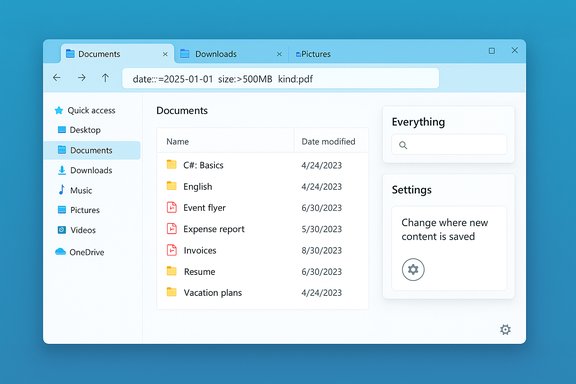
- Windows exposes a "Change where new content is saved" control under Settings → System → Storage; that is the documented place to pick a drive for Documents, Pictures, Music, Videos, and so on.
- Browsers also include per‑app download settings (for example, Edge and Chrome let you set a default download folder or prompt each time). Practical walk‑throughs and how‑tos are widely published.
- Open Settings (Win + I) → System → Storage.
- Click "Change where new content is saved" (or similarly named link).
- For each content type (Documents, Music, Pictures, Videos, New apps), use the drop‑down to select the desired drive and click Apply.
- In your browser settings (Edge: Settings → Downloads; Chrome: Settings → Downloads), either change the default folder or toggle the option to "Ask where to save each file" so you decide per download.
- Moving known folders causes Windows to create new user folder locations; it does not automatically migrate files in all cases. Always verify what happened and keep a backup until you’re confident.
- Some third‑party apps may reference hardcoded paths; test mission‑critical software after changing locations.
- If you encounter permission errors when changing save locations (rare), they can be caused by missing SYSTEM permissions or similar configuration oddities on the target drive — check ACLs carefully before deciding to reformat or remove a drive.
2. Search specific files in seconds — use advanced search operators and Everything
Finding files is a solved problem — if you use the right syntax or the right tool. File Explorer supports Advanced Query Syntax (AQS), and specialized tools like Everything (Voidtools) perform name‑based indexing against the file system for near-instant results.What AQS gives you
- Search by file type, date ranges, size ranges, metadata, and even content properties with compact filters like:
- *.pdf (all PDFs)
- date:>=2025-01-01 or datemodified:01/01/2025..01/31/2025 (date ranges)
- size:>100MB (size filters)
- kind
 icture or kind:documents (file kinds)
 - Microsoft documents AQS and shows property names and allowed values; using those filters together produces precise results, far faster than blind browsing.
- Everything builds a filename index from NTFS (the Master File Table) and keeps it updated in real time, so name searches return results almost instantly. It’s name‑only by default (not full‑text), which is why it’s so fast. This behavior and its performance are documented on the developer pages and community writeups.
- Find every PDF changed since Jan 1, 2025:
- datemodified:>=2025-01-01 *.pdf
- Find large installers (>500MB):
- size:>500MB ext:exe
- Find Word files mentioning "budget" (if content indexing is enabled):
- content:budget *.docx
- Download and install Everything from the vendor (small footprint).
- Let it index your NTFS/ReFS volumes; initial index is fast for modern drives because it reads the MFT.
- Use its lightweight search box to type fragments of filenames — results appear as you type.
- Everything indexes filenames rapidly by reading file system metadata. Because it does not index file contents by default, it won’t find text inside files unless you configure content indexing (which reduces its speed advantage).
- In managed environments, installing an indexing service may be restricted; coordinate with IT for compliance and security policies.
3. Make the most of Favorites / Quick Access — pin your everyday items
File Explorer’s Home (formerly Quick Access) gives you a concentrated space for pinned files and frequently used folders. The ability to "Add to Favorites" or "Pin to Quick access" means you don’t need desktop shortcuts or nested folder navigation for commonly used items.What’s changed in recent Windows builds
- In Windows 11 updates Microsoft introduced a Home page with three sections — Quick access, Favorites (pinned files), and Recent — and added direct right‑click commands to pin items to Favorites or Quick access. That design shift is why many users see new "Add to Favorites" options in the context menu. Documentation and coverage of those changes are available from Windows Central and other outlets.
- To pin a file or folder: right‑click the file → Add to Favorites (files) or Pin to Quick access (folders).
- To remove: open Home → Favorites → right‑click the entry → Remove from Favorites.
- Use Favorites for regularly opened documents you need immediate access to. Use Quick access for folders you jump between for large operations (e.g., data folders for projects).
- Windows’ Home/Favorites UI changed across builds and occasional updates may alter default behavior; if you don’t see these options, your build or policy settings may differ. Confirm your Windows version and update status if the UI isn’t matching guides.
4. Use Snap layouts and File Explorer tabs — stop window chaos
Dragging files between single windows is a recipe for clicking fatigue. Two modern features solve that:- Snap layouts (hover the Maximize button or press Win + Z) give grid layouts for arranging two or more windows on the screen so you can drag between them ergonomically. Snap options can be customized under Settings → System → Multitasking.
- File Explorer tabs let you keep multiple folder locations inside one Explorer window, making transfers and cross-reference work much smoother. Tabs landed in Windows 11’s ongoing updates (started in Insider builds and rolled out broadly in 22H2 and later), and Microsoft has since refined their behavior in subsequent updates.
- Snap layouts: Hover over the Maximize button or press Win + Z and choose a layout; then place each Explorer window or app into a pane.
- Tabs: Open File Explorer and click the + button in the title bar to open a new tab, or use Ctrl + T (where supported). Switch between tabs with Ctrl + Tab or Ctrl + number (1–9).
- Reduce desktop clutter and context switching; speed up file moves by dragging between two panes or two tabs inside one window.
- If you depend on drag‑and‑drop for file transfers between drives, remember that moving between different volumes triggers copy‑and‑delete, not a rename, and large transfers can be interrupted by power or sleep events — use copy utilities with resume support (like TeraCopy) for huge moves.
5. Unhide and use Libraries — group scattered folders
Windows Libraries are virtual collections that aggregate folders from across drives into one logical view (Documents, Music, Pictures, Videos, and custom libraries). Libraries are turned off by default in some Windows 11 builds, but they are still supported and useful.How to show Libraries
- Open File Explorer (Win + E).
- Click View → Show → Navigation pane → check "Show libraries", or open File Explorer Options → View tab → check "Show libraries". After enabling, a Libraries node appears in the left pane.
- They let you present a unified library of, say, project folders stored on different drives or network shares without moving the real files.
- Libraries are especially useful when you keep media or documents spread across local drives and network storage and want a single place to browse them.
- Libraries are virtual: removing a folder from a library does not delete the original files. Still, always verify actions when cleaning or reorganizing libraries.
- Some cloud‑backed folders (OneDrive placeholders, etc. may behave differently inside libraries; test workflows involving OneDrive or network resources to ensure they behave as expected.
6. Automate tidy‑ups with File Juggler (and other add‑ons) — rules that clean while you work
When the Downloads folder becomes a junk drawer, rules‑based automation can silently do the sorting for you. Tools such as File Juggler (Windows), DropIt, and others watch folders and apply actions (move, rename, extract, tag) when a new file matches your criteria.What File Juggler and similar tools do
- File Juggler watches specified folders and applies IF/THEN rules: IF filename contains "invoice" OR file type is PDF THEN move to Documents\Invoices and optionally rename or add a timestamp. Community writeups and app pages describe these behaviors.
- Create a monitored "Watch" folder — your Download folder or a special "Staging" folder.
- Start with conservative rules — e.g., move *.pdf to Documents\PDFs, images to Pictures\Sorted. Test with duplicates and confirm no destructive actions are taken.
- Add a logging or "dry run" mode if available. Keep an undo/preview step or backup for the first week.
- Misconfigured rules can misplace or delete important files. Always:
- Use a test folder first.
- Include logging and a visible "processed" prefix/suffix so you can find moved items.
- Keep backups or versioning for critical directories.
- In corporate environments, automation apps may break compliance or violate IT policies; check with your admin before installing.
Strengths — what these tricks deliver in real workflows
- Time saved: precise search queries plus an instant indexer like Everything can cut search time from minutes to seconds.
- Consistent organization: default save locations and automation keep files in predictable places, reducing decision fatigue.
- Less window clutter: Snap layouts and tabs make drag‑and‑drop simple and maintainable.
Risks and practical warnings — what can go wrong
- Automation mistakes: Incorrect File Juggler rules or automation scripts can move or delete files unexpectedly. Always test and log.
- Compatibility & policy limits: In managed environments, installing non‑MS tools or changing system defaults may be disallowed. Coordinate with IT.
- Version differences: Windows UI and feature availability vary by version and build. For example, archive and compression features (ZIP/7z/TAR) and context‑menu label changes appeared across 22H2 → 24H2 updates; if you are on an older build, you may not see the same options. Verify your Windows version before assuming a feature is present.
- Permission and ACL problems: Changing default save locations or moving known folders to other volumes may surface permission or system ACL issues that need repair. If you see error codes while changing defaults, inspect the target drive’s ACLs and consider restoring SYSTEM privileges if they were modified.
Practical, safe starter checklist — adopt these hacks without breaking anything
- Back up critical folders (OneDrive sync or an image) before making system‑wide changes.
- Change default save locations first for non‑system types (Pictures, Videos) and confirm behavior; leave Apps and system folders alone unless necessary.
- Learn a handful of AQS filters (date:, size:, kind:, ext
 and use them for daily searches; keep a cheat sheet in a pinned note.
 - Try Everything in a single profile before rolling it out system‑wide to ensure it meets privacy and compliance needs.
- If you use automation (File Juggler, DropIt), start with read‑only or move‑to‑staging actions and enable logs; only switch to destructive cleanups after 1–2 weeks of monitoring.
Conclusion
The six file management tricks covered in the MakeUseOf piece are not gimmicks — they are small, practical levers that, once pulled, produce outsized gains in daily productivity: change default save locations to keep your system lean; master advanced File Explorer search or use Everything for instant name lookups; pin Favorites and use Snap layouts and File Explorer tabs to stop the window shuffle; unhide Libraries to unify scattered content; and set conservative automation rules with File Juggler or similar tools to keep new files tidy. Each tip is supported by Microsoft’s features or proven third‑party tools, but they come with trade‑offs: version differences, permission quirks, and the risk of misapplied automation. Try them deliberately — with backups, a test folder, and a conservative rollout — and you’ll spend far less time looking for files and far more time using them.Source: MakeUseOf I’ve used Windows forever — but I only just found these 6 file management tricks
