

File Explorer in Windows 11 is no longer just a folder browser — it’s a central productivity hub that blends local file management, cloud integration, and modern UI refinements to simplify everyday workflows while introducing new hidden pitfalls for power users and IT admins alike. This feature guide distills the essentials of using File Explorer, explains the most useful advanced features, evaluates recent platform changes, and offers practical, trustworthy tips to get the most from Windows 11’s file management experience.
File Explorer has evolved from a simple directory tree into a hybrid file manager that must juggle local files, network shares, OneDrive sync states, and system-level affordances like tabs, breadcrumb navigation, and compact views. Windows 11’s updates over the last few releases have focused on reducing friction: a streamlined context menu, tabbed Explorer windows that restore sessions, improved OneDrive integration, and drag‑and‑drop enhancements in the address/breadcrumb bar. These changes aim to speed up everyday tasks while keeping the UI clean and approachable for newcomers.
The rest of this guide walks through basic navigation, core operations, customization, cloud sync behavior, search techniques, recent feature changes (what to look for in updates), plus advanced tips and troubleshooting strategies for common File Explorer headaches.
However, the modernization comes with tradeoffs. The streamlined context menu and progressive feature rollouts mean that some advanced commands are either hidden or inconsistent between builds, and OneDrive integration introduces synchronization complexity that can surprise users who treat cloud files as purely local. These are the main risks: unexpected deletes on synced folders, build‑dependent feature availability, and potential performance regressions caused by shell extensions or heavy sync clients.
Practical recommendations:
Source: MSPoweruser How To Use File Explorer In Windows 11: A Comprehensive Guide
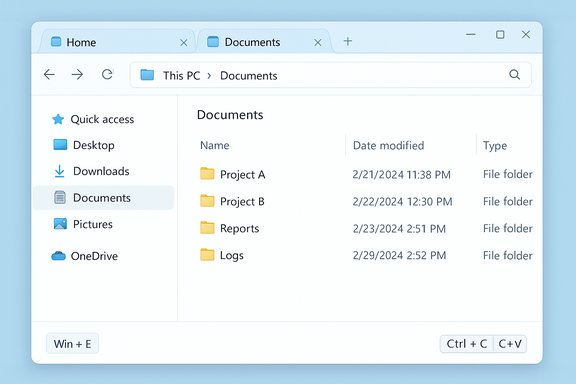 Background / Overview
File Explorer has evolved from a simple directory tree into a hybrid file manager that must juggle local files, network shares, OneDrive sync states, and system-level affordances like tabs, breadcrumb navigation, and compact views. Windows 11’s updates over the last few releases have focused on reducing friction: a streamlined context menu, tabbed Explorer windows that restore sessions, improved OneDrive integration, and drag‑and‑drop enhancements in the address/breadcrumb bar. These changes aim to speed up everyday tasks while keeping the UI clean and approachable for newcomers.The rest of this guide walks through basic navigation, core operations, customization, cloud sync behavior, search techniques, recent feature changes (what to look for in updates), plus advanced tips and troubleshooting strategies for common File Explorer headaches.
Getting started: launching and navigating File Explorer
Opening File Explorer is fast and has multiple entry points tailored to different workflows.- Taskbar icon: click the folder icon on the taskbar for one‑click access.
- Keyboard shortcut: press Windows key + E to open File Explorer immediately.
- Start menu or Search: type “File Explorer” and press Enter.
- Address / Breadcrumb bar — shows the current folder path; click any segment to jump to that folder. Recent updates add drag‑and‑drop support into breadcrumbs to move or copy files directly to a parent or sibling folder.
- Navigation pane — left column with Quick Access/Home, This PC, OneDrive, Network, and pinned folders.
- File list pane — central area that displays files and subfolders; supports multiple view styles (Icons, List, Details, Tiles).
- Status bar — bottom area showing item counts and available space.
Practical first steps (numbered)
- Press Win + E to open Explorer.
- Use the address bar to jump directly (type a path or click a breadcrumb).
- Pin frequently used folders to Quick Access by right‑clicking → Pin to Quick Access for instant revisit.
Basic file operations: copy, move, rename, delete
File Explorer keeps standard file operations intuitive while offering keyboard shortcuts for speed.- Select items with the mouse or keyboard (Shift to select ranges; Ctrl to multi‑select).
- Common shortcuts:
- Ctrl + C (Copy), Ctrl + V (Paste).
- Delete key removes to Recycle Bin; Shift + Delete permanently deletes.
- F2 to rename selected file/folder.
Context menu and quick actions
The right‑click context menu in Windows 11 is redesigned to be cleaner with iconified top actions (Cut/Copy/Paste/Rename/Share/Delete). More advanced or legacy items remain under Show more options. For power users who want the old menu often, pressing Shift while right‑clicking or using the legacy option remains an immediate workaround.Customizing File Explorer for your workflow
Personalization makes File Explorer work the way you do. Key options to tune:- Change default open location: set File Explorer to open to This PC or Home (Quick Access) via the Options menu (ellipsis → Options → Open File Explorer to).
- View layouts: switch among Extra Large Icons, Large Icons, Details, List, Tiles, and enable Compact View for dense file lists. These are available in the View menu.
- Group & sort: right‑click in the file list → Group by / Sort by — useful for arranging by date, type, or size.
- Show hidden items / file extensions: View → Show → Hidden items / File name extensions to reveal or hide system/extension metadata. This is essential for troubleshooting and security awareness.
Quick Access and Favorites
Quick Access (sometimes shown as Home in later builds) lets you pin folders and surface recent files. Use it for project folders or places you visit multiple times a day. If Quick Access feels noisy, clear its history from File Explorer Options → Privacy → Clear File Explorer History.OneDrive and cloud integration: what changes and what to watch for
Windows 11 integrates OneDrive into File Explorer more tightly than earlier releases. Key behaviors:- OneDrive appears in the Navigation pane as a primary node; files can be online‑only or available offline. Sync status icons indicate the state (cloud/green check/white circle).
- You can drag files into OneDrive folders to upload; right‑click OneDrive files to Share, View online, or Free up space.
- Search in File Explorer can surface cloud files when OneDrive is configured, giving a hybrid local+cloud search experience.
Search in File Explorer: practical tips and advanced operators
File Explorer’s search can be very fast when used correctly. Best practices:- Start search in the folder closest to where the file is to speed results. Use This PC only when necessary.
- Use search filters and operators for precision:
- kind: (ex: kind
 hoto), ext: (ex: extdf), size: (ex: size:>500MB), datemodified: (ex: datemodified:>=2025-01-01).
 - Boolean operators like AND, NOT improve focus (Budget AND 2024).
Recent feature changes and version notes — verify before assuming
Windows 11 has received several iterative improvements to File Explorer; two of the most notable are:- Tabs and session restore: tabbed File Explorer windows and “smart tabs” that can restore open tabs between sessions were added in post‑22H2 updates and refined in later builds, helping users keep context across reboots.
- Breadcrumb drag‑and‑drop: cumulative update KB5037853 introduced drag‑and‑drop support into the breadcrumb address bar, enabling direct moves/copies to parent folders in the path. This streamlines reorganizing deep folder structures.
Power user tools and third‑party add‑ons
File Explorer can be augmented to close functionality gaps. Recommended categories and examples:- PowerToys — adds Peek/Quick Look‑style previews, improved preview pane support for additional file types, and PowerRename for batch renaming with regex. Great for developers and content creators.
- TeraCopy — faster, more resilient file transfers with queueing and error handling for large copy/move jobs. Useful for large media or backup operations.
- ExplorerPatcher / StartAllBack — restore classic UI elements like the Ribbon or older context menu behaviors for users who prefer the Windows 10 paradigms. Use with caution and on supported builds.
- File Pilot and alternate file managers — lightweight third‑party managers that offer more flexible tab/split views and faster folder operations; ideal for users who want bespoke workflows. Validate vendor reputation and security posture before installing.
Troubleshooting common File Explorer issues
- File Explorer slow or unresponsive when right‑clicking OneDrive files: OneDrive’s background sync and the context‑menu handler can sometimes cause delays. Restart OneDrive, clear local sync caches, and ensure the OneDrive client is up to date. If the delay persists, temporarily disable shell extensions related to OneDrive to isolate the issue.
- Missing tabs or features after an update: confirm your Windows build (Settings → System → About) and run Windows Update. Features like tabs and session restore rolled out in stages; a missing feature may indicate your device hasn’t received the latest cumulative or feature update.
- Drag‑and‑drop not working: verify whether the breadcrumb drag functionality is present in your build; older or unpatched systems won’t have it. Also ensure that UI customizations or third‑party shell extensions aren’t intercepting drag events.
- File transfers fail partway: try a transfer with a robust copier like TeraCopy to get better diagnostics; check disk health and available free space. For network transfers, investigate SMB settings, credentials, and network stability.
Security and privacy considerations
- Hidden files and file extensions: enabling visibility helps spot suspicious or misnamed executables (e.g., invoice.pdf.exe). Always verify extension visibility for safe browsing.
- OneDrive deletions and shared links: deleting a shared file from File Explorer can remove it for collaborators depending on permissions. Confirm shared file ownership and recycle bin behavior before mass deletes.
- Shell extensions and context menu handlers: third‑party shell extensions can introduce lag or security risks. Use utilities like ShellExView to disable unknown extensions and test behavior.
Practical workflows and keyboard shortcuts (handy reference)
- Win + E — Open File Explorer.
- F2 — Rename selected file/folder.
- Ctrl + Shift + N — New folder (works in many views).
- Ctrl + T / Ctrl + Tab — Open new tab / cycle tabs (where tabs are supported in your build).
- Win + Z — Snap layouts to arrange windows for drag‑and‑drop efficiency.
Final analysis: strengths, weaknesses, and recommendations
Windows 11’s File Explorer shows marked improvements in usability and cloud synchronization, and Microsoft’s recent updates demonstrate a focus on reducing repetitive navigation (tabs, breadcrumb drag‑and‑drop, session restore). These features are notable strengths because they lower friction for common file tasks and bring a smarter hybrid local/cloud model to users’ fingertips.However, the modernization comes with tradeoffs. The streamlined context menu and progressive feature rollouts mean that some advanced commands are either hidden or inconsistent between builds, and OneDrive integration introduces synchronization complexity that can surprise users who treat cloud files as purely local. These are the main risks: unexpected deletes on synced folders, build‑dependent feature availability, and potential performance regressions caused by shell extensions or heavy sync clients.
Practical recommendations:
- Keep Windows up to date and confirm your exact build before relying on specific features like breadcrumb drag or native archive format support. Test critical workflows after major updates.
- For reliability in large transfers or migration tasks, use specialized tools (TeraCopy, Everything for search) rather than depending solely on the native copy engine.
- Educate users about OneDrive sync icons and the implications of deletions in synced folders. Treat cloud‑backed folders with caution when performing bulk operations.
Conclusion
File Explorer in Windows 11 is a capable, evolving file management environment that blends classic Windows behaviors with modern cloud and multitasking features. Knowing how to navigate its UI, leverage OneDrive integration safely, use search effectively, and augment Explorer with vetted third‑party tools will yield the best productivity gains. Keep your system updated, test features on your build, and apply the power‑user tips in this guide to make File Explorer a tailored, dependable hub for your daily workflows.Source: MSPoweruser How To Use File Explorer In Windows 11: A Comprehensive Guide
Last edited:
