

File clutter doesn’t just slow you down — it steals focus — but with a few disciplined habits, smarter folder layouts, and a handful of File Explorer tricks you can reclaim that time and actually find what you need in seconds.
Windows 11’s File Explorer remains the central hub for managing local and cloud files, and Microsoft has steadily added practical improvements — tabs, breadcrumb drag-and-drop, tighter OneDrive integration, and richer search options — that reward a little organization work up front. These changes make it easier to build an efficient system, but they also introduce new pitfalls (especially around cloud sync and feature availability across different Windows builds). Practical guides today blend basic folder hygiene with search-savvy techniques and shortcut mastery to create a workflow that scales from tens to tens of thousands of files.
Key filters and examples:
Key points to watch:
Start small: pick one project, reorganize it into a sensible folder tree, save a search that finds its files, and pin that search to Quick Access. Once these habits stick, you’ll spend less time hunting and more time doing the work that matters — and you’ll have a File Explorer setup that actually works for you, not against you.
Source: groovyPost Mastering file organization in Windows 11: folders, search, and shortcuts that actually work
 Background / Overview
Windows 11’s File Explorer remains the central hub for managing local and cloud files, and Microsoft has steadily added practical improvements — tabs, breadcrumb drag-and-drop, tighter OneDrive integration, and richer search options — that reward a little organization work up front. These changes make it easier to build an efficient system, but they also introduce new pitfalls (especially around cloud sync and feature availability across different Windows builds). Practical guides today blend basic folder hygiene with search-savvy techniques and shortcut mastery to create a workflow that scales from tens to tens of thousands of files.Why structure matters: design your top-level folders
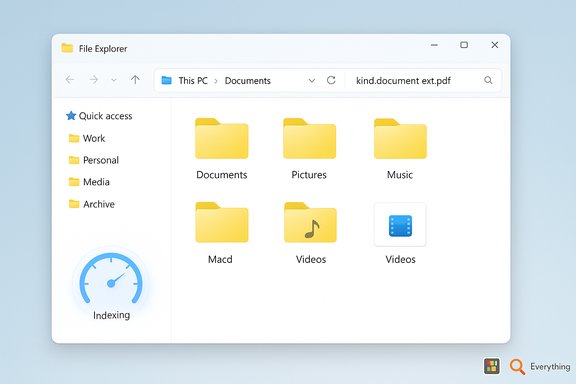
A messy digital filing system is the single biggest productivity tax most people pay. The first rule of good Windows 11 file organization is to avoid dumping everything into system defaults like Desktop, Documents, or Downloads.- Create a handful of clear top-level folders: Work, Personal, Media, Archive, and so on.
- Keep top-level lists short; use subfolders to split by project, client, year, or media type.
- Reduces the cognitive load when searching or browsing.
- Makes index-based searches and saved queries more accurate.
- Avoids an explosion of tiny folders and ambiguous filenames.
Practical layout suggestions
- Media → Photos / Videos / Music / Podcasts
- Work → Projects / Invoices / Reports / Templates
- Personal → Finance / Receipts / Health
- Archive → 2018 / 2019 / 2020 (or “Completed” vs “Retain”)
Naming conventions: predictable file names that scale
A consistent naming convention is the single most impactful habit for searchability.- Pick a predictable pattern: YYYY-MM-DD_ProjectName_Version.ext or Project_Client_V001.ext.
- Use leading dates (YYYY-MM-DD) to make chronological sorting work reliably.
- When iterating on files, use incremental suffixes (v001, v002) rather than “final final”.
- If you like visual cues, emojis can help — but avoid them if you use command-line tools or scripts that don’t handle Unicode well.
Pinning and shortcuts: instant access to your workspaces
Windows offers multiple ways to keep your most-used folders one click away. Pinning is small effort, big time saved.Pin to Quick Access (or Home)
- Right-click the folder you use often.
- Choose Pin to Quick Access.
Pin to Start
- Right‑click the folder.
- Select Pin to Start.
Pin a folder to the taskbar (shortcut workaround)
Windows doesn’t let you drag folders directly to the taskbar, but a shortcut does the trick:- Right‑click the folder and choose Copy as path.
- On the desktop: Right‑click → New → Shortcut.
- Enter
explorer.exefollowed by the pasted path, click Next, name it, then Finish. - Drag the shortcut to the taskbar.
Mastering File Explorer search: filters, operators, and saved searches
File Explorer’s built‑in search is powerful when you use the right syntax. Learning advanced filters beats endless clicking.Key filters and examples:
- kind: — kind:document or kind:image to limit by general type.
- ext: — ext
 df or ext:docx to search by extension.
 - datemodified: — datemodified:today or datemodified:last week for recency.
- size: — size:>500MB or size:huge to find big files.
- content: — content:"Q2 budget" finds documents containing that phrase.
- author: — author:Adam to filter by file author metadata.
- Use AND, OR, and NOT (or the
-shorthand) to narrow or broaden results, e.g.,report AND budgetorext:png OR ext:jpg.
Advanced tips
- Wildcards:
invoice*picks up invoice_2024, invoice-final, etc. - Quoted phrases: use quotes for exact-match content searches.
- Property searches:
title:Proposalorfoldername:Contractswhen you remember context rather than filenames.
Save and pin searches
If you repeat the same query (e.g., “current sprint documents”), save the search and pin it to Quick Access. That turns a complex query into a single click.Indexing and performance: use Enhanced mode wisely
Windows Search relies on an indexer. Tuning what’s indexed has a huge impact on speed.- Default indexing covers common folders like Documents and Pictures.
- Enhanced mode indexes the entire PC for exhaustive results; enable it at Settings → Privacy & Security → Searching Windows. Expect an initial performance hit while the index builds.
Shortcuts you should memorize
Keyboard shortcuts cut friction for repetitive tasks. The most productive ones for File Explorer:- Win + E — open File Explorer.
- Ctrl + T — new tab.
- Ctrl + W — close tab/window.
- Ctrl + Shift + N — new folder.
- F2 — rename.
- Ctrl + F — jump to Search.
- Alt + D — focus the address bar.
- Shift + Delete — delete permanently (skip Recycle Bin).
Cloud sync (OneDrive) — convenience with consequences
OneDrive’s deep File Explorer integration is convenient: cloud files appear alongside local ones, and search can surface cloud content. But cloud sync changes the rules.Key points to watch:
- Sync icons indicate status (online-only, available offline, always on device); learn them and don’t guess.
- Deleting a file in a OneDrive folder typically removes it from both local and cloud storage — treat bulk deletes cautiously.
- Shared files and permissions can complicate deletions: removing a shared file could affect collaborators.
Built‑in tools, gaps, and third‑party options
File Explorer is robust, but there are cases where third‑party tools are faster or more flexible.- PowerToys Run: an ultra-fast launcher and search (Alt + Space) that complements Windows Search. Great for command-like launches and quick file opening.
- Everything: a tiny, blazing-fast indexer that finds files instantly across drives; ideal for power users with huge libraries.
- TeraCopy/WizTree/WinDirStat: use these for heavy file transfers or to identify disk-space hogs when Explorer’s copy engine or Storage Sense isn’t enough.
Archiving, bulk renaming, and batch workflows
Modern workflows demand batch operations:- Bulk rename: select files, right-click → Rename; Windows will append (1), (2), etc. For advanced rules, use PowerToys or dedicated renamers.
- Archive support: some recent Windows 11 updates add broader archive handling, but availability varies by build — verify on your device before relying on it for RAR/7z operations. If unsure, keep 7-Zip or similar installed. Flag: claims that Windows natively supports all archive formats should be validated against your current Windows build.
Security and privacy checklist
Good organization must also be safe organization.- Show file extensions to avoid executable masquerades (e.g., invoice.pdf.exe).
- Be careful with shortcuts on shared/public machines; shortcuts can be a vector for social engineering. Label clearly and restrict permissions for sensitive targets.
- Limit indexing of sensitive folders or use encrypted containers for highly confidential material.
Step-by-step workflows you can implement today
- Create a practical folder structure
- Make top-level folders: Work, Personal, Media, Archive.
- Move files from Downloads into these folders using sort-by criteria (date/type) to speed the clean-up.
- Set up Quick Access for your top projects
- Right‑click the project folder → Pin to Quick Access.
- Create a taskbar shortcut for a frequently used folder
- Right‑click folder → Copy as path. Desktop → New → Shortcut →
explorer.exe <path>→ drag to taskbar. - Enable Enhanced indexing (if you have modern hardware)
- Settings → Privacy & Security → Searching Windows → Enhanced. Allow the index to complete.
- Save a repeated complex search
- Run the search with filters, click the ellipsis → Save search, then pin that saved search to Quick Access for one-click reuse.
Risks, limits, and what to verify
- Feature availability is build-dependent: tabs, archive support, or breadcrumb drag-and-drop may not be present on every Windows 11 version. Always check your Windows Update and confirm a feature on your machine before relying on it in production.
- OneDrive synchronization behavior can surprise you; test deletion and restore behavior before bulk operations.
- Some “new” built-in features reported in guides may reflect preview builds or OEM customizations; mark those claims as verify on your device.
Long-term maintenance: simple rules that keep the system healthy
- Do a monthly tidy: archive completed projects to an Archive folder and delete duplicates.
- Use storage visualizers (WizTree, WinDirStat) quarterly to find the largest space users.
- Keep an index plan: only index what you search frequently or enable Enhanced mode on capable machines.
- Educate collaborators about OneDrive status icons and shared-file behavior to avoid accidental deletions or sync conflicts.
Conclusion
Mastering file organization in Windows 11 isn’t about rote obedience to a checklist — it’s about designing a small set of conventions that your future self can rely on. A clear folder hierarchy, consistent naming rules, savvy use of File Explorer search filters, and a handful of pinned shortcuts will transform daily friction into predictable, repeatable workflows.Start small: pick one project, reorganize it into a sensible folder tree, save a search that finds its files, and pin that search to Quick Access. Once these habits stick, you’ll spend less time hunting and more time doing the work that matters — and you’ll have a File Explorer setup that actually works for you, not against you.
Source: groovyPost Mastering file organization in Windows 11: folders, search, and shortcuts that actually work
