

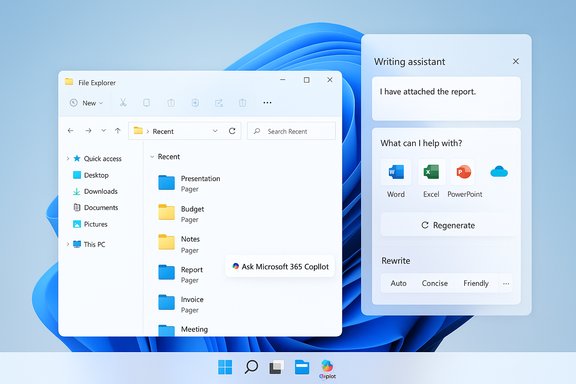
Windows 11 is quietly expanding Copilot’s footprint again: Microsoft is testing an “Ask Microsoft 365 Copilot” entry inside File Explorer’s Home tab that sends selected files into the Microsoft 365 Copilot app for quick summaries and insights, and the OS is also gaining a system‑wide universal writing assistant that can proofread or rewrite any web or app text field using Microsoft 365 Copilot. These changes stitch Microsoft 365’s deeper, tenant‑aware Copilot into the Windows shell while keeping the original system Copilot and taskbar composer as parallel entry points — a dual‑Copilot strategy that raises clear productivity benefits but also practical questions about privacy, licensing, and user experience.
Background / Overview
Microsoft has been moving Copilot from a sidebar curiosity into a platform-level assistant across Windows and Microsoft 365. The company now ships two distinct Copilot surfaces on Windows: the built‑in system Copilot (the system Copilot app and taskbar composer) and the Microsoft 365 Copilot app (the productivity‑focused assistant that can reason over tenant data when a paid Copilot license is present). The new File Explorer and writing‑assistant additions are part of this broader strategy to make Copilot action‑able from wherever users work, from file previews to any editable text field.- The File Explorer change adds an Ask Microsoft 365 Copilot affordance in the Home tab (hover‑based) that escalates a file into the Microsoft 365 Copilot experience for summaries and analysis.
- The universal writing assistant surfaces a small Copilot window when editing text on websites or in apps, offering proofread and rewrite options with tone presets (auto, concise, friendly, professional).
File Explorer: two Copilot workflows, now side‑by‑side
What’s shipping and what’s being tested
File Explorer already exposes an Ask Copilot option in the right‑click context menu for supported files. The new test adds a distinct Ask Microsoft 365 Copilot element to the Home tab and file previews: hover a recent file, choose “Ask M365 Copilot,” and Windows will hand the file off to the Microsoft 365 Copilot app for a summary or Q&A session. The UX intends to let users get file insights without opening the full document or switching context. Microsoft’s platform documentation and preview notes show the same design pattern repeated in other surfaces: the OneDrive Activity Center and companion File Search surfaces let Copilot actions run from a file preview or the taskbar. Those interactions generally open a Copilot panel that returns structured outputs — summaries, Q&A, FAQ lists or comparisons for up to several documents. The UI is deliberately lightweight: the heavy reasoning is done by Copilot, surfaced inline.Licensing and tenant grounding
A critical distinction: when Ask Microsoft 365 Copilot is used in tenant contexts (work/school accounts), the action requires a Microsoft 365 Copilot license and will respect tenant governance and data‑grounding rules. In practice that means:- Personal or consumer Copilot usage will typically be routed through general Copilot models (cloud) unless the user’s Microsoft 365 account includes the paid Copilot add‑on.
- Organizations that buy Microsoft 365 Copilot get tenant‑grounded responses that can reference mail, files, Teams conversations and other Graph data — but only when policy and consent permit it.
Supported file types, limitations, and UX notes
Preview documentation and independent reporting show Copilot actions are optimized for Office formats (Word, Excel, PowerPoint), PDF and common document formats; image and video analysis is handled by other Copilot Vision/AI Actions workflows and may be limited. The File Explorer actions also emphasize OneDrive/SharePoint files first, reflecting Microsoft’s Graph‑centre orientation for tenant data. Expect feature availability to vary by build, region, and licensing.Universal writing assistant: system‑wide proofreading and rewriting
What the feature does
Windows 11’s new writing assistant surfaces a small Copilot window when you interact with editable text fields (for example, composing a LinkedIn post). The pop‑up offers:- Quick proofreading to fix grammar and punctuation
- Rewriting options with tonal presets (auto, concise, friendly, professional)
- A deeper “regenerate” action that reruns the prompt to produce a fresh draft
From Microsoft Editor and Edge to system Copilot
Historically, Microsoft offered Microsoft Editor (a Grammarly competitor) and a lightweight Edge writing assistant. Microsoft has consolidated many of those capabilities under Copilot and system writing assistance: the browser-only assistant is being shelved in favor of a single, Copilot-driven flow that can be either cloud‑backed or, on Copilot+ hardware, partially handled by on‑device small language models (SLMs) for lower latency and offline work. This shift simplifies the brand story — Copilot is now the unified writing and productivity assistant across Surface, Edge, Office and Windows.On‑device vs cloud execution
Microsoft’s hybrid design matters here. On ordinary Windows 11 devices the rewrite and proofreading steps call cloud services and Copilot models. On Copilot+ PCs—machines with certified NPUs and on‑device inference capabilities—Microsoft can run smaller SLMs locally for lower latency and privacy‑sensitive scenarios. That means the same rewrite UI could respond in a few hundred milliseconds on a Copilot+ device but will rely on cloud inference for broader reasoning on typical hardware. Microsoft has documented that the user will see faster and more private execution on Copilot+ hardware, while most users will depend on cloud routing.Why this matters: productivity gains and real‑world use cases
Embedding Copilot into File Explorer and every text box shrinks costly context switches. Typical scenarios where these features save time:- Quickly triaging long reports without opening Word (File Explorer summaries)
- Drafting social copy and company updates with tone control (writing assistant)
- Extracting action items from meeting notes discovered in File Explorer previews
- Converting brief research notes into professional‑tone emails directly from a browser text field
Privacy, security, and governance: the tradeoffs
What Microsoft says, and what remains ambiguous
Microsoft emphasizes explicit consent, per‑session permission prompts (particularly for Copilot Vision and agentic features), and tenant‑level controls for Copilot data use. Documentation for Click to Do and Copilot actions clarifies that when an organization’s account is used, “Ask Microsoft 365 Copilot” shows instead of Ask Copilot and the action adheres to organizational privacy policies. That said, the exact network flow for file previews and the locus of processing (local vs cloud) is only partially transparent: Microsoft’s public guidance indicates heavy lifting happens in Microsoft’s cloud for many features, while on‑device processing is available only on certified Copilot+ hardware. Independent hands‑on reporting confirms the same hybrid model. Users and admins should assume that, unless they are on a Copilot+ device and a feature is explicitly documented as local, file content will be processed in the cloud.Enterprise governance and auditability
Agentic features and Copilot actions elevate governance expectations. Administrators should verify:- Tenant opt‑in/opt‑out settings for Copilot integrations and companion apps
- Audit logs and retention policies for Copilot actions and agent activities
- Controls for connectors that bind Copilot to Graph data, OneDrive, and SharePoint
- Contractual data handling and processing terms for Microsoft 365 Copilot add‑on
User privacy and consent UX
From the end‑user perspective, transparent prompts and visible UI history are essential. Microsoft’s approach relies on explicit session consent for vision and agent actions and per‑feature toggles, but users report variance across builds and surfaces. For privacy-conscious users, the safe posture is to disable features like Click to Do if you do not want text selections or screen snippets to be sent for processing. Microsoft documentation includes controls to toggle Click to Do and other Copilot features.Critical analysis — strengths, risks, and practical recommendations
Strengths and opportunities
- Reduced friction: Embedding Copilot actions into File Explorer and text fields meaningfully reduces context switching and speeds common knowledge work.
- Consistent productivity surface: Unifying writing assistance under Copilot simplifies the toolchain — fewer extensions to manage and a single mental model for rewriting.
- Tenant grounding: When organizations adopt Microsoft 365 Copilot, Copilot’s ability to reason over Graph content (mail, files, Teams) creates genuinely contextual outputs that go beyond generic web-grounded answers.
- Hybrid execution model: Copilot+ on‑device SLMs address latency and privacy concerns for heavy users who have suitable hardware.
Risks and limitations
- Licensing friction and cost: Microsoft 365 Copilot’s tenant‑grounded behaviors require an add‑on license, which can be expensive for organizations and confusing for end users who see features that appear but are gated by subscription.
- Cloud dependence and data flow opacity: Unless you’re on Copilot+ hardware, expect file content to be sent to Microsoft’s cloud for processing; the UI does not always make the network flow explicit. That ambiguity is an operational and compliance risk for regulated industries.
- Feature proliferation and duplication: Multiple Copilot surfaces (taskbar Ask Copilot, Copilot app, M365 Copilot inside File Explorer, writing assistant, Edge Copilot) increase surface area and user confusion. Microsoft needs to converge UX so users understand which Copilot is doing what and under which policies.
- Agentic automation hazards: Agents that act on your behalf (Copilot Actions) can introduce governance risk if permissions are misconfigured or if third‑party agents are allowed without vetting. Auditability and revocation must be robust.
Practical recommendations
- For IT administrators: pilot with a small group, validate logging and retention, and use tenant opt‑out where necessary.
- For privacy‑sensitive users: disable Click to Do and system‑wide writing assistance until policies and network flows are fully understood.
- For general users: test writing assistant flows on non‑sensitive text first, and consider Copilot+ hardware only if your workflows require offline/local inference and reduced latency.
- For organizations: review licensing costs and map which Copilot behaviors require the paid add‑on vs which are available to consumer accounts.
Technical verification — what was checked
Key claims in this article were verified against multiple independent sources and Microsoft documentation:- The presence of “Ask Microsoft 365 Copilot” in File Explorer Home (hover action forwarding the file to M365 Copilot) and the experimental rollout schedule are described in Microsoft’s Windows outreach and preview notes.
- Ask Copilot already appears in the right‑click context menu and OneDrive/Activity Center; Copilot actions return summaries and Q&A for supported documents.
- The writing assistant UI that proofreads and rewrites text fields using Copilot is being previewed and mirrors Copilot behavior in Outlook; on‑device processing is available on Copilot+ hardware while cloud processing remains the default for most devices.
- Licensing: tenant‑aware Copilot features require Microsoft 365 Copilot licenses and respect organization privacy policies. Click to Do documentation explicitly calls out that “Ask Microsoft 365 Copilot” is shown for managed accounts and requires a Copilot license.
How to try the features (short checklist)
- Join the Windows Insider Program (Dev/Beta) and update to the latest preview builds if you want to test early Copilot changes.
- Check Settings > Personalization > Taskbar and Copilot settings to enable the Ask Copilot composer or taskbar entry (if offered in your build).
- In File Explorer Home, hover recent files to see the “Ask Microsoft 365 Copilot” affordance (preview builds only).
- To test the writing assistant, use a web text box (for example, a social post draft) and accept the Copilot pop‑up rewrite options.
- For enterprise pilots, verify tenant settings in the Microsoft 365 admin center and confirm Copilot licensing and audit policies before rolling out widely.
Conclusion
Microsoft’s latest Copilot experiments — an Ask Microsoft 365 Copilot button in File Explorer’s Home tab and a universal, system‑level writing assistant — are logical extensions of an already ambitious strategy to make Copilot the productivity fabric of Windows and Microsoft 365. The changes promise tangible productivity gains by keeping summarization, Q&A, and rewriting close to the user’s context, but they also amplify important operational questions about licensing, cloud processing, and governance. Organizations and power users should treat these features as powerful but policy‑sensitive tools: pilot carefully, validate audit and consent controls, and align procurement decisions with real privacy and latency needs. The net result, if Microsoft smooths licensing, clarifies data flows, and tightens admin controls, could be a meaningful reduction in the friction that fragments knowledge work today — but the road there will be as much about governance as it is about clever UI.Source: Windows Latest Windows 11 tests Microsoft 365 Copilot button in File Explorer, and universal "writing assistant"
