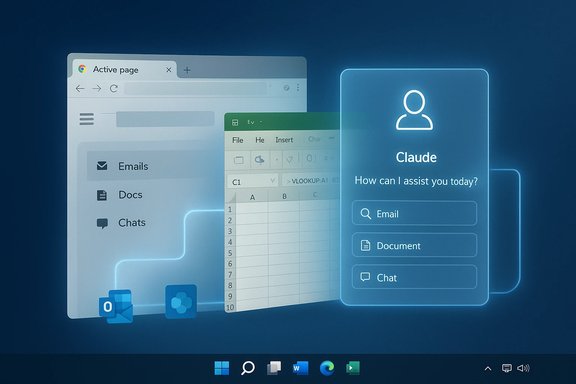
Microsoft has begun a staggered, OS‑level rollout of its AI assistant Copilot across Windows 11, turning what was once a sidebar experiment into a multimodal platform woven into the taskbar, Start menu, File Explorer and core update channels while other Windows 11 components—from Sticky Notes to Secure Boot certificate handling—receive smaller but important updates in the same wave.
Since its introduction as a cross‑surface assistant, Copilot has evolved from an add‑on chat window into a system‑level feature set that Microsoft now describes in three interlocking pillars: Copilot Voice (opt‑in wake‑word voice control), Copilot Vision (screen‑aware assistance with OCR and UI guidance) and Copilot Actions (limited agentic automations that can perform multi‑step workflows with explicit permission). These features are being delivered via staged Windows updates and controlled feature rollouts that gate exposure by device, region and telemetry signals.
Microsoft is also shaping a hardware tier — Copilot+ PCs — intended to offer lower‑latency, on‑device AI experiences by leveraging dedicated neural processing hardware (NPUs). Independent reporting and Microsoft briefings describe a practical NPU baseline of roughly 40+ TOPS for devices to qualify as Copilot+ and to run richer on‑device inference locally. This creates a two‑track model: broadly available cloud‑backed Copilot features, plus premium on‑device experiences on Copilot+ hardware.
Why this matters for admins:
Administrators and power users should act now to inventory devices, pilot updates, coordinate with OEMs for firmware and Secure Boot readiness, and update privacy and DLP policies to reflect an OS that can process on‑screen content and perform agentic actions. For individual users, the new Start menu, Ask Copilot integrations and app updates like Sticky Notes add visible polish, but the biggest changes are under the hood—how Windows reasons about your context and what it is authorized to do with it.
If you plan deployments or are deciding whether to upgrade devices, prioritize a staged pilot, verify KB details on Microsoft’s official channels for any KBs not confirmed in your management materials, and treat the Secure Boot certificate refresh as a time‑sensitive operational item that requires vendor coordination to avoid serviceability problems in 2026.
Source: BetaNews https://betanews.com/article/ai-pow...-busy-immigration-enforcement-operation.html]
 Background
Since its introduction as a cross‑surface assistant, Copilot has evolved from an add‑on chat window into a system‑level feature set that Microsoft now describes in three interlocking pillars: Copilot Voice (opt‑in wake‑word voice control), Copilot Vision (screen‑aware assistance with OCR and UI guidance) and Copilot Actions (limited agentic automations that can perform multi‑step workflows with explicit permission). These features are being delivered via staged Windows updates and controlled feature rollouts that gate exposure by device, region and telemetry signals.Microsoft is also shaping a hardware tier — Copilot+ PCs — intended to offer lower‑latency, on‑device AI experiences by leveraging dedicated neural processing hardware (NPUs). Independent reporting and Microsoft briefings describe a practical NPU baseline of roughly 40+ TOPS for devices to qualify as Copilot+ and to run richer on‑device inference locally. This creates a two‑track model: broadly available cloud‑backed Copilot features, plus premium on‑device experiences on Copilot+ hardware.
What’s shipping now (and what users are seeing)
Copilot: beyond the chat window
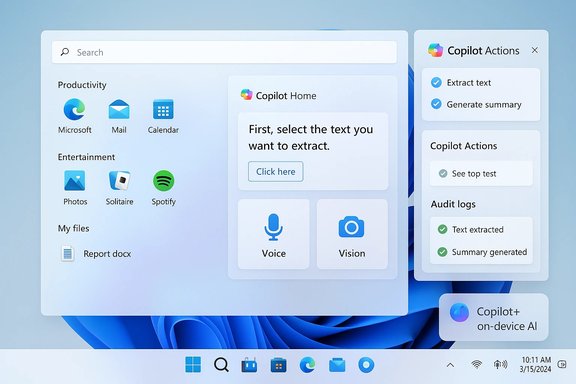
- Taskbar and Home integration: Copilot now appears from the taskbar and Copilot Home surfaces recent files, suggestions and quick access to voice and vision features. Many Copilot features arrive via cumulative updates and staged enablement rather than a single monolithic release.
- Voice (Hey, Copilot): An opt‑in wake‑word detector (“Hey, Copilot”) runs locally as a small spotter to avoid continuous cloud streaming; full conversations typically route to cloud models unless the device can do local inference (Copilot+). Voice sessions are session‑bound and endable by voice or UI controls.
- Vision (screen awareness): With explicit permission, Copilot can analyze selected windows or screen regions, extract text via OCR, summarize documents, identify UI elements and even highlight where to click. This turns the visible desktop into context for queries and guided tutorials.
- Actions (agentic automations): Experimental Copilot Actions can execute chained desktop or web tasks—open files, extract table data, edit images, fill forms—inside an isolated Agent Workspace where each step is visible, auditable and interruptible. These are off by default and rolling out via Insider previews.
Shell and productivity touches
- Start menu redesign and Categories layout: The Start menu is being rebuilt into a single, vertically scrollable canvas with three All‑apps views — Category, Grid and List. The Categories view auto‑groups apps (Productivity, Creativity, Games, etc. and surfaces frequently used apps, but it currently does not allow custom category creation and lacks a free‑form resize handle — a feature many users still want. This redesign is appearing via staged updates (Release Preview and Patch Tuesday KBs) so not every device will see it immediately.
- File Explorer and Ask Copilot hover actions: File Explorer Home now includes Recommended files and hover actions that can invoke Copilot for quick summaries and edits, subject to account and license gating.
- Sticky Notes refresh: The Sticky Notes app is getting updates and attention as Microsoft modernizes small productivity tools; preview guidance and removal steps have circulated for users who prefer not to use the preview builds. The Sticky Notes change is modest compared with the Copilot wave but reflects ongoing polish to bundled apps.
Technical verification and key numbers
Several technical claims have become focal points in coverage of these updates. Where possible these have been cross‑checked across independent reporting in the provided material.- Copilot’s three pillars (Voice, Vision, Actions) as an OS‑level construct are consistently described across Microsoft briefings and third‑party coverage.
- The Copilot+ device tier and the 40+ TOPS NPU baseline appear in multiple summaries and hands‑on reports as Microsoft’s practical threshold for qualifying premium on‑device AI. This 40+ TOPS figure is reported repeatedly in the Windows insider coverage and partner briefings; treat it as Microsoft’s stated operational target rather than a universally enforced hardware certification across all OEMs.
- The change of Windows 10’s support posture is material to Microsoft’s timing: Windows 10 reached end of mainstream support on October 14, 2025, and that lifecycle shift has been used as a rational point to accelerate Windows 11 AI investments. This timeline appears explicitly in the rollout coverage.
- Windows update packages used to stage and gate these features have concrete KB identifiers in preview channels (for example, KB5067036 for an October preview that included Start changes and Copilot expansions) while January 2026 cumulative updates carried underlying servicing logic for certificate rollouts and other platform maintenance. Where an explicit KB number was present in the supplied files, that KB was cross‑referenced across at least two coverage items to verify its role.
Security and platform maintenance: Secure Boot certificates and KBs
One of the more consequential maintenance undertakings running alongside the Copilot rollout is Microsoft’s automated delivery of new Secure Boot certificate material to avoid certificate expiry‑driven breakage in 2026. The problem: Microsoft‑issued UEFI certificates issued around 2011 begin to expire in mid to late 2026, and devices that do not receive updated CA entries risk losing the ability to validate updated boot components or receive future pre‑boot security updates. Microsoft and OEMs prepared a replacement 2023 CA family and a careful, ordered OS‑side servicing flow to inject the new certificates and swap the Windows boot manager to a binary signed under the new CA only after device readiness is verified. This flow is deliberately sequence‑sensitive and telemetry‑gated to avoid mass disruption.Why this matters for admins:
- A misapplied or out‑of‑order certificate update can cause pre‑boot failures or block future firmware updates. Microsoft’s rollout uses event logging and registry markers (for example, UEFICA2023Status) to signal progress and success.
- The update path requires coordination with OEM firmware teams for KEK/DB updates on some platforms; air‑gapped or telemetry‑off systems may require manual remediation steps. The supplied material emphasizes inventory, pilot testing and vendor coordination as urgent priorities for IT teams.
Strengths and what works well
- Integrated, context‑aware assistance: Copilot Vision and the File Explorer/Ask Copilot hover actions reduce friction for common tasks—extracting tables, summarizing documents, or producing drafts from on‑screen content. These capabilities can materially shorten workflows for knowledge workers and power users.
- Hybrid cloud + on‑device design: Microsoft’s two‑track model—cloud models for broad compatibility and Copilot+ on‑device inference for latency‑sensitive work—balances reach and experience. The Copilot+ NPU baseline gives OEMs a clear performance target for premium devices.
- Gradual, telemetry‑gated rollout: Staged feature flags and preview KBs reduce the blast radius of new UI or agent features, allowing Microsoft to collect telemetry and rollback or refine changes without forcing an immediate, universal change. For enterprises, this approach reduces immediate disruption risk when managed correctly.
- Usability improvements: The redesigned Start menu’s single, scrollable All surface with Category and Grid views improves discoverability for many users and makes better use of larger displays; Phone Link integration in Start adds convenient cross‑device continuity.
Risks, unknowns and technical caveats
- Privacy and data movement: Copilot sessions typically escalate to server models for heavier reasoning unless the device is Copilot+. That means screen content, voice transcripts and file extracts can move to cloud services during a session. While Microsoft emphasizes session‑bound permissions and local wake‑word spotting, enterprises need to evaluate compliance, data residency and DLP policy impacts. The documentation shows explicit opt‑ins for vision and voice flows, but the surface area grows considerably whenever an assistant can “see” or “act” on user data.
- Agentic behavior governance: Copilot Actions introduce agents that can act on behalf of a user. The supplied material indicates sandboxing, visible step logs and revocable permissions, but agentic capabilities multiply the need for governance tooling: role separation, privilege models, audit trails and policy controls must keep pace or enterprises face accidental data exfiltration or misconfigured automations.
- Hardware gating and user inequality: Richer experiences are reserved for Copilot+ hardware. That creates a practical divide: many capabilities will be faster, offline‑capable and more private on new NPUs, while older or cheaper devices rely entirely on cloud backends. This can create a fragmentation in user experience and potential platform lock‑in for premium device buyers.
- Staged inconsistency and manageability: Because Microsoft uses server‑side flags and gradual rollouts, the same KB can produce different experiences across two identical devices. This complicates enterprise staging and user training; admins should pilot in representative rings and expect some users to see features earlier than others.
- Certificate and firmware complexity: The Secure Boot certificate refresh, while necessary, is technically delicate. Devices with older or nonstandard firmware require OEM updates; failing to coordinate can cause failed updates or boot validation issues. The supplied guidance stresses inventorying and piloting now.
Practical recommendations for IT teams and power users
- Inventory and pilot:
- Run an inventory of devices, noting firmware versions, Secure Boot status, BitLocker and telemetry settings.
- Pilot the January cumulative updates and Copilot feature toggles in a small, representative ring before broad deployment.
- Review privacy and compliance posture:
- Map Copilot use cases to data flows: which features send content to the cloud vs run locally?
- Update DLP and conditional access policies to account for Copilot connectors (OneDrive, Outlook, consumer Google connectors) and agentic actions.
- Prepare governance for agents:
- Ensure logs, audit trails and visible step records for Copilot Actions are captured in your monitoring stack.
- Define role‑based approvals for agent privileges and test revocation workflows.
- Coordinate OEM firmware updates:
- Engage hardware vendors for KEK/DB compatibility and firmware patches required by the Secure Boot CA transition.
- Schedule devices that need firmware updates into a maintenance window before automated certificate delivery.
- Educate users and adjust training:
- Prepare short guides on how to opt‑in/out of Hey Copilot and Vision sessions.
- Clarify how to use Ask Copilot in File Explorer and where Copilot stores or transmits content.
How to opt out or limit Copilot (practical steps)
Microsoft provides multiple levers for reducing Copilot exposure—GUI controls, group policies and tenant‑level settings. For users who want Copilot out of sight, materials in the supplied files include step‑by‑step removal and disabling workflows (from GUI toggles to PowerShell and enterprise controls). Enterprises should prefer policy controls and imaging best practices to avoid inconsistent user experiences across a fleet.Items that need verification (flagged claims)
- The user‑provided BetaNews note referenced KB5022836 as a fix for Windows 11 21H2 security issues. That specific KB number did not appear in the internal files reviewed for this article, so its contents and the exact fixes could not be corroborated here. Any operational decisions tied to that KB should be validated directly on Microsoft’s Update Catalog and support pages. (Unverified in supplied files.
- Some reporting around Copilot+ performance comparisons (for example, marketing statements claiming specific percentage improvements over competitor devices) appear in opinion and preview pieces; those synthetic performance comparisons should be treated cautiously and validated with controlled benchmark tests on identical workloads and thermal profiles.
The bigger picture: Windows as a perpetual platform
Microsoft’s strategy with these updates is clear: rather than introducing a discrete “Windows 12,” the company is iterating Windows 11 into a continuously updated, AI‑centric platform. That means frequent, staged feature rollouts, tighter OS‑level AI hooks and a reliance on hardware partners to deliver differentiated on‑device AI experiences. For consumers, it promises helpful, context‑aware assistance. For enterprises, it introduces new operational responsibilities—inventory, governance, firmware coordination and privacy oversight. This is a platform transition more than a one‑time product launch.Conclusion
The current wave of Windows 11 updates centers on making AI a first‑class modality on the PC: Copilot now listens, sees and (with permission) acts. Those capabilities deliver tangible productivity gains but also expand the attack surface and governance obligations for organizations. Microsoft’s staged rollout and Copilot+ hardware tier help manage risk and performance expectations, yet they introduce fragmentation between cloud‑backed experiences and premium on‑device AI.Administrators and power users should act now to inventory devices, pilot updates, coordinate with OEMs for firmware and Secure Boot readiness, and update privacy and DLP policies to reflect an OS that can process on‑screen content and perform agentic actions. For individual users, the new Start menu, Ask Copilot integrations and app updates like Sticky Notes add visible polish, but the biggest changes are under the hood—how Windows reasons about your context and what it is authorized to do with it.
If you plan deployments or are deciding whether to upgrade devices, prioritize a staged pilot, verify KB details on Microsoft’s official channels for any KBs not confirmed in your management materials, and treat the Secure Boot certificate refresh as a time‑sensitive operational item that requires vendor coordination to avoid serviceability problems in 2026.
Source: BetaNews https://betanews.com/article/ai-pow...-busy-immigration-enforcement-operation.html]