

Windows Media Player has not disappeared from Windows 11, but Microsoft has made the route to it less obvious by separating the modern Media Player app from Windows Media Player Legacy. That distinction matters: one is the current Store-delivered media experience intended for everyday playback, while the other preserves the familiar older interface and several long-standing Windows Media Player workflows.
For most Windows 11 PCs, the simplest and safest approach is to install the current player through Microsoft Store. Users who specifically need the older application, rely on its classic library tools, or use a Windows 11 N edition should instead follow a different path through Optional Features and the Media Feature Pack.
The key is to identify which version is actually needed before reinstalling anything. Installing the wrong one can leave users with an unfamiliar interface, missing media components, or the mistaken impression that Windows Media Player is still unavailable.
Windows 11 can present two similarly named but fundamentally different applications.
The first is the modern Media Player experience distributed through Microsoft Store. It is designed to replace the older consumer-facing playback experience with a cleaner interface, current Store updates, and better alignment with modern Windows 11 design. Microsoft positions this app as the better choice for modern playback needs, including higher-resolution video scenarios.
The second is Windows Media Player Legacy. This is the classic Windows Media Player application that long-time Windows users may recognize from earlier releases. It retains the traditional menu structure, library-oriented workflow, and certain legacy capabilities that may still be important for local music collections, CD-related tasks, older plug-ins, and established desktop workflows.
These are not simply two names for the same program.
A PC can potentially have both the current Store app and Windows Media Player Legacy available. The right choice depends on the files, hardware, media library, and workflow involved.
If both are available, open each one briefly before making changes. The newer app has a simplified Windows 11 visual style, while the legacy player retains the traditional desktop interface with menus and more familiar older controls.
If the app does not appear in the library, return to Store search and locate the official Microsoft listing directly. Avoid relying on search engine results that lead to unofficial download mirrors.
This may be the better choice if a workflow depends on the older interface, established media-library behavior, certain desktop-oriented controls, or the familiarity of the original player.
That is useful, but it also means the player may not be present after a clean Windows 11 installation, certain edition changes, or a system reset.
The player may still handle local audio and video files, CDs, playlists, and library functions, but commercial DVD playback has separate technical and licensing requirements. Users expecting a one-click return to the complete DVD experience found in much older versions of Windows should not assume that enabling the legacy component will provide it.
On a Windows 11 N device, the required starting point is the Media Feature Pack.
This can affect:
Using an old standalone package can lead to compatibility problems, failed installations, or confusion about whether the media components actually match the installed version of Windows.
Review the results carefully. The Microsoft Store product identifier associated with the current Windows Media Player listing is expected to be:
Then install it with:
The
App Installer is commonly obtained through Microsoft Store. On managed business, school, or family devices, policy restrictions may prevent access to Microsoft Store or block package installation commands.
In that situation, installing WinGet through unverified third-party sources is not the right response. The safer path is to restore or update App Installer through approved Microsoft channels, or ask the device administrator to enable the required capability.
That distinction is important. A reset affects the application’s local data, not the physical media collection stored in folders such as Music, Videos, Downloads, external drives, or network shares.
Third-party codec bundles can introduce unwanted software, file-association conflicts, unstable components, or compatibility issues with Windows apps. They can also obscure the original issue rather than solve it.
Windows Media Player Legacy includes tools for restoring the media library. In the classic interface, pressing
A library rebuild affects the player’s catalog of files. It should not delete the actual audio or video files from the disk. Still, it can take time for a large collection spread across multiple folders, removable drives, or network locations to be rediscovered.
To make Windows Media Player or Media Player the default for a specific format:
The important point is that Windows 11’s defaults are granular. If a double-clicked file still opens in the wrong program, changing the default for that exact extension is usually more effective than reinstalling the media player.
For Windows 11, the supported installation paths are straightforward:
This is especially important for users trying to solve a codec or playback issue. Installing an unknown player build can create a second problem involving malware, browser hijackers, unwanted extensions, or broken default app settings.
Device management policies can prevent users from:
For ordinary music and video playback, install the Microsoft Store version first. For users who depend on the traditional desktop player or its familiar legacy behavior, add Windows Media Player Legacy through Optional Features. For Windows 11 N, restore the missing foundation by installing the Media Feature Pack and restarting before judging whether media support is working correctly.
That approach is safer than chasing outdated downloads, more reliable than installing random codec bundles, and better aligned with how Windows 11 now delivers and maintains its media software.
For most Windows 11 PCs, the simplest and safest approach is to install the current player through Microsoft Store. Users who specifically need the older application, rely on its classic library tools, or use a Windows 11 N edition should instead follow a different path through Optional Features and the Media Feature Pack.
The key is to identify which version is actually needed before reinstalling anything. Installing the wrong one can leave users with an unfamiliar interface, missing media components, or the mistaken impression that Windows Media Player is still unavailable.
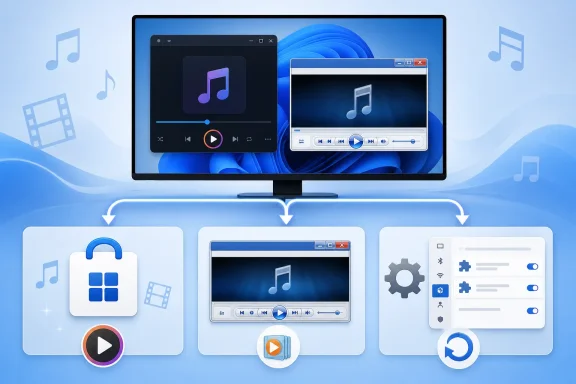 Understanding the Two Windows Media Players in Windows 11
Windows 11 can present two similarly named but fundamentally different applications.The first is the modern Media Player experience distributed through Microsoft Store. It is designed to replace the older consumer-facing playback experience with a cleaner interface, current Store updates, and better alignment with modern Windows 11 design. Microsoft positions this app as the better choice for modern playback needs, including higher-resolution video scenarios.
The second is Windows Media Player Legacy. This is the classic Windows Media Player application that long-time Windows users may recognize from earlier releases. It retains the traditional menu structure, library-oriented workflow, and certain legacy capabilities that may still be important for local music collections, CD-related tasks, older plug-ins, and established desktop workflows.
These are not simply two names for the same program.
| Option | Best for | Installation route |
|---|---|---|
| Media Player | General music and video playback on a current Windows 11 PC | Microsoft Store |
| Windows Media Player Legacy | Users who need the familiar classic application and its legacy-style controls | Optional Features |
| Media Feature Pack | Windows 11 N systems missing core media technologies | Optional Features, then restart |
Start by Checking Whether It Is Already Installed
Before downloading or enabling anything, search the Start menu. Windows updates, Microsoft Store updates, system migrations, and manufacturer configurations can all affect which media apps are present.- Open Start.
- Type Windows Media Player.
- Review the results.
- Also search for Media Player.
- Launch the relevant result if it appears.
If both are available, open each one briefly before making changes. The newer app has a simplified Windows 11 visual style, while the legacy player retains the traditional desktop interface with menus and more familiar older controls.
Install the Current Media Player from Microsoft Store
For a typical Windows 11 installation, Microsoft Store is the preferred route. It delivers the app through Microsoft’s normal update system and reduces the risk of downloading outdated installers, modified packages, or unwanted bundled software from third-party sites.Install from the Store app
- Open Start.
- Select Microsoft Store.
- Search for Windows Media Player or Media Player.
- Select the Microsoft-published result.
- Choose Get, Install, or the equivalent action displayed by Store.
- Wait for the download and installation to finish.
- Open Start and search for the app.
Why the Store route is the right default
The Store version has several practical advantages:- Simpler updates: Updates are delivered through Microsoft Store rather than through separate standalone installers.
- Reduced security risk: The app comes from Microsoft’s managed distribution channel.
- Better Windows 11 integration: It is designed for the current Windows experience rather than older Windows layouts.
- No manual installer hunting: There is no need to identify whether a download page is legitimate, current, or compatible.
- Cleaner recovery after resets: The app can be restored from a Store library associated with the user’s Microsoft account.
Restore a Previously Installed Store App
A Windows reset, account change, cleanup utility, Store cache issue, or manual removal can make an app appear to vanish. If the player was previously installed through Microsoft Store, it may be easier to restore it from the Store library than to search for it again.- Open Microsoft Store.
- Select Library or My Library.
- Look for Windows Media Player or Media Player.
- Select the download icon or Install button.
If the app does not appear in the library, return to Store search and locate the official Microsoft listing directly. Avoid relying on search engine results that lead to unofficial download mirrors.
Install Windows Media Player Legacy When You Need the Classic Version
Windows Media Player Legacy is still supported as an Optional Feature in Windows 11. It is the correct route for users who explicitly want the traditional Windows Media Player experience rather than the newer Store app.This may be the better choice if a workflow depends on the older interface, established media-library behavior, certain desktop-oriented controls, or the familiarity of the original player.
Add Windows Media Player Legacy through Settings
- Open Start.
- Select Settings.
- Open System.
- Select Optional features.
- Choose View features next to the option to add an optional feature.
- Search for Windows Media Player Legacy.
- Check the box beside it.
- Select Next.
- Select Add.
- Wait while Windows installs the feature.
Why Legacy is an Optional Feature
Microsoft treats the legacy player differently from the modern Store app because it is an older Windows component rather than the primary forward-looking media application. Making it optional keeps the operating system more modular while still preserving compatibility for users who need it.That is useful, but it also means the player may not be present after a clean Windows 11 installation, certain edition changes, or a system reset.
Important limitation: DVD playback is not included
Installing Windows Media Player Legacy does not restore DVD movie playback. This is one of the most important limitations to understand before enabling it.The player may still handle local audio and video files, CDs, playlists, and library functions, but commercial DVD playback has separate technical and licensing requirements. Users expecting a one-click return to the complete DVD experience found in much older versions of Windows should not assume that enabling the legacy component will provide it.
Windows 11 N Requires the Media Feature Pack
Windows 11 N editions are a special case. These editions omit Windows Media Player and a range of related media technologies by design. That means the issue is not necessarily that the player was accidentally removed; the underlying media foundation may not be installed at all.On a Windows 11 N device, the required starting point is the Media Feature Pack.
Install the Media Feature Pack
- Open Start.
- Go to Settings.
- Select Apps.
- Open Optional features.
- Select View features beside Add an optional feature.
- Search for Media Feature Pack.
- Select it.
- Choose Install.
- Restart the PC after installation completes.
What the Media Feature Pack restores
The Media Feature Pack is broader than a single media player. It reinstalls important components that Windows 11 N excludes, including media frameworks and support technologies used by other apps and services.This can affect:
- Windows Media Player functionality
- Audio and video playback components
- Certain codecs and media APIs
- Media support in other Windows apps
- Camera, recording, streaming, and communications features
- Some browser and application video experiences
- Media handling in third-party software
Do not use outdated Media Feature Pack installers
Older downloadable Media Feature Pack packages were associated with earlier Windows release models. On current Windows 11 N installations, the supported approach is to add it as an Optional Feature through Settings.Using an old standalone package can lead to compatibility problems, failed installations, or confusion about whether the media components actually match the installed version of Windows.
Use WinGet for a Command-Line Installation
Users who prefer Windows Terminal, Command Prompt, scripting, or repeatable setup procedures can use WinGet, Microsoft’s Windows Package Manager. This approach can install Microsoft Store apps from the command line and is useful for experienced users managing more than one PC.Search before installing
Open Windows Terminal, Command Prompt, or PowerShell, then run:winget search "Windows Media Player" --source msstoreReview the results carefully. The Microsoft Store product identifier associated with the current Windows Media Player listing is expected to be:
9WZDNCRFJ3PTThen install it with:
winget install --id 9WZDNCRFJ3PT --source msstoreThe
--source msstore portion is important. It directs WinGet to use the Microsoft Store catalog instead of searching a broader package source.What to do if WinGet is not recognized
If Windows reports thatwinget is not recognized, the usual cause is that App Installer is missing, outdated, or unavailable under the current account.App Installer is commonly obtained through Microsoft Store. On managed business, school, or family devices, policy restrictions may prevent access to Microsoft Store or block package installation commands.
In that situation, installing WinGet through unverified third-party sources is not the right response. The safer path is to restore or update App Installer through approved Microsoft channels, or ask the device administrator to enable the required capability.
When WinGet is useful—and when it is not
WinGet is effective for:- Reproducible setup instructions
- Technical support workflows
- Terminal-oriented users
- Scripted device configuration
- Restoring apps without manually browsing Store
Update Windows, Microsoft Store, and the Player
An installation that completes successfully can still behave poorly if the app, Store infrastructure, Windows components, or device drivers are outdated. Before resetting or reinstalling the player, update the software stack around it.Update Microsoft Store apps
- Open Microsoft Store.
- Select Library.
- Choose Get updates or Check for updates.
- Allow available updates to install.
- Select the account Profile icon in Microsoft Store.
- Open Settings.
- Turn on App updates.
Update Windows 11
- Open Start.
- Select Settings.
- Open Windows Update.
- Select Check for updates.
- Install available updates.
- Restart when prompted.
Repair or Reset Windows Media Player
If the current app opens but freezes, crashes, fails to load a library, or behaves inconsistently, Windows 11 provides repair options before a full reinstall is necessary.Repair the installed app
- Open Start.
- Go to Settings.
- Select Apps.
- Open Installed apps.
- Find Windows Media Player or Media Player.
- Select the three-dot menu.
- Open Advanced options.
- Choose Repair.
Reset only if repair does not work
If repairing does not resolve the issue:- Return to Advanced options.
- Select Reset.
- Confirm the action.
That distinction is important. A reset affects the application’s local data, not the physical media collection stored in folders such as Music, Videos, Downloads, external drives, or network shares.
Troubleshoot Playback Before Installing Codec Packs
A common mistake is to assume every playback failure requires a codec pack. While unsupported codecs can cause problems, random codec-pack installation is often the wrong first move.Third-party codec bundles can introduce unwanted software, file-association conflicts, unstable components, or compatibility issues with Windows apps. They can also obscure the original issue rather than solve it.
Check the basics first
When a file will not play, verify the following:- The file is not corrupted.
- The file extension matches its actual content.
- The file can open in another trusted player.
- Windows and the media app are fully updated.
- Audio and graphics drivers are current.
- The file is stored locally rather than on a disconnected drive or unavailable network path.
- The app has permission to access the folder containing the file.
- The device has enough available storage and memory for the task.
.mp4, for example, is not a guarantee that every audio stream, subtitle format, or video codec within it will work as expected.Reset a damaged legacy library
For the classic player, library corruption can cause missing albums, duplicate entries, unresponsive library views, or failed metadata operations.Windows Media Player Legacy includes tools for restoring the media library. In the classic interface, pressing
Ctrl + M can reveal the menu if it is hidden. From there, users can access the relevant library restoration options through the Tools and Advanced menus.A library rebuild affects the player’s catalog of files. It should not delete the actual audio or video files from the disk. Still, it can take time for a large collection spread across multiple folders, removable drives, or network locations to be rediscovered.
Set Windows Media Player as the Default App
Installing a media player does not automatically make it the default for every music and video file. Windows 11 assigns defaults by file type and protocol, allowing different apps to handle different formats.To make Windows Media Player or Media Player the default for a specific format:
- Open Start.
- Go to Settings.
- Select Apps.
- Open Default apps.
- Search for a file extension such as
.mp3,.wma,.wmv, or.mp4. - Select the current default application.
- Choose Windows Media Player or Media Player.
- Confirm the choice.
Choose defaults deliberately
There is no need to assign every audio and video format to a single player. A sensible configuration may use one app for music, another for DVDs or specialized formats, and a different tool for editing or streaming.The important point is that Windows 11’s defaults are granular. If a double-clicked file still opens in the wrong program, changing the default for that exact extension is usually more effective than reinstalling the media player.
Avoid Standalone Windows Media Player Downloads
The internet is full of old Windows Media Player download pages, archived installers, repackaged executables, and sites that promise codecs or “enhanced” player editions. These should be treated with caution.For Windows 11, the supported installation paths are straightforward:
- Microsoft Store for the current Media Player experience
- Optional Features for Windows Media Player Legacy
- Media Feature Pack through Optional Features for Windows 11 N
This is especially important for users trying to solve a codec or playback issue. Installing an unknown player build can create a second problem involving malware, browser hijackers, unwanted extensions, or broken default app settings.
Managed PCs May Block the Normal Installation Routes
Work, school, shared-family, and organization-managed PCs can restrict Microsoft Store, Optional Features, Windows Update, WinGet, or local application changes. A missing Store button or unavailable Optional Features entry does not always indicate a Windows malfunction.Device management policies can prevent users from:
- Opening Microsoft Store
- Installing Store-delivered apps
- Adding optional Windows components
- Running package-management commands
- Changing default application associations
- Updating Windows without administrator approval
The Best Windows 11 Media Player Path Depends on the Goal
The practical answer to getting Windows Media Player in Windows 11 is not a single download link or an old installer. It is a choice between the modern Store-based Media Player, the classic Windows Media Player Legacy optional feature, and the system-level Media Feature Pack required by Windows 11 N editions.For ordinary music and video playback, install the Microsoft Store version first. For users who depend on the traditional desktop player or its familiar legacy behavior, add Windows Media Player Legacy through Optional Features. For Windows 11 N, restore the missing foundation by installing the Media Feature Pack and restarting before judging whether media support is working correctly.
That approach is safer than chasing outdated downloads, more reliable than installing random codec bundles, and better aligned with how Windows 11 now delivers and maintains its media software.
References
- Primary source: Technobezz
Published: 2026-07-24T19:41:04.620000+00:00
How to Get Windows Media Player in Windows 11 | Technobezz
How to get Windows Media Player in Windows 11 from Microsoft Store, Optional Features, or Media Feature Pack on N editions.www.technobezz.com - Official source: support.microsoft.com
Troubleshoot Windows Media Player Errors | Microsoft Support
Learn how to troubleshoot Windows Media Player errors. Explore resources for general help with Windows Media Player.support.microsoft.com - Official source: learn.microsoft.com
i accidently removed windows media player, how do i get it back on my windows 11 ? - Microsoft Q&A
i accidently removed windows media player, how do i get it back on my windows 11 ?learn.microsoft.com