Windows 11 Delivery Optimization memory growth fix (DoSvc)

  • Thread Author
Microsoft’s Delivery Optimization — the peer‑to‑peer engine that can speed up Windows Update and Store app installs — has been flagged by users as growing its memory footprint steadily over time on some Windows 11 machines, and there’s a simple fix that most users can apply right now to stop it from eating RAM while you wait for a permanent patch.

Windows 11 desktop showing Task Manager with processes and a Delivery Optimization panel.Background / Overview​

Delivery Optimization (the DoSvc service) is a built‑in Windows component that helps devices download Windows updates, feature upgrades and Microsoft Store apps more quickly by using a hybrid HTTP + peer‑to‑peer (P2P) model: a PC will fetch parts of a package from Microsoft’s servers, nearby peers on the local network, or other peers on the internet as configured. This design reduces bandwidth and accelerates distribution at scale — it is intentionally enabled by default on many Windows 11 SKUs. Microsoft documents Delivery Optimization as a controllable, tunable system with Group Policy and MDM options for administrators and built‑in UI controls for consumers. Despite the feature’s utility, several recent user reports—and a small but growing number of forum and support threads—show DoSvc or related components growing their working set over hours and days until systems experience memory pressure or become sluggish. Some users have reported unusually large memory consumption (anecdotes in community posts mention multi‑gigabyte growth in some cases), and sysadmins have noticed operational side effects after a December cumulative update (KB5072033) changed how certain deployment services start. Those data points together have focused attention on Delivery Optimization and the AppX Deployment Service (AppXSVC) as plausible contributors to memory and resource issues on specific device classes.

What Microsoft changed (and what that means)​

The KB5072033 change: AppXSVC startup behaviour​

On December 9, 2025 Microsoft published KB5072033 (OS builds 26200.7462 / 26100.7462). One succinct entry in the KB notes: “The AppX Deployment Service (Appxsvc) has moved to Automatic startup type to improve reliability in some isolated scenarios.” That is an explicit configuration change in the cumulative package; it does not, by itself, say the change causes a memory leak, but changing a service from trigger or manual start to Automatic can change runtime characteristics and resident memory, especially on low‑spec devices and server images that previously relied on trigger semantics. On some servers and image‑managed hosts the Automatic flag has produced repeated start/stop cycles or “flapping” behavior because the binary still relies on trigger semantics; those cycles can trigger monitoring alerts and create resource churn. Community diagnostic threads and Microsoft Q&A entries documenting AppXSVC running or restarting unexpectedly after the patch confirm the startup type change is real and is already producing operational noise for admins.

Delivery Optimization vs AppXSVC — related but distinct​

It’s important to separate two components that are often mentioned together in user reports:
  • DoSvc (Delivery Optimization) — a client service that performs P2P downloads, caching and distribution logic for update payloads and Store apps. It uses disk cache and performs network transfers; it is configurable from Settings and via policies.
  • AppXSVC (AppX Deployment Service) — a service that handles AppX/UWP app deployment and registration; historically it is trigger‑started when app installs or registration is needed. The KB change moved its startup type to Automatic in the cumulative update.
Both services can appear simultaneously in Task Manager and may be components of svchost.exe host processes, which complicates quick triage. Reports that call out “svchost” or “Service Host” using lots of memory often require mapping the specific hosted service (DoSvc, AppXSVC, etc. to the svchost instance to attribute resource use correctly. Community diagnostic advice recommends Process Explorer, Resource Monitor and matching PIDs to service names for precise identification.

How widespread is this problem? — reality check​

  • The claim that Delivery Optimization sometimes consumed “20 GB of memory” comes from individual user anecdotes and a plotted test shared in public forums. These are compelling signals but are not proof of a universal, reproducible memory leak across all Windows 11 installations. Treat the large numbers as user‑reported extremes — real for some systems, but not a guaranteed outcome for most machines.
  • Microsoft’s KB entry confirms the AppXSVC start‑type change in KB5072033, but Microsoft has not published a KB‑level advisory stating that Delivery Optimization contains a memory leak tied to that patch. That means the observable symptom (DoSvc memory growth) is a community‑observed operational issue; it may be triggered or exposed by the update, but it requires formal confirmation and a root cause analysis from Microsoft to be labeled a platform bug.
  • Community threads, Reddit posts and Windows Forum threads contain practical mitigations and success stories; they are valuable operational input and show the issue is affecting a subset of users (especially on constrained devices and certain server images), but they are not the same as an official engineering fix.
Given that mix of evidence, the pragmatic approach is: (1) verify memory growth on your own device using Task Manager/Process Explorer, (2) apply low‑risk mitigations if you are affected, (3) collect traces and escalate to Microsoft if needed, and (4) watch for a confirmed patch or Known Issue Rollback (KIR) for enterprise fleets.

Quick home‑user fix: disable Delivery Optimization in Settings (safe, reversible)​

If your PC is showing slowdowns and DoSvc is the top memory consumer, toggling Delivery Optimization off is the fastest, lowest‑risk remediation for most home users. Here’s a clear, step‑by‑step procedure:
  • Open Settings (Windows key + I).
  • Go to Windows Update → Advanced options → Delivery Optimization.
  • Turn off “Allow downloads from other devices.”
  • Optionally open Delivery Optimization advanced options and set “Download from” to “Devices on my local network only” or turn peer sharing completely off; you can also set bandwidth caps if you want to keep P2P but limit its impact.
Turning Delivery Optimization off will stop peer‑to‑peer downloads and reduce DoSvc activity and cache growth. The trade‑off is that downloads will come directly from Microsoft servers instead of peers, which can be slightly slower and increase Internet bandwidth usage on constrained links. For a single home PC this trade‑off is usually acceptable and fully reversible.

Advanced mitigations for desktop power users and administrators​

If toggling Delivery Optimization in Settings doesn’t fully resolve the symptom, or if you manage multiple machines and need a repeatable remediation, consider the following steps. These steps are more authoritative and carry additional operational implications — use them carefully.

Stop Delivery Optimization service temporarily (troubleshooting)​

  • Open Services.msc (press Windows key, type Services, press Enter).
  • Find “Delivery Optimization” (DoSvc). Right‑click → Stop.
  • Set Startup type to Manual or Disabled for testing.
  • Reboot and observe memory behavior.
Or use elevated command line:
  • Stop service: net stop DoSvc
  • Disable permanently (registry): set HKEY_LOCAL_MACHINE\SYSTEM\CurrentControlSet\Services\DoSvc\Start = 4 (Disabled) — only if you accept peer‑to‑peer being turned off system‑wide.
Stopping DoSvc can, in some environments, be blocked or reversed by management tools or policies — confirm with your IT controls before applying fleet‑wide.

Revert AppXSVC to Manual (server/VDI mitigation)​

For servers, VDI images or tightly consolidated hosts where AppXSVC’s automatic start is producing monitoring noise or resident memory, administrators report that changing AppXSVC to demand start reduces unnecessary resident threads and stop/start churn:
  • Open an elevated Command Prompt or PowerShell.
  • Run: sc config AppXSVC start= demand
  • Optionally stop the running instance: sc stop AppXSVC
  • Reboot or monitor to confirm lower memory and fewer SCM restarts.
Do not disable AppXSVC entirely unless you accept the consequences: packaged app deployment, Store app updates and app registration behaviors may be delayed. Test this in a pilot ring first and script reversion in case of regressions.

Clear the Delivery Optimization cache (safe reclaim)​

To reclaim disk space and remove large peer caches without turning off the service:
  • Settings UI: Settings → System → Storage → Temporary files → check “Delivery Optimization Files” → Remove files.
  • Disk Cleanup (cleanmgr): Run as admin, choose system drive, click “Clean up system files” → check Delivery Optimization Files → Delete.
  • Advanced (power users): stop DoSvc, delete C:\ProgramData\Microsoft\Windows\DeliveryOptimization\Cache (delete files, not folders), restart DoSvc. Always stop the service before deleting files to avoid “file in use” problems.
Clearing the cache won’t stop Delivery Optimization from rebuilding it, but it immediately frees space and reduces the need for DoSvc background processing until the next download cycle.

Use PowerShell testing & reset commands (for diagnostics)​

Microsoft provides Delivery Optimization test and cache deletion cmdlets. For example:
  • Delete cache: Delete‑DeliveryOptimizationCache -Force -IncludePinnedFiles
  • Stop service and remove logs: Stop‑Service -Name DoSvc -Force; remove Delivery Optimization ETL logs.
These are useful for lab testing and for producing diagnostics to share with engineering. If you collect ETW traces or ProcMon logs, attach them to your Microsoft support case or Feedback Hub submission.

Diagnostics: how to prove a leak and what to collect​

If you’re seeing memory growth and want to move from anecdote to evidence, follow a consistent diagnostic plan:
  • Baseline: reboot, wait 10–15 minutes, then open Task Manager → Details and find DoSvc and AppXSVC. Note PID, Working Set, Private Bytes and commit charge.
  • Monitor: take time‑stamped snapshots of the process metrics every hour (Task Manager, Resource Monitor or Performance Monitor counters). Look for monotonic growth in private bytes or working set that does not plateau.
  • Deep capture: use Process Explorer for per‑thread and handle counts; run RAMMap to inspect kernel memory and standby lists; collect ETW traces/ProcMon traces if you can reproduce the growth.
  • Correlate: check Delivery Optimization Activity Monitor (Settings → Windows Update → Delivery Optimization → Activity monitor) for unusual upload/download behavior.
  • Reproduce & isolate: perform a clean boot or Safe Mode test to rule out third‑party interference. If the leak reproduces on a clean image, it is more likely platform‑level.
Community guidance and Windows Forum threads include step‑by‑step collections and common command lines for collecting these artifacts; those artifacts materially increase the chance Microsoft engineers will engage meaningfully.

Trade‑offs and risks — what you lose when you disable Delivery Optimization​

  • Slower updates or increased bandwidth use: without P2P, each device downloads updates from Microsoft servers; on a single home PC this is minor, but in offices with many devices it can spike Internet upstream consumption.
  • Reduced efficiency on metered or constrained networks: Delivery Optimization’s group and caching features exist to help large deployments; disabling it across a fleet increases central bandwidth demand.
  • Service behavior changes on images: reverting AppXSVC to Manual on servers reduces automatic readiness for Store app registration and packaging scenarios — test first.
Recommendations: for single‑device home users, disabling Delivery Optimization is low risk and easily reversible. For organizations, prefer throttling, LAN‑only peer mode, or targeted service start‑type changes tested in a pilot ring before broad rollout.

What Microsoft has and hasn’t said — and what to expect next​

Microsoft’s KB for KB5072033 explicitly documents the AppXSVC startup type change as part of the December 2025 cumulative update. That confirms the configuration shift, which in turn explains why administrators and forum users began seeing different behavior after installation. Microsoft has not published a separate advisory explicitly acknowledging a Delivery Optimization memory leak tied to the update at the time of reporting; community threads remain the primary signal for that symptom. Historically Microsoft addresses regressions via subsequent cumulative updates, out‑of‑band fixes, or Known Issue Rollbacks (KIRs) for enterprise customers — expect a similar path if the issue proves reproducible and widespread. Administrators managing fleets should monitor the Windows release health dashboard and Microsoft Q&A, collect diagnostic artifacts when symptoms are present, and be prepared to apply temporary mitigations (toggling Delivery Optimization, reverting AppXSVC to Manual) while awaiting a formal fix. Community guidance also suggests using Intune/Group Policy to enforce desired Delivery Optimization settings at scale rather than per‑device manual registry edits.

Practical one‑page action plan (home users and IT)​

For home users (fast path)​

  • Open Settings → Windows Update → Advanced options → Delivery Optimization → toggle off “Allow downloads from other devices.”
  • Clear Delivery Optimization cache via Settings → System → Storage → Temporary files → remove “Delivery Optimization Files.”
  • Reboot and monitor Task Manager. If memory is stable, leave the setting off until a confirmed platform patch is released.

For advanced users / admins (safe, reversible steps)​

  • Audit affected devices: use Process Explorer and Performance Monitor to confirm which service is growing.
  • Toggle Delivery Optimization off for symptomatic devices. If fleet‑wide, prefer MDM / Group Policy.
  • If AppXSVC automatic start continues to produce flapping or resident memory, pilot: sc config AppXSVC start= demand on a small group. Monitor results before wider rollout.
  • Collect traces (ProcMon, ETW, RAMMap) on devices where the issue persists and file a Microsoft support ticket or Feedback Hub submission with attached traces. Community threads indicate Microsoft engineers will often act when structured artifacts are available.

Why this matters: the bigger picture​

Windows ships many background services by default to deliver performance, reliability and features. That model works well in most cases but creates attack surface for resource regressions: what is benign on systems with 16–64 GB of RAM can be consequential on devices with 4–8 GB or on consolidation hosts and VDI images. Small configuration changes — like making a trigger service Automatic — can alter runtime behavior at scale, which is why IT pros track cumulative updates closely and why consumer‑facing guidance must balance security/quality updates against short‑term operational impacts. The December cumulative update is a textbook example: a small log line in release notes can have outsized operational consequences for a minority of systems, and the community is the first to surface those interactions.

Final analysis and recommendation​

  • Strengths of the current remediation options: Turning off Delivery Optimization is quick, reversible and effective for most home users; clearing the Delivery Optimization cache reclaims disk space immediately; reverting AppXSVC startup type to Manual mitigates server/VDI churn and is reversible via sc config. Community and Microsoft test guidance provide safe, conservative commands for each step.
  • Risks and caveats: Disabling Delivery Optimization increases direct download bandwidth from Microsoft servers and removes local peer benefits; aggressive registry/service edits without backups risk breaking update flows; enterprise environments must pilot changes and use managed policies rather than ad‑hoc edits to avoid configuration drift. Also, large anecdotal memory numbers should be treated as user reports pending formal Microsoft confirmation and root cause analysis.
  • Practical recommendation: Home users seeing performance issues should toggle Delivery Optimization off and clear the cache today. IT teams should pilot AppXSVC start‑type reversion where monitoring shows noise, collect structured diagnostics for Microsoft, and watch for Microsoft updates (or a Known Issue Rollback) that address the root cause. Keep systems patched for security, but balance patch deployment with operational readiness and testing.

Delivery Optimization is a valuable feature — when it behaves. When it doesn’t, the fix is often a mix of simple user settings and disciplined administrator mitigation while waiting for a confirmed platform update. The combination of Microsoft’s documented KB change, community reports of memory growth, and the practical mitigations used by experts and administrators gives affected users a clear, reversible set of options to restore performance without sacrificing long‑term security posture.
Source: Tom's Guide https://www.tomsguide.com/computing...e-quietly-hogging-your-ram-heres-a-quick-fix/
 

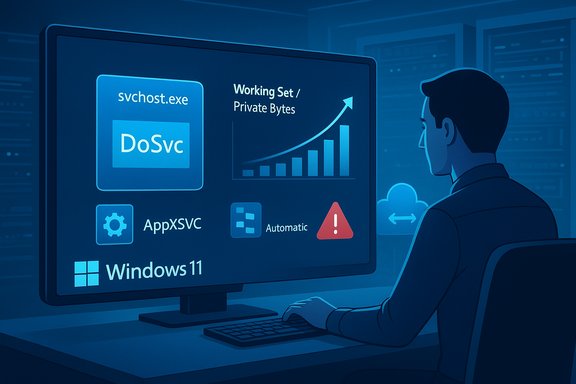
A person at a computer monitors a Windows 11 dashboard featuring DoSvc and svchost.exe.
A quietly running Windows service that once aimed to save bandwidth is now generating an unusually loud chorus of user reports: the Delivery Optimization engine (DoSvc) has been implicated in sustained memory growth on some Windows 11 systems, and recent servicing changes to a related component — the AppX Deployment Service (AppXSVC) — appear to have amplified the problem for low‑RAM machines and tightly consolidated server images.

Background / Overview​

Delivery Optimization (service name DoSvc) is Microsoft’s peer‑assisted download engine. It was designed to reduce repeated downloads from Microsoft servers by allowing PCs to fetch update and Store app payloads from peers on the local network or, optionally, from peers on the internet. The feature is configurable from Settings and manageable via Group Policy/MDM. Its intended benefits are lower upstream bandwidth use and faster distribution in dense deployments. In mid‑December’s cumulative servicing, Microsoft changed the startup behavior of a related service: the AppX Deployment Service (AppXSVC). Microsoft’s official release notes for KB5072033 explicitly state that AppXSVC “has moved to Automatic startup type to improve reliability in some isolated scenarios.” That change is small in the notes but significant in operational effect — it increases the runtime exposure of code paths that previously ran only on demand. Two separate but related community signals arrived almost in parallel: (1) admins and home users reporting that AppXSVC now appears as a resident process after the update, generating monitoring noise and extra resident memory on constrained hosts; and (2) a Reddit user (Niff_Naff) posting timed PID‑based traces that pointed to DoSvc steadily growing its memory footprint — in at least one anecdote reaching multi‑gigabyte levels. Independent community write‑ups and tech outlets picked up both reports.

What changed, exactly — a concise technical check​

  • Microsoft published KB5072033 (December 9, 2025) for Windows 11, which includes a line noting AppXSVC’s startup‑type change to Automatic. This is the authoritative confirmation of that configuration change.
  • Delivery Optimization (DoSvc) remains a configurable subsystem that can be toggled via Settings → Windows Update → Advanced options → Delivery Optimization, or controlled centrally through Group Policy and MDM. Microsoft documents how Delivery Optimization chooses sources and how administrators can restrict or disable peer behavior.
  • Community traces show DoSvc running inside an svchost host (svchost.exe -k NetworkService -p -s DoSvc) and, in multiple anecdotal cases, its memory working set and private bytes climb continuously over hours until manual intervention (service stop or reboot) clears the allocation. Treat those traces as operational signals: credible and repeatable in reported environments, but not yet an official engineering confirmation of code‑level memory leak behaviour.

Why the symptoms surfaced now — the interaction explanation​

The story is not simply “DoSvc started leaking memory overnight.” Instead, the evidence points to an interaction:
  • Startup semantics change: Moving AppXSVC to Automatic increases the number of resident system service hosts early in the session. Previously, many of these services were trigger‑started and only ran briefly on demand; that limited their runtime exposure and masked small, repeated allocations. When they stay resident, small retained allocations become long‑running footprints.
  • Increased exposure reveals latent behavior: DoSvc implements caching, peer discovery, and network state machines. If any of these subsystems allocates memory without proper trimming under new timing or longer‑lived lifetimes, the result will look like a leak: steady growth of private bytes and working set. Community troubleshooting tools (Process Explorer, RAMMap, ProcMon, ETW traces) are required to distinguish benign caches from leaked memory.
  • Different device classes, different pain: On modern desktops with 16 GB+ of RAM the added resident footprints are usually invisible. On machines with 4–8 GB of RAM, lightweight VDI guests, or density‑optimized servers, a few hundred megabytes or a couple of gigabytes of extra resident memory materially degrades responsiveness and can trigger virtual memory pressure.

The evidence: what’s verified and what remains anecdotal​

  • Verified facts:
    1. Microsoft’s KB5072033 lists AppXSVC’s startup change to Automatic. This is a direct, verifiable entry in the Microsoft KB article for the December cumulative update.
    2. Delivery Optimization is configurable and documented on Microsoft’s support pages (Settings path, bandwidth caps, Activity monitor). That UI and management surface exist and are the recommended user‑level controls.
    3. Multiple users and community threads have independently reported DoSvc memory growth and relieved the symptom by stopping DoSvc, toggling peer downloads off, or reverting AppXSVC to manual in pilot images. These community‑level mitigations are reproducible in many anecdotal reports.
  • Claims that require caution:
    • The most extreme number being quoted — a DoSvc process allegedly growing to 20 GB of RAM — comes from individual user anecdotes posted to Reddit and amplified by aggregators. Those user traces are important operational signals, but they are not the same as an engineering validation or a Microsoft bug report confirming a universal memory leak pattern across all Windows installations. Treat such extreme figures as user‑reported outliers pending formal analysis.
  • Unproven technical root cause:
    • There is currently no Microsoft public advisory that labels DoSvc itself as containing a confirmed memory leak tied to KB5072033. The combination of a documented AppXSVC startup change plus community observations makes the leak hypothesis plausible, but it is not a Microsoft‑confirmed defect at publish time. Administrators should therefore act pragmatically, collect diagnostics and, if necessary, apply mitigations.

Practical triage and mitigation — step‑by‑step (home users & admins)​

If you are seeing sluggishness, swapping, or svchost/DoSvc as a top memory consumer, follow this prioritized checklist.

Immediate, low‑risk steps (home users)​

  1. Open Settings → Windows Update → Advanced options → Delivery Optimization.
  2. Turn off Allow downloads from other devices. This stops P2P downloads and reduces DoSvc activity.
  3. Reboot and monitor Task Manager (Details tab; match PID for svchost to the service name). If the problem clears, keep Delivery Optimization off until Microsoft issues guidance or a fix.
  4. If disk space is also a concern, clear the Delivery Optimization cache via Settings → System → Storage → Temporary files → Delivery Optimization Files, or run Disk Cleanup and select Delivery Optimization Files.

Advanced / admin steps (power users and IT)​

  1. Use Process Explorer or Performance Monitor to capture metrics: Working Set, Private Bytes, Handle Count and Thread Count for the DoSvc host process at regular intervals. Collect ETW traces and ProcMon captures if you can reproduce growth. These artifacts increase the chance of an actionable Microsoft support response.
  2. Temporary service stop (for troubleshooting): open Services.msc, find Delivery Optimization (DoSvc) → Stop. Optionally set Startup type to Manual for testing. Or use:
    • Stop service: net stop DoSvc
    • Disable permanently (registry): set HKEY_LOCAL_MACHINE\SYSTEM\CurrentControlSet\Services\DoSvc\Start = 4 (Disabled) — only if you accept turning off peer downloads system‑wide.
  3. Server/VDI mitigation for AppXSVC: pilot reverting AppXSVC to demand start in an isolated test cohort:
    • Elevated CMD: sc config AppXSVC start= demand
    • Stop running instance: sc stop AppXSVC
      This reverts the service to a trigger‑start model in which the Service Control Manager allows triggers to start the service only when needed (avoid disabling AppXSVC entirely — it supports app deployment and registration workflows). Note: some admins report access restrictions in certain managed environments; test and document before wide rollout.
  4. For fleets, prefer Intune/Group Policy to apply consistent Delivery Optimization settings rather than ad‑hoc registry edits. Use monitoring to validate impact before deploying changes broadly.

Why disabling Delivery Optimization is a reasonable stopgap — and the trade‑offs​

  • Benefits of disabling:
    • Stops DoSvc from performing P2P traffic and removes the immediate source of process activity and cache growth observed in community troubleshooting.
    • Reversible and available on consumer SKUs through Settings (safe for single‑PC households or small deployments).
  • Risks and trade‑offs:
    • More upstream bandwidth consumption: devices will download full payloads from Microsoft servers instead of retrieving pieces from local peers. This can stress constrained office links at scale.
    • Slightly slower distribution in large fleets and potential loss of local cache benefits for rapid mass updates.
    • AppXSVC and App readiness: on server images where AppXSVC is required for immediate registration, reverting to Manual may delay Store app workflows until triggered. Test first.

What to collect if you escalate to Microsoft support (or file Feedback Hub)​

If mitigation does not fully resolve the issue and you need engineering engagement, Microsoft (and its engineers in community threads) have shown they act more reliably when structured traces accompany a report. Collect:
  • Time‑stamped process metric snapshots (Working Set, Private Bytes, Handles, Threads) for the DoSvc host and AppXSVC over the growth window.
  • ETW traces and ProcMon captures during the period of memory growth.
  • RAMMap snapshots showing kernel pool and Standby/Active lists.
  • Delivery Optimization Activity Monitor snapshot showing cache size and transfer totals.
  • A short reproduction plan with steps and time windows. Attach artifacts to Feedback Hub or a Microsoft support case. Community threads indicate this materially helps triage.

Critical analysis — strengths, risks, and the broader engineering context​

Delivery Optimization is a pragmatic engineering trade: peer sharing reduces repeated downloads and eases Microsoft’s CDN load in dense environments. In many enterprise and consumer scenarios it saves bandwidth and accelerates delivery. The feature’s value remains intact when it behaves as intended. Where this episode becomes instructive is at the intersection of servicing changes and default configuration. Switching AppXSVC to Automatic evidently intended to improve reliability in isolated scenarios, but it also increased the runtime exposure of other subsystems. That exposure magnifies latent behaviors (such as untrimmed caches or object retention) that were previously transient. This shows how a small, well‑intentioned servicing change can have outsized effects on constrained or monitored environments.
Two operational lessons stand out:
  • For Microsoft: terse KB notes that change startup semantics need accompanying guidance for IT admins and an explicit note about the classes of devices targeted. Silent default flips create a high risk of downstream operational impact in enterprise contexts.
  • For IT and power users: pilot cumulative updates in a test ring and monitor resident service footprints. Background resident processes matter on constrained images and VDI hosts; small amounts of resident memory multiply across the server density. Use tools (Process Explorer, RAMMap, ETW) to distinguish caches from leaks and be cautious about sweeping disables without pilot validation.

How likely is a Microsoft fix, and what to expect next​

Historically, Microsoft addresses regressions discovered after cumulative updates using the following mechanisms:
  1. Patch Tuesday follow‑up cumulative update that contains a corrective code change.
  2. An out‑of‑band hotfix for widely impactful regressions.
  3. Known Issue Rollback (KIR) for enterprise customers in specific cases.
Given the KB entry confirming a startup‑type change and the volume of community reports, it’s reasonable to expect Microsoft to either publish guidance (for example, clarifying targeted scenarios) or to release an ameliorating patch if trace evidence confirms a leak. Administrators should watch the Microsoft release health dashboard and KB update notes for follow‑up advisories.

Quick checklist (one‑page takeaways)​

  • Confirm your Windows build with Win + R → winver; KB5072033 corresponds to the December 9, 2025 cumulative update (builds named in the official KB).
  • If svchost / DoSvc shows monotonic memory growth, toggle Delivery Optimization off first (Settings → Windows Update → Advanced options → Delivery Optimization). Reboot and monitor.
  • For servers/VDI: test sc config AppXSVC start= demand in a pilot ring; do not disable AppXSVC entirely without considering app deployment implications.
  • Gather structured diagnostics (Process Explorer, RAMMap, ETW traces) before escalating to Microsoft. Attach artifacts to Feedback Hub or an official support case.

Final assessment​

This is a classic example of a systems engineering ripple: a small servicing tweak (AppXSVC → Automatic) expanded the runtime window for a set of background subsystems, exposing behavioral characteristics of Delivery Optimization that many machines had previously avoided. Community reporting — including the Reddit trace from Niff_Naff that surfaced the multi‑gigabyte anecdote — has provided fast detection and practical mitigations, but it has not replaced the need for formal engineering confirmation from Microsoft. The documented KB change and Microsoft’s Delivery Optimization controls give administrators immediate levers to mitigate user impact while awaiting an official root‑cause analysis or a corrective update. For now the pragmatic posture is clear: verify the symptom on your machines, apply the low‑risk mitigations described here if you are affected, collect diagnostic artifacts if a fix is needed, and monitor official Microsoft channels for a formal resolution. The balance between shipped reliability improvements and predictable operational performance remains delicate — and this episode is a reminder that even tiny default changes can matter a great deal in real‑world fleets.

Source: Inbox.lv A Memory-Hungry Feature Found in Windows
 

Windows is getting better at not wasting RAM: recent engineering moves, long‑standing compression tricks, and a flurry of user reports together show Microsoft is both actively reducing memory pressure and — in some cases — exposing new runtime trade‑offs that owners and administrators need to understand now.

A RAM module floats above a compressed store icon in a neon teal, futuristic UI.Background / Overview​

For years Windows has followed a simple design maxim: unused RAM is wasted RAM. The operating system aggressively caches files, preloads code paths, and uses compression to keep hot data in memory rather than writing it to disk. That approach makes most systems feel faster in ordinary use, but it can also confuse users who see high memory numbers in Task Manager and assume something is broken.
Two parallel threads explain what’s happening today. First, Windows exposes and expands compression and compacting techniques — from CompactOS and filesystem compression to the memory manager’s compressed store — so that more data can remain “in‑RAM” without costing as many bytes of physical memory. Microsoft documents the platform compression APIs and the plumbing developers and the OS rely on for lossless compression and decompression. Second, some recent servicing changes (notably a December cumulative update) changed service startup behaviours and have, in a subset of installations, increased the observable resident memory of runtime services — most prominently Delivery Optimization (DoSvc). Community telemetry and troubleshooting threads tie the change to a KB that flips AppX Deployment Service (AppXSVC) to an Automatic startup type, which amplifies the runtime exposure of related services and has revealed high memory footprints on memory‑constrained machines. These observations come from multiple community reports and independent tech coverage. This article explains what Windows is doing to save memory, how those features work, where the risks and trade‑offs lie, and exactly what practical steps users and IT pros should take — with concrete, safe actions you can run through in minutes.

How Windows “saves” memory: the technical picture​

Memory compression: the compressed store inside RAM​

Windows maintains a compressed memory store inside the kernel’s memory manager. When pages of memory become eligible for compression, the OS may compress them and keep the compressed bytes in physical RAM rather than immediately writing them to the pagefile. This reduces disk I/O and can dramatically lower pagefile churn on systems that would otherwise thrash. The mechanisms and compression algorithms Microsoft exposes are available through documented APIs for developers and are tuned for performance and memory trade‑offs.
  • Benefit: Less pagefile use, fewer slow disk reads/writes, better responsiveness under moderate memory pressure.
  • Cost: Compressed memory counts toward the System process footprint and consumes CPU cycles for compression/decompression; observable RAM numbers can still look “high” even though actual usable memory is effectively greater.

CompactOS and on‑disk compression​

CompactOS is a targeted feature that compresses system binaries and read‑only files on disk; it reduces the installed footprint and is distinct from general NTFS compression. Running the compact utility (compact /CompactOS:always) instructs Windows to compress system files in the background and can reclaim gigabytes of SSD/HDD space on many machines. The trade is the same design tradeoff: fewer bytes read from storage at the cost of CPU cycles on decompression. Practical walkthroughs and community testing show real reclaimed space, but results vary by image composition.

Preloading and “warm” memory​

Windows sometimes preloads parts of the UI or applications (for example, Explorer preloading experiments) to make first‑open operations feel instantaneous. That warm memory improves perceived snappiness but consumes idle memory and can reduce headroom on systems with limited RAM. Microsoft’s engineering pattern of “use idle time to warm interactive paths” is intentional — it trades tiny background resource allocations for better responsiveness. Administrators should pilot such features on representative devices before large deployments.

Why memory numbers look alarming (and when they actually matter)​

Short answer: Task Manager shows what’s in RAM, not what’s irrevocably consumed. Cached and standby memory exists to make the system faster and is immediately reclaimed if an application needs it.
But there are legitimate red flags you should watch for:
  • A single process steadily grows without bound (classic memory leak).
  • High nonpaged pool or kernel allocations (often driver or kernel‑mode driver faults).
  • Frequent hard faults (heavy pagefile usage and disk thrashing).
  • Noticeable UI sluggishness while CPU and disk are otherwise idle.
For diagnosing these symptoms, standard tools are essential: Task Manager for a quick view, Resource Monitor and Process Explorer for per‑process details, and RAMMap or ETW traces for deep analysis. Community guides and IT documentation walk through these diagnostics step by step.

The recent practical story: Delivery Optimization and service startup changes​

In December 2025 Microsoft shipped a cumulative update (KB5072033) that included a startup‑type change for AppX Deployment Service (AppXSVC), flipping it to Automatic in some builds. That switch has two operational consequences:
  • Systems that previously only started AppXSVC when triggered now load that service at boot, increasing steady‑state resident memory.
  • Any small, untrimmed caches or allocations that earlier only happened during short runs are now continuously resident — and on memory‑constrained devices this magnifies visible memory growth for services like Delivery Optimization (DoSvc).
Community diagnostics show monotonic memory growth in an svchost.exe instance hosting Delivery Optimization in some installs; affected systems reported swapping, UI lag, and even RDP freezes when DoSvc’s working set ballooned. Independent coverage and forum threads document the symptom and point to the KB change as a plausible amplifier. Microsoft’s KB does list the AppXSVC startup change, although a formal Microsoft engineering advisory acknowledging DoSvc memory leaks had not been posted at the time those reports appeared. This is an important operational lesson: a small configuration change at the platform level can expose latent memory pressure that was previously invisible.

Strengths of Windows’ memory-saving approach​

  • Visible performance wins: Keeping compressed, cached, and preloaded data in RAM often makes real workloads feel faster because fewer slow disk reads are required.
  • Flexible tradeoffs: Windows’ use of compression and CompactOS can be tuned and, in many cases, reversed (CompactOS can be disabled if the CPU cost is undesirable).
  • Developer platform support: Microsoft provides Compression APIs so developers can adopt efficient compression strategies for their workloads. This reduces duplication and fragmentation in third‑party solutions.
  • Adaptive enablement: Windows historically enables compression only when deemed suitable for device class and hardware capabilities, reducing the risk of broad regressions on low‑spec machines.

Risks, trade‑offs, and real‑world problems​

  • CPU vs RAM trade: Compression is not free. On low‑power CPUs or heavily loaded systems, compression/decompression cycles can add latency that offsets storage or pagefile savings.
  • Visibility vs impact: Task Manager can show high memory usage for the System process because compressed pages still occupy RAM; naive users may misinterpret this as a leak. Clear communication and diagnostic tools are essential to avoid unnecessary panic.
  • Service startup changes can expose leaks: The AppXSVC → Automatic example is a textbook case where a conservative change to improve reliability created new visibility for allocations that were harmless when services were strictly trigger‑driven. Until Microsoft issues patches or rollbacks, admins may need to implement mitigations.
  • Aggressive “debloating” or third‑party hacks are dangerous: Community scripts that remove built‑in components or forcibly disable core services risk breaking updates and security. Use caution and prefer Microsoft‑supported settings where possible.

Practical, safe steps for users and administrators​

Below are prioritized recommendations — short, testable, and reversible.

Quick checks (2–10 minutes)​

  • Open Task Manager → Performance → Memory to get a baseline.
  • Open Resource Monitor and watch for high hard faults and which processes drive commit.
  • Run Process Explorer or RAMMap for a granular view if you see unexplained growth.

Short‑term mitigations for suspected DoSvc/Delivery Optimization growth​

  • Settings → Windows Update → Advanced options → Delivery Optimization → toggle off “Allow downloads from other devices.” This stops peer‑to‑peer caching and often reduces DoSvc activity at the cost of slower update delivery. Tom’s Guide and other coverage list this as an effective short‑term fix.
  • If you manage fleets, pilot the change broadly but keep monitoring and collect diagnostic traces (Process Explorer dumps, ETW) for Microsoft Support if you file a case.

Longer diagnostics (30–120 minutes)​

  • Run Windows Memory Diagnostic to rule out hardware faults.
  • Use Performance Monitor to capture a memory trace under your typical workload.
  • If a single process grows without bound, generate a memory dump and open a support ticket with the app or driver vendor.

Reclaim disk space safely (CompactOS)​

  • Check CompactOS status: compact /CompactOS:query in an elevated prompt.
  • Enable compacting if you want to reclaim system disk space: compact /CompactOS:always
  • Revert with: compact /CompactOS:never
    Community tests show meaningful space reclaimed on many systems; the CPU cost is negligible on modern CPUs for most users.

When to upgrade hardware​

  • Frequent paging or persistent UI lag despite mitigations: consider adding RAM or moving to an NVMe SSD (lower pagefile latency).
  • Heavy multi‑tab browser use, VMs, and modern creative apps often demand 16GB+ for comfortable multitasking.

For IT: rollout strategy and monitoring checklist​

  • Pilot updates on representative devices before broad deployment.
  • Add telemetry to capture memory p95/p99 and process working‑set trends for 48–72 hours post‑patch.
  • Establish a mitigation playbook: toggle Delivery Optimization, collect ETW traces, and use the Feedback Hub + Microsoft support channels.
  • Avoid fleet‑wide registry hacks or unsupported service disablement; document any changes and ensure recovery paths.

What to expect next and how to interpret vendor claims​

Microsoft’s engineering cadence historically addresses regressions via cumulative updates, Known Issue Rollbacks, or KIRs for managed enterprise deployments. If the DoSvc behaviour is reproducible at scale it will likely be fixed in a future cumulative update. Meanwhile, independent coverage and community reporting are strong signals; treat vendor claims of “improved memory handling” as accurate in architecture but check telemetry for your specific workloads and devices before trusting marketing numbers blindly. Be cautious with sweeping claims like “saves terabytes of RAM across all devices” — they are marketing heuristics, not per‑device guarantees. Verify the specific numbers that matter to you (boot time, app startup p90, pagefile usage) with controlled A/B testing.

Developer and OEM considerations​

  • Developers: use the Compression APIs rather than inventing custom compression schemes; that leverages optimized platform code and consistent behavior across devices.
  • OEMs: apply CompactOS selectively for storage‑constrained SKUs and document the behavior so end users and IT admins aren’t surprised by disk/service differences.
  • System integrators: include RAM and storage sizing guidance in deployment documentation; features like preloading and compression interact with platform telemetry and may need tuning for thin clients or kiosk scenarios.

Final verdict — balanced view​

Windows’ memory architecture is evolving in practical, measurable ways: compression, CompactOS, and selective preloading give engineers more levers to reduce effective memory pressure and reclaim storage. For most users these changes make Windows feel faster and more efficient, especially on modern hardware.
However, platform changes — even small ones like flipping a service startup type — can reveal previously dormant issues. The recent Delivery Optimization memory observations are a reminder that visibility and actual harm are different things: not every high memory number equals a leak, but persistent growth that harms system responsiveness is real and must be treated seriously by admins and Microsoft alike. Community diagnostics, short‑term mitigations (disable peer downloads), and careful telemetry are the right response pattern while waiting for formal fixes.
Windows is indeed “learning” to save memory — it’s just a learning that still depends on human oversight, measurement, and occasional tuning.

Quick reference — commands and links (operational)​

  • Check CompactOS: open an elevated Command Prompt and run:
  • compact /CompactOS:query
  • compact /CompactOS:always
  • compact /CompactOS:never
  • Disable Delivery Optimization (temporary mitigation):
  • Settings → Windows Update → Advanced options → Delivery Optimization → Allow downloads from other devices → Off.
  • Diagnostics:
  • Task Manager, Resource Monitor, Process Explorer, RAMMap, Windows Memory Diagnostic, PerfMon/ETW traces.

Windows’ memory story is one of steady engineering progress, sensible trade‑offs, and the occasional operational surprise. The platform’s compression and compacting features are real tools to save RAM and disk space; when combined with conservative rollout practices and the right diagnostics, they deliver meaningful gains with manageable risk. The current community attention on DoSvc is also healthy: visibility accelerates fixes, and the practical mitigations here are simple and reversible for users and administrators alike.
Source: Inbox.lv News feed at Inbox.lv -
 

Back
Top