

Windows nostalgia is real, but it isn’t the whole story — the urge to romanticize older releases like Windows XP or Windows 7 often overlooks real limitations those systems had, and it skews how we judge modern Windows releases. The XDA piece that kicked off this conversation argues precisely that: long-term familiarity with older Windows versions can create a selective memory that highlights what felt simple or charming at the time while ignoring missing features, security gaps, and the productivity improvements that arrived later.
Windows has been evolving for three decades, and each major release traded strengths and weaknesses as Microsoft balanced compatibility, security, and new features. Nostalgia tends to foreground interface polish and “how things felt” — the Start menu layout, bundled games, or a wallpaper that defined an era — while downplaying missing capabilities like modern multitasking, native security protections, or built-in diagnostics that we now take for granted.
This article revisits the most consequential Windows releases from XP through Windows 11, checks specific technical claims the nostalgia argument often ignores, and evaluates whether the modern complaints about Windows (ads, forced accounts, upsells, reduced customizability) are more than just reasonable gripes. The goal is an evidence-driven verdict on the central claim: Is nostalgia blinding us to real progress in Windows? The short answer is: no — nostalgia distorts, but criticism of modern Windows also finds plenty of justified targets.
Where the XDA piece simplifies is in downplaying two important modern critiques:
The balanced assessment is: Windows has continued to improve in concrete, verifiable ways (multitasking, security controls, integrated utilities), but the platform’s evolution also introduces new trade-offs in privacy, choice, and customization. The XDA article’s central pushback against rose-tinted complaining is useful: we should measure progress as well as point out where user experience and policy choices have regressed.
For users and administrators, the pragmatic path is straightforward: adopt modern Windows for its security and productivity gains where those matter; keep alternative environments (VMs, local-only systems, or older hardware isolated from the internet) when nostalgia or legacy software requires it; and actively manage account, encryption, and privacy settings during the initial setup to avoid surprises. The past is comforting; the future is safer — and the best choice depends on what you want your PC to protect and produce.
Source: XDA I used older Windows versions, and I think nostalgia has blinded us
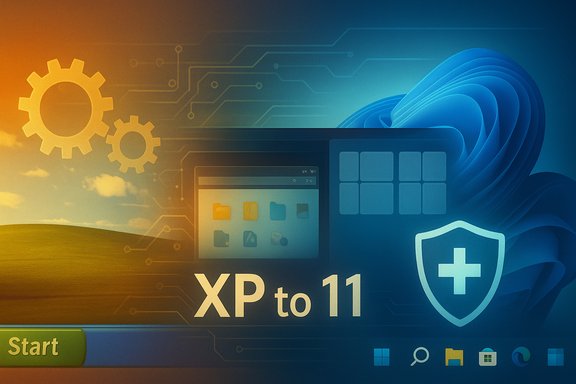 Background / Overview
Windows has been evolving for three decades, and each major release traded strengths and weaknesses as Microsoft balanced compatibility, security, and new features. Nostalgia tends to foreground interface polish and “how things felt” — the Start menu layout, bundled games, or a wallpaper that defined an era — while downplaying missing capabilities like modern multitasking, native security protections, or built-in diagnostics that we now take for granted.This article revisits the most consequential Windows releases from XP through Windows 11, checks specific technical claims the nostalgia argument often ignores, and evaluates whether the modern complaints about Windows (ads, forced accounts, upsells, reduced customizability) are more than just reasonable gripes. The goal is an evidence-driven verdict on the central claim: Is nostalgia blinding us to real progress in Windows? The short answer is: no — nostalgia distorts, but criticism of modern Windows also finds plenty of justified targets.
A tour through the versions: what we remember, and what we lost
Windows XP — the romance of simplicity, with limits
Windows XP remains the emotional high-water mark for many users: recognizable Start button, the Bliss wallpaper, and a lightweight feel on the hardware of its day. But the UX simplicity came with concrete trade-offs.- Multitasking and window management were rudimentary compared with modern standards: there was no built-in snap-to-side system for efficient side-by-side workflows. That was acceptable on lower-resolution hardware at the time, but it’s a legitimate reason why productivity workflows feel hamstrung in retrospect.
- Search, indexing, and navigation were limited. Without the integrated Start search we now expect, finding installed programs could require a few clicks and folder navigation.
- Peripheral compatibility and plug-and-play were more fragile — driver installation and USB peripheral setup were often manual and error-prone.
- Security: XP’s era lacked modern mitigations. No secure boot, TPM expectations, or integrated device encryption — the things that make contemporary threats harder to exploit.
Windows Vista — a design and security inflection point, with growing pains
Vista introduced important platform shifts — a clearer move toward richer visuals and stronger process isolation — but at a real cost.- User Account Control (UAC) was introduced to harden elevation, but early defaults were intrusive and generated “permission fatigue,” producing legitimate user backlash.
- Aero Glass visual effects improved aesthetics and presented a more modern UI, yet these features increased resource consumption and contributed to slowdowns on contemporary hardware.
- Gadgets provided quick glanceable widgets but also introduced attack surfaces and were later retired for security reasons.
Windows 7 — stability and sensible defaults
Windows 7 is often described as the “cleanup” after Vista. It refined visuals, tuned performance, and made UAC less annoying. Some notable points:- Window snapping to halves and top-to-maximize arrived here, improving single-monitor productivity, but still lacked the richer multi-zone snap layouts and simultaneous resizing that modern users value.
- No native virtual desktops, so power users who wanted multiple workspaces had to rely on third-party workarounds.
- Compatibility and stability saw big improvements, which is why adoption stuck — but functionality that later became standard (better snap controls, richer File Explorer features) wasn’t yet complete.
Windows 8 / 8.1 — innovation that fractured the user base
Windows 8 attempted to straddle desktop and tablet paradigms with the Metro design language. The result: a split user experience that left both camps frustrated.- Modern/Metro apps and a full-screen Start experience were fine for touch-first systems but disrupted desktop workflows and produced a disjointed feel for mouse-and-keyboard users.
- File Explorer Ribbon and OneDrive on-demand (introduced in 8.1) were useful additions that later became foundational.
- The attempt to design a single UI for both touch and desktop was technically interesting but poorly timed: it led to a fractured perception of Windows and an enduring lesson that forced UI convergence can harm both user segments.
Windows 10 — convergence, but stylistic inconsistency
Windows 10 brought many of the building blocks that made Windows 11 possible: virtual desktops, richer snapping behavior (snap assist), and an improved Start menu that blended tiles with an app list.- Feature gains: virtual desktops, incremental improvements to snapping (including simultaneous resizing in later updates), and a more customizable Start menu for many users.
- Design inconsistency: the UI across “classic” and “modern” elements felt sterile and mismatched — a complaint many had about Windows 10’s flat, desaturated aesthetic.
- Commercialization seeds: Microsoft began bundling promoted apps (e.g., Candy Crush) and repeated upsell prompts in the Windows 10 experience; these annoyances accelerated in later releases.
Windows 11 — the net positive with new annoyances
Windows 11 refined the visual language and introduced several long-awaited productivity and security features. Key, verifiable improvements include:- Snap layouts and Snap groups: a clear improvement in multitasking that lets users choose multi-zone layouts from a flyout and restores groups from the taskbar. This is an official Windows 11 capability documented by Microsoft and visible in the system’s multitasking settings.
- Smart App Control (SAC): a feature introduced with recent Windows 11 releases that proactively blocks unknown/untrusted apps; it operates as a runtime control that complements Defender and must be enabled under certain install conditions. Independent coverage describes SAC’s “guilty until proven innocent” behavior and notes it has to be enabled on clean installs.
- Device encryption defaults (BitLocker auto/enabled behavior): Microsoft reduced the hardware gating for automatic device encryption and began enabling device encryption more aggressively during OOBE for supported devices (an evolution formalized around Windows 11 24H2), meaning more systems will have BitLocker-like encryption turned on by default during setup for users signing into Microsoft accounts. This change is documented in Microsoft’s OEM-focused guidance and reported in major outlets.
- Native archive support: Microsoft has been incrementally adding built-in support for additional archive formats in Insider builds; preview evidence shows the ability to create and manage .zip, .7z, .tar (and in some pre-release builds read/extract capabilities for .rar) with the goal of reducing the dependence on third-party archivers. Multiple independent outlets tested and reported on these preview builds.
- Upselling and ads: setup flows and some system surfaces now push Microsoft services and subscriptions more aggressively than older releases.
- Account enforcement: Windows 11 has increasingly forced Microsoft Account usage in OOBE for consumer SKUs, closing earlier workarounds and nudging users into linked accounts — a change publicized when Home and later Pro OOBE required online sign-in in preview channels.
- Third-party customization and legacy tweaks: Microsoft has been closing registry or script-based backdoors used by power users to re-enable older behaviors (classical Alt+Tab, old taskbar tweaks, offline local-account OOBE bypasses), which feels like less flexibility for experienced users.
What the XDA piece got right — and where it simplifies
The XDA article’s central thesis is a helpful corrective: older Windows versions feel “better” through the fog of memory, but many of those memories selectively ignore missing capabilities like modern multitasking, security, and built-in utilities. That is largely correct: the evolution from XP to Windows 11 added many productivity and safety features that are objectively superior. The article’s walkthrough of each OS era — XP’s limited customization, Vista’s missteps but security-first thinking, Windows 7’s polish, Windows 8.1’s fragmentation, Windows 10’s consolidation, and Windows 11’s refinements — is a fair, readable summary of how Windows matured.Where the XDA piece simplifies is in downplaying two important modern critiques:
- the real discomfort users feel with Microsoft’s increasing monetization and the care it places on ecosystem lock-in (Microsoft account requirement, store-first experiences, recurring subscription nudges), and
- the legitimate frustration from power users whose long-established customizations are harder or riskier as the OS becomes more locked down.
Technical fact-checking and cross-referenced verification
This section verifies some of the claim clusters that commonly appear in nostalgia vs. realism debates.- Snap layouts and groups: Microsoft’s official documentation explains the Snap flyout and the concept of Snap Groups (saved snapped window collections that appear in the taskbar and Alt+Tab/Task View). This is a built-in capability of Windows 11 and is part of the OS multitasking controls.
- Smart App Control (SAC): SAC was introduced on Windows 11 and requires recent versions to be enabled by default in some scenarios. Independent coverage describes SAC’s blocking behavior and its limitations (it’s less friendly to developers and power users and often requires a clean install to enable).
- Device encryption defaults: Microsoft’s OEM guidance shows that Windows 11’s device encryption (BitLocker Auto-DE) eligibility rules were relaxed around 24H2 and that OEMs can enable automatic device encryption during OOBE when hardware conditions are met; major outlets covered this change and its implications for default encryption and key escrow to a Microsoft account. Users should be aware that auto-encryption often ties recovery keys to the user’s Microsoft account — a double-edged convenience/security trade-off.
- Native archive support: Insider previews and reporting demonstrate that Windows 11 is adding native archive creation and read support for additional formats like .7z and tar, with .rar read/extract capabilities appearing in early builds and broader support moving through Insider rings — though some limitations and performance issues were reported in preview channels. Two independent outlets covered these builds.
- Microsoft account / OOBE enforcement: reporting and Windows community threads show Microsoft gradually removing OOBE bypasses and making internet + Microsoft account sign-in the default/required path for Home and, in some channels, Pro editions during setup — a policy shift that reduces the face-value friction but raises privacy and choice concerns for some users.
Strengths, risks and practical takeaways for Windows users
Strengths (why Windows has objectively improved)
- Multitasking is measurably better now: Snap layouts, Snap groups, and virtual desktops are built-in, making multi-window workflows faster and more predictable.
- Built-in security: SAC, stricter hardware requirements (Secure Boot, TPM), and device encryption options significantly reduce attack surface compared with legacy releases.
- More robust built-in utilities: modern Snipping Tool with integrated recording, better Paint and Media Player updates, and growing native format support in File Explorer reduce dependence on third parties for common tasks.
- Consistency and aesthetics: Windows 11’s visual refresh resolves some of the jarring visual inconsistencies that plagued Windows 10.
Risks and regressions to watch
- Increased monetization and ecosystem nudges: repeated upsells for Microsoft services during OOBE and within Settings can be intrusive and reduce the feeling of a neutral platform.
- Reduced DIY flexibility for power users: Microsoft has been sealing some older customization backdoors, making re-enabling legacy behaviors more technical (or impossible) in up-to-date builds.
- Automatic encryption trade-offs: device encryption by default is great for security, but automatic key escrow to a Microsoft account can surprise users and complicate forensic or recovery workflows if the account is lost — users should proactively back up recovery keys if they prefer tighter control.
- Privacy and account entanglement: the push to Microsoft accounts and cloud sync is convenient for many, but not all users want telemetry or forced account-linking as the price of setup.
Practical recommendations (for readers deciding whether to upgrade or stay put)
- If you prioritize security and modern productivity features (snap layouts, native archive handling, built-in screen recording), moving to a supported, modern Windows version (Windows 11 with recent updates) is a net benefit.
- If you deeply value local control, minimal telemetry, or a highly tweakable environment, consider:
- Using local accounts where possible (note that recent builds increasingly discourage it during OOBE).
- Keeping a secondary machine or VM for experimental customizations and retro themes.
- Backing up BitLocker recovery keys to offline media if auto-encryption is enabled unexpectedly.
- For users worried about forced changes (OOBE Microsoft account requirement, upsells), it’s reasonable to delay upgrades until release notes and community testing confirm behavior you can accept; Microsoft often toggles defaults in response to feedback.
- Power users who rely on third-party customizers should evaluate whether those tools are actively maintained and compatible with current builds before upgrading.
Conclusion — nostalgia is informative, but not decisive
Romantic memories of Windows XP or Windows 7 are understandable — those systems were formative for many users and offered clean, unchallenging interactions. But nostalgia is not a substitute for objective evaluation. Many of the features that make modern Windows better for productivity and security simply didn’t exist in earlier eras. At the same time, current criticisms — more aggressive monetization, account nudges, and a shrinking surface for deep legacy tweaks — are real and justified.The balanced assessment is: Windows has continued to improve in concrete, verifiable ways (multitasking, security controls, integrated utilities), but the platform’s evolution also introduces new trade-offs in privacy, choice, and customization. The XDA article’s central pushback against rose-tinted complaining is useful: we should measure progress as well as point out where user experience and policy choices have regressed.
For users and administrators, the pragmatic path is straightforward: adopt modern Windows for its security and productivity gains where those matter; keep alternative environments (VMs, local-only systems, or older hardware isolated from the internet) when nostalgia or legacy software requires it; and actively manage account, encryption, and privacy settings during the initial setup to avoid surprises. The past is comforting; the future is safer — and the best choice depends on what you want your PC to protect and produce.
Source: XDA I used older Windows versions, and I think nostalgia has blinded us
