

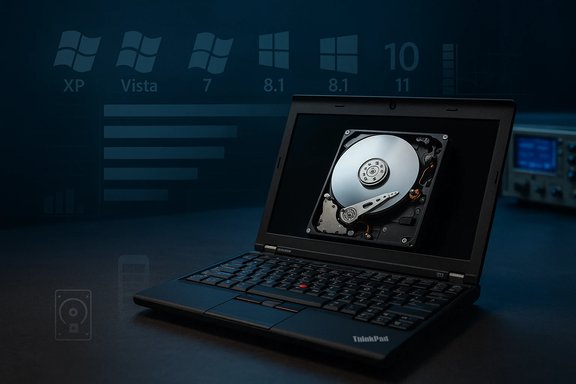
A recent hands‑on comparison that installed Windows XP, Vista, 7, 8.1, 10 and 11 on identical Lenovo ThinkPad X220 notebooks found Windows 11 finishing near the bottom in most real‑world responsiveness tests, while Windows 8.1 emerged as the most balanced performer on the vintage hardware used — a striking reminder that modern OS design assumptions have tangible costs on older machines.
The testbed was six identical Lenovo ThinkPad X220 laptops equipped with an Intel Core i5‑2520M (Sandy Bridge), 8 GB of RAM, Intel HD Graphics 3000 and a 256 GB mechanical hard disk drive. Each machine received a clean installation of one Windows generation (XP, Vista, 7, 8.1, 10 and 11), with updates applied to the most recent or final builds the tester could legally use. The tester measured cold boot times, idle RAM, disk footprint, application launch times, browser tab density, battery life, file transfers, content‑creation tasks and a suite of synthetic benchmarks. This one‑platform, multi‑OS approach isolates operating‑system behavior by keeping hardware and drivers constant. That makes differences attributable to OS design choices, but it also creates a deliberately hardware‑sensitive snapshot: a modern OS optimized for NVMe SSDs, UEFI firmware and larger memory pools will predictably look worse on a decade‑old HDD‑based laptop. The test author framed the video as historical and illustrative rather than prescriptive advice for everyday deployment.
For readers and system managers, the takeaway is pragmatic: preserve security and compatibility by running supported systems, and when older hardware is the bottleneck, prioritize targeted upgrades — especially an SSD and more RAM — before making an OS swap. The vintage wins of XP or 8.1 are fascinating and instructive, but they are historical curiosities rather than practical, long‑term strategies for connected users.
Source: Mix Vale Windows 11 comes last in speed tests against XP, 7 and 8.1 on older hardware
 Background
The testbed was six identical Lenovo ThinkPad X220 laptops equipped with an Intel Core i5‑2520M (Sandy Bridge), 8 GB of RAM, Intel HD Graphics 3000 and a 256 GB mechanical hard disk drive. Each machine received a clean installation of one Windows generation (XP, Vista, 7, 8.1, 10 and 11), with updates applied to the most recent or final builds the tester could legally use. The tester measured cold boot times, idle RAM, disk footprint, application launch times, browser tab density, battery life, file transfers, content‑creation tasks and a suite of synthetic benchmarks. This one‑platform, multi‑OS approach isolates operating‑system behavior by keeping hardware and drivers constant. That makes differences attributable to OS design choices, but it also creates a deliberately hardware‑sensitive snapshot: a modern OS optimized for NVMe SSDs, UEFI firmware and larger memory pools will predictably look worse on a decade‑old HDD‑based laptop. The test author framed the video as historical and illustrative rather than prescriptive advice for everyday deployment. What the tests measured (quick overview)
- Boot cold/resume times (including hybrid fast startup behavior).
- Installed disk footprint (OS + default apps).
- Idle RAM immediately after sign‑in.
- Application launch responsiveness (File Explorer, Paint, Calculator, Acrobat Reader).
- Browser tab stress test (open tabs until a capped memory threshold).
- Battery life under a synthetic drain loop.
- Content‑creation tasks (audio export in Audacity, video render in OpenShot).
- File copy speed over USB and disk benchmarks (CrystalDiskMark).
- CPU and synthetic tests (CPU‑Z, Geekbench, Cinebench).
Headlines: who won, who trailed
- Overall winner on this hardware: Windows 8.1 — fastest perceived boot, strongest real‑world responsiveness, and the best browser tab scaling in the capped‑memory test.
- Most lightweight at idle: Windows XP — smallest disk footprint and lowest resting RAM, but incompatible with many modern apps and security tooling.
- Windows 11: often last or near‑last in application launches, boot readiness (taskbar rendering lag), browser tab density, video rendering and battery endurance — yet it performed respectably in a few disk and file‑copy operations.
Deep dive: Startup and resource usage
Fastest boot — Windows 8.1
Windows 8.1 benefited from its Fast Startup (hybrid hibernation) mechanism, which saves kernel and driver state to disk and restores it on boot. On spinning HDDs this hybrid approach often yields faster perceived boot/resume times than a full cold kernel initialization. The test recorded Windows 8.1 as the fastest to reach a usable desktop on the ThinkPad X220 hardware.Disk footprint — XP still wins
Windows XP had the smallest installed footprint (roughly 18.9 GB in this test), while Windows 11 used substantially more (around 37+ GB for the OS plus test apps in the tester’s images). That roughly two‑fold difference is expected given decades of added functionality, inbox apps, drivers and feature sets. Smaller footprint correlates with simpler I/O behavior on HDDs, which helps perceived responsiveness.Idle RAM — modern vs. legacy
Idle RAM usage rose steadily across generations. XP sat under 1 GB at idle in the test, whereas Windows 11 rested between ~3.3–3.7 GB, driven by resident security subsystems, telemetry/cloud agents, modern shell preloads and WinUI components. Multiple hands‑on reviews have observed higher idle RAM in default Windows 11 images compared with Windows 10, a pattern the video reproduced.App launches and everyday interactivity
Built‑in tools such as Paint, Calculator and File Explorer launched and painted UI elements faster on Windows 7 and 8.1 than on Windows 10 and 11 in this harness. File Explorer in particular showed a visible taskbar/renderer lag on Windows 11: the desktop appeared before shell elements finished rendering, creating a “desktop visible but unready” sensation. Microsoft has publicly experimented with preloading Explorer components to mitigate this, but the preload also increases the idle memory floor — the core trade‑off visible here.Browser tab stress test
The tester used a Chromium fork called Supermium (built for legacy OS compatibility) and opened tabs until a capped RAM threshold reached 5 GB. Results:- Windows 8.1 supported ~252 tabs before hitting the cap.
- Windows 7 also sustained hundreds of tabs.
- Windows 11 topped out with around 49 tabs in the same capped‑memory exercise.
- XP showed anomalous behavior due to paging‑file artifacts rather than being a genuine memory‑management victory.
Battery life and content‑creation tasks
Battery differences were minor in absolute terms, but Windows XP lasted longest in the synthetic drain loop while Windows 11 was first to exhaust the battery on the ThinkPad testbed. For CPU‑bound content tasks:- Audio export (Audacity): similar across many OSes when supported; Vista showed anomalies in one run.
- Video render (OpenShot, 1080p/30fps): Windows 10 was fastest among modern, supported OSes; Windows 11 trailed.
Synthetic benchmarks and I/O
- CPU‑Z single‑thread: older Windows versions (notably XP in this harness) posted strong single‑thread numbers.
- Cinebench and Geekbench: results varied by test and benchmark version; Windows 7 and Vista posted surprising wins in some multi‑thread runs.
- CrystalDiskMark: XP and 8.1 edged ahead in several read/write scenarios; Windows 11 placed mid‑pack and did well in some file‑copy trials (USB transfer) where it finished second behind Windows 10.
Why Windows 8.1 looked so good on this hardware
Three technical realities explain Windows 8.1’s advantage on an HDD‑based ThinkPad X220:- Fast Startup/hybrid resume reduces cold boot latency by restoring a saved kernel/driver image, often giving a perceptible edge on slower storage.
- Lighter default service set and simpler compositor: 8.1 shipped with fewer resident cloud/telemetry agents and a less animation‑heavy shell, leaving more RAM and I/O bandwidth for applications.
- Driver and UI expectations match the era: Windows 8.1’s inbox shell and Win32‑dominant UX align closely with Intel HD 3000 driver capabilities, avoiding compositing penalties newer shells incur on legacy GPUs.
Why Windows 11 lagged on this specific testbed
Windows 11’s design choices and platform assumptions — reasonable on modern hardware — produced measurable penalties here:- Higher baseline services and resident agents: built‑in security subsystems (virtualization‑based protections), telemetry/diagnostics, Copilot/widget plumbing, inbox store agents and indexing increase idle RAM and periodic I/O. Those resident costs reduce available headroom on 8 GB systems.
- Expectation of fast persistent storage: modern prefetch, compressed system files and I/O strategies are tuned to low‑latency SSDs. On a spinning HDD, these tactics can increase I/O contention and latency instead of hiding it.
- GPU/driver mismatch: Windows 11’s compositor and WinUI effects assume driver models and GPU features newer than Intel HD 3000; rendering and shell responsiveness therefore rely more on CPU when drivers are legacy‑aged.
- Feature trade‑offs: security and platform capabilities (Secure Boot, TPM expectations, BitLocker behavior) aim to protect modern users but add measurable overheads in CPU time or I/O on older silicon when hardware crypto offload is absent. Audit and encryption defaults can meaningfully affect throughput on older controllers.
Verification, caveats and measurement artifacts
This comparison is informative but not a universal verdict. Key verification and caveats:- The test used a Chromium fork (Supermium) to allow legacy OSes to run a modern multi‑process browser; browser process model and build versions materially impact the tab‑count results. The browser choice therefore creates an apples‑to‑apples check within the harness, not a universal browser scaling measurement.
- XP and Vista could not run many modern apps or security tools, disqualifying them from some comparisons (OpenShot render, modern malware scanners). Those omissions mean direct comparisons in those categories are partial.
- Synthetic benchmarks depend on driver versions, microcode, scheduler and power policy. Small differences in driver stacks or BIOS/firmware can reorder results unpredictably. Multiple independent outlets reproduced the headline pattern (Windows 11 weaker on the same vintage hardware), but specific numbers will vary by test setup.
- Running unsupported OS versions in production is unsafe: Windows XP, Vista and 8.1 are out of mainstream security updates (Windows 8.1 reached end of extended support in January 2023; XP in April 2014). The tester and press noted the results are historically interesting rather than recommendations for everyday use.
Practical guidance: what to do if you own legacy hardware
For enthusiasts or IT pros managing older laptops and seeking the best day‑to‑day experience, the tester’s work suggests practical, risk‑aware options:- Upgrade storage to an SSD (SATA or NVMe if hardware supports it). This single change often yields the largest real‑world responsiveness gain and narrows the gap for modern Windows.
- Increase RAM where possible — moving from 4–8 GB to 16 GB dramatically reduces paging and improves multitasking headroom.
- If staying on a modern OS, disable or tune nonessential background services (cloud sync agents, optional telemetry, indexing) to reduce idle RAM and periodic I/O on HDD systems. Proceed carefully and test for feature impact.
- Use a lightweight browser or a tuned browser profile to reduce per‑tab memory consumption on low‑RAM machines. The browser choice heavily influences tab scaling.
- Avoid running unsupported OS versions connected to the internet for regular use — unsupported systems lack security patches and expose users to modern threats. If legacy software forces older OS use, isolate the device from networks and limit exposure.
Risks and policy implications
- Running unsupported systems (XP, Vista, 8.1) risks exposure to unpatched vulnerabilities and compatibility gaps with modern web standards and peripherals. That risk is material for connected devices.
- Overgeneralizing this test to assert that newer Windows builds are “bad” is misleading. Policy decisions in enterprises should be based on targeted benchmarking across representative hardware in the specific fleet, not a single‑platform legacy snapshot.
- For device procurement and lifecycle planning, these results argue for prioritizing fast storage and sufficient RAM as economic levers that extend device usefulness while enabling secure, modern OS adoption.
Conclusion
The ThinkPad X220 multicore experiment is a clear, repeatable demonstration of an important truth: operating systems are optimized for the hardware they expect. On an HDD‑centric, 8 GB RAM laptop from the Windows 7/8 era, the lighter service set and hybrid boot advantages of Windows 8.1 translated into a snappier, more responsive experience than Windows 11 — which is not designed around those constraints. At the same time, the test underscores why Microsoft’s modern decisions (security features, cloud/AI plumbing, and richer UI) are prudent on contemporary hardware.For readers and system managers, the takeaway is pragmatic: preserve security and compatibility by running supported systems, and when older hardware is the bottleneck, prioritize targeted upgrades — especially an SSD and more RAM — before making an OS swap. The vintage wins of XP or 8.1 are fascinating and instructive, but they are historical curiosities rather than practical, long‑term strategies for connected users.
Source: Mix Vale Windows 11 comes last in speed tests against XP, 7 and 8.1 on older hardware
