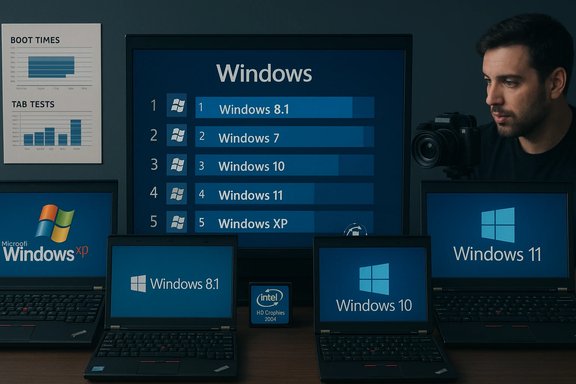
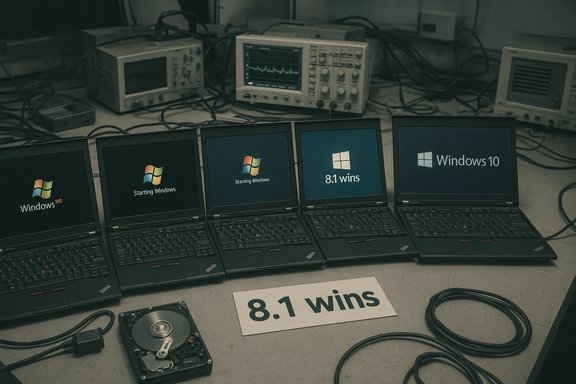
A recent community speed test that installed Windows XP, Vista, 7, 8.1, 10 and 11 on the same hardware delivered a striking—and headline-grabbing—result: Windows 11 finished at or near the bottom in most real-world and synthetic workloads, while Windows 8.1 emerged as the unexpected overall winner in this unscientific but entertaining comparison.
Windows has never been static: each major release shifts tradeoffs between security, features, compatibility, and raw resource demands. The test in question—published as a video by a community tester and summarized in press coverage—attempted to quantify those tradeoffs by running six generations of Windows on a single, identical laptop model and measuring cold boot, idle memory, storage footprint, application launch times, battery drain, file transfers, and a battery of synthetic benchmarks.
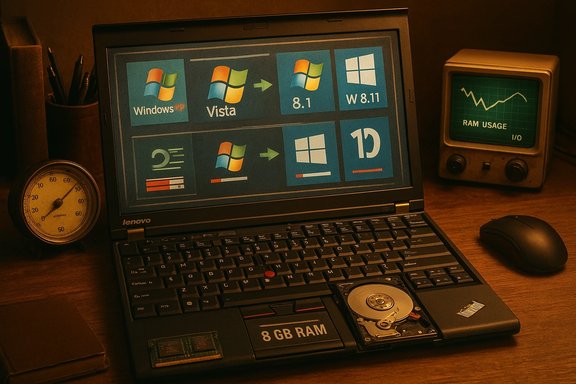
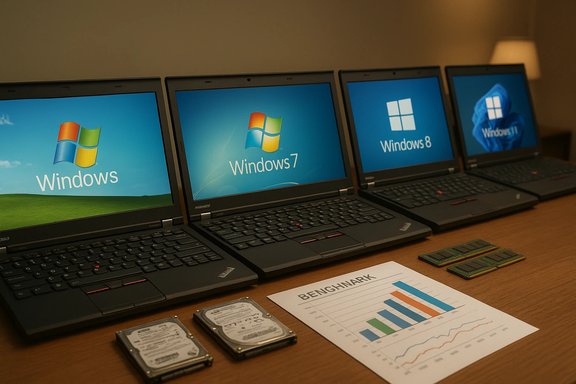
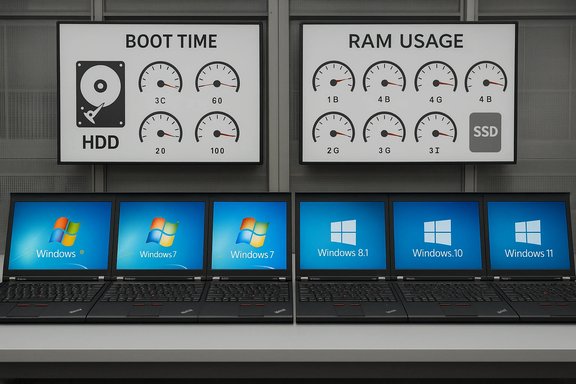
The hardware used was six Lenovo ThinkPad X220 laptops outfitted with Intel Core i5-2520M CPUs, 8 GB of RAM, and a 256 GB spinning storage device (not NVMe SSD). Each machine ran a fresh installation of one Windows generation (Pro build with latest service packs/updates), and the tester attempted parity in apps and test workloads across systems. That single-platform approach exposes the operating-system layer cleanly—but it also shapes the outcomes in predictable ways.
If reproducible performance is the goal:
Readers should take away two practical lessons: prioritize storage and memory upgrades before blaming the OS, and avoid using unsupported Windows releases for everyday computing despite their nostalgic or performance appeal. The speed test is an instructive snapshot; the more consequential decisions remain about security, support lifecycle and the hardware you choose to run.
Source: Tom's Hardware https://www.tomshardware.com/softwa...ected-winner-in-this-unscientific-comparison/
 Background
Windows has never been static: each major release shifts tradeoffs between security, features, compatibility, and raw resource demands. The test in question—published as a video by a community tester and summarized in press coverage—attempted to quantify those tradeoffs by running six generations of Windows on a single, identical laptop model and measuring cold boot, idle memory, storage footprint, application launch times, battery drain, file transfers, and a battery of synthetic benchmarks.The hardware used was six Lenovo ThinkPad X220 laptops outfitted with Intel Core i5-2520M CPUs, 8 GB of RAM, and a 256 GB spinning storage device (not NVMe SSD). Each machine ran a fresh installation of one Windows generation (Pro build with latest service packs/updates), and the tester attempted parity in apps and test workloads across systems. That single-platform approach exposes the operating-system layer cleanly—but it also shapes the outcomes in predictable ways.
Test summary: what was measured and who “won”
- Startup and Fast Boot: Windows 8.1 booted fastest; Windows 11 was the slowest to become fully usable, often lagging while the taskbar and shell elements finished rendering.
- Storage footprint: Windows XP used the least disk space for the OS plus test apps; Windows 11 consumed dramatically more, roughly double XP’s footprint in the test.
- Idle RAM: XP and older releases used far less idle memory; Windows 11 showed the highest idle RAM (~3–4 GB on this rig).
- Browser tab density: Older Windows versions (notably 8.1 and 7) sustained hundreds of tabs before hitting the test’s memory threshold; Windows 11 loaded far fewer.
- Battery life: XP claimed the longest runtime in this drain test, with Windows 11 lasting the shortest—but the reported delta across the machines was minor in absolute minutes.
- Application tasks (audio export, video render, app open times): Windows 11 generally placed last or near-last; Windows 10 and 8.1 often fared best depending on the task.
- Benchmarks: Results varied—older OSes sometimes led single-thread synthetic scores while Vista and 7 had surprising wins in specific tests. Windows 11 finished in the lower half of many synthetic runs on the ThinkPad harness.
Why Windows 11 scored poorly on this rig: technical analysis
Legacy hardware versus modern OS assumptions
Windows 11 was designed in an era when NVMe SSDs, larger RAM pools, and modern CPU microarchitectures are the norm. On a decade-old ThinkPad with a Sandy Bridge CPU, 8 GB of RAM and a spinning disk, several design choices in modern Windows become visible as costs rather than benefits.- Baseline service and feature set: Windows 11 ships with more background services enabled by default—security primitives, telemetry/diagnostics plumbing, widget and cloud sync components, Copilot-related agents, and modern inbox apps—that increase idle memory and periodic CPU/I/O activity. On constrained hardware these services eat into the headroom used for caching and app execution.
- Storage performance differential: The lack of an SSD amplified startup and application-launch times. Modern Windows uses prefetching and compressed system files to speed cold starts on SSDs; on an HDD these tradeoffs can actually increase I/O contention and latency. The tester’s choice of a 256 GB spinning drive therefore disfavors any OS that expects fast persistent storage.
- Driver and GPU stack constraints: Intel HD Graphics 3000 drivers for a decade-old GPU interact differently with modern compositor and DWM behavior. UI elements and Explorer responsiveness are sensitive to driver maturity and OS-level compositor engineering; the result is perceptible sluggishness in the shell on older drivers.
Modern features that trade responsiveness for capability
Windows 11 integrates additional security and UX subsystems that, while valuable on current hardware, incur overhead:- Virtualization‑based security, memory integrity and hypervisor features add kernel-mode responsibilities and driver checks at runtime, increasing minimum RAM and CPU cycles consumed by the OS.
- Telemetry and cloud connectors periodically send or prepare data, and some subsystems maintain resident agents for background indexing, syncing, or search prefetches.
- Heavier UI compositing (rounded corners, animations, enhanced graphical shell) uses GPU and memory resources that older hardware handles less efficiently.
Methodological strengths and weaknesses
No single test is definitive; methodology determines what the numbers mean. This test had both virtues and important limitations.Strengths
- Single-hardware approach isolates OS differences: Installing each OS on identical hardware prevents silicon-generation bias and reveals OS-level resource costs clearly. This is a useful laboratory approach for revealing how system software evolved.
- Broad real‑world tasks included: Beyond synthetic benchmarks, the tester ran application workflows—audio export, video rendering, file copies and browser stress tests—which matter more to everyday users than raw synthetic scores.
Weaknesses that materially affect interpretation
- Antiquated hardware profile: Sandy Bridge-era CPUs, 8 GB RAM, and a spinning disk are common on old laptops but are not representative of machines Windows 11 was designed to run on. The result magnifies Windows 11’s baseline overhead and understates its intended environment advantage.
- Driver and compatibility artifacts: For older Windows versions, testers used legacy drivers and compatible app builds. For Windows 11, current drivers were likely used but the platform’s driver model and optimizations expect newer silicon. Mismatches here can bias results.
- Storage choice (HDD vs SSD): The omission of an SSD is a significant methodological gap. Every modern Windows release benefits disproportionately from fast persistent storage; a single mechanical drive creates an I/O constraint that colors boot, app launch, and swap performance across OSes. This selection favors older, lighter OSes.
- Browser and benchmark parity issues: The tester used a Chromium fork (Supermium) for compatibility, and different benchmark software versions were required for the modern OSes versus legacy OSes. These mismatches make direct numeric comparison of some synthetic scores less reliable.
Cross‑verification of the main claims
Two independent takeaways are worth emphasizing and are corroborated by other hands-on analyses and community labs:- Windows 11 typically uses more idle RAM and disk space than Windows 10 — multiple fresh-install comparisons show a measurable idle-footprint gap; this is a consistent, reproducible phenomenon.
- A modern OS’s advantages are often masked on legacy hardware — benchmarks run on contemporary NVMe/DDR5 systems and newer CPUs show Windows 11 can feel snappier and leverage CPU/GPU features more effectively, but those gains derive partially from modern silicon and driver stacks rather than OS-only improvements. Microsoft’s own published lab numbers and independent press analysis point out that hardware selection heavily influences comparative results.
Practical takeaways for readers and IT managers
If you run older hardware (HDD + 8GB or less)
- Expect modern Windows versions—Windows 11 in particular—to feel heavier. If responsiveness matters more than security or new features, lighter legacy releases can appear faster—but they carry grave security risks.
- A single, high-impact upgrade: install an SSD and add RAM. An NVMe or even SATA SSD plus 16 GB of RAM will dramatically reduce the performance gap and restore snappiness to modern Windows releases. The absence of an SSD in the tester’s rigs is likely the single biggest factor that penalized Windows 11.
If you value security and support
- Only supported OSes receive security updates, driver fixes, and compatibility patches. Running XP or 8.1 may feel faster, but the exposure to modern threats and the inability to receive security patches make those configurations unsuitable for real-world daily use or enterprise deployment. The video author himself advised that older OSes are historically interesting but not practical for mainstream use.
- Consider Windows 10 Extended Security Options (ESU) or planned migration strategies if organizational policy requires longer support windows; vendor lifecycles and ESU availability affect long‑term maintenance choices.
For benchmarking fairness and comparability
- A better comparative methodology would do one of the following:
- Run each Windows version on flagship or contemporaneous hardware from that OS’s era (the gold standard for “how it felt in its prime”).
- Or, run all OSes on a modern, well-spec’d testbed with SSD, current drivers, and identical hardware, to isolate pure OS-level scheduling and service differences.
- Ensure the same versions of benchmark software and compatible app builds are used or document differences clearly when parity is impossible.
Strengths and risks highlighted by the test
Notable strengths exposed
- The test elegantly highlights how much software has shifted toward feature-rich, always-on, and telemetry-enabled platforms, making it easy to visualize the resource costs of that evolution.
- It underlines that perceived performance is as much about expectations and environment as raw CPU throughput—users on older machines will feel modern OSes as heavier even if their CPUs are technically capable.
Potential risks and misinterpretations
- The biggest risk is generalizing the result: concluding “Windows 11 is slow” from a single-hardware test is misleading. Modern devices usually mitigate these costs, and some workloads (especially GPU-accelerated or hybrid-core scheduling scenarios) can favor Windows 11.
- Security risk: the allure of legacy snappiness can tempt users and organizations to run unsupported OSes, exposing them to maintainability and threat-model failures that are expensive or impossible to remediate.
- Measurement artifacts: browser compatibility workarounds, separate benchmark versions and driver mismatches can skew results. Where possible, tests should isolate those variables.
How to interpret these results in 2026 (practical verdict)
For hobbyists and historians, the test is a delightful reminder that software design choices accumulate. Windows 8.1’s combination of lightness and modern UX elements makes it a surprising all‑rounder on decade-old hardware—and that is worth noting for enthusiasts. However, for practical use, security and hardware compatibility rule the day: modern Windows versions bring protections and ecosystem support that legacy systems lack, and a modest hardware refresh (SSD + RAM) will usually make Windows 11 behave acceptably or even superiorly on contemporary machines.If reproducible performance is the goal:
- Upgrade to an SSD and at least 16 GB of RAM where possible.
- Use identical benchmark suites and current drivers when comparing OS performance.
- Treat legacy OS tests as historical snapshots demonstrating tradeoffs, not as migration advice.
Final assessment
The ThinkPad X220 speed test is a useful thought experiment and a vivid demonstration that operating systems are shaped by their hardware context. It does not settle the broader debate over which Windows version is “best” across all scenarios, but it does emphasize a core truth: OS design tradeoffs matter—and where you run the OS can change the verdict completely. Windows 11’s richer feature set and modern security posture come at a resource cost that is visible on older hardware, while Windows 8.1 and even Windows 7 can feel faster in a constrained environment—at the expense of ongoing security and support.Readers should take away two practical lessons: prioritize storage and memory upgrades before blaming the OS, and avoid using unsupported Windows releases for everyday computing despite their nostalgic or performance appeal. The speed test is an instructive snapshot; the more consequential decisions remain about security, support lifecycle and the hardware you choose to run.
Source: Tom's Hardware https://www.tomshardware.com/softwa...ected-winner-in-this-unscientific-comparison/