

Microsoft’s Windows password guidance is broader than a simple “forgot password” prompt, and that matters because the recovery path depends on how you sign in. For users on a Microsoft account, Windows now nudges them toward web-based recovery or Microsoft account sign-in flows; for users on a local account, the reset experience can still happen directly from the Windows sign-in screen using security questions. The distinction is important, because the wrong advice can leave people chasing menus that do not apply to their account type.
The current Microsoft Support guidance for Windows 10 and Windows 11 separates password handling into two worlds: Microsoft account passwords and local account passwords. That split is not just cosmetic. It reflects Microsoft’s broader push toward account-centric identity, cloud recovery, and passwordless sign-in, while still preserving a fallback for offline local accounts on personal PCs.
For users who already know their Microsoft account password, the recommended path is straightforward: change it through the Windows Settings app or on the Microsoft account dashboard. If the password is forgotten, the recovery process moves to the sign-in screen, a browser, or Microsoft’s recovery workflow, where identity verification becomes the gatekeeper. Microsoft’s own support language is explicit that support agents cannot simply reset a forgotten password for you, which reinforces the security-first design.
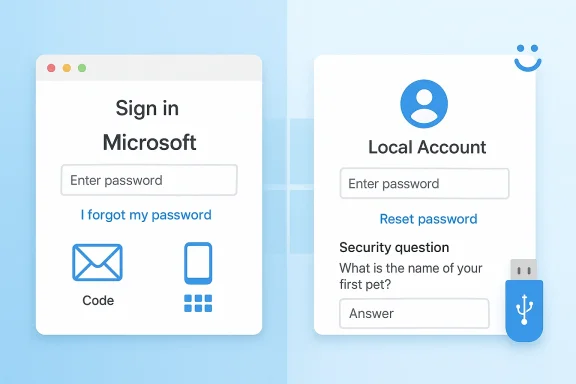
Local accounts still receive a more old-school treatment. If a user forgets a local account password, Windows can offer a reset link at the sign-in screen, but only if security questions were set up earlier. If an administrator account exists on the same PC, that admin can reset the local account password from Computer Management. If neither condition is available, Microsoft points users toward resetting the PC itself.
That structure tells a bigger story about Windows in 2026: password recovery is no longer a single feature but a network of identity options, backup methods, and trust boundaries. In practice, it rewards users who have set up security questions, alternative sign-in options, and account recovery methods in advance. It punishes the common habit of treating a password as the only line of defense and then assuming recovery will be instant when it is lost.
When the password is forgotten, Microsoft offers multiple entry points. Users can choose I forgot my password at the sign-in screen, use Web sign-in and then select Forgot my password, or start from a browser and launch the reset flow on the Microsoft account recovery page. Those options matter because different failure modes demand different recovery surfaces, and Windows increasingly assumes the browser is the place where identity gets verified.
There is also a product-design reason. Microsoft wants account identity to live consistently across Windows, Outlook, OneDrive, Xbox, and the web, not as a local-only credential trapped on one device. By pushing password changes into the Microsoft account ecosystem, the company keeps the identity state synchronized across services. This makes recovery more complicated at the moment of failure, but often more coherent over time for users who stay inside the Microsoft stack.
This is a useful fallback, but it is only as strong as the setup that preceded it. If the account owner never configured the security questions, the recovery path narrows significantly. Microsoft also notes that a password reset disk can be used if one exists, which is a reminder that Windows still carries some legacy recovery tools from an earlier era of PC administration.
That tension explains why Microsoft has increasingly emphasized passwordless methods and stronger sign-in options elsewhere in its support material. Password recovery for local accounts remains useful for households, small offices, and shared PCs, but it is not the direction Microsoft wants the entire ecosystem to take. The company’s messaging around Windows Hello, security keys, and alternate sign-in methods makes that clear.
This is especially relevant for users who log in with a PIN. Microsoft explicitly notes that if you know your PIN but forgot your Microsoft account password, you can still use Settings to change the password. That distinction matters because PIN access can function as a lifeline even when the underlying account password is no longer top of mind.
That layering is one of Windows’ biggest usability strengths, but it can also confuse users who assume every sign-in method has the same recovery path. A PIN can help you unlock the device, while the password governs the account itself. When those two ideas blur together, users may search the wrong help article or conclude they have lost access entirely when they have not.
This verification-heavy model is inconvenient in the short term but necessary in the broader threat environment. If account recovery were too easy, attackers would target the process instead of the password itself. By making the recovery flow a hurdle, Microsoft is effectively moving the security boundary from “know the secret” to “prove you are the owner.”
This also explains why Microsoft keeps repeating that its support agents cannot send reset links or directly change account details. The company is avoiding a world where human support becomes a weak point in the chain. In the age of phishing, that restraint is annoying but rational.
That divide is healthy, but it can create confusion for users who move between a personal Microsoft account and a managed workplace identity. The same Windows device may support both, yet the recovery behavior differs sharply depending on which one is tied to sign-in. In mixed environments, that is exactly the kind of detail that can turn a five-minute fix into a long support call.
That separation has a practical upside. It prevents consumer-grade recovery habits from weakening enterprise controls, and it keeps administrators in charge of managed identities. The downside is that users often assume “Microsoft account” means one universal process, when in fact the recovery rules are narrower and more specific than that.
Passwordless systems change the meaning of “forgot my password” without eliminating the problem entirely. Even if a user no longer types a password every day, the account still needs recovery rules, backup verification, and a way to re-establish trust if the device is lost. So passwordless design reduces friction, but it does not eliminate identity recovery—it merely moves it to a different layer.
The operational upside is less obvious but just as important. If more users rely on biometric or token-based sign-in, then mass password resets become less frequent, support queues shrink, and credential stuffing loses some of its leverage. That is good for everyone except the attackers.
For Windows users, that means checking whether the account is tied to a Microsoft identity, whether security questions exist for a local account, and whether alternative sign-in methods are active. It also means making sure recovery contact methods are current, because stale phone numbers and abandoned email inboxes are common reasons people fail recovery later.
The bigger question is whether Microsoft can make recovery simpler without making it weaker. That is the balancing act every modern identity platform faces, and Windows is no exception. The more Microsoft improves automation and sync across devices, the more users will expect recovery to feel instant; the more it tightens security, the more those same users will encounter verification friction. That tension is unlikely to disappear.
Source: Microsoft Support Change or reset your Microsoft account password in Windows - Microsoft Support
 Overview
The current Microsoft Support guidance for Windows 10 and Windows 11 separates password handling into two worlds: Microsoft account passwords and local account passwords. That split is not just cosmetic. It reflects Microsoft’s broader push toward account-centric identity, cloud recovery, and passwordless sign-in, while still preserving a fallback for offline local accounts on personal PCs.For users who already know their Microsoft account password, the recommended path is straightforward: change it through the Windows Settings app or on the Microsoft account dashboard. If the password is forgotten, the recovery process moves to the sign-in screen, a browser, or Microsoft’s recovery workflow, where identity verification becomes the gatekeeper. Microsoft’s own support language is explicit that support agents cannot simply reset a forgotten password for you, which reinforces the security-first design.
Local accounts still receive a more old-school treatment. If a user forgets a local account password, Windows can offer a reset link at the sign-in screen, but only if security questions were set up earlier. If an administrator account exists on the same PC, that admin can reset the local account password from Computer Management. If neither condition is available, Microsoft points users toward resetting the PC itself.
That structure tells a bigger story about Windows in 2026: password recovery is no longer a single feature but a network of identity options, backup methods, and trust boundaries. In practice, it rewards users who have set up security questions, alternative sign-in options, and account recovery methods in advance. It punishes the common habit of treating a password as the only line of defense and then assuming recovery will be instant when it is lost.
Microsoft Account Sign-In Paths
For a Microsoft account, the main workflow begins in Settings when the user is already signed in. The support page directs users to Accounts > Sign-in options, then Password > Change, where the old password is required unless the user selects the recovery path for a forgotten current password. This is the cleanest route for people who still have access to the device and want to rotate credentials without going through full account recovery.When the password is forgotten, Microsoft offers multiple entry points. Users can choose I forgot my password at the sign-in screen, use Web sign-in and then select Forgot my password, or start from a browser and launch the reset flow on the Microsoft account recovery page. Those options matter because different failure modes demand different recovery surfaces, and Windows increasingly assumes the browser is the place where identity gets verified.
Why Microsoft Pushes Recovery Online
Microsoft’s approach reflects a practical security decision. Password recovery is one of the most abused account-management processes in consumer computing, so the company routes users through verification steps rather than granting support staff the ability to intervene manually. That reduces social-engineering risk and limits the chance that a malicious caller can talk their way into a reset.There is also a product-design reason. Microsoft wants account identity to live consistently across Windows, Outlook, OneDrive, Xbox, and the web, not as a local-only credential trapped on one device. By pushing password changes into the Microsoft account ecosystem, the company keeps the identity state synchronized across services. This makes recovery more complicated at the moment of failure, but often more coherent over time for users who stay inside the Microsoft stack.
- Best case: you know the password and change it in Settings.
- Common case: you forgot it, but can verify identity online.
- Hard case: you lack recovery info and must use account recovery forms.
- Support boundary: Microsoft support cannot bypass the verification process.
Local Account Recovery on the Sign-In Screen
Local accounts still offer the most self-contained reset flow, and that is why many IT admins continue to keep them around for certain devices. If the user forgets the password, Windows can present a Reset password option directly at the sign-in screen. From there, the user answers the security questions created when the account was set up, then creates a new password without needing the internet.This is a useful fallback, but it is only as strong as the setup that preceded it. If the account owner never configured the security questions, the recovery path narrows significantly. Microsoft also notes that a password reset disk can be used if one exists, which is a reminder that Windows still carries some legacy recovery tools from an earlier era of PC administration.
Security Questions Are a Trade-Off
Security questions are convenient, but they are not elegant. They solve the “I’m locked out right now” problem, yet they depend on answers that may be guessable, stale, or forgotten by the owner. In other words, they are a pragmatic bridge, not an ideal long-term authentication strategy.That tension explains why Microsoft has increasingly emphasized passwordless methods and stronger sign-in options elsewhere in its support material. Password recovery for local accounts remains useful for households, small offices, and shared PCs, but it is not the direction Microsoft wants the entire ecosystem to take. The company’s messaging around Windows Hello, security keys, and alternate sign-in methods makes that clear.
- Reset from sign-in screen if security questions were configured.
- Use a password reset disk if one was created earlier.
- Reset through another administrator account if available.
- Reset the PC if no supported recovery path exists.
Already Signed In: The Easy Path People Forget
One of the most practical details in Microsoft’s guidance is that many password changes are easier when you are already signed in. In that state, users can open Settings, navigate to Accounts > Sign-in options, and change the password without waiting until the next lockout moment. That sounds obvious, but in practice it is the step many people skip until they are already stuck.This is especially relevant for users who log in with a PIN. Microsoft explicitly notes that if you know your PIN but forgot your Microsoft account password, you can still use Settings to change the password. That distinction matters because PIN access can function as a lifeline even when the underlying account password is no longer top of mind.
PIN, Password, and Account Recovery
The presence of a PIN does not mean the account password has become irrelevant. It simply means Windows has layered a more convenient local sign-in method on top of the account. If the account password expires, is compromised, or is forgotten, the PIN may still get you into the device long enough to repair the larger account state.That layering is one of Windows’ biggest usability strengths, but it can also confuse users who assume every sign-in method has the same recovery path. A PIN can help you unlock the device, while the password governs the account itself. When those two ideas blur together, users may search the wrong help article or conclude they have lost access entirely when they have not.
- PINs are local convenience credentials.
- Passwords remain the account-level identity control.
- Settings can be enough if you still have device access.
- Recovery gets harder once you lose both password and device access.
The Role of Identity Verification
Microsoft’s password reset flow depends heavily on identity verification, and that is not accidental. The company’s recovery documentation emphasizes that users must prove they are the rightful account holder before a new password can be created. The reset process can include code delivery, verification steps, and account-specific checks intended to block unauthorized access.This verification-heavy model is inconvenient in the short term but necessary in the broader threat environment. If account recovery were too easy, attackers would target the process instead of the password itself. By making the recovery flow a hurdle, Microsoft is effectively moving the security boundary from “know the secret” to “prove you are the owner.”
Why This Matters for Consumers
For consumers, the biggest takeaway is that recovery data is part of account hygiene. A recovery email, phone number, authenticator app, or other trusted method is not optional busywork; it is the difference between regaining access and starting over. Without those details, a forgotten password can quickly become a permanent lockout.This also explains why Microsoft keeps repeating that its support agents cannot send reset links or directly change account details. The company is avoiding a world where human support becomes a weak point in the chain. In the age of phishing, that restraint is annoying but rational.
What the Verification Model Signals
The verification model shows that Microsoft views account recovery as a security product, not just a help desk task. That shift has implications far beyond Windows sign-in. It affects how users think about device setup, backup identity channels, and whether a personal PC is really “theirs” in the way older local-account systems implied.- Verification protects against support-channel abuse.
- Recovery options must be configured before trouble starts.
- Identity data is as important as the password itself.
- Human support is intentionally limited to preserve account security.
Enterprise and Work Account Contrast
Microsoft’s consumer guidance also helps clarify what it does not cover. For work or school accounts, Microsoft directs users away from the consumer recovery flow and toward their IT administrator or dedicated password-reset systems. That separation matters because enterprise identity is usually governed by policies, compliance rules, and centralized admin tooling rather than self-service consumer recovery.That divide is healthy, but it can create confusion for users who move between a personal Microsoft account and a managed workplace identity. The same Windows device may support both, yet the recovery behavior differs sharply depending on which one is tied to sign-in. In mixed environments, that is exactly the kind of detail that can turn a five-minute fix into a long support call.
Consumer vs. Managed Device Expectations
A consumer PC is usually expected to bend toward convenience. An enterprise device, by contrast, is expected to enforce policy even when the user is frustrated. Microsoft’s documentation reflects that reality by steering each account type into a different recovery lane.That separation has a practical upside. It prevents consumer-grade recovery habits from weakening enterprise controls, and it keeps administrators in charge of managed identities. The downside is that users often assume “Microsoft account” means one universal process, when in fact the recovery rules are narrower and more specific than that.
- Personal Microsoft accounts follow consumer recovery rules.
- Work or school accounts usually require admin or organizational tools.
- Mixed-device environments are the most likely to confuse users.
- Policy-driven identity is not the same as consumer convenience.
Passwordless Pressure and the Future of Recovery
Microsoft’s support pages now sit alongside a larger push toward passwordless sign-in. The company highlights methods like the Microsoft Authenticator app, Windows Hello, security keys, and SMS-based alternatives as part of the broader move away from passwords as the primary user experience. That is not a minor side project; it is an indication of where the account platform is headed.Passwordless systems change the meaning of “forgot my password” without eliminating the problem entirely. Even if a user no longer types a password every day, the account still needs recovery rules, backup verification, and a way to re-establish trust if the device is lost. So passwordless design reduces friction, but it does not eliminate identity recovery—it merely moves it to a different layer.
Why This Is Good for Security
The security upside is obvious. Fewer password entries mean fewer chances for phishing, reuse, and weak credentials. Microsoft’s own support guidance frames passwordless methods as part of a more secure sign-in experience, especially when paired with modern device trust.The operational upside is less obvious but just as important. If more users rely on biometric or token-based sign-in, then mass password resets become less frequent, support queues shrink, and credential stuffing loses some of its leverage. That is good for everyone except the attackers.
Why This Is Harder for Some Users
The harder side of passwordless is that recovery becomes more device-dependent. If your phone, authenticator, or security key is unavailable, the fallback path may feel more complicated than simply remembering a password. That is the trade-off Microsoft is willing to make: better day-to-day security in exchange for a more deliberate recovery model.- Passwordless reduces password fatigue.
- Recovery still exists, but it shifts to trusted devices and codes.
- Security improves when weak passwords disappear.
- Users must plan for loss of their recovery device, not just loss of a password.
Practical Fixes Users Should Set Up Now
The best time to avoid password pain is before you need a reset. Microsoft’s support materials make it clear that recovery depends on what was configured earlier, so the smartest move is to verify those settings while you are still signed in. In plain terms, a little setup now can save a lot of locked-screen frustration later.For Windows users, that means checking whether the account is tied to a Microsoft identity, whether security questions exist for a local account, and whether alternative sign-in methods are active. It also means making sure recovery contact methods are current, because stale phone numbers and abandoned email inboxes are common reasons people fail recovery later.
A Simple Prevention Checklist
- Confirm whether you use a Microsoft account or a local account.
- Open Settings > Accounts > Sign-in options and review available methods.
- Make sure recovery email and phone details are current.
- Set up or verify security questions if you use a local account.
- Consider enabling Windows Hello or another passwordless method.
- Know your account type.
- Keep recovery information current.
- Use a second sign-in method if available.
- Test recovery while you still have access.
- Do not wait until lockout day to learn the steps.
Strengths and Opportunities
Microsoft’s current password guidance is stronger than many users realize because it combines clear account-type distinctions with multiple recovery routes, and that gives Windows a more resilient identity model than a single reset button ever could. The opportunity lies in making those options more discoverable and less intimidating for ordinary users who do not read support pages until it is too late. Usability remains the biggest gap, but the underlying framework is solid.- Multiple recovery paths reduce total lockout failures.
- Online verification improves security against account takeover.
- PIN support helps users who still have device access.
- Passwordless options reduce long-term dependence on passwords.
- Local account fallback remains useful for offline and shared PCs.
- Clear support boundaries limit social-engineering exposure.
- Separation of consumer and work accounts helps preserve enterprise control.
Risks and Concerns
The same structure that improves security also creates friction, especially when users discover too late that recovery depends on information they never set up. There is also a real support gap for people who cannot prove identity through Microsoft’s automated flows, because the company deliberately refuses to bypass those checks even when the user is genuinely locked out. That is secure, but it can feel unforgiving.- Unconfigured recovery methods can leave users stuck.
- Security questions are easy to overlook and easy to neglect.
- Consumers may confuse PINs with passwords.
- **Work/school accounts require different processes that users may not recognize.
- Support staff cannot override the recovery system.
- Passwordless methods can fail if the recovery device is lost.
- Older local-account workflows may encourage outdated habits.
Looking Ahead
Microsoft is clearly moving toward a future where passwords matter less during daily sign-in and more during exceptional recovery scenarios. That means Windows users should expect the company to keep investing in passwordless methods, stronger verification, and account flows that depend less on memorized secrets and more on trusted devices and identity proofs. The direction is visible already in Microsoft’s support pages, which increasingly treat passwords as one option among several rather than the center of the experience.The bigger question is whether Microsoft can make recovery simpler without making it weaker. That is the balancing act every modern identity platform faces, and Windows is no exception. The more Microsoft improves automation and sync across devices, the more users will expect recovery to feel instant; the more it tightens security, the more those same users will encounter verification friction. That tension is unlikely to disappear.
- Expect more passwordless defaults over time.
- Expect continued emphasis on identity verification.
- Expect local-account recovery to remain, but not expand dramatically.
- Expect Microsoft to keep limiting human support exceptions.
- Expect users to need better setup habits, not just better memory.
Source: Microsoft Support Change or reset your Microsoft account password in Windows - Microsoft Support
Last edited:
