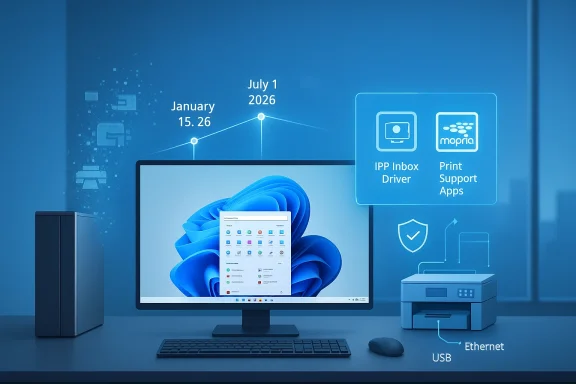
Microsoft quietly corrected a badly worded roadmap entry this month, but the technical reality behind that correction — a staged, multi‑year rework of how Windows distributes and prioritizes printer drivers — is very much real, and it will change how millions of machines discover, install, and receive updates for printers.
For more than two decades, Windows has balanced a hybrid printing model: Microsoft supplied broad “class” drivers for common standards while printer makers delivered device‑specific V3 and V4 drivers to unlock vendor features. That model worked because Windows Update could act as a safety net: vendor drivers were automatically discoverable and, for many users, the printer just appeared and worked. Starting with a deprecation announcement in September 2023, Microsoft has been migrating the platform toward a standards‑based, inbox printing model centered on the Microsoft IPP Class Driver, Mopria compatibility, and downloadable Print Support Apps. The company formalized a staged timeline for the change and began enforcing key milestones in January 2026.
The confusion that produced the recent headlines began when a Windows Roadmap entry briefly read like a near‑term “end of support” for legacy V3 and V4 printer drivers. That line was removed and Microsoft clarified the intent — notably telling reporters, “If your printer works with Windows today, it will continue to work, and no actiohot erase the policy changes that started rolling out on January 15, 2026.
Community reactions have ranged from calm interest to alarmed calls for contingency planning. Forum threads and community posts tracked a mixture of troubleshooting reports, vendor notices, and migration guides as the policy was enacted, underscoring how many environments still rely on older, vendor‑specific drivers.
At the same time, the policy is about operational complexity and support overhead. Vendor drivers often include long tail features and custom installers that break during in‑place OS upgrades, cause conflicts, or simply don’t get updated for ARM or new OS servicing channels. Moving to an inbox class driver plus a smaller surface for vendor customization (Print Support Apps in the Store) simplifies testing and reduces support vectors. Independent analysts and community posts have highlighted how messy vendor driver installs could be during upgrades and on ARM devices, providing real evidence for the operational case.
However, the security/operational rationale does not automatically absolve the policy of practical harms. Many business and specialty deployments rely on proprietary features delivered only by vendor drivers: job accounting, high‑resolution color calibration, duplex handling on older devices, and multifunction scanning integrations are not always replicable by a generic IPP class driver or a small Print Support App. Those feature gaps create real operational risk for organizations that cannot easily repurpose or replace devices. Community threads and help forums show real instances of scanners and MFP features becoming unavailable after driver changes or update misconfiguration.
But the clarification should not be read as a rollback of the technical policy. The January 15, 2026 change to Windows Update intake, the July 1, 2026 driver ranking change, and the July 1, 2027 update restriction are still in place in Microsoft’s documentation. In short: Microsoft walked back a misleading sentence in its public roadmap, but kept the engineering and intake changes that will cause long‑term behavioral differences in driver discovery, installation, and update delivery. That distinction is critical.
Community trackers and forum logs captured the confusion: posts show users encountering missing vendor drivers on new installs and IT admins piecing together migration plans as Windows adopted its new defaults. Those community artifacts underscore why Microsoft’s tone matters; a single sentence on an official page triggered operational panic orm change is staged.
Finally, the policy risks creating a functional security problem: organizations that cannot replace or properly update devices may adopt shadow IT workarounds (print servers, legacy OS images) that themselves become security liabilities. Risk migration without appropriate mitigation planning is a common pattern; the right response is coordinated inventory, vendor engagement, and staged migration. Community posts already show shops creating such plans, but the effort required can be non‑trivial.
For average users with modern printers, the impact will likely be minimal. For power users, small businesses, schools, and labs with older fleets — plan now. Back up drivers, inventory devices, and engage vendors where features matter. The most realistic path for many organizations will be a mixed strategy: preserve functionality for a limited time with backups and universal drivers while budgeting phased replacements for unsupported devices. Community forums, administrators, and independent guides already show how that pragmatic approach is playing out in real environments.
The bottom line: your printer is probably not going to stop printing overnight, but the plumbing behind how printers are discovered and kept up to date in Windows is changing — and prudent preparation today will avoid the headaches and expense of an emergency migration tomorrow.
Source: TechRadar Microsoft says it isn't killing off your old printer for good after all
Source: HotHardware Microsoft Won't Kill Support For Your Legacy Printer In Windows 11 After All
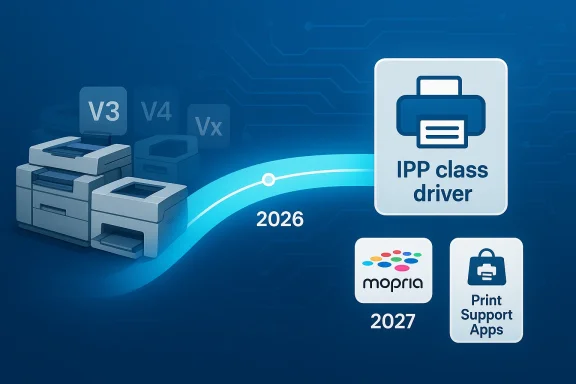 Background
For more than two decades, Windows has balanced a hybrid printing model: Microsoft supplied broad “class” drivers for common standards while printer makers delivered device‑specific V3 and V4 drivers to unlock vendor features. That model worked because Windows Update could act as a safety net: vendor drivers were automatically discoverable and, for many users, the printer just appeared and worked. Starting with a deprecation announcement in September 2023, Microsoft has been migrating the platform toward a standards‑based, inbox printing model centered on the Microsoft IPP Class Driver, Mopria compatibility, and downloadable Print Support Apps. The company formalized a staged timeline for the change and began enforcing key milestones in January 2026.The confusion that produced the recent headlines began when a Windows Roadmap entry briefly read like a near‑term “end of support” for legacy V3 and V4 printer drivers. That line was removed and Microsoft clarified the intent — notably telling reporters, “If your printer works with Windows today, it will continue to work, and no actiohot erase the policy changes that started rolling out on January 15, 2026.
Community reactions have ranged from calm interest to alarmed calls for contingency planning. Forum threads and community posts tracked a mixture of troubleshooting reports, vendor notices, and migration guides as the policy was enacted, underscoring how many environments still rely on older, vendor‑specific drivers.
What exactly changed — the timeline, in plain language
Microsoft’s official documentation lays out the timeline and the functional changes. These are the milestone dates that matter:- September 2023 — Microsoft announced the deprecation plan for third‑party legacy (V3 and V4) printer drivers and introduced the modern pathway: the IPP Class Driver plus Print Support Apps.
- January 15, 2026 — Windows Update stopped automatically publishing new third‑party V3/V4 driver packages for Windows 11 and Windows Server 2025. Existing drivers already on Windows Update can still be installed, but new submissions are blocked by default and now require manual review and justification.
- July 1, 2026 — Windows will prefer the Microsoft IPP inbox class driver over third‑party drivers when ranking available printer drivers during discovery and installation. This means that when a device is added, Windows will choose the inbox IPP driver if it can provide basic functionality.
- July 1, 2027 — Windows Update will no longer allow non‑security updates for third‑party printer drivers; only security fixes will be accepted via Windows Update after this date. Vendor‑supplied driver updates will still be possible via manufacturer installers distributed off Windows Update.
Why Microsoft is doing this (and whether the reasons hold up)
Microsoft frames the move as a security and reliability decision. Legacy vendor drivers often operate in more privileged contexts (kernel mode or Win32), and past vulnerabilities — the most notorious example being the PrintNightmare family of exploits — demonstrate how printer drivers have been a meaningful attack surface. Consolidating to a standards‑based IPP implementation and limiting third‑party code distributed via Windows Update reduces the number of unvetted binaries flowing into systems by default. That argument is valid: shrinking the trusted computing base and removing frequent, poorly maintained kernel‑mode components is a textbook way to reduce exploitable surface area.At the same time, the policy is about operational complexity and support overhead. Vendor drivers often include long tail features and custom installers that break during in‑place OS upgrades, cause conflicts, or simply don’t get updated for ARM or new OS servicing channels. Moving to an inbox class driver plus a smaller surface for vendor customization (Print Support Apps in the Store) simplifies testing and reduces support vectors. Independent analysts and community posts have highlighted how messy vendor driver installs could be during upgrades and on ARM devices, providing real evidence for the operational case.
However, the security/operational rationale does not automatically absolve the policy of practical harms. Many business and specialty deployments rely on proprietary features delivered only by vendor drivers: job accounting, high‑resolution color calibration, duplex handling on older devices, and multifunction scanning integrations are not always replicable by a generic IPP class driver or a small Print Support App. Those feature gaps create real operational risk for organizations that cannot easily repurpose or replace devices. Community threads and help forums show real instances of scanners and MFP features becoming unavailable after driver changes or update misconfiguration.
What Microsoft actually said — the walkback and the nuance
The sensational headlines — “Microsoft is killing your printer” — conflated two different things: (1) the removal of Windows Update as a default distribution path for new vendor driver submissions, and (2) an outright, immediate incompatibility for existing printers. Microsoft re‑issued guidance after the backlash, telling reporters that existing, working drivers will continue to function and that “if your printer works with Windows today, it will continue to work.” That statement is true in the narrow, immediate sense: installed drivers are not being actively removed from already‑configured devices.But the clarification should not be read as a rollback of the technical policy. The January 15, 2026 change to Windows Update intake, the July 1, 2026 driver ranking change, and the July 1, 2027 update restriction are still in place in Microsoft’s documentation. In short: Microsoft walked back a misleading sentence in its public roadmap, but kept the engineering and intake changes that will cause long‑term behavioral differences in driver discovery, installation, and update delivery. That distinction is critical.
Community trackers and forum logs captured the confusion: posts show users encountering missing vendor drivers on new installs and IT admins piecing together migration plans as Windows adopted its new defaults. Those community artifacts underscore why Microsoft’s tone matters; a single sentence on an official page triggered operational panic orm change is staged.
Practical impact — who will notice, and when
- Home users with modern consumer printers: Most users will not notice any disruption. New printers and most models from the past several years support IPP or have vendor software in the Microsoft Store, and they will be installed using inbox drivers or vendor‑supplied installers when needed.
- Power users and hobbyists with older USB printers: The largest risk here is when you perform a clean OS install, swap PCs, or buy a new machine. A working driver that exists only in an old installer or on a device‑specific CD might not be automatically rediscoverable via Windows Update anymore; you’ll need to retain backups of working drivers or manually install vendor packages. Back up now.
- Small businesses, schools, and labs with older networked MFPs: These environments are the highest exposure group. Many enterprise features — job accounting, specialized finishing, hardware diagnostics — require vendor drivers or agent software. If vendors do not provide IPP/Mopria alternatives or Print Support Apps, those organizations face either vendor engagement work or phased hardware replacement. Numerous community and enterprise threals and SMBs are already inventorying vulnerable devices.
- Large enterprises with managed fleets: Managed shops will pivot: keep local driver repositories, use vendor installers, adopt Microsoft’s recommended migration patterns, or deploy Print Support Apps. Enterprises have procurement cycles and budgets and will schedule replacement or manufacturer engagements in line with the 2026–2027 timeline. For them, the change is disruptive but manageable.
- Immediately for fresh OS installations on machines that previously used a vendor driver installed via Windows Update.
- By July 1, 2026, when Windows prefers the IPP class driver and some vendor features may not be selected automatically.
- By July 1, 2027, when third‑party driver updates through Windows Update are tightly limited (security only) — leaving manual vendor installers as the primary update path.
How to check whether your printer is at risk
- On an existing PC: open Settings > Bluetooth & devices > Printers & scanners and inspect the driver/provider details for your device. If the driver lists a vendor name and a V3/V4 model or a legacy package, consider that a candidate for backup or migration. If it uses “Microsoft IPP Class Driver” or a vendor Print Support App, you’re likely safer.
- When provisioning new PCs: perform a test add-device flow on a reference image before you roll out. If Windows picks a Microsoft class driver by default and you require vendor capabilities, you’ll need to script a vendor installer or publish a Print Support App via your device management channel. Enterprise guidance from Microsoft supports these approaches.
- Inventory and logging: use your management tools to inventory installed printer drivers and their package origins. Flag printers that depend on vendor V3/V4 kernel drivers and prioritize them for testing or vendor outreach. Community threads show admins using simple PowerShell inventory scripts as an early mitigation step.
Immediate mitigations and practical workarounds
- Back up working drivers now. Export driver packages or capture the driver store from a working machine so you can reinstall on a new PC or after a clean install. This is the simplest and most reliable quick win for home users and small IT teams. Major guides and community posts emphasize driver backup as critical.
- Check vendor sites for installers and update paths. Printer manufacturers can still distribute drivers directly; the change primarily affects Windows Update ingests an updated IPP‑compatible package or a Print Support App in the Microsoft Store, prefer that.
- Use vendor‑supported universal drivers where available. Several manufacturers offer universal drivers (for example, HP’s Universal Print Driver or Brother’s Universal Driver) that provide a broad feature set for multiple models; these can be a useful stopgap. Universal drivers are not a panacea, but they often preserve core printing and many MFP features.
- Deploy Print Support Apps or configure the IPP class driver for standard workflows. If your workflows only require standard printing, migrate to the standardized path and accept a reduced feature set in exchange for a simpler, more supportable stack. Modern Print Support Apps are designed to restore vendor customizations as light‑weight, Store‑delivered pieces rather than kernel‑mode drivers.
- For critical MFP features (scanning, job accounting), talk to the OEM about an explicit migration plan. If the OEM cannot provide a supported route, document the technical gap and create a replacement budget/timeline. Community case studies show that some SMEs will need to prioritize replacement of a handful of key devices rather than rip‑and‑replace entire fleets.
Security tradeoffs and reasonable expectations
The security benefit of reducing third‑party kernel or Win32 driver distribution through Windows Update is real: fewer automatically installed vendor binaries means fewer blind trust decisions during provisioning. That said, the policy shifts the burden of secure distribution to hardware vendors and IT teams: vendors still must ship signed packages and secure update channels, and IT teams must validate and manage those packages. If vendor distribution practices are weak, the risk does not disappear — it merely moves to a different delivery pipeline.Finally, the policy risks creating a functional security problem: organizations that cannot replace or properly update devices may adopt shadow IT workarounds (print servers, legacy OS images) that themselves become security liabilities. Risk migration without appropriate mitigation planning is a common pattern; the right response is coordinated inventory, vendor engagement, and staged migration. Community posts already show shops creating such plans, but the effort required can be non‑trivial.
What Microsoft’s official guidance recommends (and what you should do)
Microsoft’s documentation and guidance emphasize the following:- Use the Microsoft IPP Class Driver and Print Support Apps where feasible.
- Vendors can still submit drivers but must include justification and will undergo manual review for Windows Update releases.
- Installed drivers will continue to run on devices that already have them; Windows Update intake and ranking behavior has changed but does not automatically remove already‑installed drivers.
- Inventory your printers and identify V3/V4 dependencies.
- Back up driver packages and export current driver stores from working PCs.
- Engage printer vendors for migration paths to IPP/Mopria or for signed installer packages you can distribute internally.
- Test fresh OS installs on reference hardware to confirm driver behavior and to produce a repeatable deployment workflow.
- Prioritize replacement only for devices that cannot be supported reliably via vendor installers or universal drivers.
Strengths of Microsoft’s approach — and blind spots
Strengths:- Security-first: reduces attack surface from unvetted driver binaries in automatic Windows Update flows.
- Simplified support: a standards‑based stack is easier for Microsoft to maintain and for admins to reason about.
- Modernization: pushes the ecosystem toward IPP/Mopria standards and lightweight customization via store apps, which are easier to update and sandbox.
- Feature gaps for legacy devices: vendor drivers often deliver hardware features impossible to replicate with a generic class driver.
- Vendor readiness: not all manufacturers will issue Print Support Apps or IPP‑compatible updates for older models, leaving customers with awkward choices.
- Operational friction: the policy increases manual work for re‑installs, migrations, and provisioning of fresh devices unless enterprises maintain driver archives or vendor channels. Community logs already show admins scrambling to document and work around these gaps.
A checklist for Windows users and IT admins (practical, sequential steps)
- Inventory: run a scan to list all printers, driver models, and where the driver package originated. Flag V3/V4 drivers.
- Backup: export the driver store from a working machine and archive vendor installers. Store them in your management repository.
- Test: perform a clean install on a test PC and verify the printer provisioning flow. Note whether Windows selected IPP or a vendor driver.
- Vendor outreach: contact manufacturer support for IPP/Mopria‑compatible drivers or Print Support Apps. Ask for signed installers if a migration path is required.
- Mitigate: where vendor support is unavailable, consider universal drivers, print servers that centralize older drivers, or replacement planning for the most critical devices.
- Document: create runbooks for adding printers on new or rebuilt machines that include where to fetch installers and how to restore archived drivers.
- Monitor: watch Microsoft’s driver intake policies and vendor announcements through 2026–2027; the policy benefits and constraints will continue to evolve.
Verdict and final analysis
Microsoft’s “not killing printers” headline correction was necessary — it calmed immediate panic — but it obscured the more consequential fact: the company has intentionally reengineered how it accepts, ranks, and updates printer drivers. That engineering change is not a single dramatic event that bricks devices; instead, it is an operational pivot that reduces automatic delivery of vendor drivers, increases reliance on the inbox IPP class driver and Store‑delivered Print Support Apps, and shifts update responsibility off Windows Update for non‑security changes. The policy is defensible on security and maintainability grounds, but it’s not consumer‑friendly by default for owners of older, feature‑rich printers.For average users with modern printers, the impact will likely be minimal. For power users, small businesses, schools, and labs with older fleets — plan now. Back up drivers, inventory devices, and engage vendors where features matter. The most realistic path for many organizations will be a mixed strategy: preserve functionality for a limited time with backups and universal drivers while budgeting phased replacements for unsupported devices. Community forums, administrators, and independent guides already show how that pragmatic approach is playing out in real environments.
The bottom line: your printer is probably not going to stop printing overnight, but the plumbing behind how printers are discovered and kept up to date in Windows is changing — and prudent preparation today will avoid the headaches and expense of an emergency migration tomorrow.
Source: TechRadar Microsoft says it isn't killing off your old printer for good after all
Source: HotHardware Microsoft Won't Kill Support For Your Legacy Printer In Windows 11 After All