

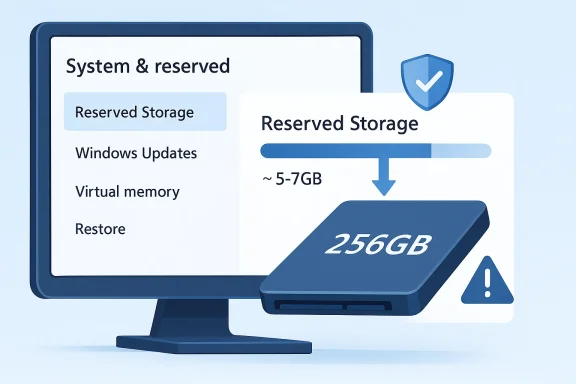
Windows reserves a chunk of your SSD for itself, and on small drives that hidden buffer can feel surprisingly large. Microsoft says Reserved Storage is meant to help updates succeed by setting aside space for temporary files, caches, and other servicing needs, and Windows will even clear that space when the device is low on storage so updates can proceed
The idea is not new, but it is easy to miss because it lives deep inside the operating system’s storage breakdown rather than in a flashy settings panel. The trade-off is straightforward: you gain a more predictable update path, but you also give up a few gigabytes that could otherwise be used for apps, games, or media. On a 256 GB SSD, that can matter a lot more than it does on a 1 TB system drive. Microsoft’s own guidance frames the feature as a stability measure, not a convenience tax
What makes the current discussion interesting is that users keep rediscovering Reserved Storage years after Microsoft introduced it with the Windows 10 1903 era of servicing changes. The feature is still present in modern Windows 10 and Windows 11 storage settings, and the exact amount reserved varies by configuration, language packs, optional features, and update behavior. That variability is why some people see only a few gigabytes and others see closer to the 7 GB figure that often gets quoted in consumer articles
Reserved Storage arrived as part of Microsoft’s broader attempt to make Windows updates less fragile on low-capacity devices. In practice, it formalized a behavior many users had already experienced informally: Windows keeps space in reserve so a feature update, cumulative update, or servicing task has room to stage files, unpack payloads, and clean up afterward. Microsoft’s own explanation is clear that the aim is successful updating and more predictable disk usage, not stealthy hoarding for its own sake
The reason this matters is that Windows has long had a reputation for being generous with background bookkeeping. Even before Reserved Storage, the platform used sizable system files, caches, rollback data, and shadow copies to preserve reliability. That philosophy makes sense in enterprise environments where update failure is expensive, but it is less welcome on a budget notebook with a tiny SSD. Reserved Storage sits squarely in that tension between reliability and resource efficiency
There is also a technical reason Microsoft prefers keeping a buffer. Windows Update has to work across a huge range of hardware, storage controllers, file systems, language packs, and OEM customizations. If a machine runs out of space halfway through a feature update, the result can be a failed install, a partially staged package, or a system left in an awkward rollback state. Reserved Storage reduces that risk by making the update path more deterministic
The default behavior also matters. If a feature is enabled by design and hidden from casual view, many users will never realize it exists until they are running low on space. That creates the impression that Windows is taking something away, even though the operating system is really reserving it as a contingency. Perception, in storage management, often becomes policy.
This is important because it changes how people should interpret the number they see in Storage settings. The reserved amount is not necessarily permanently inaccessible, nor is it always sitting empty. It is a managed buffer that may be repurposed by the system when conditions require it. That nuance is easy to lose in headlines that frame the feature as Windows “hiding” storage from you.
The implementation also aligns with the broader Windows servicing model. Microsoft uses a conservative approach to updates because it has to support rollback, staging, feature enablement, and repair scenarios across millions of machines. Reserved Storage is one of the ways the company tries to make those operations less dependent on whatever free space happens to be left at the moment. In effect, Windows is prioritizing update reliability over maximizing the user’s visible capacity.
That approach is especially valuable in managed environments. IT departments hate uncertainty, and Windows update failures can cascade into support tickets, downtime, and remediation work. In that sense, Reserved Storage is not a gimmick; it is a defensive engineering choice. It is boring infrastructure, which is often exactly what administrators want.
That resentment grows when the machine is already full of other storage consumers. Windows.old, hibernation, pagefiles, update caches, restore points, and OEM recovery partitions can all eat into a small SSD. Reserved Storage becomes one more item in a long list of invisible bookkeeping costs. It may be justified, but it still feels like a tax.
The command-line approach matters because it avoids ambiguity. A settings screen can tell you what Windows is currently reporting, but a servicing command gives you a more direct view into how the OS has configured itself. That is especially helpful when troubleshooting machines that were upgraded rather than clean-installed, because upgrade history can influence whether the reserve is present.
It is also worth noting that not every Windows version exposes the same servicing options. A Microsoft Q&A thread from last year shows users on Windows 10 1909 encountering errors when trying to use the reserved-storage command because the DISM option was unavailable on that build. That is a reminder that these storage controls are version-sensitive and not interchangeable across releases
It also helps you separate Reserved Storage from other system-space consumers. A lot of people blame Windows in general when the real issue is a combination of pagefile growth, hibernation, temp files, and update caches. Knowing what the reserve is—and what it is not—keeps the diagnosis honest.
Disabling Reserved Storage can make sense on a secondary PC, a lightly used home system, or a machine where you actively manage updates and storage. It can also be a reasonable temporary move when you need to recover space right now. But it is not a free lunch. You are trading update staging safety for a modest but sometimes useful reclaim of disk space.
The key point is that the feature exists to reduce update friction. If you remove the buffer, you assume more responsibility for keeping enough free space available before a major update. That is manageable for power users, but it is less attractive for people who rarely check Storage settings or may forget about update cycles until Windows starts complaining.
For consumers, especially those with older budget hardware, the argument is more nuanced. A 256 GB SSD in a thin-and-light laptop may already be under heavy pressure from apps, photos, and browser data. In that context, reclaiming even 5 GB can feel worthwhile. The trade-off is that the user must now think like an administrator, not just a customer.
If you are already getting by with careful housekeeping, another route may be cleaner: remove older restore points, trim Delivery Optimization caches, and delete unnecessary temporary files first. Reserved Storage should be one of the later levers you pull, not the first. It is a legitimate tool, but it is not the most surgical one.
The command-line route is straightforward. Open an elevated terminal or Command Prompt and use the DISM storage reserve command to set the state to disabled, then reboot. After that, go back into Storage settings and verify whether the Reserved Storage entry has disappeared from the System & reserved breakdown. Microsoft’s own docs and community reports both show that servicing state and build version can affect whether the command works exactly as expected
If the command is rejected or unavailable, do not force the issue blindly. The build may simply not support that switch, or the system may be in a servicing state that temporarily blocks it. In those cases, the safest path is usually to complete updates, reboot, and try again.
A registry edit can change more than you intended if you mistype a key or modify the wrong value. That is why experienced users treat it as a last-mile workaround rather than a primary solution. If you use it, keep the edit minimal and avoid improvising.
That also protects you from false confidence. A registry key can look correct while the OS still behaves as if the reserve is active. Verification keeps the process honest and prevents the classic “I changed it, but nothing happened” frustration.
The re-enable process mirrors the disable process. Use the same elevated command-line path and switch the state back on, then restart. If you used the registry method, set the corresponding value back to its default behavior and reboot afterward. As with disabling, the important part is not just the edit itself but the post-change verification.
There is an editorial truth here that often gets missed in quick how-to posts: temporary changes are safer than permanent ones. A lot of users do not need to “ban” Reserved Storage forever. They need a pressure-release valve for a period when the drive is too full, after which the protective buffer can be restored.
It also helps for machines that only occasionally run low. You may not want to lose 5 to 7 GB all the time, but you may also not want to invite update failure every six months. Re-enabling the reserve before those update windows is a practical middle ground.
That is why a broader cleanup strategy often makes more sense than a single tweak. Reclaiming 5 GB is useful, but reclaiming 20 GB from the real offenders is better. The most effective storage management is usually layered, not singular.
Microsoft’s own storage settings page encourages that view by breaking usage into categories such as installed apps, temporary files, and system-reserved data. The takeaway is that drive space is not just “used” or “free”; it is allocated across layers with different purposes. Understanding those layers prevents users from overreacting to the first number they see.
The practical lesson is that if you are truly low on storage, you should attack the biggest and safest wins first. Reserved Storage may be part of the cleanup story, but it should sit alongside other built-in housekeeping tools, not replace them. A good storage strategy is boring, repetitive, and safe—which is exactly what keeps Windows stable.
That does not mean you should leave everything alone. It means you should ask whether the system file is actually serving a function you value. If the answer is no, you can often reclaim space responsibly; if the answer is yes, you should be cautious about removing it.
The larger opportunity is education. If users understand why Windows reserves space, they can make smarter decisions about when to leave it on and when to disable it temporarily. That could reduce frustration without undermining the underlying servicing model.
A second concern is version inconsistency. The DISM and registry methods do not behave identically across all Windows builds, so advice that works on one machine can fail on another. That is one reason storage tweaks deserve caution and verification rather than blanket confidence.
For now, the feature remains a classic Windows compromise: stability for space. The best outcome would not be for Microsoft to hide it better, but to make the choice easier to understand and easier to reverse when needed. Users do not hate the idea of a buffer; they hate being surprised by one.
Source: MakeUseOf Windows is quietly holding back up to 7GB of your SSD by default — here's how to reclaim it
The idea is not new, but it is easy to miss because it lives deep inside the operating system’s storage breakdown rather than in a flashy settings panel. The trade-off is straightforward: you gain a more predictable update path, but you also give up a few gigabytes that could otherwise be used for apps, games, or media. On a 256 GB SSD, that can matter a lot more than it does on a 1 TB system drive. Microsoft’s own guidance frames the feature as a stability measure, not a convenience tax
What makes the current discussion interesting is that users keep rediscovering Reserved Storage years after Microsoft introduced it with the Windows 10 1903 era of servicing changes. The feature is still present in modern Windows 10 and Windows 11 storage settings, and the exact amount reserved varies by configuration, language packs, optional features, and update behavior. That variability is why some people see only a few gigabytes and others see closer to the 7 GB figure that often gets quoted in consumer articles
 Background
Reserved Storage arrived as part of Microsoft’s broader attempt to make Windows updates less fragile on low-capacity devices. In practice, it formalized a behavior many users had already experienced informally: Windows keeps space in reserve so a feature update, cumulative update, or servicing task has room to stage files, unpack payloads, and clean up afterward. Microsoft’s own explanation is clear that the aim is successful updating and more predictable disk usage, not stealthy hoarding for its own sakeThe reason this matters is that Windows has long had a reputation for being generous with background bookkeeping. Even before Reserved Storage, the platform used sizable system files, caches, rollback data, and shadow copies to preserve reliability. That philosophy makes sense in enterprise environments where update failure is expensive, but it is less welcome on a budget notebook with a tiny SSD. Reserved Storage sits squarely in that tension between reliability and resource efficiency
There is also a technical reason Microsoft prefers keeping a buffer. Windows Update has to work across a huge range of hardware, storage controllers, file systems, language packs, and OEM customizations. If a machine runs out of space halfway through a feature update, the result can be a failed install, a partially staged package, or a system left in an awkward rollback state. Reserved Storage reduces that risk by making the update path more deterministic
Why the number feels bigger on small SSDs
On a 2 TB drive, 5 to 7 GB is background noise. On a 128 GB or 256 GB SSD, it is a visible slice of your usable capacity, especially once Windows itself, apps, browser caches, and hibernation files are already installed. That is why the same feature can feel benign on a desktop and annoying on an ultraportable laptop. The issue is not the raw amount alone; it is the percentage of the drive it consumes.The default behavior also matters. If a feature is enabled by design and hidden from casual view, many users will never realize it exists until they are running low on space. That creates the impression that Windows is taking something away, even though the operating system is really reserving it as a contingency. Perception, in storage management, often becomes policy.
How Microsoft surfaces it
Microsoft exposes the feature through Settings under Storage and System & reserved, but it is not front and center. Users have to drill deeper into the storage breakdown to see the category and the space it consumes. That design reinforces the idea that it is an infrastructure decision rather than a consumer-facing feature. In other words, Windows wants you to benefit from it without necessarily thinking about it every dayWhat Reserved Storage actually does
Reserved Storage is not a mysterious cache with one job. Microsoft describes it as space used by temporary files, caches, and other files needed by Windows servicing and updates, and the company notes that Windows can clear the reserved area when the device is low on space. That means the space is available, but governed, and not freely mixed into your everyday file pool until Windows decides it is safe to do soThis is important because it changes how people should interpret the number they see in Storage settings. The reserved amount is not necessarily permanently inaccessible, nor is it always sitting empty. It is a managed buffer that may be repurposed by the system when conditions require it. That nuance is easy to lose in headlines that frame the feature as Windows “hiding” storage from you.
The implementation also aligns with the broader Windows servicing model. Microsoft uses a conservative approach to updates because it has to support rollback, staging, feature enablement, and repair scenarios across millions of machines. Reserved Storage is one of the ways the company tries to make those operations less dependent on whatever free space happens to be left at the moment. In effect, Windows is prioritizing update reliability over maximizing the user’s visible capacity.
The update reliability argument
The strongest case for Reserved Storage is that it reduces failed update installs. When a machine has too little free space, even a routine cumulative update can stumble, and feature updates are even more demanding. By reserving a slice of the drive in advance, Windows avoids gambling on last-minute cleanup.That approach is especially valuable in managed environments. IT departments hate uncertainty, and Windows update failures can cascade into support tickets, downtime, and remediation work. In that sense, Reserved Storage is not a gimmick; it is a defensive engineering choice. It is boring infrastructure, which is often exactly what administrators want.
The user-experience downside
The downside is obvious: the buffer can feel wasteful when you know you need every gigabyte. Users who already keep their systems lean may resent any default reservation that appears to sit unused. The anger is not about the feature’s goal, but about the idea that the operating system is making capacity decisions on the user’s behalf.That resentment grows when the machine is already full of other storage consumers. Windows.old, hibernation, pagefiles, update caches, restore points, and OEM recovery partitions can all eat into a small SSD. Reserved Storage becomes one more item in a long list of invisible bookkeeping costs. It may be justified, but it still feels like a tax.
Key points
- Reserved Storage is designed to protect update reliability.
- Windows uses it for temporary files, caches, and servicing tasks.
- The space can be cleared automatically when the device is low on storage.
- On small drives, the percentage impact can feel much more significant.
- The feature is visible in System & reserved inside Storage settings
How to check whether it is enabled
Microsoft provides both a graphical path and a command-line check. In Settings, you can go to System, then Storage, and expand Show more categories to find the System & reserved breakdown, where Reserved Storage appears if it is enabled. If you want a faster diagnostic, Microsoft documents DISM-based storage reserve commands, and community guidance commonly uses the reserved-storage state query to verify the settingThe command-line approach matters because it avoids ambiguity. A settings screen can tell you what Windows is currently reporting, but a servicing command gives you a more direct view into how the OS has configured itself. That is especially helpful when troubleshooting machines that were upgraded rather than clean-installed, because upgrade history can influence whether the reserve is present.
It is also worth noting that not every Windows version exposes the same servicing options. A Microsoft Q&A thread from last year shows users on Windows 10 1909 encountering errors when trying to use the reserved-storage command because the DISM option was unavailable on that build. That is a reminder that these storage controls are version-sensitive and not interchangeable across releases
The practical check
If you are inspecting a machine for the first time, the easiest sequence is simple:- Open Settings and go to System > Storage.
- Expand Show more categories.
- Look for System & reserved and then Reserved Storage.
- If you need a command-line confirmation, use the reserved-storage DISM query from an elevated terminal.
- Check for pending updates before attempting changes, because servicing state can block or complicate the command path
Why this matters for tiny SSDs
On a 128 GB or 256 GB drive, visibility matters almost as much as capacity. If the user can see that several gigabytes are being held in reserve, they can make a conscious choice about whether the trade-off is worth it. That is a very different experience from simply discovering that your free space is disappearing with no obvious culprit.It also helps you separate Reserved Storage from other system-space consumers. A lot of people blame Windows in general when the real issue is a combination of pagefile growth, hibernation, temp files, and update caches. Knowing what the reserve is—and what it is not—keeps the diagnosis honest.
Should you disable it?
The short answer is that it depends on how constrained your machine is and how much risk you are willing to accept. If you have a 512 GB SSD or larger, Microsoft’s buffer is usually trivial from a capacity standpoint, and the reliability benefit tends to outweigh the inconvenience. If you are on a tiny drive and constantly fighting for free space, the calculation changes.Disabling Reserved Storage can make sense on a secondary PC, a lightly used home system, or a machine where you actively manage updates and storage. It can also be a reasonable temporary move when you need to recover space right now. But it is not a free lunch. You are trading update staging safety for a modest but sometimes useful reclaim of disk space.
The key point is that the feature exists to reduce update friction. If you remove the buffer, you assume more responsibility for keeping enough free space available before a major update. That is manageable for power users, but it is less attractive for people who rarely check Storage settings or may forget about update cycles until Windows starts complaining.
Enterprise versus consumer impact
For businesses, the case for leaving Reserved Storage on is stronger. Managed systems benefit from predictable update behavior, and administrators can automate cleanup and capacity management. A failed feature update on a fleet of laptops is far more expensive than surrendering a few gigabytes per device.For consumers, especially those with older budget hardware, the argument is more nuanced. A 256 GB SSD in a thin-and-light laptop may already be under heavy pressure from apps, photos, and browser data. In that context, reclaiming even 5 GB can feel worthwhile. The trade-off is that the user must now think like an administrator, not just a customer.
When I would leave it alone
If you are not actively short on space, leave it alone. That advice is especially true if the PC is your primary work machine, if you depend on updates staying boring, or if you are not comfortable troubleshooting a failed feature install. The space gain is modest, but the potential annoyance from a blocked update can be much larger.If you are already getting by with careful housekeeping, another route may be cleaner: remove older restore points, trim Delivery Optimization caches, and delete unnecessary temporary files first. Reserved Storage should be one of the later levers you pull, not the first. It is a legitimate tool, but it is not the most surgical one.
Bottom line
- Small SSD, tight space, and hands-on user? Disabling may be reasonable.
- Larger SSD or work machine? Keep it enabled.
- Need maximum update reliability? Do not touch it.
- Comfortable with periodic maintenance? You can reclaim some room, but monitor updates carefully.
How to disable Reserved Storage safely
Microsoft’s servicing tools let you toggle the feature from an elevated command prompt, and that is the cleaner method when it is available on your build. A registry workaround also exists, but it is the less elegant option and should be treated as a fallback for users who know exactly why they are using it. In both cases, the golden rule is the same: change one thing, verify it, and restart before assuming successThe command-line route is straightforward. Open an elevated terminal or Command Prompt and use the DISM storage reserve command to set the state to disabled, then reboot. After that, go back into Storage settings and verify whether the Reserved Storage entry has disappeared from the System & reserved breakdown. Microsoft’s own docs and community reports both show that servicing state and build version can affect whether the command works exactly as expected
Command-line method
Use an administrator shell and run the disable command, then restart. If the system has pending updates or incomplete servicing operations, the command may fail, which is why it is smart to update first and make the change afterward. That reduces the chance of fighting Windows Update and Reserved Storage at the same time.If the command is rejected or unavailable, do not force the issue blindly. The build may simply not support that switch, or the system may be in a servicing state that temporarily blocks it. In those cases, the safest path is usually to complete updates, reboot, and try again.
Registry method
The registry path points to the ReserveManager key and uses the ShippedWithReserves value. Setting that value to 0 is the common tweak people use to disable the feature, while restoring it to 1 re-enables the original behavior. This is useful if the DISM path is unavailable, but it is also the method where caution matters most.A registry edit can change more than you intended if you mistype a key or modify the wrong value. That is why experienced users treat it as a last-mile workaround rather than a primary solution. If you use it, keep the edit minimal and avoid improvising.
Safety checklist
- Install pending Windows updates first.
- Reboot before making the change.
- Use an elevated shell for DISM.
- Double-check the registry path before editing.
- Restart again after the change.
- Verify the result in Storage settings.
- If the command fails, do not keep retrying without checking build compatibility.
Why verification matters
Some storage changes only become visible after a reboot, and some are influenced by update state. That means the real result is not whether the command typed cleanly, but whether Windows actually changes how it reports the reserve afterward. In other words, the UI is your proof, not just the command prompt.That also protects you from false confidence. A registry key can look correct while the OS still behaves as if the reserve is active. Verification keeps the process honest and prevents the classic “I changed it, but nothing happened” frustration.
How to re-enable it later
If you disable Reserved Storage to recover space during a crunch, you should think about re-enabling it before larger Windows updates. Microsoft’s whole reason for keeping the feature on by default is to improve the odds that servicing operations complete successfully. If your drive has become crowded again, the reserve becomes more valuable, not lessThe re-enable process mirrors the disable process. Use the same elevated command-line path and switch the state back on, then restart. If you used the registry method, set the corresponding value back to its default behavior and reboot afterward. As with disabling, the important part is not just the edit itself but the post-change verification.
There is an editorial truth here that often gets missed in quick how-to posts: temporary changes are safer than permanent ones. A lot of users do not need to “ban” Reserved Storage forever. They need a pressure-release valve for a period when the drive is too full, after which the protective buffer can be restored.
Why turning it back on can be smart
If you have just freed up a bit of room and Windows is about to service a big feature update, restoring the reserve gives the OS a cleaner runway. It is a compromise that respects both space constraints and update reliability. That approach is especially sensible for users who maintain their PCs manually rather than leaving everything on autopilot.It also helps for machines that only occasionally run low. You may not want to lose 5 to 7 GB all the time, but you may also not want to invite update failure every six months. Re-enabling the reserve before those update windows is a practical middle ground.
When the space freed is still not enough
Reserved Storage is only one part of the Windows storage puzzle. If you still need more room, the usual suspects include Delivery Optimization caches, restore points, hibernation files, Windows Update leftovers, and hidden folders tied to app data or virtualization. The reserve may be part of the problem, but it rarely tells the whole story.That is why a broader cleanup strategy often makes more sense than a single tweak. Reclaiming 5 GB is useful, but reclaiming 20 GB from the real offenders is better. The most effective storage management is usually layered, not singular.
The broader storage cleanup picture
Once users start looking, they usually discover that Windows is holding space in several different ways at once. Reserved Storage gets the attention because it is easy to describe, but the operating system’s storage habits are actually a web of mechanisms designed to preserve reliability, accelerate updates, and support rollback. That makes space recovery feel more like detective work than a single fix.Microsoft’s own storage settings page encourages that view by breaking usage into categories such as installed apps, temporary files, and system-reserved data. The takeaway is that drive space is not just “used” or “free”; it is allocated across layers with different purposes. Understanding those layers prevents users from overreacting to the first number they see.
The practical lesson is that if you are truly low on storage, you should attack the biggest and safest wins first. Reserved Storage may be part of the cleanup story, but it should sit alongside other built-in housekeeping tools, not replace them. A good storage strategy is boring, repetitive, and safe—which is exactly what keeps Windows stable.
Common space consumers worth checking
- Temporary files
- Delivery Optimization cache
- System Restore points
- Hibernation file
- Windows.old
- Pagefile growth
- Large user downloads
- Virtual machine disks
Why “hidden” does not always mean “bad”
Hidden storage is not always waste. Windows uses hidden files and reserved space to preserve performance, recovery, and update safety. A big hibernation file, for example, exists because hibernation needs somewhere to save memory state, and restore points exist because rollback matters when updates break something.That does not mean you should leave everything alone. It means you should ask whether the system file is actually serving a function you value. If the answer is no, you can often reclaim space responsibly; if the answer is yes, you should be cautious about removing it.
A good rule of thumb
Start with the safest cleanup options first. Remove what you no longer need, then measure again. Only after you understand the remaining footprint should you consider features like Reserved Storage that affect the servicing model itself.Strengths and Opportunities
Windows Reserved Storage is easy to criticize, but it also solves a real operational problem. The feature gives Microsoft a reliable buffer for updates, and it gives users a system that is less likely to fail at the worst possible moment. On small drives, the opportunity is not to abolish it universally, but to make the trade-off more transparent and more controllable.The larger opportunity is education. If users understand why Windows reserves space, they can make smarter decisions about when to leave it on and when to disable it temporarily. That could reduce frustration without undermining the underlying servicing model.
- Improves update reliability by ensuring staging space is available.
- Reduces failed installs on low-space devices.
- Makes storage use more predictable over time.
- Can be turned off when users need temporary relief.
- Fits managed IT workflows where consistency matters.
- Works well as part of a broader cleanup strategy.
- Encourages users to think in terms of trade-offs, not just raw capacity.
Risks and Concerns
The biggest risk is not that Reserved Storage exists, but that it disappears into the background and leaves users confused about where their space went. On small SSDs, that confusion can become resentment fast, especially when combined with other Windows storage consumers. There is also a real update-risk trade-off if users disable it and then forget to keep enough free space available.A second concern is version inconsistency. The DISM and registry methods do not behave identically across all Windows builds, so advice that works on one machine can fail on another. That is one reason storage tweaks deserve caution and verification rather than blanket confidence.
- Space loss feels outsized on 128 GB and 256 GB drives.
- Disabling the feature can increase update failure risk.
- Command availability varies by Windows version.
- Registry edits can be error-prone.
- Users may confuse Reserved Storage with other system caches.
- Temporary fixes can become permanent habits.
- Not all reclaimed space is equally safe to remove.
Looking Ahead
Microsoft has been steadily trying to make Windows updates less punishing on storage-constrained systems, and that trend is likely to continue. The more the company improves delta updates, post-update cleanup, and smarter servicing behavior, the less users will feel the need to claw back every megabyte manually. Reserved Storage may eventually become less controversial simply because the rest of the update stack gets leaner.For now, the feature remains a classic Windows compromise: stability for space. The best outcome would not be for Microsoft to hide it better, but to make the choice easier to understand and easier to reverse when needed. Users do not hate the idea of a buffer; they hate being surprised by one.
- Watch for servicing improvements that reduce the need for large reserves.
- Check Windows Update behavior after any storage tweak.
- Compare Reserved Storage against other hidden consumers before disabling it.
- Use temporary disablement cautiously, especially on work PCs.
- Re-enable the feature before major updates if space allows.
Source: MakeUseOf Windows is quietly holding back up to 7GB of your SSD by default — here's how to reclaim it
