

Microsoft’s long, slow migration away from the classic Control Panel hit a new milestone this week when Windows Insiders spotted a user-account rename option appearing inside the modern Settings app — a small change on the surface, but one that underscores a decade-long strategy to consolidate legacy configuration into a single, touch-friendly interface. ade of dual UIs and gradual consolidation
The first hint that Microsoft wanted a single configuration experience arrived with Windows 8 in 2012, when the new Settings UI replaced large swaths of Control Panel functionality for consumer-friendly tasks. Ever since, Microsoft has been migrating features piecemeal: some applets moved quickly, others lingered for years because they touch deeper OS subsystems or enterprise workflows. Major outlets and long-form reporting have repeatedly documented that migration is ongoing rather than immediate, and that Microsoft has at times softened its wording about an outright “sunset” of the Control Panel.
That story matters because the Control Panel is not merely a cosmetic relic — it still houses tools and dialogs used by admins, power users, legacy apps, and many third-party installers. When Microsoft moves a capability such as rename account from Control Panel into Settings, it signals both progress toward a single UX and a need to ensure parity: the new UI must match the capabilities, reliability, and scripting hooks that existing workflows rely on. Coverage of recent Insider builds shows Microsoft has prioritized migration of settings that are frequently used by consumers (mouse and keyboard options, sound controls) before tackling account and management surfaces more commonly used by IT teams.
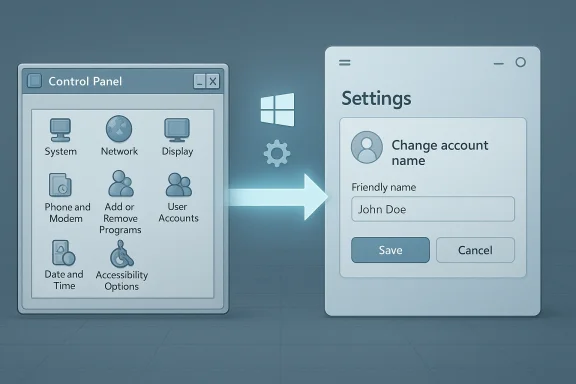
Windows Central reported that the Settings app in a Dev Channel preview build (identified by an internal revision similar to 26300.7877 in the sighting) now surfaces an interface for changing a user’s account name — a function that until now most Windows users performed in the legacy Control Panel user accounts applet. The build’s UI is not fully functional yet (observers noted duplicated buttons and dialogs that still open le presence of the new page is what’s notable: it demonstrates Microsoft is moving account-management functionality into the modern shell.
Independent reporting on Windows 11 Insider builds over the last year shows similar migrations — keyboard repeat rates, cursor blink rate, and mouse properties have shifted into Settings in recent Insider updates — which supports the broader pattern behind the specific account-rename change. That broader pattern has been logged by multiple outlets and Insider-tracking sources noting hidden or gated Settings pages appearing as Microsoft iterates on parity and polish.
Common Control Panel domains still used by admins include:
For now, Control Panel still exists, Settings is getting smarter, and the sensible course for most people — backup, test in non-production environments, and prefer documented APIs for automation — remains the same.
Source: Windows Central The Control Panel on Windows 11 is one step closer to death
The first hint that Microsoft wanted a single configuration experience arrived with Windows 8 in 2012, when the new Settings UI replaced large swaths of Control Panel functionality for consumer-friendly tasks. Ever since, Microsoft has been migrating features piecemeal: some applets moved quickly, others lingered for years because they touch deeper OS subsystems or enterprise workflows. Major outlets and long-form reporting have repeatedly documented that migration is ongoing rather than immediate, and that Microsoft has at times softened its wording about an outright “sunset” of the Control Panel.
That story matters because the Control Panel is not merely a cosmetic relic — it still houses tools and dialogs used by admins, power users, legacy apps, and many third-party installers. When Microsoft moves a capability such as rename account from Control Panel into Settings, it signals both progress toward a single UX and a need to ensure parity: the new UI must match the capabilities, reliability, and scripting hooks that existing workflows rely on. Coverage of recent Insider builds shows Microsoft has prioritized migration of settings that are frequently used by consumers (mouse and keyboard options, sound controls) before tackling account and management surfaces more commonly used by IT teams.
 What changed this week: rename in Settings, spotted in Dev
Windows Central reported that the Settings app in a Dev Channel preview build (identified by an internal revision similar to 26300.7877 in the sighting) now surfaces an interface for changing a user’s account name — a function that until now most Windows users performed in the legacy Control Panel user accounts applet. The build’s UI is not fully functional yet (observers noted duplicated buttons and dialogs that still open le presence of the new page is what’s notable: it demonstrates Microsoft is moving account-management functionality into the modern shell.Independent reporting on Windows 11 Insider builds over the last year shows similar migrations — keyboard repeat rates, cursor blink rate, and mouse properties have shifted into Settings in recent Insider updates — which supports the broader pattern behind the specific account-rename change. That broader pattern has been logged by multiple outlets and Insider-tracking sources noting hidden or gated Settings pages appearing as Microsoft iterates on parity and polish.
What the UI discovery actually demonstrated
- A new “Change account name” control surfaced inside Settings, visible in a Dev-channel build but not enabled or fully wired up yet. ows duplicated controls (for example, two “Change account type” buttons), suggesting the migration is in-progress and may still call into legacy dialogs until the new flow is completed.
- Early sightings are sourced to Insider and social posts, not official Microsoft release notes — so this is a telemetry-level signal rather than a final shipping behavior.
Why this matters: UX, compatibility, and administrative workflows
At first glance, renaming an account seems trivial: change the display name you see on the sign-in screen and you’re done. In practice, account rename touches several subtle technical realities:- Display name vs. identity: Windows identifies accounts internally by a Security Identifier (SID), not the display name. Renaming the account changes the visible label (the “friendly name”), but it does not change the SID or the user profile folder under C:\Users. This is a crucial distinction for administrators and scripts that depend on path names or SIDs.
- Microsoft accounts vs. local accounts: If the account is a Microsoft (cloud) account, the canonical name lives online in your Microsoft profile; changing the name in Windows Settings may redirect to account.microsoft.com or attempt to reconcile differences rather than directly editing a local string. Local accounts are simpler to rename locally, but enterprise policy and cloud sync can complicate semantics.
- Scripting, automation, and GPO/MDM: Many enterprise environments rely on scripts, Group Policy Objects, or MDM profiles that reference account names, folder paths, or profile-specific settings. A new Settings-based rename flow needs to expose equivalent APIs or steering points so management tools don’t break. Until Microsoft documents and supports these programmatic paths, IT teams will remain cautious. Independent coverage of prior Control Panel migrations repeatedly flagged the need for parity with legacy management interfaces.
Benefits of moving account management into Settings
There are legitimate advantages in consolidation — a single Settings app brings consistency, accessibility improvements, and better support for modern input modalities (touch, pen, and voice), which is important as Windows pursues a broader hardware surface.- A consistent UI reduces cognitive friction for mainstream users who don’t want to jump between two separate configuration experiences.
- Settings is subject to modern accessibility and localization frameworks, which should make rename features more discoverable and usable across assistive tech.
- Centralizing account options in Settings enables Microsoft to present linked options (e.g., change display name, manage Microsoft account online, switch to local account) in a single flow rather than scattering them across applets.
Risks and unanswered questions
Migration is useful, but it introduces risks that both everyday users and IT professionals should understand.- Incomplete parity and regressions: Early sightings show duplicate buttons and behaviors that still open the legacy Control Panel. This is expected in an iterative rollout, but it also means early builds can introduce regressions or incomplete flows. Users who rely on granular behaviors in Control Panel may find some options missing or different in the new UI.
- Enterprise compatibility: Many organizations build automation around legacy UI behavior or rely on exact dialog flows. If the Settings flow lacks documented programmatic interfaces (APIs, PowerShell cmdlets, MDM hooks), admins may need to keep legacy scripts or find workarounds. Reporting on prior migrations consistently called out the need for Microsoft to preserve management pathways.
- Telemetry and policy friction: For Microsoft-account-linked users, changing a name locally while the cloud copy is authoritative can cause confusion, cache mismatches, or delays while the cloud propagates the updated display name. Microsoft notes that profile changes can take up to 24 hours to propagate to all services.
- Risk of breaking assumptions: A surprising amount of third-party software and in-house tooling assumes the presence of Control Panel dialogs or exact command invocation behavior. A silent migration without sufficient alerts and documentation would be a pain point for many. Past back-and-forth messaging from Microsoft (about the meaning of “deprecated”) demonstrates how sensitive the user base is to sudden changes.
The technical reality of renaming accounts: what changes and what stays the same
For readers who want the technical particulars, here’s the short list of verified behaviors you should expect when renaming a user account in Windows:- The display name shown on the sign-in screen and in Start menu user areas is updated when the rename completes.
- The user profile folder under C:\Users typically retains its original name; the OS uses the SID to map user data and does not automatically rename the folder. That folder rename remains a separate, risky operation if attempted.
- Permissions, file ownership, registry hives (HKEY_USERS / HKCU) are tied to the SID and are unaffected by simple display-name changes; applications still see the same user identity behind the scenes.
- For Microsoft accounts, Settings may redirect you to the cloud profile or include UI that triggers the online account edit flow; local edits may be overwritten by cloud sync until the online profile is changed.
How to rename an account today (workarounds and administrative options)
Until Microsoft finishes and ships the Settings-based rename flow to all customers, here are the verified ways to rename accounts that admins and power users can use right now:- Control Panel (classic): Control Panel > User Accounts > Change your account name — works for local accounts and is the longstanding method many admins still prefer. This method updates the display name but not the profile folder.
- Netplwiz (advanced UI): Run dialog > type netplwiz > select account > Properties > change Full Name. This is a fast, supported route to change the visible name for local accounts.
- Computer Management (Local Users and Groups) for Pro/Education/Enterprise: Open Computer Management > Local Users and Groups > Users > right-click user > Rename or Properties. This is the most administrative-friendly option for local accounts in managed environments.
- Microsoft account web portal: For cloud accounts, change your name at your Microsoft account’s profile page; the new name will sync back to devices in about 24 hours. Microsoft’s support documentation details that propagation timeframe and the distinction between display name and sign-in alias.
- Back up important data and create a restore point before attempting profile-level operations that go beyond display-name changes.
- Do not assume a rename changes file paths; scripts and scheduled tasks that reference explicit C:\Users\username paths may still fail if they depend on the folder name.
What’s left in the Control Panel — and why it’s not dead yet
Despite migrations, the Control Panel remains alive for compatibility. Microsoft has publicly clarified that while many settings are being migrated, the Control Panel still exists for compatibility reasons and Microsoft has not issued a one-line “kill date” for it. Coverage of Microsoft’s messaging shows that the word “deprecated” was once used and later clarified — illustrating the company’s cautious approach to removing legacy surfaces that enterprises still depend upon.Common Control Panel domains still used by admins include:
- Device Manager and hardware applets (some of which now link into Settings)
- Advanced system properties and environment variable editors
- Some networking and legacy troubleshooting dialogs
- Applet-based installers or legacy third-party configuration tools that expect Control Panel hooks
What to watch next (timeline and signals)
Predicting Microsoft’s schedule is always speculative, but there are sensible signals to watch:- Insider channel sightings (Dev/Canary/ Beta): new Settings pages usually appear hidden or gated long before landing in general releases — follow release notes and Insider posts for staged rollouts.
- Official documentation changes: Microsoft will typically update support pages and management docs when parity APIs are finalized. The removal or alteration of phrasing on Microsoft support pages is itself a signal, as prior wording changes prompted broader coverage and clarification.
- Enterprise tooling updates: Microsoft usually ships management hooks (PowerShell cmdlets, MDM CSPs, Group Policy updates) around the same time as UI changes to avoid breaking enterprise management. When those land, IT teams can start testing migration away from Control Panel scripts.
Recommendations: what users and admins should do now
- If you’re a home user: keep using Control Panel or netplwiz if you prefer that workflow; changing display names is low-risk but remember your profile folder won’t rename automatically. Use the Microsoft account portal to change cloud-backed display names.
- If you’re an IT admin: don’t rip out legacy scripts yet. Start testing the new Settings flows in an isolated Insider/dev lab, document differences, and identify whether your management processes rely on profile folder names or hard-coded path references. Look for corresponding APIs or PowerShell modules in preview releases before committing to long-term automation changes.
- If you build software that integrates with Windows settings: verify your dependencies on Control Panel behaviors and plan to support both paths for a migration window. Consider relying on SIDs and documented management APIs rather than display names.
Conclusion: incremental change, consequential signal
The appearance of a Rename account control in Windows 11’s Settings app — visible in a Dev preview and reported by community and editorial observers — is a small UX change with outsized meaning. It’s further evidence that Microsoft intends to consolidate the OS’s configuration surface into the modern Settings experience, but it also underscores the careful choreography required to preserve enterprise compatibility and user expectations. This is not a surprise; it’s the continuation of a strategic migration that has taken years and will likely take years more. Users should treat the change as a signal to prepare and test, not as a trigger to abandon existing tools immediately.For now, Control Panel still exists, Settings is getting smarter, and the sensible course for most people — backup, test in non-production environments, and prefer documented APIs for automation — remains the same.
Source: Windows Central The Control Panel on Windows 11 is one step closer to death
