

Microsoft’s Windows Terminal has picked up a practical and widely requested set of enhancements in its latest preview release — from an acrylic title bar and refined text rendering options to much stronger pane-management commands and an optional minimize-to‑system‑tray behavior — changes that sharpen the Terminal as a daily tool for developers, sysadmins, and power users.
Windows Terminal is Microsoft’s modern, GPU‑accelerated terminal host that consolidates shells (Command Prompt, PowerShell, WSL distributions and more) into a single, tabbed interface. The project is developed openly on GitHub and ships across multiple channels: Canary/Preview for early testing and Stable for general use. That release cadence means new capabilities typically land first in Preview, giving enthusiasts a chance to test and provide feedback before a broader rollout.
This release cycle remains important context: many of the features described below are available now in the Preview channel and may be included in the next stable update after validation. Windows Terminal’s developer blog and the GitHub releases page remain the authoritative references for the exact version numbers and changelogs.
Where public releases are used for enterprise distribution, the GitHub releases page and the Terminal distributions documentation remain the canonical sources for installer packages and version history. Admins and packagers should prefer the GitHub release artifacts and store/MSIX distributions when automating installs.
Caveat: community write‑ups sometimes use shorthand (e.g., “minimizeToTray”). When scripting or editing settings.json, always use the exact property names from the official docs/blog to avoid typos that cause silent failures. The blog’s exact identifiers are authoritative.
That said, deployment and automation consequences — especially the default‑terminal behavioral change — mean this is not a “install and forget” update for managed environments. Organizations should validate their scripts and configuration management before enabling wide release. For individual users and power users, the Preview is an attractive playground: try the new settings, file bug reports when regressions appear, and help shape the path to stable shipping.
Windows Terminal continues to evolve from “modern console” into a multi‑purpose command center that balances polish with practical controls. This release is a clear example of an open‑source, community-conscious project delivering targeted improvements that matter in real workflows — with the usual Preview caveats and a couple of administratively important changes that deserve attention before large‑scale rollouts.
Source: Neowin https://www.neowin.net/news/windows-terminal-gets-a-bunch-of-useful-updates-in-the-latest-release/
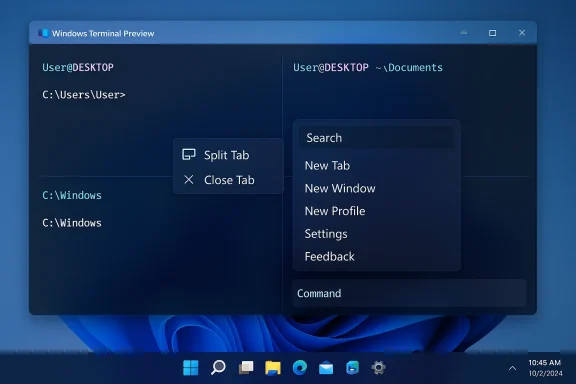 Background and overview
Windows Terminal is Microsoft’s modern, GPU‑accelerated terminal host that consolidates shells (Command Prompt, PowerShell, WSL distributions and more) into a single, tabbed interface. The project is developed openly on GitHub and ships across multiple channels: Canary/Preview for early testing and Stable for general use. That release cadence means new capabilities typically land first in Preview, giving enthusiasts a chance to test and provide feedback before a broader rollout. This release cycle remains important context: many of the features described below are available now in the Preview channel and may be included in the next stable update after validation. Windows Terminal’s developer blog and the GitHub releases page remain the authoritative references for the exact version numbers and changelogs.
What’s new — the headline features
The release adds a mix of cosmetic, accessibility, and workflow improvements. The changes fall into several practical buckets: visual polish, windowing behavior, pane and tab management, settings and keybinding ergonomics, and minor but useful file/path handling changes.Acrylic title bar and visual tweaks
- The terminal can now render an acrylic (semi‑translucent) effect in the tab row / title bar via the global setting
useAcrylicInTabRow. This gives the terminal a contemporary Windows look that blends better with Windows 11 themes and provides visual separation between the tab row and the terminal content. A terminal restart is required after changing the setting. - A new profile-level setting,
intenseTextStyle, controls how “intense” ANSI attributes are rendered. Valid values includeall,bold,bright, andnone, enabling more precise control over bold/bright rendering for applications that rely on ANSI intensity semantics. This improves readability for scripts and apps that use intensity for emphasis.
Minimize to system tray (notification area)
- A frequently requested behavior — minimizing the Terminal to the system tray (notification area) — is now supported through two new global boolean settings:
minimizeToNotificationAreaandalwaysShowNotificationIcon. WhenminimizeToNotificationAreaistrue, minimizing the Terminal sends it to the notification area and hides it from the taskbar;alwaysShowNotificationIconforces the tray icon to remain visible regardless of minimize behavior. These settings are currently JSON‑only and are not yet exposed in the Settings UI.
Richer pane and tab management
The Terminal’s multiplexer capabilities were expanded with several new actions and context-menu integrations that reduce friction when juggling multiple shells:movePane: move a pane into a new or existing tab.swapPane: swap two panes’ positions inside a tab.toggleSplitOrientation: flip a pair of panes between vertical and horizontal orientation.nextPaneandpreviousPane: navigate panes in the order they were created.
Drag-and-drop and path handling
- Dropping a file or directory onto the ‘+’ (new-tab) button opens a new tab/pane/window with the working directory set to the dropped path. Modifier keys change the behavior: Alt for a new pane, Shift for a new window, and no modifier for a new tab.
startingDirectorynow accepts Linux paths for WSL profiles on newer Windows builds, easing cross‑platform workflows.
Settings UI and keybinding ergonomics
- The Settings UI received quality-of-life updates: appearance properties for unfocused profiles are surfaced in the UI, and the key‑chord editor for actions now accepts typed key chords (so you can tap Ctrl+Shift+P rather than spell out keys).
- The
fontobject in settings.json now accepts OpenTypefeaturesandaxes, giving fine control over variable fonts and typographic features (for example, enabling stylistic sets or toggling ligatures). This pairs well with Cascadia Code and other developer fonts that expose OpenType axes.
Default terminal behavior (breaking change)
- When launching Terminal via the “default terminal” integration or via
wtwithout an explicit profile, Terminal will now use no profile and instead derive settings fromprofiles.defaults(the Defaults section).windowingBehavioris also respected when Terminal is invoked as the default terminal. This is classified as a breaking change because users and automation that relied on a fallback to the default profile may need to explicitly setprofiles.defaultsor alter invocation commands.
Why these changes matter — practical impact for power users and admins
- Reduced friction for multi‑pane workflows: The new pane actions (move/swap/toggle orientation) convert common manual rearrangements into single actions, saving keystrokes and reducing the need to re-create panes or copy/paste sessions. This is particularly useful in complex developer environments where multiple terminals run simultaneously.
- Cleaner taskbar real estate: The minimize‑to‑tray option makes Terminal behave like long‑lived background apps (music players, messaging clients), which is helpful for users who keep many windows open or use Quake-style workflows. The separate
alwaysShowNotificationIconsetting also supports visibility control for those who prefer an always‑accessible tray icon. - Aesthetics and legibility: The acrylic title bar and
intenseTextStyleoptions let users tune the UI for readability and modern visuals, improving accessibility for those who rely on bold/bright contrasts or prefer a semi‑transparent tab bar to match system themes. - Better integration with WSL and file-system workflows: Drag‑and‑drop path translation onto the new‑tab button and acceptance of Linux paths for
startingDirectorysimplify cross‑platform operations and reduce the friction of switching between Windows and WSL contexts. - Enterprise deployment considerations: Because several new flags are JSON‑only (not yet available in the Settings UI) and because default terminal behavior changed, IT teams should audit existing configurations and automation scripts before a wide rollout. The release’s public changelog and GitHub releases are the authoritative places to confirm the final stable version and packages for managed deployment.
Technical verification and cross‑checks
Key implementation details and setting names were verified against Microsoft’s official Windows Command Line blog post announcing the Preview 1.11 release, which lists exact setting names and behavior (for example,useAcrylicInTabRow, minimizeToNotificationArea, alwaysShowNotificationIcon, intenseTextStyle, movePane, swapPane). For independent confirmation and practical reporting, major Windows technology outlets and secondary coverage (Neowin, Windows Central, Pureinfotech, Windows Report) echo and expand on the same changelog items. Together these sources show consistent and corroborated details about the release. Where public releases are used for enterprise distribution, the GitHub releases page and the Terminal distributions documentation remain the canonical sources for installer packages and version history. Admins and packagers should prefer the GitHub release artifacts and store/MSIX distributions when automating installs.
Caveat: community write‑ups sometimes use shorthand (e.g., “minimizeToTray”). When scripting or editing settings.json, always use the exact property names from the official docs/blog to avoid typos that cause silent failures. The blog’s exact identifiers are authoritative.
Strengths, trade‑offs and potential risks
Strengths
- Well‑targeted improvements: The update focuses on pragmatic features asked for by the community (tray behavior, pane commands, drag‑and‑drop), improving daily ergonomics rather than adding exotic features.
- Open development model: Community contributors are credited prominently in the release notes and many changes stem directly from GitHub PRs, which fosters rapid iteration and high‑value contributions.
- Better typographic control: OpenType feature and axes support is a forward‑looking enhancement for users of variable and feature‑rich developer fonts, improving both aesthetics and legibility.
Trade‑offs and potential risks
- Preview + JSON‑only settings = configuration drift risk: Several settings are available only through settings.json in Preview channels. Organizations that rely on the Settings UI or use managed policies may need to update their provisioning or configuration scripts to keep user experiences consistent. Misplaced or misspelled JSON keys won’t throw UI warnings and can silently be ignored.
- Breaking change to default terminal behavior: The shift to using
profiles.defaultsfor default‑terminal invocations andwtwithout an explicit profile is a legitimate breaking change that could affect automation, scheduled tasks, or shortcut behaviors that assumed the default profile would apply. Admins should audit anywtinvocations or scripts to ensure the intended profile settings are preserved. - Preview instability: By definition, Preview builds can contain regressions. While Microsoft routes releases through the Windows Insider Program to catch issues, real‑world regressions can still surface, especially in edge cases involving WSL distro generation, shell integrations, or exotic font/renderer combinations. Test before mass deployment.
- Accessibility and contrast: Visual features like acrylic and subtle intensity changes can have mixed effects on accessibility. Users with visual impairments should test
intenseTextStyleand acrylic toggles to ensure contrast and readability remain acceptable. These settings help but also shift responsibility to users and admins to validate accessibility outcomes.
Practical adoption guidance — how to test and roll out safely
- Run the Preview in an isolated test group first.
- Install the Preview via the Microsoft Store or download the Preview package from the project’s GitHub releases page.
- Validate the behavior on representative hardware, especially machines with variable fonts and WSL setups.
- Audit automation and shortcuts.
- Search for
wtusage and default‑terminal invocations. Update scripts or shortcuts to explicitly specify a profile when the previous behavior relied on the default profile fallback. Setprofiles.defaultsif you want consistent defaults across invocations. - Centralize JSON configuration for managed systems.
- If your environment uses roaming or managed profiles, deploy a validated settings.json that includes JSON‑only flags (e.g.,
minimizeToNotificationArea) and document their intended values. Use scripting or packaging (MSIX/winget) to distribute the file consistently. - Test the minimize‑to‑tray use cases.
- Validate that the tray behavior (
minimizeToNotificationArea,alwaysShowNotificationIcon) interacts well with your taskbar, notification, and accessibility policies. Watch for notification area overflow behaviors on machines with many icons. - Validate font rendering.
- For teams relying on glyph/box‑drawing characters (dashboards, text UIs), validate
intenseTextStyleand the new OpenType axes settings with your chosen monospaced font to ensure box drawing and PowerLine glyphs render correctly. - Preserve a rollback plan.
- Keep a tested stable release and a versioned backup of your terminal settings so you can quickly revert user environments if the Preview reveals regressions.
Developer and power‑user tips (short checklist)
- To enable acrylic in settings.json:
- Add the global setting
"useAcrylicInTabRow": trueand restart Terminal. - To enable minimize‑to‑tray manually:
- Set
"minimizeToNotificationArea": trueand optionally"alwaysShowNotificationIcon": truein settings.json (Preview-only at time of writing). - To change intense text behavior:
- Set
"intenseTextStyle": "all"(orbold/bright/none) under the profile you want to affect. - To move a pane (via actions or command palette):
- Use the
movePaneaction or the command palette entry to relocate a pane into a new or existing tab.
Final evaluation — where this release fits in the Terminal’s evolution
This release represents a pragmatic, community‑driven step forward: rather than large platform pivots, the Terminal team focused on polish and functional improvements that reduce everyday friction. The new pane primitives and tray behavior are the kind of incremental changes that have an outsized impact on daily productivity for heavy terminal users. The addition of typographic controls and OpenType axes support also positions Terminal well as developer environments increasingly adopt variable and feature‑rich fonts.That said, deployment and automation consequences — especially the default‑terminal behavioral change — mean this is not a “install and forget” update for managed environments. Organizations should validate their scripts and configuration management before enabling wide release. For individual users and power users, the Preview is an attractive playground: try the new settings, file bug reports when regressions appear, and help shape the path to stable shipping.
Windows Terminal continues to evolve from “modern console” into a multi‑purpose command center that balances polish with practical controls. This release is a clear example of an open‑source, community-conscious project delivering targeted improvements that matter in real workflows — with the usual Preview caveats and a couple of administratively important changes that deserve attention before large‑scale rollouts.
Source: Neowin https://www.neowin.net/news/windows-terminal-gets-a-bunch-of-useful-updates-in-the-latest-release/
