

Microsoft’s Windows Terminal Preview has taken another practical step forward with the 1.11 preview release, bringing a cluster of user-facing improvements—most notably the ability to minimize the app to the system tray, a refreshed Settings UI with unfocused appearance controls, expanded pane management (swap, move, split via context menu), and cosmetic options such as an acrylic title bar and adjustable intense-text rendering. These changes make Windows Terminal more flexible for power users and developers who rely on multi-pane workflows, and they arrive as both JSON-configurable settings and UI-accessible options in many cases.
Windows Terminal is Microsoft’s modern terminal host that consolidates shells—Command Prompt, PowerShell, WSL distributions and more—into a single tabbed, GPU-accelerated UI. The project is actively developed in the open on GitHub and ships through multiple channels (Stable, Preview, Canary) so features arrive first to preview channels for testing before wider rollout. That distribution model means preview releases like 1.11 are feature-rich but should be treated as “try-before-wide-deploy” by IT teams. Windows Terminal Preview 1.11 continues this pattern: it bundles a set of convenience and productivity features that address real-world developer workflows (pane management and taskbar progress aggregation), UI polish (acrylic tab row, intense text style), and a number of behind-the-scenes quality fixes. The release is available from the Microsoft Store and the project’s GitHub releases page, allowing both automatic store updates and manual installs for managed or air-gapped environments.
Windows Terminal Preview 1.11 refines the terminal experience with pragmatic UI and workflow improvements while keeping the configuration power that made Terminal a favorite among Windows devs. The changes are conservative but meaningful: they polish the edges of productivity and make the Terminal behave more like a first-class, long-lived developer workspace on modern Windows systems.
Source: BetaNews Microsoft releases Windows Terminal Preview 1.11 with system tray minimizing, UI updates and more
 Background / Overview
Windows Terminal is Microsoft’s modern terminal host that consolidates shells—Command Prompt, PowerShell, WSL distributions and more—into a single tabbed, GPU-accelerated UI. The project is actively developed in the open on GitHub and ships through multiple channels (Stable, Preview, Canary) so features arrive first to preview channels for testing before wider rollout. That distribution model means preview releases like 1.11 are feature-rich but should be treated as “try-before-wide-deploy” by IT teams. Windows Terminal Preview 1.11 continues this pattern: it bundles a set of convenience and productivity features that address real-world developer workflows (pane management and taskbar progress aggregation), UI polish (acrylic tab row, intense text style), and a number of behind-the-scenes quality fixes. The release is available from the Microsoft Store and the project’s GitHub releases page, allowing both automatic store updates and manual installs for managed or air-gapped environments. What’s new in Windows Terminal Preview 1.11
This section breaks the headline changes down into actionable items and shows where to configure each behavior.Minimize to system tray (notification area)
- New behavior: Terminal can now be optionally minimized to the system tray (notification area) instead of the taskbar.
- How to enable: Two global boolean settings were added —
minimizeToNotificationAreaandalwaysShowNotificationIcon. SettingminimizeToNotificationAreatotruehides the window from the taskbar when minimized;alwaysShowNotificationIconforces the tray icon to remain visible. Note: at the time of the 1.11 preview these settings are JSON-only and not yet exposed in the Settings UI, so they must be added or edited in your settings.json.
Acrylic title bar and visual options
- Acrylic tab row: The new global setting
useAcrylicInTabRowallows the tab row (title bar) to adopt an acrylic effect for a semi-translucent, Windows-style look. This must be toggled in settings and the Terminal restarted for the change to take effect. - Intense text style: The
intenseTextStyleprofile setting controls how “intense” (bright/bold) text is rendered. Valid values include"all","bold","bright", and"none", giving finer control over emphasis rendering for apps that use ANSI intense attributes.
Pane and tab management improvements
The 1.11 preview significantly expands pane manipulation commands and UI affordances:- Move pane to tab: A
movePaneaction lets you move a pane into a new or existing tab. The command palette also exposes this action. - Swap panes within a tab:
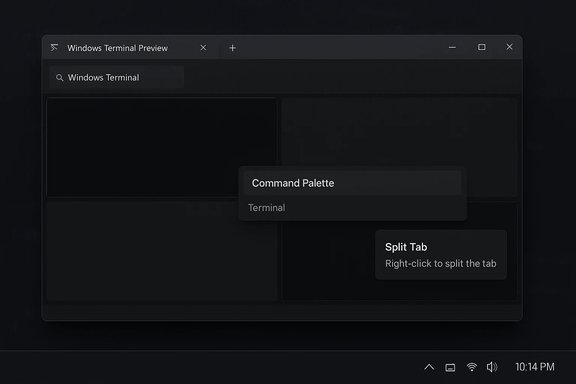
swapPaneswaps two panes’ positions inside a tab. This helps reorganize layouts without closing or re-splitting panes. - Split tab from context menu: Right-click a tab and choose “Split Tab” to split the active profile into a new pane — an easier mouse-driven workflow.
- Next/previous pane navigation in creation order: Actions
nextPaneandpreviousPaneallow navigation through panes in the order they were created, useful for scripted focus changes or predictable cycling through multiple sessions. - Toggle split orientation: The
toggleSplitOrientationaction swaps a pair of panes between vertical and horizontal orientation — an ergonomic quick-switch for reflowing your layout.
Drag-and-drop new-tab path and command-line title behavior
- Drag-and-drop onto the “+” button: Dropping a file or directory onto the new-tab (“+”) button opens a new tab (or pane/window if modifier keys are held) with its starting directory set to the dropped path. Holding
Altopens a new pane,Shiftopens a new window, and no modifier opens a new tab by default. - wt and default terminal titles: Tabs launched via
wtor when Terminal is launched as the default terminal now show the launched command line as the tab title rather than the default profile name. This improves discoverability when running multiple different commands from automation or shortcuts.
Settings UI polish and keybinding enhancements
- Unfocused appearance options are now surfaced in the Settings UI so you can define profile appearance when a pane is not focused.
- Key chord editor: action keybindings can now be added by typing the key chord directly in the UI rather than spelling out keys, improving discoverability and reducing configuration friction.
- More bindable keys: The
sc(scan code) andvk(virtual key) binding helpers allow many more physical keys to be used in custom bindings — particularly helpful for specialty keyboards and multimedia keys.
Miscellaneous but practical changes
- Dynamically generated profiles can now be deleted, addressing a longstanding pain point for users who install and uninstall WSL distros or shell binaries.
- On newer Windows builds, the
startingDirectoryfield can accept Linux-style paths for WSL profiles (e.g.,/home/user), which simplifies launching WSL shells at the correct working directory. - Taskbar progress aggregation: the taskbar icon will show combined progress state across panes/tabs (helpful for long-running builds or test suites running in background tabs).
How to enable and test notable features (quick steps)
- Install or update:
- Install Windows Terminal Preview from the Microsoft Store or download the msixbundle from the GitHub releases page if you need a manual install.
- Edit settings.json (for JSON-only toggles):
- Open Settings → Open JSON file (or locate the Terminal settings.json in the profile folder).
- Add or change global options, for example:
"minimizeToNotificationArea": true"alwaysShowNotificationIcon": true"useAcrylicInTabRow": true- Save and restart Terminal for some settings (like acrylic) to take effect.
- Try pane actions:
- Use the Command Palette (Ctrl+Shift+P) to execute actions such as
movePaneandswapPane. - Right-click a tab header and choose “Split Tab” to split the tab without reaching for keyboard shortcuts.
- Validate drag-and-drop:
- Drag a folder from File Explorer onto the “+” button — observe a new tab/pane/window open with the expected starting directory (use
Alt/Shiftmodifiers for alternate behaviors).
Compatibility, requirements, and distribution notes
- Distribution channels: Preview builds are available through the Microsoft Store preview listing and GitHub releases; the Stable release trail includes features rolled out after validation. For scripted or offline installs, the msixbundle on GitHub is the supported option.
- Windows version caveat: Some behaviors—like
startingDirectoryaccepting Linux paths for WSL—are gated to “newer versions of Windows” per the release notes. That means older Windows 10 builds may not have parity for specific Win32/WSL interop behaviors. Administrators should confirm OS build numbers when automating deployments. - Preview status: Preview builds can and do change. Settings that are JSON-only in 1.11 may land in the UI in subsequent releases; conversely, experimental behaviors might be revised or removed before they reach GA. Use Update channels and release notes to track changes.
Developer and community contributions
Windows Terminal’s development model is highly collaborative, with contributions coming from Microsoft engineers and community contributors. The 1.11 release notes explicitly credit community authors who led pane and action improvements, reflecting a healthy open-source cadence. This openness delivers rapid feature iteration but also means frequent interface refinements and API additions that sysadmins and extension authors should test against. Practical implications for extension authors and power users:- Keybinding extensions should account for
sc/vksupport which widens the key surface but also requires testing across different keyboards. - Scripts that consume window titles or rely on profile naming may need adjustment because
wt-launched tabs now display the launched command line as the title by default.
Security, governance and enterprise considerations
- Preview caution: Because 1.11 is a preview release, enterprises should test in pilot rings rather than broad deployment. Preview features can introduce behavior changes (e.g., tab titling, default-terminal semantics) that affect scripts, monitoring tools, and provisioning workflows.
- Configuration management: For Windows Terminal configuration in managed environments, distribute canonical settings.json files via the organization’s preferred config management tool (SCCM/Intune/Group Policy where applicable) and verify paths for unpackaged vs store installations. The GitHub README documents distribution differences and supported Windows versions—check it before mass deployment.
- Privacy/telemetry: Terminal features like Terminal Chat (in other channels) or any future integration with external services introduce privacy considerations. While 1.11 itself focuses on UI and local behavior, teams should review enterprise telemetry policies and LLM-integration settings when enabling experimental features in other releases.
Strengths, limitations and practical advice
Strengths
- Productivity-first improvements: Better pane control (move/swap/toggle orientation) and drag-and-drop path opening reduce friction for multi-task workflows and are meaningful quality-of-life gains for developers and sysadmins.
- Configurability: JSON-first configuration continues to be a strength, enabling automation, repo-backed dotfiles, and reproducible developer environments.
- Active upstream and community involvement: Visible contributor recognition in release notes is a sign the project is responsive and evolving in areas users care about.
Limitations and risks
- Preview instability: New features may change across previews; rely on pilot rings and test workflows before enterprise-wide adoption.
- UI lag for some toggles: Some features (like minimize-to-tray) are JSON-only at release time, which can trip up users who expect every option to be visible in the UI. Admins should plan scripts or clear guidance for power users.
- Compatibility with older Windows builds: A few features require newer Windows builds (e.g., improved WSL path handling), so confirm OS compatibility when deploying to heterogenous fleets.
- Validate Windows build requirements for any features you intend to use.
- Test Terminal preview in a pilot group using identical provisioning scripts/JSON settings.
- Document settings that are JSON-only and provide a supported method to apply them (Intune, scripts or package-based settings).
- Keep a rollback plan — maintain copy of prior settings.json and a tested uninstall/reinstall script.
Final assessment
Windows Terminal Preview 1.11 is a solid incremental release that addresses a handful of long-standing UX gaps while enhancing pane ergonomics in ways that will matter day-to-day for developers and operations users. The system-tray minimization, acrylic tab row, pane swap/move actions, and drag-to-+ behaviors are the kind of pragmatic features that don’t grab headlines but materially reduce friction in real workflows. The project’s continued open-source development and frequent preview cadence mean features arrive and iterate quickly, but they also underscore the importance of testing preview builds prior to broad deployment. For most individual users and power users, installing the Preview via the Microsoft Store is the simplest option to access 1.11. For organizations, adopt a phased rollout with pilot groups and ensure JSON-managed settings are distributed consistently across user systems.Windows Terminal Preview 1.11 refines the terminal experience with pragmatic UI and workflow improvements while keeping the configuration power that made Terminal a favorite among Windows devs. The changes are conservative but meaningful: they polish the edges of productivity and make the Terminal behave more like a first-class, long-lived developer workspace on modern Windows systems.
Source: BetaNews Microsoft releases Windows Terminal Preview 1.11 with system tray minimizing, UI updates and more
