

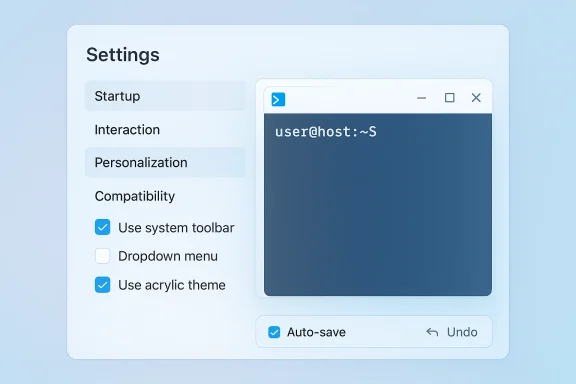
Microsoft is once again signaling that Windows Terminal is not done evolving, and this time the focus is squarely on the part of the app most users spend the least amount of time thinking about until it becomes frustrating: the settings experience. According to mockups shared by Microsoft engineer Carlos Zamora, the company is exploring a broad redesign that would replace the current in-app settings panel with a more conventional dedicated window, while also cleaning up navigation, labels, previews, and control styles. The goal is familiar but important: make a powerful tool feel less intimidating for newcomers without stripping away the flexibility that power users expect.
The timing matters. Windows Terminal has matured from a niche preview product into the default command-line hub for many Windows users, and Microsoft has spent years incrementally exposing more of its configuration directly in the UI. This new redesign effort suggests the team thinks the current approach has reached its limit. If the company gets this right, the result could be a more approachable Terminal that better bridges the gap between JSON editing and everyday point-and-click configuration.
Windows Terminal began life as part of Microsoft’s broader effort to modernize command-line tooling on Windows. Before Terminal, the ecosystem was split across the traditional console host, third-party terminals, and a configuration model that often required manual file editing. Microsoft’s answer was a modern, GPU-accelerated terminal app with tabs, rich rendering, and a more flexible architecture that could serve developers, administrators, and enthusiasts alike.
The settings experience has been a recurring pain point almost since the beginning. Early versions leaned heavily on configuration files, which power users appreciated, but that approach also created a steep learning curve for everyone else. Microsoft gradually added a graphical settings UI, first as an experimental layer and later as the default path for more users, while still preserving access to the underlying
Over time, Microsoft has been steadily moving more settings into the UI. The company introduced dedicated pages for actions, color schemes, profiles, and other features that were once buried in text configuration. That expansion helped, but it also made the interface denser. Every new control added utility, yet also raised the risk of clutter and inconsistency. The redesign now being teased looks like an attempt to solve exactly that tension.
There is also a broader platform context. Windows 11 has pushed Microsoft toward cleaner visual systems, tighter layout standards, and greater consistency across apps. A Terminal settings revamp fits neatly into that direction. It is not merely a cosmetic refresh; it is part of Microsoft’s wider effort to make technical tools feel coherent within the modern Windows design language.
This is especially significant for a product like Terminal because its audience is unusually broad. Some users open it only to run a few commands, while others live in it all day. That makes usability a strategic issue, not just a design preference. If Microsoft can simplify the settings journey without dumbing down the app, it could make Windows Terminal more welcoming than ever.
According to the mockups described in community discussion, the new layout is meant to reduce confusion when moving through categories such as Startup, Interaction, Personalization, and Compatibility. That is a sensible move. Settings pages that are conceptually different should also feel visually and structurally different, especially in a product with as many knobs as Terminal.
It also aligns with common desktop conventions. Most users already understand settings as a dedicated place, not a panel tucked into an unrelated workspace. Microsoft may be betting that this familiarity will lower friction for newcomers who are otherwise wary of terminal customization.
At the same time, this is not an admission that the current UI failed outright. Rather, it reflects a very typical product maturity problem: the first version was good enough to ship, but the accumulated feature set has outgrown the original layout. That is a healthy sign for the product, even if it creates short-term change fatigue.
The reported renaming of “New tab menu” to “Dropdown menu” is a good example. The original label may have made sense to developers or long-time users, but it is not especially intuitive for someone simply trying to customize what appears when they click the Terminal’s menu button. Renaming UI elements to match how people actually think about them is one of the easiest ways to reduce support friction.
This likely explains why the redesign emphasizes better organization across core settings areas. If a page is called “Startup,” it should clearly relate to opening behavior, launch state, and default profiles. If a page is “Compatibility,” the user should quickly understand what legacy behaviors or host integrations are being governed. The more predictable the taxonomy, the more usable the product becomes.
Microsoft’s challenge is consistency. If the company makes some labels more consumer-friendly while leaving others heavily technical, the interface could end up feeling uneven. The best redesigns do not just rename controls; they establish a vocabulary that stays coherent across the entire app.
Toggles are often best when a setting reflects an immediate on/off state. Checkboxes, on the other hand, can sometimes better suggest a configurable option that is part of a larger form or settings page. Microsoft may be looking at interaction clarity here rather than just visual consistency. In a settings-heavy app, small control choices can have outsized effects on comprehension.
That is why indicators, undo options, or other feedback mechanisms matter. Without them, auto-save can feel risky, especially to users who are still learning the app. Microsoft appears to understand this and may be trying to balance speed with reassurance rather than choosing one over the other.
This is a classic enterprise-versus-consumer design tension. Enterprise users often want deterministic behavior and clear auditability, while consumers usually want a low-friction, just works experience. Terminal sits in between those worlds, which makes the design problem more difficult than it looks.
The reported goal is clearer navigation for defaults, color schemes, and individual profiles. That matters because these concepts are related but not identical. Defaults establish the baseline, schemes define appearance, and profiles represent the user’s actual launch targets. When those categories are visually too close, users can easily edit the wrong layer.
It also makes Terminal more competitive with alternative terminals and IDE-integrated shells. A polished profile editor can become a selling point when users compare Microsoft’s native solution with tools that have long been praised for ease of customization. In that sense, a cleaner profile experience is not just UX polish; it is product strategy.
Microsoft has been slowly building toward this for years by surfacing more settings directly in the app rather than forcing users into raw JSON. The redesign may be the next logical step in that same journey: simplify the surface, preserve the depth underneath.
The reported discussions around how to display multiple shortcuts suggest Microsoft knows this problem is not trivial. The challenge is not just showing every shortcut, but showing them in a way that makes their relationships understandable. That is a classic information architecture issue.
This is where progressive disclosure becomes valuable. Show the basics first, then reveal more complexity only when the user asks for it. That approach keeps the interface approachable while preserving depth for advanced customization.
If Microsoft pulls this off, the key bindings page could become one of the strongest examples of the redesign philosophy. It would demonstrate that Windows Terminal can remain a serious tool for experts while becoming less intimidating for the merely curious.
The move toward a right-side preview pane, for example, suggests Microsoft wants a more efficient use of space and a more natural editing flow. Seeing settings on one side while previewing changes on the other can reduce back-and-forth navigation. That makes sense for any visual customization app, but it is especially useful in a terminal where appearance changes are often subtle and need immediate feedback.
There is also a subtle branding issue here. Windows Terminal has always signaled that command-line tools can be modern, fluid, and approachable. A dated or cluttered settings UI undermines that promise. A cleaner visual system reinforces the message that terminal work is not a relic of the past, but a contemporary part of the Windows experience.
Still, visual redesigns can be dangerous if they chase style at the expense of legibility. Good enterprise software should look modern, yes, but it should also be boringly clear. The best interface is the one users can understand in a glance and forget about while they work.
Terminal has always benefited from direct community input because its audience is unusually engaged. Users are often willing to discuss configuration details, shortcut behavior, and layout decisions in far more depth than they would for a mainstream consumer app. That makes GitHub a natural venue for design iteration.
This is also a good example of Microsoft treating a utility app as a living product rather than a one-time release. That mindset is important because Windows Terminal sits at the intersection of platform, developer tooling, and user experience. In that environment, iteration is not optional; it is the product.
The company’s open approach also gives the redesign credibility. Users are more likely to accept changes when they see the reasoning and are invited to comment. Transparency does not guarantee agreement, but it does make disagreement more constructive.
For enterprise environments, the redesign could also lower support burden. A more discoverable UI means fewer tickets from employees who only need to change a profile, adjust fonts, or set a default shell. That kind of simplification has real value when multiplied across a large fleet of machines.
The competitive signal here is that Microsoft is willing to invest in the details of a niche tool because it understands how central that tool has become. Terminal is no longer a side project. It is part of the Windows developer story, and the company knows that the quality of its configuration experience shapes perception of the whole ecosystem.
That said, Microsoft is not just competing with other terminal apps. It is also competing with inertia. If the settings UI remains confusing, many users will continue to rely on copy-pasted JSON snippets and community guides. A better design can pull more of that behavior back into the app itself.
The biggest opportunity is to make Terminal’s complexity feel intentional rather than accidental. That is what good design does: it does not hide sophistication, but it makes sophistication approachable.
There is also the danger of over-correction. In trying to make the app more intuitive, the team could inadvertently flatten the very depth that makes Terminal useful. Simplicity should not come at the cost of precision, especially in a tool where advanced configuration is one of the main selling points.
It will also be worth watching how much of the current JSON-centric workflow survives unchanged. Many longtime Terminal users still value direct file editing, even when they prefer the UI for quick changes. The ideal future is not one in which the JSON path disappears, but one in which it becomes an expert option rather than a mandatory detour.
The final question is whether Microsoft can turn the settings experience into a differentiator. Terminal is already powerful. The redesign could make it pleasant, and that distinction matters more than many teams realize.
Source: Neowin Microsoft teases a big Windows Terminal redesign and visual upgrade
The timing matters. Windows Terminal has matured from a niche preview product into the default command-line hub for many Windows users, and Microsoft has spent years incrementally exposing more of its configuration directly in the UI. This new redesign effort suggests the team thinks the current approach has reached its limit. If the company gets this right, the result could be a more approachable Terminal that better bridges the gap between JSON editing and everyday point-and-click configuration.
 Background
Windows Terminal began life as part of Microsoft’s broader effort to modernize command-line tooling on Windows. Before Terminal, the ecosystem was split across the traditional console host, third-party terminals, and a configuration model that often required manual file editing. Microsoft’s answer was a modern, GPU-accelerated terminal app with tabs, rich rendering, and a more flexible architecture that could serve developers, administrators, and enthusiasts alike.The settings experience has been a recurring pain point almost since the beginning. Early versions leaned heavily on configuration files, which power users appreciated, but that approach also created a steep learning curve for everyone else. Microsoft gradually added a graphical settings UI, first as an experimental layer and later as the default path for more users, while still preserving access to the underlying
settings.json for advanced customization. That dual-path design was practical, but it also meant the product had to satisfy two very different user types at once.Over time, Microsoft has been steadily moving more settings into the UI. The company introduced dedicated pages for actions, color schemes, profiles, and other features that were once buried in text configuration. That expansion helped, but it also made the interface denser. Every new control added utility, yet also raised the risk of clutter and inconsistency. The redesign now being teased looks like an attempt to solve exactly that tension.
There is also a broader platform context. Windows 11 has pushed Microsoft toward cleaner visual systems, tighter layout standards, and greater consistency across apps. A Terminal settings revamp fits neatly into that direction. It is not merely a cosmetic refresh; it is part of Microsoft’s wider effort to make technical tools feel coherent within the modern Windows design language.
This is especially significant for a product like Terminal because its audience is unusually broad. Some users open it only to run a few commands, while others live in it all day. That makes usability a strategic issue, not just a design preference. If Microsoft can simplify the settings journey without dumbing down the app, it could make Windows Terminal more welcoming than ever.
What Microsoft Is Changing
The most visible proposed change is the move toward a dedicated settings window instead of the current embedded panel. That might sound minor at first, but it changes the psychological model of the app. A standalone window gives settings their own space, making them feel less like an afterthought and more like a first-class part of the product.According to the mockups described in community discussion, the new layout is meant to reduce confusion when moving through categories such as Startup, Interaction, Personalization, and Compatibility. That is a sensible move. Settings pages that are conceptually different should also feel visually and structurally different, especially in a product with as many knobs as Terminal.
Why a separate window matters
A separate window can support better spacing, clearer navigation, and more room for contextual explanations. It also makes it easier to present previews and controls side by side without compressing the interface into a narrow panel. For a technically dense app, breathing room is not just a luxury; it is part of usability.It also aligns with common desktop conventions. Most users already understand settings as a dedicated place, not a panel tucked into an unrelated workspace. Microsoft may be betting that this familiarity will lower friction for newcomers who are otherwise wary of terminal customization.
At the same time, this is not an admission that the current UI failed outright. Rather, it reflects a very typical product maturity problem: the first version was good enough to ship, but the accumulated feature set has outgrown the original layout. That is a healthy sign for the product, even if it creates short-term change fatigue.
- Dedicated window could improve discoverability
- More room for descriptions and previews
- Better separation between terminal use and configuration
- Easier to scale as more settings are added
Navigation and Labels
One of the most important aspects of the redesign is not the layout itself, but the effort to make labels and page structure more self-explanatory. Microsoft appears to be revisiting naming conventions and category placement so that users do not need to decode internal product language to understand what a control does.The reported renaming of “New tab menu” to “Dropdown menu” is a good example. The original label may have made sense to developers or long-time users, but it is not especially intuitive for someone simply trying to customize what appears when they click the Terminal’s menu button. Renaming UI elements to match how people actually think about them is one of the easiest ways to reduce support friction.
The value of plain language
Plain language matters in utility software because users often arrive with a task, not a mental model. They want to change a behavior, not study the architecture of the app. Clearer names reduce the amount of inference required, and that often translates into fewer mistakes.This likely explains why the redesign emphasizes better organization across core settings areas. If a page is called “Startup,” it should clearly relate to opening behavior, launch state, and default profiles. If a page is “Compatibility,” the user should quickly understand what legacy behaviors or host integrations are being governed. The more predictable the taxonomy, the more usable the product becomes.
Microsoft’s challenge is consistency. If the company makes some labels more consumer-friendly while leaving others heavily technical, the interface could end up feeling uneven. The best redesigns do not just rename controls; they establish a vocabulary that stays coherent across the entire app.
- Clearer naming reduces ambiguity
- Better grouping helps users form a mental map
- Consistent terminology improves learnability
- Terminology should match real-world user intent
Controls, Defaults, and Behavior
Another reported change is the move from toggle switches to checkboxes in certain areas. That may sound like a small stylistic choice, but it hints at a broader effort to align Windows Terminal with modern UI conventions and to better communicate the type of action being taken.Toggles are often best when a setting reflects an immediate on/off state. Checkboxes, on the other hand, can sometimes better suggest a configurable option that is part of a larger form or settings page. Microsoft may be looking at interaction clarity here rather than just visual consistency. In a settings-heavy app, small control choices can have outsized effects on comprehension.
Auto-save and user confidence
The redesigned experience is also expected to lean on auto-save as the default behavior. That is a pragmatic choice, because it reduces the number of steps required to make and preserve changes. But auto-save has always carried a tradeoff: users want convenience, yet they also want assurance that they are not accidentally locking in an unwanted change.That is why indicators, undo options, or other feedback mechanisms matter. Without them, auto-save can feel risky, especially to users who are still learning the app. Microsoft appears to understand this and may be trying to balance speed with reassurance rather than choosing one over the other.
This is a classic enterprise-versus-consumer design tension. Enterprise users often want deterministic behavior and clear auditability, while consumers usually want a low-friction, just works experience. Terminal sits in between those worlds, which makes the design problem more difficult than it looks.
- Checkboxes may improve visual consistency
- Auto-save lowers the number of required clicks
- Undo or status indicators can reduce anxiety
- Control choice should match setting complexity
Profiles and Personalization
The profiles page is another likely focus of the redesign, and that makes sense because profiles are one of the most powerful parts of Windows Terminal. They determine shells, icons, starting directories, appearance, and other traits that define how a user experiences the app. A cleaner profiles interface could make the difference between casual adoption and deeper customization.The reported goal is clearer navigation for defaults, color schemes, and individual profiles. That matters because these concepts are related but not identical. Defaults establish the baseline, schemes define appearance, and profiles represent the user’s actual launch targets. When those categories are visually too close, users can easily edit the wrong layer.
A more layered model
A better profiles experience would reflect the way users actually think: first choose a shell, then style it, then determine how it behaves. If the UI maps to that flow, users are less likely to get lost. This is especially helpful for users who are transitioning from a basic console mindset into a more customizable terminal environment.It also makes Terminal more competitive with alternative terminals and IDE-integrated shells. A polished profile editor can become a selling point when users compare Microsoft’s native solution with tools that have long been praised for ease of customization. In that sense, a cleaner profile experience is not just UX polish; it is product strategy.
Microsoft has been slowly building toward this for years by surfacing more settings directly in the app rather than forcing users into raw JSON. The redesign may be the next logical step in that same journey: simplify the surface, preserve the depth underneath.
- Profiles should be easier to distinguish from defaults
- Color settings need a clearer hierarchy
- Shell-specific options should be simpler to find
- Visual organization can reduce misconfiguration
Key Bindings and Advanced Users
The key bindings area is especially interesting because it reveals how Microsoft is trying to serve advanced users without overwhelming everyone else. Key bindings are inherently dense: they can involve multiple shortcut variants, overlapping actions, and edge-case behaviors that do not fit neatly into a simple form. If the UI becomes too literal, it risks turning into an unreadable wall of shortcuts.The reported discussions around how to display multiple shortcuts suggest Microsoft knows this problem is not trivial. The challenge is not just showing every shortcut, but showing them in a way that makes their relationships understandable. That is a classic information architecture issue.
Balancing power and readability
Power users often want full visibility. They need to know whether a shortcut is global, profile-specific, or context-sensitive, and they want to see conflicts before they cause trouble. Casual users, meanwhile, mostly want to find the one shortcut they are looking for and move on. A good design has to accommodate both without making either group feel ignored.This is where progressive disclosure becomes valuable. Show the basics first, then reveal more complexity only when the user asks for it. That approach keeps the interface approachable while preserving depth for advanced customization.
If Microsoft pulls this off, the key bindings page could become one of the strongest examples of the redesign philosophy. It would demonstrate that Windows Terminal can remain a serious tool for experts while becoming less intimidating for the merely curious.
- Must support both scanning and deep inspection
- Shortcut conflicts need visibility
- Context-sensitive actions should be understandable
- Progressive disclosure can prevent overload
Visual Design and Modern UI Conventions
The visual refresh is not just about making Windows Terminal look prettier. It is about making the app feel more aligned with current Windows design expectations. Microsoft has been moving more apps toward cleaner hierarchies, better spacing, and interface components that communicate their purpose faster.The move toward a right-side preview pane, for example, suggests Microsoft wants a more efficient use of space and a more natural editing flow. Seeing settings on one side while previewing changes on the other can reduce back-and-forth navigation. That makes sense for any visual customization app, but it is especially useful in a terminal where appearance changes are often subtle and need immediate feedback.
Consistency with modern Windows
Replacing some toggles with checkboxes may also be part of this visual consistency push. Microsoft seems to be evaluating not only what is technically functional, but what feels visually coherent. That matters because a settings app that looks fragmented can make the whole product feel older than it is.There is also a subtle branding issue here. Windows Terminal has always signaled that command-line tools can be modern, fluid, and approachable. A dated or cluttered settings UI undermines that promise. A cleaner visual system reinforces the message that terminal work is not a relic of the past, but a contemporary part of the Windows experience.
Still, visual redesigns can be dangerous if they chase style at the expense of legibility. Good enterprise software should look modern, yes, but it should also be boringly clear. The best interface is the one users can understand in a glance and forget about while they work.
- Right-side previews can speed up decision-making
- Modern UI cues can improve trust
- Better spacing helps dense pages feel manageable
- Visual polish should never obscure function
Community Feedback and Open Development
One of the most encouraging parts of this story is that Microsoft is apparently sharing mockups and gathering community feedback before finalizing changes. That reflects the open development culture that has long defined Windows Terminal. It also suggests the company wants to avoid surprising users with a redesign that solves one set of problems while creating another.Terminal has always benefited from direct community input because its audience is unusually engaged. Users are often willing to discuss configuration details, shortcut behavior, and layout decisions in far more depth than they would for a mainstream consumer app. That makes GitHub a natural venue for design iteration.
Why feedback loops matter
A settings redesign is exactly the kind of change that should be tested in public. Small wording mistakes can confuse new users, while visual reorganizations can frustrate experienced users who rely on muscle memory. The community can surface those issues early, before they become widely shipped annoyances.This is also a good example of Microsoft treating a utility app as a living product rather than a one-time release. That mindset is important because Windows Terminal sits at the intersection of platform, developer tooling, and user experience. In that environment, iteration is not optional; it is the product.
The company’s open approach also gives the redesign credibility. Users are more likely to accept changes when they see the reasoning and are invited to comment. Transparency does not guarantee agreement, but it does make disagreement more constructive.
- Early feedback can catch confusing labels
- Public mockups help align expectations
- Open iteration builds trust with advanced users
- Community input can improve accessibility outcomes
Competitive Implications
A better Windows Terminal settings experience has implications beyond Microsoft’s own product roadmap. The terminal and shell space is crowded with capable alternatives, many of which have built reputations on customization and polish. If Microsoft makes Terminal easier to configure, it reduces one of the main reasons users look elsewhere for a better terminal workflow.For enterprise environments, the redesign could also lower support burden. A more discoverable UI means fewer tickets from employees who only need to change a profile, adjust fonts, or set a default shell. That kind of simplification has real value when multiplied across a large fleet of machines.
Consumer and enterprise impacts differ
For consumers, the primary gain is convenience. A well-organized settings window can make experimentation less scary and help users personalize the app without touching JSON. For enterprises, the bigger story is consistency and reduced training overhead, especially when teams standardize terminal usage across development, admin, and automation tasks.The competitive signal here is that Microsoft is willing to invest in the details of a niche tool because it understands how central that tool has become. Terminal is no longer a side project. It is part of the Windows developer story, and the company knows that the quality of its configuration experience shapes perception of the whole ecosystem.
That said, Microsoft is not just competing with other terminal apps. It is also competing with inertia. If the settings UI remains confusing, many users will continue to rely on copy-pasted JSON snippets and community guides. A better design can pull more of that behavior back into the app itself.
- Easier configuration reduces reliance on guides
- Better defaults improve first-run success
- Cleaner UI narrows the appeal gap with rivals
- Enterprises benefit from reduced training needs
Strengths and Opportunities
The proposed redesign has several obvious strengths, and they all revolve around reducing friction without reducing capability. A more deliberate settings layout could make Windows Terminal feel like a mature flagship utility rather than a powerful but slightly cryptic power-user tool. If Microsoft executes carefully, this could be one of those changes that quietly improves the product for years.The biggest opportunity is to make Terminal’s complexity feel intentional rather than accidental. That is what good design does: it does not hide sophistication, but it makes sophistication approachable.
- A dedicated settings window can improve clarity
- Better labels can reduce user confusion
- More room for previews can simplify visual customization
- Cleaner profiles management can help onboarding
- Auto-save can streamline common workflows
- Improved navigation can reduce support questions
- Open feedback can produce a better final design
Risks and Concerns
The biggest risk is that the redesign could alienate users who are already comfortable with the current layout. Power users often build strong habits around how tools are arranged, and even small interface shifts can feel disruptive. Microsoft will need to preserve enough continuity that the redesign feels like an upgrade rather than a reset.There is also the danger of over-correction. In trying to make the app more intuitive, the team could inadvertently flatten the very depth that makes Terminal useful. Simplicity should not come at the cost of precision, especially in a tool where advanced configuration is one of the main selling points.
- Risk of breaking established muscle memory
- Potential for inconsistent terminology
- Auto-save could create user anxiety if not paired with feedback
- Too much simplification could hide important advanced options
- Visual changes may frustrate users who prefer the current UI
- Preview-first design could slow down very fast workflows
- Unclear shortcut presentation could overwhelm novices anyway
What to Watch Next
The next few steps will tell us whether this is a cosmetic exploration or the beginning of a major Terminal UI overhaul. The most important thing to watch is whether Microsoft keeps the redesign truly iterative and grounded in community feedback. If the company refines the mockups in response to real usage concerns, the final product could become a model for how to modernize technical software without alienating its core audience.It will also be worth watching how much of the current JSON-centric workflow survives unchanged. Many longtime Terminal users still value direct file editing, even when they prefer the UI for quick changes. The ideal future is not one in which the JSON path disappears, but one in which it becomes an expert option rather than a mandatory detour.
The final question is whether Microsoft can turn the settings experience into a differentiator. Terminal is already powerful. The redesign could make it pleasant, and that distinction matters more than many teams realize.
- Whether the dedicated settings window ships as-is
- How Microsoft handles keyboard shortcut density
- Whether profiles and color schemes become easier to understand
- If auto-save gains explicit undo or confirmation cues
- How much the redesign affects accessibility and keyboard navigation
Source: Neowin Microsoft teases a big Windows Terminal redesign and visual upgrade
Last edited:
