

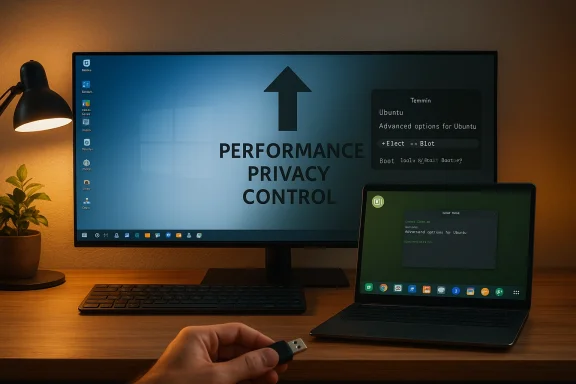
If you’ve been thinking about leaving Windows — whether because of rising system requirements, worries about telemetry, or simply a desire for more control — you’re not alone. The conversation about moving from Windows to Linux has gone mainstream: modern Linux distributions now offer polished, user-friendly desktops, substantial gains in performance on older hardware, and a mature gaming story thanks to compatibility layers. But the switch is neither trivial nor universally smooth. This feature explains what you gain, what you’ll give up, and how to make the transition with the fewest surprises.
Linux is not a single product but a family of operating systems built on the Linux kernel and packaged as distributions (“distros”). Over the last decade the ecosystem has broadened: some distributions aim for newcomers and mimic Windows familiarity, others prioritize privacy and minimalism, and some are tuned for developers, creatives, or gamers. Meanwhile, Windows has tightened hardware-security requirements, added deeper cloud- and AI-driven features, and increased background services — changes that push many users to evaluate alternatives.
The important context for this decision includes three converging trends:
Key takeaway: Power users get near-complete control; casual users can still enjoy polished, "it just works" distros.
Source: Guiding Tech Considering Moving From Windows to Linux? Pros, Cons & Guide
 Background
Linux is not a single product but a family of operating systems built on the Linux kernel and packaged as distributions (“distros”). Over the last decade the ecosystem has broadened: some distributions aim for newcomers and mimic Windows familiarity, others prioritize privacy and minimalism, and some are tuned for developers, creatives, or gamers. Meanwhile, Windows has tightened hardware-security requirements, added deeper cloud- and AI-driven features, and increased background services — changes that push many users to evaluate alternatives.The important context for this decision includes three converging trends:
- Windows 11’s tighter hardware and security baseline (TPM 2.0, UEFI Secure Boot expectations, and minimum RAM/storage guidance) that has left older devices effectively unsupported for an in-place upgrade.
- Significant improvements in Linux application availability, document compatibility tools, and developer tooling that reduce the friction for day-to-day productivity.
- Rapid progress in Linux gaming via Valve’s Proton and Steam Play, which makes many Windows games runnable on Linux — albeit with important caveats around anti-cheat and some modern titles.
Why people switch: the core benefits
1. Faster on older hardware and fewer background drains
One of the most immediate wins many people see after switching is responsiveness. Lightweight desktop environments and minimal background services can dramatically reduce RAM and CPU waste. For older machines that choke under Windows updates and modern background agents, a carefully chosen Linux distro can feel like a brand-new laptop.- Linux’s lean defaults and alternative desktop environments (LXQt, Xfce, Sway, etc.) use far less memory than full-featured Windows desktops configured with many background services.
- On some modern hardware, Linux drivers and Vulkan graphics stacks can even outperform Windows in certain workloads, particularly on AMD platforms — but results vary by driver maturity and the specific GPU.
2. More control and privacy
Linux gives you far greater visibility and control over what runs on your machine. There’s no single vendor enforcing telemetry or mandatory cloud sync in the same way consumer editions of Windows do.- Most distros let you opt into or out of services, and open-source software lets you audit or at least inspect behaviours.
- You can choose update frequency, repositories, and whether to run cloud integrations at all.
3. Cost, licensing, and free software alternatives
Most Linux distributions are free, and the ecosystem is rich with free/open-source alternatives to common Windows apps.- Office: LibreOffice, OnlyOffice and web-based suites provide broad compatibility.
- Creative and media tools: GIMP, Inkscape, Blender, Audacity, and Kdenlive cover many tasks.
- Development: native toolchains, package managers, and container tech (Docker, Podman) are first-class on Linux.
4. Flexibility and customization
From light window managers to full-featured DEs, Linux lets you shape the OS to your workflow. Want a system that boots to a terminal and launches applications via hotkeys? Done. Want a polished, macOS-like look or a Windows-like taskbar? Also possible.Key takeaway: Power users get near-complete control; casual users can still enjoy polished, "it just works" distros.
Why people hesitate: the real costs and tradeoffs
1. Application compatibility (and Microsoft Office realities)
Not every Windows application runs on Linux. That’s the single biggest friction point for many potential migrants.- Microsoft Office: full desktop Office (native Windows builds) does not have an official native Linux binary. The practical options are using Microsoft 365 web apps in a browser, running Office in a virtual machine, or attempting Wine/PlayOnLinux and other compatibility layers — each approach has tradeoffs for macros, offline features, and integration.
- Specialized professional software (Adobe Creative Cloud apps, many engineering suites, certain proprietary accounting or lab software) often lack robust Linux equivalents or reliable compatibility workarounds.
2. Gaming caveats: big strides, but pitfalls remain
Linux gaming has improved dramatically. Valve’s Proton and an active community (ProtonDB) now make many Windows titles playable with minimal fuss. That said, there are crucial exceptions:- Anti-cheat systems and kernel-level protections are the main blocker for some online titles. While many anti-cheat vendors have implemented user-space or compatibility solutions, support is inconsistent and game developers must enable it.
- New AAA titles occasionally ship with anti-cheat or DRM that refuses to run under compatibility layers.
- Nvidia driver support and features like ray tracing may lag behind Windows releases in some scenarios.
3. Hardware and driver edge-cases
Most consumer hardware has workable Linux drivers, but exceptions exist:- Some Wi‑Fi, fingerprint readers, and newer GPUs (or laptop-specific power management) may have imperfect support until manufacturers provide proper Linux drivers or the community reverse-engineers them.
- Nvidia’s proprietary drivers have historically required extra effort; AMD’s open-source driver stack has become competitive and, in some cases, faster on Linux.
- Motherboard utilities, firmware update tools, and vendor-supplied management software are often Windows-only.
4. Learning curve and support model
Linux isn’t Microsoft: you don’t call a single vendor support line. The tradeoff for openness is community-driven, distributed support.- Many distros provide polished GUI tools and documentation, but you’ll still need to learn package managers (apt, dnf, pacman), logs, and occasional command-line repair.
- For users comfortable following forums and documentation, the community makes good support. For those who rely on vendor phone support, there’s an adjustment.
How to decide: a practical assessment checklist
Before you commit, answer the following:- Do I have Windows-only apps I cannot replace, virtualize, or run in compatibility layers?
- Do I need to run anti-cheat multiplayer titles that historically block Linux users?
- Is my hardware still under manufacturer support for firmware/driver updates on Windows only?
- Am I comfortable using web apps (e.g., Microsoft 365 web) where native apps are unavailable?
- Will I accept a learning curve for more control and potentially better performance?
A step-by-step migration guide (safe, practical, repeatable)
Below is a pragmatic plan for trying or switching to Linux. Follow it in order.1. Preparation and backup
- Back up everything. Full disk image backups and file backups are non-negotiable. Use external drives or cloud storage and verify restoreability.
- Make a list of critical apps and functionality you need (e.g., Photoshop, QuickBooks, VPN client).
- Export browser bookmarks, email settings, and any licensing keys you might need.
2. Test in a virtual machine or live USB
- Try a Linux distribution in a virtual machine (VirtualBox, VMware, or Hyper-V) to get a feel for the desktop and apps.
- Alternatively, boot a live USB to test hardware compatibility (Wi‑Fi, display, touchpad) without changing disks.
3. Choose a distribution (distro) — conservative recommendations
If you’re coming from Windows, start with user-friendly distros that ease the transition:- Linux Mint — very familiar for Windows users, strong multimedia and driver support.
- Zorin OS — interface options that mimic Windows, aimed at newcomers.
- elementary OS — polished, macOS-like aesthetic for users who want a clean desktop.
- Ubuntu / Pop!_OS — large community, frequent hardware support, and good for both general users and gamers.
- For old hardware: Lubuntu, Xubuntu, MX Linux, or Puppy Linux.
4. Create bootable media safely
- Use a reliable USB authoring tool (recommended options include Rufus on Windows, balenaEtcher, or Ventoy).
- Verify ISO checksums when available to ensure you downloaded an uncorrupted image.
- Use at least an 8 GB USB drive for modern images.
5. Decide installation approach: dual-boot, replace, or virtualize
- Dual‑boot keeps Windows intact and is ideal for gradual migration.
- Full replacement simplifies the system and avoids bootloader complexity if you’re ready to leave Windows.
- Virtualize Windows (VM) inside Linux for occasional Windows‑only apps.
6. Install, step-by-step
- Boot from your USB installer and choose “Try” first if available; test hardware.
- When ready, run the installer. For a dual‑boot: choose “Install alongside” or "Something else" to manually create partitions.
- Typical partition scheme for beginners:
- / (root) — 25–40 GB min
- swap or swapfile — same as RAM for hibernation, else 2–8 GB
- /home — remaining space for user files (optional but convenient)
- Install the bootloader (GRUB) to the default disk. On UEFI systems, ensure installer detects EFI.
- Reboot and verify you can boot Windows and Linux.
7. Post-install essentials
- Update the system immediately through the distro’s update tool or package manager.
- Install proprietary drivers where appropriate (Nvidia proprietary driver, Broadcom Wi‑Fi firmware) via the Driver Manager or relevant package.
- Install codecs, fonts, and extras (media codecs, MS core fonts if needed).
- Set up Flatpak or Snap if you want sandboxed application delivery and a wide app catalog.
- Create snapshots or set up Timeshift for system restore points.
- Configure firewall (ufw/gufw) and enable automatic security updates if you prefer.
8. Replace or map your apps
- Office: test LibreOffice with your real documents. Use Microsoft 365 web apps for edge cases.
- Creative suites: test alternatives (GIMP, Krita, Inkscape) and keep a VM or secondary Windows machine for Adobe-only workflows.
- Development: install your IDEs (many vendors support Linux natively), configure Docker, and set up SSH keys.
- Gaming: install Steam, enable Proton (Steam Play), and check ProtonDB for the games you own. Install anti-cheat runtimes offered via Steam if required.
9. Handling Windows‑only edge cases
- Virtual machine with hardware passthrough (for performance-sensitive apps or games).
- Wine/Proton for lightweight Windows apps that run well in compatibility layers.
- Cloud or remote Windows machine for rare tasks that absolutely require native Windows.
Gaming: what to verify before you switch
- Check each game on ProtonDB and Steam compatibility tools.
- Confirm whether the game uses kernel-level anti-cheat or recognizable modern anti-cheat systems; if so, expect additional hurdles.
- For competitive multiplayer, confirm whether the developer explicitly supports Linux/Proton or has announced workarounds.
- If GPU performance matters, test with your exact GPU (Nvidia vs AMD) — driver differences can change frame-rates and feature availability.
Document compatibility: realistic expectations
- LibreOffice can open and save DOCX/XLSX/PPTX files and has improved import/export significantly, but complex formatting, macros, and advanced Excel features (Power Query, heavy VBA) may not translate perfectly.
- For collaborative, heavily Microsoft-integrated environments (Teams, SharePoint, macros tied to enterprise flows), using Microsoft 365 web apps or a Windows VM will give the most reliable results.
- Many government and enterprise migrations that move to LibreOffice emphasize templates, retraining, and governance to avoid file fidelity issues.
Security and update model differences
- Linux distributions vary: some (rolling releases) push frequent updates, while LTS releases prioritize stability. Choose based on your appetite for change.
- Linux’s open-source nature means vulnerabilities are discoverable and patchable in public; distributions and package maintainers are responsible for updates.
- Consider enabling automatic security updates for critical packages and subscribing to distro security mailing lists if you run critical systems.
Troubleshooting quick wins
- Nothing boots after install: boot a live USB and use tools (Boot Repair, efibootmgr) to reinstall or fix GRUB.
- Wi‑Fi missing: check firmware packages and dmesg logs; Broadcom chipsets often need vendor firmware packages.
- Display or high-DPI issues: try “safe graphics” boot options, update GPU drivers, or switch desktop environments to see if the problem resolves.
- Audio problems: PulseAudio/ PipeWire configuration and per-app settings often fix routing issues; check output device and mute states.
Risks and the honest tradeoffs
- Compatibility risk: Some indispensable Windows-only applications may not run acceptably in Linux, even with workarounds.
- Time cost: Expect a non-trivial time investment up front to test, learn, and customize. The payoff is control, but the road isn’t zero-effort.
- Vendor support gap: If you need vendor-certified support contracts or manufacturer utilities, Linux may not be covered.
- Security complacency: Linux is not inherently immune to misconfiguration, weak passwords, or bad third-party packages. Maintain hygiene.
A recommended migration timeline (practical cadence)
- Week 0 — Inventory and backup: identify required apps, license keys, and back up everything.
- Week 1 — Test: boot live USB, spin up a VM, evaluate driver support and basic apps.
- Week 2 — Pilot: dual-boot on a secondary machine or a non-essential partition; configure essential apps and workflows.
- Weeks 3–6 — Parallel use: keep Windows for mission-critical tasks, migrate email, browser, and document workflows to Linux incrementally.
- Month 2 onward — Full switch or continued dual-boot: once confidence and tooling are in place, decide whether to remove Windows or keep it as a VM fallback.
Final verdict: who should switch today
- Switch now if you’re a tech-savvy user who values privacy, control, and performance on older hardware and you can tolerate or work around a few Windows-only gaps.
- Test thoroughly if you’re a gamer: many titles are playable, but anti-cheat and a handful of publishers remain blockers.
- Delay or plan a staged migration if your job relies on proprietary Windows-only tools, tight Office automation with macros, or vendor support workflows tied to Windows.
Source: Guiding Tech Considering Moving From Windows to Linux? Pros, Cons & Guide
