

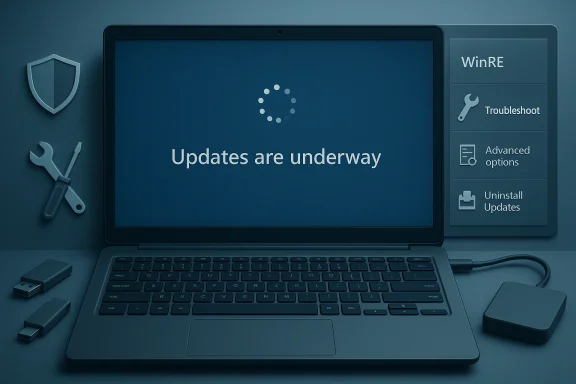
If your Windows PC is stuck on the black screen that reads “Updates are underway. Please keep your computer on.” and nothing changes for hours, this is almost always a solvable problem — but it’s one that benefits from methodical troubleshooting and an understanding of what Windows is trying (and sometimes failing) to do behind the scenes.
Windows performs update installation in several stages: download, pre-install preparation, offline installation (a rebooted phase), and finalization. Small monthly patches typically complete fast, but large feature or cumulative updates can take much longer. Microsoft’s own telemetry and analysis show devices often need a minimum of two continuous connected hours and sometimes multiple hours (up to six or more) to download and apply updates reliably; enterprise reporting has even referenced eight-hour windows to guarantee successful servicing across edge cases.
That said, when the update progress percentage hasn’t changed for 2+ hours, the spinning progress indicator has stopped, or the screen looks entirely frozen, the update process is likely stalled and needs intervention. The community-tested steps below combine the quick fixes published in popular troubleshooting guides with Microsoft’s recovery tooling and measured safety precautions. Community troubleshooting threads and Microsoft guidance also back the approach of a staged response: try a forced restart when the system is truly frozen, then escalate to Windows Recovery Environment (WinRE) tools and repair utilities if the restart doesn’t recover the system.
The combination of Microsoft’s recovery tools and community-tested cleanup steps resolves the vast majority of stuck-update cases, and the procedures above give you the safest, most reliable path back to a working system.
Source: HowToiSolve Windows Stuck on “Updates Are Underway”? Fix It in Minutes
 Background / Overview
Windows performs update installation in several stages: download, pre-install preparation, offline installation (a rebooted phase), and finalization. Small monthly patches typically complete fast, but large feature or cumulative updates can take much longer. Microsoft’s own telemetry and analysis show devices often need a minimum of two continuous connected hours and sometimes multiple hours (up to six or more) to download and apply updates reliably; enterprise reporting has even referenced eight-hour windows to guarantee successful servicing across edge cases.That said, when the update progress percentage hasn’t changed for 2+ hours, the spinning progress indicator has stopped, or the screen looks entirely frozen, the update process is likely stalled and needs intervention. The community-tested steps below combine the quick fixes published in popular troubleshooting guides with Microsoft’s recovery tooling and measured safety precautions. Community troubleshooting threads and Microsoft guidance also back the approach of a staged response: try a forced restart when the system is truly frozen, then escalate to Windows Recovery Environment (WinRE) tools and repair utilities if the restart doesn’t recover the system.
Quick diagnosis: When to wait and when to act
- Normal small updates: 5–30 minutes on modern hardware.
- Major feature updates: 30–90 minutes is common on many systems, but can be longer depending on CPU, disk, and network. Microsoft data and subsequent reporting show some devices may need several connected hours to finish updates. Do not panic if a large update is slow, but do look for signs of activity.
- The percentage hasn’t changed for 2+ hours, and
- The loading spinner is completely stopped, and
- Disk activity LED (if present) is idle for an extended time.
Immediate fix (when truly frozen): Forced restart — safe if nothing is moving
If the update is clearly frozen for hours, a forced shutdown and restart is the right first step.- Disconnect all external devices
- Remove USB drives, SD cards, external hard drives, printers, docking stations and other peripherals. External storage or odd drivers can block update finalization. Community troubleshooting frequently highlights external devices as culprits.
- Force shutdown
- Press and hold the machine’s Power button for 10–15 seconds until it fully powers off. Wait 30 seconds, then press Power again to turn the system back on.
- Scenario A — Windows recovers automatically: you may see “Undoing changes” or “Working on updates,” followed by return to the desktop. This indicates Windows detected the failed operation and repaired the update state.
- Scenario B — The update loop returns: if the PC boots back to the same frozen “Updates are underway” screen or immediately re-enters Automatic Repair, you need to use advanced recovery options (WinRE). Community threads and repair guides use this exact fallback approach.
Advanced fix: Use Windows Recovery Environment (WinRE)
If a regular restart fails, use WinRE to remove the broken update or restore the system. WinRE is built into Windows and triggers automatically after multiple failed boots, or you can force it with the power-cycle technique.How to trigger WinRE (three forced shutdowns method)
- Turn the PC on. When the manufacturer logo or Windows logo appears, hold the Power button until it shuts off.
- Repeat that power on → power off cycle twice more.
- On the next start, Windows will detect repeated failure and boot into Automatic Repair; choose Advanced options → Troubleshoot → Advanced options. Microsoft documents this behavior and the WinRE toolset.
In WinRE: Uninstall the problem update
- Choose Troubleshoot → Advanced options → Uninstall Updates.
- First try Uninstall latest quality update. If that fails: Uninstall latest feature update.
- These options attempt to remove the update package that caused the boot or install failure without wiping personal data. This approach is recommended both in community guides and Microsoft’s Automatic Repair guidance.
If uninstalling updates doesn’t help: System Restore
- From Advanced options, select System Restore and pick a restore point created before the update started. System Restore rolls the OS back to an earlier state and is commonly successful when update files or drivers created instability.
When WinRE tools are unusable
Real-world incidents have shown that WinRE itself can be affected by buggy updates (for example, issues that disabled USB input inside WinRE), so if the recovery environment is non-responsive to keyboard/mouse input you may need a vendor-specific recovery image or a USB recovery drive to continue. Be aware of this (and update WinRE when you can) — Microsoft and outlets have documented emergency fixes for such WinRE regressions.Repair steps once you regain the desktop (prevent recurrence)
After recovery, run the following repair tools and housekeeping steps immediately to repair system files and stop the update from failing again.1) Run Windows Update Troubleshooter
- Settings > System > Troubleshoot > Other troubleshooters > Windows Update.
This automated tool can fix common Windows Update service issues.
2) Repair system image and system files: DISM and SFC
Run an elevated Command Prompt (Admin) and execute these two commands in order:- DISM (fix the component store):
- dism /online /cleanup-image /restorehealth
DISM repairs the Windows image and component store; if it fails with “source files could not be found,” supply a repair source (mounted ISO or network WIM) as Microsoft documents. - SFC (repair protected system files):
- sfc /scannow
SFC scans and attempts to repair protected Windows system files. Microsoft’s command reference covers the behavior and parameters.
3) Reset Windows Update components and clear the SoftwareDistribution cache
If updates keep failing, clear the Windows Update cache:- Open Command Prompt (Admin) and stop update services:
- net stop wuauserv
- net stop bits
- Delete or rename the SoftwareDistribution folder:
- Navigate to C:\Windows\SoftwareDistribution and delete its contents (or rename the folder to SoftwareDistribution.old). Microsoft Q&A and community documentation describe this as the standard troubleshooting step.
- Restart the services:
- net start wuauserv
- net start bits
4) Use the Windows Update reset script (if you prefer automation)
There are official and community-maintained scripts that stop update services, rename SoftwareDistribution and catroot2, reregister DLLs, and restart services. Use these with caution and only from reputable sources or Microsoft’s documented Reset Windows Update components guidance.Step-by-step recovery checklist (concise, reproducible)
- Confirm the system is truly frozen (spinner stopped, no disk activity) and wait 2+ hours for feature updates or 30–90 minutes for smaller ones. If still frozen, proceed.
- Disconnect external devices (USB, docking station, external drives).
- Hold the Power button 10–15 seconds to force shutdown. Wait 30 seconds, then power on.
- If Windows shows “Undoing changes” and boots normally, let it finish.
- If it returns to the same frozen screen, power-cycle into WinRE (3 forced shutdowns).
- In WinRE: Troubleshoot → Advanced options → Uninstall Updates → try quality then feature update removal.
- If uninstall fails: Troubleshoot → Advanced options → System Restore → choose a restore point.
- Once back in Windows, run Windows Update Troubleshooter, then run DISM and SFC.
- If updates still fail, stop update services and clear SoftwareDistribution contents, then restart services.
Live example (realistic scenario)
A Windows 11 laptop starts an overnight feature update. In the morning the screen reads “Updates are underway” and progress is stuck at 35% for three hours with no disk activity. The user:- Removes a plugged-in USB flash drive (common interference).
- Force-shuts down and reboots. Windows displays “Undoing changes” and boots back to the desktop 10 minutes later. This indicates the update files were corrupted and the system rolled back safely.
- On the desktop, the user runs DISM then SFC, and finally clears SoftwareDistribution before attempting Update again. The next update run completes normally.
Why Windows updates freeze (common root causes)
- Corrupted update files — incomplete or corrupted downloads in the SoftwareDistribution cache.
- External devices and drivers — certain USB devices and third‑party drivers can block update finalization.
- Interrupted power — sudden power loss during an install step can leave the system in a bad state.
- Low disk space — not enough free space for staging and component installation.
- System file corruption — broken OS files that prevent successful servicing; DISM/SFC address this.
- Servicing baseline mismatches — rare cases where servicing stack or branch mismatches require an in-place repair or updated ISO. Community threads document using a matching ISO as a DISM source.
Risks, caveats and when to get professional help
- Risk of corruption after forced restart — small but real. That’s why you should only force power-off when progress has clearly stopped for an extended time. If you depend on the machine for critical work and have minimal recovery experience, consider contacting your organization’s IT team or an experienced technician.
- WinRE broken by an update — certain updates in the past have disabled USB input inside WinRE or otherwise disrupted recovery tooling; in these cases you may need a vendor recovery drive, PS/2 keyboard, or recovery media. Check for any known advisories if WinRE is unresponsive.
- If hardware is failing — repeated update failures, failing SFC/DISM runs, and frequent boot errors may indicate an underlying disk or memory issue. Run chkdsk and hardware diagnostics; if errors persist, have the drive/PC inspected. Community threads repeatedly show disk faults manifesting as update loops.
- When to choose in-place repair — if repeated recovery steps don’t fix the problem, performing an in-place repair (repair install using a matching Windows ISO) will refresh Windows system files while keeping apps and data. This is a durable fix for servicing baseline mismatches and severe component-store corruption. Community reports show in-place repair as the definitive remedy when SFC/DISM/Reset didn’t work.
Preventive measures (do these right away)
After you recover a system, take these actions to reduce future risk:- Keep at least 20% of your system drive free when possible; updates need staging space.
- Make regular full-system backups or at least system image backups. If an update bricks the machine, a recent image speeds recovery.
- Run Windows Update regularly so large feature jumps are less frequent. Microsoft telemetry shows devices that remain connected for updates regularly install more reliably.
- Ensure device drivers and firmware (BIOS/UEFI) are current before big feature updates. Driver conflicts are a common cause of stalled updates.
- If you manage many devices, use Update Connectivity policies and keep devices connected long enough for background download and servicing (Microsoft guidance shows several connected hours can be required).
What we verified and why you can trust these steps
- The procedures above combine Microsoft’s documented WinRE, DISM and SFC behavior with widespread community-proven techniques (clearing SoftwareDistribution, uninstalling the last offending update via WinRE, using System Restore, and in-place repair). Microsoft’s official documentation describes WinRE entry points and tools, and SFC/DISM behavior; community threads corroborate the reliability and sequencing of the commands.
- Timing guidance is based on Microsoft’s reported Update Connectivity findings and independent reporting that summarized Microsoft telemetry, which is why we recommend patience for long downloads but intervention when progress stalls for hours.
- Community threads and long-running forums show the same patterns: stop external devices, force reboot only when stalled for hours, use WinRE to uninstall updates or restore, then run DISM and SFC and clear SoftwareDistribution if update errors persist. Those community reports match Microsoft’s documented recovery flow.
Conclusion
A Windows machine stuck on “Updates are underway” is frustrating, but it’s usually fixable without losing data. Use a staged approach: wait for slow but observable progress, disconnect peripherals and force-restart if the system is frozen for hours, and escalate to WinRE if the restart does not help. After recovery, immediately run DISM and SFC and clear the Windows Update cache to prevent repeat failures. If problems continue — or if WinRE itself is unresponsive — the situation may require an in-place repair or vendor recovery media.The combination of Microsoft’s recovery tools and community-tested cleanup steps resolves the vast majority of stuck-update cases, and the procedures above give you the safest, most reliable path back to a working system.
Source: HowToiSolve Windows Stuck on “Updates Are Underway”? Fix It in Minutes
