

Windows X‑Lite 11 promises to be a performance‑first, lightweight spin of Windows 11 aimed at reviving older PCs and gaming rigs, but beneath the marketing copy lie important trade‑offs in security, legality, and long‑term support that every user should understand before they install a third‑party build.
Windows X‑Lite appears in the same ecosystem as community projects such as Tiny11 and Nano11 — third‑party approaches that take an official Windows 11 ISO, remove or disable large swaths of inbox components and services, apply higher compression, and optionally relax setup checks so the OS can be installed on older or unsupported hardware. These projects are built around the same technical building blocks (DISM offline servicing, compression modes, and unattended/OOBE tweaks) and share both the advantages and the risks of community‑modified images. Microsoft itself published stricter hardware guidance through recent Windows 11 updates (notably 24H2 and later), adding instruction‑set checks (SSE4.2/POPCNT) and tightening install‑time gating; the company also makes clear that PCs which do not meet the stated Windows 11 system requirements “aren’t guaranteed to receive updates.” That context is critical because many “lite” images advertise bypassing those checks to run modern Windows on older silicon. The particular Red Hot Cyber write‑up that circulated around this release summarizes Windows X‑Lite 11 as a Windows 11 26H1‑based custom ISO that ships in multiple trims (Optimum, Micro, Ultralight) and advertises features such as preinstalled .NET Framework 3.5, optional Windows Defender, Intel RST driver integration, WSL2/WSA compatibility, and the ability to bypass TPM/Secure Boot/RAM/CPU checks and forced Microsoft Account creation during setup. Those are standard claims for the class of builds, but each claim needs verification or a careful caveat — which this article provides. (Where a claim is not independently verifiable, it’s called out explicitly below.
Source: Red Hot Cyber Windows X-Lite 11: Optimize Your Old PC with This Lightweight Version
 Background / Overview
Windows X‑Lite appears in the same ecosystem as community projects such as Tiny11 and Nano11 — third‑party approaches that take an official Windows 11 ISO, remove or disable large swaths of inbox components and services, apply higher compression, and optionally relax setup checks so the OS can be installed on older or unsupported hardware. These projects are built around the same technical building blocks (DISM offline servicing, compression modes, and unattended/OOBE tweaks) and share both the advantages and the risks of community‑modified images. Microsoft itself published stricter hardware guidance through recent Windows 11 updates (notably 24H2 and later), adding instruction‑set checks (SSE4.2/POPCNT) and tightening install‑time gating; the company also makes clear that PCs which do not meet the stated Windows 11 system requirements “aren’t guaranteed to receive updates.” That context is critical because many “lite” images advertise bypassing those checks to run modern Windows on older silicon. The particular Red Hot Cyber write‑up that circulated around this release summarizes Windows X‑Lite 11 as a Windows 11 26H1‑based custom ISO that ships in multiple trims (Optimum, Micro, Ultralight) and advertises features such as preinstalled .NET Framework 3.5, optional Windows Defender, Intel RST driver integration, WSL2/WSA compatibility, and the ability to bypass TPM/Secure Boot/RAM/CPU checks and forced Microsoft Account creation during setup. Those are standard claims for the class of builds, but each claim needs verification or a careful caveat — which this article provides. (Where a claim is not independently verifiable, it’s called out explicitly below.What Windows X‑Lite 11 Says it Does
Editions and target audiences
- Optimum — Presented as the balanced, daily‑driver option: keeps compatibility and updateability while trimming nonessential components.
- Micro — A more aggressive trim for very old PCs or constrained VMs: removes many services and optional features to reduce RAM/disk use.
- Ultralight — The most extreme profile: intended for testing, single‑purpose appliances, or very low‑resource VMs; likely non‑serviceable and unsuitable for regular, connected desktops.
Key features claimed in the announcement
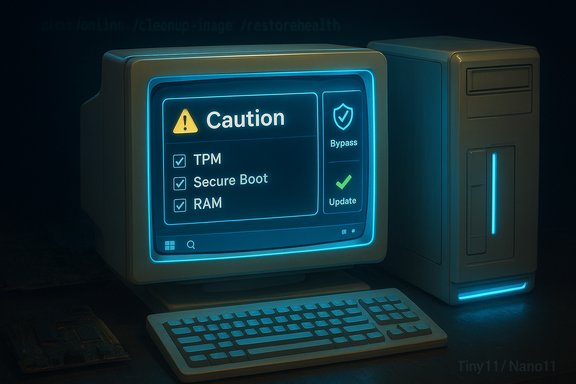
- Bypasses or relaxes TPM, Secure Boot, CPU, RAM and storage checks during setup.
- Skips forced Microsoft Account creation during OOBE and allows local accounts.
- .NET Framework 3.5 preinstalled; Intel RST drivers integrated.
- Optional Windows Defender and no preinstalled UWP apps in the Optimum profile.
- Support for UWP apps, Xbox/MS Store, WSA and WSL2 claimed (Optimum).
- Rounded corners, acrylic and Mica UI elements enabled by default; transparency optional.
How these builds bypass Microsoft’s checks (technical primer)
There are two widely used, auditable techniques builders and helper tools use to install Windows on hardware Microsoft’s default Setup would block:- LabConfig / registry flags set during setup or embedded in an unattended AnswerFile: small registry DWORDs (BypassTPMCheck, BypassSecureBootCheck, BypassCPUCheck, BypassRAMCheck) instruct Setup to ignore particular pre‑flight checks. This is a setup‑time bypass — it doesn’t add hardware features, it simply tells Setup to continue.
- Server / alternate setup routing: invoking a Windows Server installation path or emulating it, which historically enforces fewer consumer checks. Tools like FlyOOBE and the wider community tooling make this route easier and more repeatable. These approaches are not kernel exploits — they’re orchestration changes — and they’re brittle in the sense that Microsoft can or has changed Setup logic across releases.
Performance and footprint: what to expect
Builders achieve dramatic size and memory reductions via two vectors:- Surgical removals: uninstalling inbox UWP apps (Xbox, OneDrive, Mail, News, Clipchamp, Copilot plumbing, and many scheduled telemetry tasks) and disabling background services that consume RAM.
- Higher compression: using DISM’s recovery/LZX compression modes when rebuilding the install.wim to shrink the ISO and installed footprint.
- Optimum builds: measurable gains in responsiveness with retained updateability — good for older but still reasonably capable PCs.
- Micro / Ultralight / Core builds: maximum footprint reduction but with potential missing drivers, broken recovery paths, and disabled Windows Update — suitable only for isolated VMs, kiosks, or lab testing.
Security, updateability, and practical risks
Update behavior and security updates
Microsoft explicitly warns that devices that do not meet Windows 11 minimum requirements may not be guaranteed to receive updates, including security updates. Modified images that remove the servicing stack or Windows Update components may also be non‑serviceable, meaning cumulative updates and security patches will not apply normally. Running one of these builds on an internet‑connected primary machine increases exposure to vulnerabilities.Windows Defender and other protections
Many ultra‑aggressive builds make removal of Windows Defender optional or include an option to disable it. Removing or disabling endpoint protection reduces attack surface complexity but increases risk if the machine is connected to hostile networks. If Defender is absent, compensate with a trusted, actively supported third‑party security stack or isolate the device from the internet.Supply‑chain and image trust
Downloading a prebuilt third‑party ISO from unknown mirrors is a higher risk than building your own image from an official Microsoft ISO using a public builder script. Community experts and the tool maintainers repeatedly recommend downloading the builder code and creating the image locally from Microsoft’s official media to minimize tampering risk. Validate checksums and inspect the scripts when possible.Driver, DRM and app compatibility
Removing platform components (WinSxS, certain runtime packages) can break drivers, DRM, platform features, or apps that expect full servicing. Some gaming features and third‑party anti‑cheat or DRM components rely on standard Windows subsystems and will fail on overly trimmed images — a crucial point for gamers who are a target audience for Windows X‑Lite. Test before committing to bare‑metal.Legal and licensing considerations
- Using a modified Windows image does not give you a license. You must still own a valid Windows license (retail/OEM/volume) to lawfully activate Windows after installation. Removing components or repackaging an ISO does not change Microsoft’s licensing terms.
- Redistributing prebuilt modified Microsoft binaries or ISOs may violate Microsoft’s license and product‑use terms. Creating a custom image for your own devices is a different legal posture than publicly sharing a prebuilt, modified ISO. For enterprises, volume licensing programs provide supported mechanisms for building and deploying customized images; for individuals, redistribution is risky. Independent legal nuance articles and community guidance emphasize that personal builds are commonly tolerated while redistribution can create exposure.
- Microsoft’s official position about unsupported hardware is firm: installs that bypass requirements are unsupported and may not receive updates; warranty and support obligations from OEMs may be affected if you run nonstandard, unsupported configurations.
Practical recommendations — how to proceed safely if you’re curious
- Build locally from official media. Download the official Windows 11 ISO from Microsoft and, if possible, use well‑documented builder scripts (or tools you trust) to produce a trimmed image locally. This reduces supply‑chain risk.
- Test in a VM first. Deploy the image to a virtual machine and validate boot, network, your critical apps, drivers, and update behavior before touching a production device.
- Preserve activation and backup. Export your product key or confirm your digital license, create full disk backups (Macrium, built‑in images), and have a recovery USB on hand.
- Prefer Optimum/serviceable profiles for daily drivers. If you need an always‑online, secure workstation, use the balanced profile that preserves the servicing stack and Defender where possible. Reserve Micro/Ultralight/core images for offline, single‑purpose, or disposable VMs.
- Verify checksums and scan ISOs before use. If you must download a prebuilt image, validate its hash against a trusted source and perform a malware scan before mounting or running it.
- Isolate risky devices. If you run a non‑serviceable image, consider network isolation, limited browsing, or strictly offline usage to reduce exposure. Run alternative patching strategies where possible.
Alternatives and comparable projects
- Tiny11 / tiny11builder (NTDEV) — A popular open PowerShell builder that produces both serviceable and core images; widely used and actively maintained on GitHub. It is transparent (scripts available) and recommended to be used with an official ISO.
- Nano11 — An experimental, extremely aggressive compressor/builder aimed at tiny VM images; not intended for everyday use. Independent reporting shows nano builds can produce extremely small ISOs, but these are non‑serviceable and highly specialized.
- Rufus extended install feature — Rufus’ “remove requirements” toggles let you create installers that bypass TPM/Secure Boot checks at setup time; this is a simpler route for installing official media on unsupported devices without using a prebuilt modified ISO. It’s an alternative for users who want to keep an official image but relax installer checks.
- Lightweight Linux distributions — For many older machines that cannot reliably run modern Windows builds, distributions such as Lubuntu, Linux Mint (XFCE), Zorin Lite, and others deliver security updates and reasonable performance without the legal or servicing trade‑offs of modified Windows images. Consider them if you can move away from Windows‑only apps or use virtualization for legacy titles.
Final assessment — who should consider Windows X‑Lite 11?
- Suitable for enthusiasts, refurbishers, technicians and lab operators who understand the trade‑offs, can build or verify images locally, and accept the responsibility for security and updates. For these users, Windows X‑Lite (and peers like Tiny11) can extend usable life for older hardware and save disk/RAM resources in targeted deployments.
- Not suitable for non‑technical everyday users or production machines that handle sensitive data, because of update uncertainty, potential security gaps if Defender/updates are disabled, and legal/licensing grey areas if prebuilt images are redistributed or used without valid, verified licensing. Claims of “100% security” or similar marketing superlatives are unverified and should be treated skeptically.
- Businesses and managed environments should avoid unofficial builds for primary endpoints. Volume licensing and Microsoft provisioning tools provide supported ways to customize images and remain in compliance with licensing and update pathways.
Conclusion
Windows X‑Lite 11 sits at the intersection of a legitimate user need (reviving older hardware and trimming unnecessary background work) and the perennial community trade‑offs of trust, updateability, and legal clarity. The core engineering techniques it relies on are well understood, transparent, and widely used by the enthusiast community; independent projects like Tiny11 and Nano11 show the same strengths and the same hazards. If you choose to use a lightweight third‑party Windows build, do so deliberately: build from official media when possible, test in a VM, retain backups and license keys, and prefer the balanced, serviceable profile for anything that will remain connected to the internet or host important data. Claims about absolute security or universal compatibility should be treated as marketing rhetoric unless backed by independent audits — and those audits are rarely, if ever, provided with community ISOs.Source: Red Hot Cyber Windows X-Lite 11: Optimize Your Old PC with This Lightweight Version
