

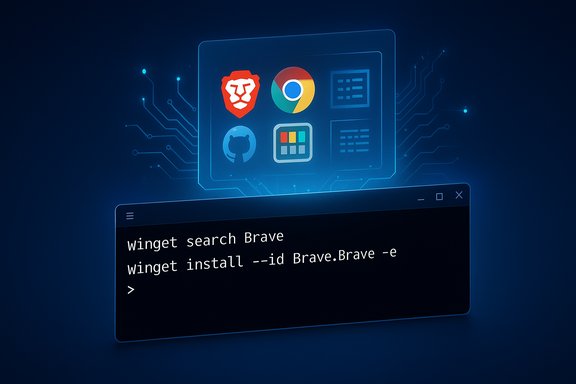
Windows has had a secret many enthusiasts already know: the Windows Terminal isn’t just a shell host — it’s a gateway to a built‑in, scriptable app store powered by the Windows Package Manager, aka WinGet, that lets you search for, install, update and remove apps with a few typed commands. The result is a fast, reproducible way to manage software on single machines or across fleets — but it carries important caveats, governance questions and a little command‑line learning curve before it pays off.
Background / Overview
WinGet is Microsoft’s official command‑line package manager for Windows. It ships as part of the App Installer package and exposes a client that talks to configured sources: the community‑maintained WinGet repository and the Microsoft Store source. The tool mirrors what Linux users have long taken for granted with apt, dnf or pacman — discover, install, upgrade, remove — but tailored for Windows installers and manifests. The mainstream press and enthusiast sites began calling WinGet a “hidden app store” because the primary interface is the terminal rather than a GUI storefront. That framing is accurate in spirit: once you open Windows Terminal (or PowerShell or Command Prompt) and learn a handful of commands, WinGet becomes a single, centralized channel for installing and updating many desktop apps. A recent explainer that walked through the common commands is representative of how many users first encounter the feature.This feature article walks through what WinGet does, how to use it safely and productively, the mechanics behind its package repository, real‑world examples you can copy and paste, and the risks and policy controls IT pros should consider before adopting it widely.
What WinGet is and where it comes from
The official client and repository model
WinGet is the command‑line client for the Windows Package Manager. The client is open source and maintained by Microsoft on GitHub; the public package repository is also a community project hosted in the winget‑pkgs repository where contributors submit package manifests for verification and inclusion. The client can be updated via the Microsoft Store (App Installer) or directly from GitHub releases for development builds. Key facts:- The client is delivered as part of the App Installer system component on modern Windows releases. If App Installer is missing, installing it from the Microsoft Store is the supported path.
- The default sources are the winget community repository and msstore (Microsoft Store). Administrators can add private sources or change policies that affect which sources are available.
- Manifests live in the winget‑pkgs GitHub repository; contributors submit pull requests, and an automated validation pipeline plus manual review process evaluates submissions before packages become discoverable.
Why Microsoft built it
Microsoft’s explicit goal with WinGet was to bring a modern, scriptable package management experience to Windows that supports automation, reproducible installs, and an auditable package pipeline for both consumer and enterprise scenarios. The repository/manifest model enables publishers and community contributors to describe installers, supported installer arguments, icons, and metadata so a single command can reproduce a deterministic install.The essentials: commands every Windows user should learn
Below are the commands that make WinGet practical for everyday use, along with concrete examples you can run in Windows Terminal.1) Discovering packages: winget search
Use winget search <term> to find packages in configured sources. The command returns package names, IDs, monikers and available versions so you can pick the correct package identifier for scripted installs.Example:
winget search Brave
2) Installing: winget install
Install by ID, moniker or name. For deterministic automation include --id or -e/--exact to require an exact match.Examples:
winget install --id Brave.Brave(exact ID install)winget install --exact Google.Chromeorwinget install --id Google.Chromedepending on the package ID you found.
3) Listing installed apps: winget list
To view installed software, winget list displays installed packages and their versions. You can also get a filtered view of only packages with upgrades available using winget list --upgrade-available. This is often faster than clicking through Settings → Apps. 4) Upgrading: winget upgrade
To check for updates, run winget upgrade. The command without arguments lists apps with updates; to apply updates:- Upgrade a single app:
winget upgrade --id Microsoft.PowerToys - Upgrade all apps at once:
winget upgrade --all
--include-unknown are used. 5) Uninstalling: winget uninstall
Remove packages with winget uninstall. Use the ID or name shown by winget list:Example:
winget uninstall --id Google.Chromeorwinget uninstall Google.Chromedepending on how the package appears.
6) Export / Import: winget export and winget import
One of Winget’s most practical features for provisioning new machines is the ability to export a JSON catalog of currently installed packages and subsequently import that catalog to reinstall those packages on another machine:- Export the list from the old system:
winget export -o E:\winget.json
- Copy
winget.jsonto the new PC and import:winget import -i G:\winget.json
Practical examples and patterns
A. Set up a new PC quickly (scriptable workflow)
- Generate a JSON app list from an existing machine:
winget export -o C:\Users\You\Desktop\winget.json
- Save the file to a thumb drive or cloud storage.
- On the new PC, install App Installer (if needed), then:
winget import -i C:\path\to\winget.json
winget.json to maintain a standard workstation baseline. B. Batch upgrades in maintenance windows
- For a single machine:
winget upgrade --all - In automation scripts (e.g., scheduled task): run
winget upgrade --alland capture output to logs. Add--accept-source-agreementsand--accept-package-agreementsto avoid interactive prompts in fully automated scenarios where agreements are expected.
C. Silent installs and scripting tips
- Where manifests already include silent flags, WinGet will use them. For custom behavior, you can wrap
winget installin PowerShell scripts that provide error handling, logging, retry logic, and post‑install validation (checking file exists, service started, registry keys, etc.. Always test scripts in a disposable VM before using in production.
What WinGet does — and what it doesn’t guarantee
Many writeups claim WinGet “never installs bundled toolbars or adware.” That’s an oversimplification and must be qualified.- Accurate: WinGet installs the package the manifest points to. The manifest describes the official installer URL and (when present) any silent install arguments. The repository validation process reduces the chance of malicious manifests reaching the index.
- Not guaranteed: WinGet cannot magically strip third‑party offers the upstream installer presents. If a packaged installer bundles an extra offer and the manifest does not include a documented silent flag that disables the offer, an interactive dialog or bundled software could still be installed. That means WinGet reduces but does not eliminate the need for vigilance — especially for obscure packages or ones that wrap vendor installers in an .exe that includes opt‑ins. Where silent flags are known and used in the manifest, the install will be cleaner; where they’re not, extra prompts may appear. This nuance is why automation still requires testing and why IT teams validate the manifest before mass deployment.
The repository and how packages get in
WinGet’s community repository (winget‑pkgs) is a GitHub project where contributors submit manifests. The manifest process includes automatic validation and occasionally manual review before a package becomes available to the public source. Publishers can also maintain their own manifests or suggest changes; Microsoft reserves the right to refuse submissions. This open model balances community scale with validation gates. Implications:- Popular apps are generally available, but not every niche or very new app will be in the default winget source immediately.
- Organizations that need curated catalogs should consider hosting a private source (a REST endpoint) and controlling the manifest set distributed to internal machines. The client supports configuring additional sources.
Security, governance and enterprise concerns
Supply‑chain and trust model
WinGet’s open repository and validation pipeline mitigate but do not eliminate supply‑chain risks. Community contributions require automated checks and (in some cases) human review, but attackers could try to introduce malicious manifests. Organizations with strict supply‑chain needs should either:- Operate a private, auditable Winget source; or
- Restrict WinGet to only approved manifests and disable community sources via policy.
winget --info to inspect client configuration and apply organizational policy accordingly. Auditability and automation
WinGet outputs logs and can be integrated into automation pipelines. For enterprise provisioning, combine WinGet with configuration management tools (SCCM/Intune/ARM templates, or PowerShell DSC) and ensure all installs are logged and monitored. Test every manifest that will be used in automated installs to confirm silent behavior and exit codes.Compliance and EDR concerns
Some EDR tools and compliance scans will flag installer activity or blocked outbound calls. Test WinGet flows under endpoint protection policies before broad rollout because large-scale automated installs can trigger throttling, blocks, or alerts.UI options and alternatives
Not everyone wants the command line. There are several GUI front‑ends and helper projects that wrap WinGet’s functionality in a more approachable interface. Examples include the community GUI projects originally known as WingetUI / UniGetUI, which provide searchable GUI catalogs, batch installs and update management. These are third‑party projects — useful for non‑CLI users but not officially part of Microsoft’s client. Use them with the usual caution for third‑party apps. Alternatives to WinGet:- Chocolatey — long‑established package manager for Windows (different trust model).
- Scoop — lightweight, perimeter‑limited package manager focused on developer tools.
- Ninite — GUI one‑click pack builder that downloads installers and runs them silently (commercial and open variants).
Troubleshooting & tips
- If
wingetis not found: ensure App Installer is installed and updated from the Microsoft Store, and verify you’re on a supported Windows build (WinGet requires modern Windows 10/11 builds; checkwinget --infofor client details). - Ambiguous installs: use
--idand--exact(-e) to guarantee you get the package you expect. - Avoid surprises in automation: use
--accept-source-agreementsand--accept-package-agreementsin scripts to prevent interactive prompts blocking unattended runs — but only after reviewing those agreements. - Test manifests in an isolated environment (VM or Sandbox) before rolling them into fleet automation to validate silent flags and exit behavior.
- Use
winget list --upgrade-availableto quickly identify apps that WinGet knows how to update.
Strengths and notable benefits
- Speed and reproducibility: A single JSON file plus WinGet scripts lets you recreate a workstation in minutes compared to manual downloads.
- Integration with Microsoft ecosystem: The client understands Microsoft Store packages and community manifests, reducing the need for separate tools.
- Automation‑friendly: Good fit for scripted provisioning, build agents, and task automation where deterministic installs matter.
- Open, auditable manifests: Since manifests are stored in a Git repository, you can review what will be installed and automate validations before deployment.
Risks, limitations and when to be cautious
- Not a silver bullet against bundled offers: WinGet reduces friction but cannot universally remove opt‑ins that exist in upstream installers; automation still requires testing. (This is a key caveat often glossed over in consumer guides.
- Repository coverage varies: Niche or brand‑new apps may not exist in the default repository. In those cases you must add sources, use publisher‑provided manifests, or install manually.
- Policy and audit needs for enterprise: Without controls (private sources or policy), unregulated use of WinGet can create inconsistent environments across an organization.
- Third‑party GUI front‑ends: They make WinGet approachable but add a dependency you must trust and maintain separately.
Quick reference — useful commands
winget search <term>— find packages.winget install --id <Package.Id> -e— install exact package.winget list— list installed packages.winget list --upgrade-available— list only apps with updates.winget upgrade --all— upgrade everything the client can.winget uninstall <package>— remove a package.winget export -o <path>\winget.json— export installed apps to JSON.winget import -i <path>\winget.json— import and install from JSON.
Final assessment: where WinGet fits in your toolkit
WinGet is the right tool when you value speed, reproducibility and automation for application management on Windows. It’s especially powerful for enthusiasts, power users, and IT teams that want a deterministic path to build or refresh machines.For casual users who are uncomfortable with the terminal, the rise of third‑party GUIs and improvements in the Microsoft Store multi‑app web experience give non‑CLI alternatives. For enterprises, WinGet should be evaluated as part of a broader provisioning strategy that includes private sources, manifest review processes, and policy enforcement.
The promise is real: fewer clicks, easier updates, and repeatable installs. The reality requires attention: test manifests, validate silent flags, and put governance around sources before you let WinGet’s convenience run unchecked across every desktop.
Practical starting steps for readers:
- Open Windows Terminal and run
winget --infoto confirm the client is present. - Try
winget search <your-preferred-app>andwinget install --id <ID> -ein a test VM. - Export an app list from a machine you like (
winget export) and import it into a virtual machine to see the end‑to‑end workflow.
Source: How-To Geek There’s a hidden app store built into the Windows Terminal—here’s how to use it
