
Winhance’s latest release lands at exactly the moment many Windows users are looking for a cleaner way to push back against Microsoft’s ever-expanding AI surfaces. Version 26.04.17 adds new AI Privacy groups for Windows AI, Microsoft Edge AI, and Microsoft Office AI, plus controls for AI taskbar pins, AI app removal, and AI service and scheduled task toggles. For anyone who wants a more traditional, less chatty desktop, this is one of the most aggressive one-click-style attempts yet to strip out or neutralize AI across the Microsoft stack s has spent the last several release cycles moving from a general-purpose desktop toward a platform layered with assistants, cloud-connected intelligence, and “helpful” content that is not always welcome. Microsoft’s own product strategy has increasingly tied Windows, Edge, and Microsoft 365 together through Copilot, AI actions, contextual search, and browser-integrated writing and shopping features. That direction has also sharpened a countertrend: power users, IT admins, and privacy-conscious consumers want fewer prompts, fewer pinned surfaces, and fewer background services that appear to be learning from their behavior rather than simply serving it.
Winhance sits squarely in that countertrend. It is an open-source Windows enhancement utility aimed at debloating, optimizing, and customizing Windows 10 and 11 without forcing users into registry archaeology or brittle scripts. The project has matured into a broad control panel for privacy, performance, personalization, update behavior, installer automation, and software management, and the latest release extends that philosophy directly into the AI debate. The tool now offers dedicated controls for AI-related features in the operating system, browser, and productivity suite, which is a meaningful shift from generic privacy toggles to category-specific AI suppression
The release also arrives with broader polish that matters because debloat tools live or die by trust. Winhance 26.04.17 includes a modernized badge system, a revamped technical details panel, bug fixes for startup hangs and removal behavior, and better handling for binary registry values and inverted-policy settings. In other words, this is not just a grab-bag of anti-AI switches; it is an attempt to make the entire app feel more transparent, more understandable, and less likely to break things behind the user’s back
That framing matters because the debate is no longer AI features exist. It is about whether users can easily understand what those features do, how they are activated, and whether they can be disabled without collateral damage. Winhance’s new release positions itself as a practical answer to that question, especially for users who want to keep Windows and Office but reduce their exposure to the AI-first parts of the Microsoft ecosystem
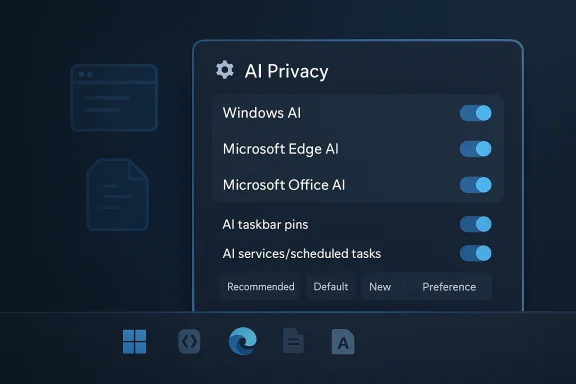
The headline change in this release is the new AI Privacy grouping. Winhance now separates controls for Windows AI, Edge AI, and Office AI, which is a smart organizational move because those products expose very different kinds of intelligence and telemetry. A single “disable AI” checkbox would be too blunt to be useful, but a structured set of categories gives users a chance to tailor their stance to the parts of Microsoft’s ecosystem they actually use
It also introduces a Smart App Control selector with Off, On, and Evaluation modes, alongside VBS and Memory Integrit Security. Those are not strictly AI features, but they matter because modern Windows security and AI storylines are increasingly intertwined. Winhance is clearly treating the AI stack as part of a broader operating-system posture, not as an isolated novelty layer
A few additions are more niche but still important. The release includes a Disable WebView2 in Windows Search toggle, a Legacy Notepad file handows 11, and a Classic auto-login option in netplwiz. Individually, these do not shout “AI killer,” but together they reinforce Winhance’s core pitch: give users back control over the shell, the default app pathways, and the components Microsoft keeps tying to newer experiences
That matters for both consumers and administrators. Consumers usually want immediate visual relief: no pinned AI icons, no prompt-heavy side panels, and fewer “helpful” suggestions. Admins, meanwhile, care about reducing background noise and minimizing helpdesk tickets caused by features that users neither asked for nor understand. In that sense, the AI grouping is not just a convenience; it is a governance feature dressed up as a settings panel
Winhance’s new AI service and scheduled task toggles suggest a more serious attempt than simple UI hiding. Background tasks are often what make AI features feel persistent, even after users think they have switched them off. By surfacing those toggles in a debloating utility, Winhance gives advanced users a clearer shot at suppressing not just the iconography but the underlying execution paths
The release also adds AI app removal entries, which is significant because some of Microsoft’s newer AI experiences are delivered as first-party apps or app-like surfaces rather than as standalone shell features. Users may not want to surgically disable every registry path if a supported removal path is miliar tool. That is especially attractive for system builders and enthusiasts who repeatedly reconfigure Windows across multiple machines
There is also a deeper operational issue. Windows AI is becoming more tightly integrated with platform services, and that means disabling it piecemeal can be messy. A tool that exposes the likely dependencies and current state of each setting can save hours of troubleshooting, especially when administrators are trying to establish a standard desktopvamped technical details panel is therefore as important as the toggles themselves, because it makes the consequences more visible before the change is applied
Winhance’s broader browser-related tweaks reinforce that strategy. The release notes mention improved Edge removal behavior, including a fix for a broken MSEdgeHTM registry key and a better protocol redirect to avoid broken file associations. It also fixes Xbox Game Bar removal so the ms-gamebar protocol no longer nudges users toward reinstalling it from the Store. Those details matter because they show the projec components without leaving the shell in a half-broken state
The browser angle also intersects with the new Disable WebView2 in Windows Search toggle. WebView2 is a Microsoft runtime used all over the modern Windows stack, so a switch that affects it can have wider implications than its label suggests. That is both a strength and a cautionary point: it offers leverage over browser-linked features, but users need to understand the trade-offs before turning it off
Office users, especially in business environments, are not just rejecting novelty. They are trying to protect workflow predictability and document confidentiality. A document editor that quietly layers in AI assistance may be useful in some scenarios, but in others it introduces governance questions about what gets sent to the cloud, what is inferred from user text, and what content suggestions are being generated behind the scenes
Winhance’s Office AI category is therefore valuable because it recognizes th its own treatment. Microsoft 365 is not the same thing as Windows Search, and it is not the same thing as Edge. By isolating Office-related AI controls, Winhance lets users adopt a more selective posture: keep the apps, reduce the assistant layer, and preserve a more conventional editing environment
This matters even more for organizations that standardize around Office but have mixed tolerance for cloud AI. Some departments will welcome drafting assistance and summarization tools. Others, particularly legal, finance, HR, and regulated sectors, may prefer to avoid them entirely. A structured control system makes it easier to define policy at the desktop level rather than relying solely on user training or post-install audits
Still, local control is often enough. Many users simply want to reduce exposure to AI-assisted features they never enabled in the first place. In that respect, Winhance is filling a real gap between Microsoft’s defaulteference for restraint. That gap is likely to persist as long as Microsoft keeps making AI feel like part of the normal desktop rather than an optional add-on
The addition of a Preference badge is especially thoughtful. Not every setting has a single universal best choice. Regional formats, theme selections, sound preferences, and gaming options are often subjective or locale-dependent, so marking them as “recommended” can imply a false consensus. By settings from objectively advisable ones, Winhance makes the interface feel more honest
The new NEW badge and the automatic reset on version upgrade also help returning users spot changes after an update. That matters because debloat tools tend to accrete options over time, and it is easy to miss newly added controls. Visual change tracking reduces the risk that users will unknowidditions or misunderstand what has changed since their last launch
The bulk actions are also useful. Users can apply all recommended settings or reset all settings to defaults in one click. That gives Winhance a more administrative feel, which will appeal to users managing multiple machines or repeatedly rebuilding Windows installs. A tool that can both explain and batch-execute is far more useful than one that merely lists switches
The new Smart App Control, VBS, and Memory Integrity toggles give users easier access to security posture choices that are often discussed but not always visible in one place. Winhance also adds a Driver Co-Installers toggle to block vendor bloatware during device installation, which is likely to resonate with anyone who hoftware creep back onto a clean system after a driver update
The release adds a Connected Devices Platform Service toggle and a SvcHost split threshold setting, both of which reflect an interest in the plumbing beneath the UI. These options are not glamorous, but they matter for power users who want to tune background behavior and service composition. The same is true of the improved touch keyboard service controls and the new Tapi Service registry setting
Winhance also adds a **Per-Monitor Auto Color Mana selectable DNS provider dropdown. Together, those changes show the project is trying to help users fine-tune both visual behavior and network behavior from one interface. That breadth is one of the strongest arguments for using Winhance instead of a patchwork of scripts and registry edits
It also adds toggles for Show All System Tray Icons, Show Duplicate Removable Drives in the navigation pane, and classic Notepad file handling in Wthe kinds of shell details that shape the everyday feel of a machine. They may be minor individually, but collectively they reinforce Winhance’s value as a desktop-shaping tool rather than a one-trick privacy app
That is especially relevant in a world where Windows increasingly ships with promotional surfaces, app reinstallation prompts, and cloud-connected features that may not survive a single policy document alone. WIMUtil gives Winhance a waytion to prevention. That is a significant distinction, because preventing unwanted features from landing in the first place is usually safer than cleaning them up later
The app’s improved technical details panel supports this workflow by showing PowerShell scripts, registry content, current and default AC/DC power values, scheduled task default state, and setting dependencies. This is the sort of transparency deployment engineers appreciate. If a feature is going to be baked into an image, they need to know what it actually does, not just what the label says
That said, the software’s non-destructive and reversible posture remains one of its strongest attributes. Winhance is not pitching itself as a nuclear option. It is trying to be a disciplined, explainable way to build and maall that behaves the way the owner wants. That is a notable philosophical difference from the kind of aggressive debloat scripts that users have historically relied on in frustration
What to watch next:
Source: Neowin Fully disable AI features in Windows, Edge, and Office in latest Winhance release
Winhance sits squarely in that countertrend. It is an open-source Windows enhancement utility aimed at debloating, optimizing, and customizing Windows 10 and 11 without forcing users into registry archaeology or brittle scripts. The project has matured into a broad control panel for privacy, performance, personalization, update behavior, installer automation, and software management, and the latest release extends that philosophy directly into the AI debate. The tool now offers dedicated controls for AI-related features in the operating system, browser, and productivity suite, which is a meaningful shift from generic privacy toggles to category-specific AI suppression
The release also arrives with broader polish that matters because debloat tools live or die by trust. Winhance 26.04.17 includes a modernized badge system, a revamped technical details panel, bug fixes for startup hangs and removal behavior, and better handling for binary registry values and inverted-policy settings. In other words, this is not just a grab-bag of anti-AI switches; it is an attempt to make the entire app feel more transparent, more understandable, and less likely to break things behind the user’s back
That framing matters because the debate is no longer AI features exist. It is about whether users can easily understand what those features do, how they are activated, and whether they can be disabled without collateral damage. Winhance’s new release positions itself as a practical answer to that question, especially for users who want to keep Windows and Office but reduce their exposure to the AI-first parts of the Microsoft ecosystem
 What Winhance Adds in 26.04.17
The headline change in this release is the new AI Privacy grouping. Winhance now separates controls for Windows AI, Edge AI, and Office AI, which is a smart organizational move because those products expose very different kinds of intelligence and telemetry. A single “disable AI” checkbox would be too blunt to be useful, but a structured set of categories gives users a chance to tailor their stance to the parts of Microsoft’s ecosystem they actually useThe new AI controls
The new release adds several layers of control, and the practical value is in theany one switch. The app now includes AI taskbar pin toggles, AI app removal entries, and AI service/scheduled task controls in the Gaming & Performance section. That means users can address visible shortcuts, installed applications, and background execution paths in one place instead of chasing every surface individuallyIt also introduces a Smart App Control selector with Off, On, and Evaluation modes, alongside VBS and Memory Integrit Security. Those are not strictly AI features, but they matter because modern Windows security and AI storylines are increasingly intertwined. Winhance is clearly treating the AI stack as part of a broader operating-system posture, not as an isolated novelty layer
A few additions are more niche but still important. The release includes a Disable WebView2 in Windows Search toggle, a Legacy Notepad file handows 11, and a Classic auto-login option in netplwiz. Individually, these do not shout “AI killer,” but together they reinforce Winhance’s core pitch: give users back control over the shell, the default app pathways, and the components Microsoft keeps tying to newer experiences
Why the categorization matters
The distinction between Windows AI, Edge AI, and Office AI is more than cosmetic. It reflects a reality that Microsoft hatelligence features as one monolithic switch. Instead, AI now appears in the taskbar, browser toolbar, writing aids, search flows, file-handling surfaces, and productivity panels. Winhance is effectively mirroring that fragmentation so users can turn off what they do not want without having to uninstall major apps entirelyThat matters for both consumers and administrators. Consumers usually want immediate visual relief: no pinned AI icons, no prompt-heavy side panels, and fewer “helpful” suggestions. Admins, meanwhile, care about reducing background noise and minimizing helpdesk tickets caused by features that users neither asked for nor understand. In that sense, the AI grouping is not just a convenience; it is a governance feature dressed up as a settings panel
Windows AI: From Convenience to Control Surface
Microsoft has been steadily expanding AI across Windows itself, especially in the areas of search, context actions, and productivity shortcuts. Recent Windows 11 builfold AI into the shell in ways that are easy to miss until they are hard to remove. That has made the operating system feel more opinionated, especially on newer devices where Copilot-era features are wired into the experience from the outsetWhy users want a Windows AI off-switch
For many users, the problem is not that AI exists; it is that it often arrives as part of the default experience. If Windows Search starts surfacing AI-driven answers, if taskbar elements are pinned by default, or if background tasks keep running on behalf of intelligence features, the desktop begins to feel less like a neutral tool and more like a live service. That shift is what Winhance is responding to with its new controlsWinhance’s new AI service and scheduled task toggles suggest a more serious attempt than simple UI hiding. Background tasks are often what make AI features feel persistent, even after users think they have switched them off. By surfacing those toggles in a debloating utility, Winhance gives advanced users a clearer shot at suppressing not just the iconography but the underlying execution paths
The release also adds AI app removal entries, which is significant because some of Microsoft’s newer AI experiences are delivered as first-party apps or app-like surfaces rather than as standalone shell features. Users may not want to surgically disable every registry path if a supported removal path is miliar tool. That is especially attractive for system builders and enthusiasts who repeatedly reconfigure Windows across multiple machines
The enterprise angle
Enterprise administrators tend to look at AI features through a different lens. They worry about process consistency, compliance, user support, and whether “smart” features produce more confusion than value in managed environments. Winhance’s approach will appeal to that crowd because it groups changes,learly, and allows bulk operations such as applying all recommended settings or resetting all settings to defaults in one clickThere is also a deeper operational issue. Windows AI is becoming more tightly integrated with platform services, and that means disabling it piecemeal can be messy. A tool that exposes the likely dependencies and current state of each setting can save hours of troubleshooting, especially when administrators are trying to establish a standard desktopvamped technical details panel is therefore as important as the toggles themselves, because it makes the consequences more visible before the change is applied
Edge AI: Taming the Browser Layer
Microsoft Edge has become a major delivery channel for AI-assisted features, from writing and rewriting tools to browser-side copilots and context features. Microsoft’s own product cadence has shown that the browser is no longer just a renderer; it is an intelligence layer, an identity layer, and a data-collection surface all aw Edge AI controls are therefore one of the more consequential parts of the releaseWhat changes in practice
The obvious appeal is the ability to reduce browser clutter. If you do not want AI buttons, prompts, or assistant workflows inside Edge, the combination of AI privacy groups, AI taskbar pin controls, and app removal options gives you a more complete way to quiet the browser. That is especially important because browser AI features are often distributed across toolbar icons, side panels, compose menus, and context actions rather than tucked into a single obvious switchWinhance’s broader browser-related tweaks reinforce that strategy. The release notes mention improved Edge removal behavior, including a fix for a broken MSEdgeHTM registry key and a better protocol redirect to avoid broken file associations. It also fixes Xbox Game Bar removal so the ms-gamebar protocol no longer nudges users toward reinstalling it from the Store. Those details matter because they show the projec components without leaving the shell in a half-broken state
The browser angle also intersects with the new Disable WebView2 in Windows Search toggle. WebView2 is a Microsoft runtime used all over the modern Windows stack, so a switch that affects it can have wider implications than its label suggests. That is both a strength and a cautionary point: it offers leverage over browser-linked features, but users need to understand the trade-offs before turning it off
Why Edge is the toughest AI suughest AI surface to “disable” because so many of its features are layered into other Microsoft services. Microsoft can move some functions behind policies, shift others into connected services, or rename features without changing the basic user expectation that Edge is now an AI-enabled browser. Winhance cannot change Microsoft’s product strategy, but it can reduce the amount of that strategy exposed on a usakes Winhance useful for people who want to keep Edge installed for compatibility while refusing its AI layer. This is a practical distinction. Most users do not need to uninstall Edge; they need the browser to stop shouting, prompting, and pinning. Winhance’s model is to turn that down as much as possible without requiring a full browser migration
Office AI: The Productivity Suite Gets a Privacy Boundary
Microsoft Office and Microsoft 365 have evolved into AI-rich productivity suites where generative features, writing aids, and cloud-connected intelligence are increasingly default-adjacent. That creates a subtle problem: Office is often the place where users feel safest, yet it is also where document behavior, usage telemetry, and cloud integration can be most sensitive. Winhance’s new Microsoft Office AI privacy group acknowledges that reality fice users careOffice users, especially in business environments, are not just rejecting novelty. They are trying to protect workflow predictability and document confidentiality. A document editor that quietly layers in AI assistance may be useful in some scenarios, but in others it introduces governance questions about what gets sent to the cloud, what is inferred from user text, and what content suggestions are being generated behind the scenes
Winhance’s Office AI category is therefore valuable because it recognizes th its own treatment. Microsoft 365 is not the same thing as Windows Search, and it is not the same thing as Edge. By isolating Office-related AI controls, Winhance lets users adopt a more selective posture: keep the apps, reduce the assistant layer, and preserve a more conventional editing environment
This matters even more for organizations that standardize around Office but have mixed tolerance for cloud AI. Some departments will welcome drafting assistance and summarization tools. Others, particularly legal, finance, HR, and regulated sectors, may prefer to avoid them entirely. A structured control system makes it easier to define policy at the desktop level rather than relying solely on user training or post-install audits
The practical limitations
Of course, no third-party utility can guarantee a permanent or universal “off” state for all current and future Microsoft 365 AIcan and does move capabilities between app layers, service back ends, and policy-controlled rollout channels. That means Winhance should be viewed as a strong local control point, not a magical future-proof overrideStill, local control is often enough. Many users simply want to reduce exposure to AI-assisted features they never enabled in the first place. In that respect, Winhance is filling a real gap between Microsoft’s defaulteference for restraint. That gap is likely to persist as long as Microsoft keeps making AI feel like part of the normal desktop rather than an optional add-on
UI, Badge System, and Usability Improvements
A debloating utility can have all the right switches and still be frustrating if it is hard to read, hard to trust, or hard to interpret at scale. Winhance 26.04.17 devotes real attm with its new InfoBadge system, its reworked technical details panel, and its revised menus. These changes may sound cosmetic, but for a power tool, usability is often the difference between confidence and hesitationWhat the new badges do
The app replaces older dot indicators with pill-style badges labeled Recommended, Default, New, and Preference. That sounds small, but it helps users instantly understand why a setting is highlighted without reading a wall of text. It also allows multiple badges side by side, which is useful when a setting is both newly added and recommendedThe addition of a Preference badge is especially thoughtful. Not every setting has a single universal best choice. Regional formats, theme selections, sound preferences, and gaming options are often subjective or locale-dependent, so marking them as “recommended” can imply a false consensus. By settings from objectively advisable ones, Winhance makes the interface feel more honest
The new NEW badge and the automatic reset on version upgrade also help returning users spot changes after an update. That matters because debloat tools tend to accrete options over time, and it is easy to miss newly added controls. Visual change tracking reduces the risk that users will unknowidditions or misunderstand what has changed since their last launch
Menus and bulk actions
Winhance now adds View and Quick Actions dropdowns on the Optimize and Customize pages, replacing the older technical-details toggle. That may not sound dramatic, but it is a better fit for how people actually use these tools: they scan sections, choose broad actions, and then inspect details only when somarThe bulk actions are also useful. Users can apply all recommended settings or reset all settings to defaults in one click. That gives Winhance a more administrative feel, which will appeal to users managing multiple machines or repeatedly rebuilding Windows installs. A tool that can both explain and batch-execute is far more useful than one that merely lists switches
Syster Tweaks Beyond AI
One reason Winhance remains relevant is that it does not pretend AI is the only thing users care about. The latest release broadens the utility’s value with a large set of non-AI controls that still matter deeply to Windows enthusiasts and IT pros. Those touches help the app remain a system-wide customization suite rather than a single-issue antiecurity and stability settingsThe new Smart App Control, VBS, and Memory Integrity toggles give users easier access to security posture choices that are often discussed but not always visible in one place. Winhance also adds a Driver Co-Installers toggle to block vendor bloatware during device installation, which is likely to resonate with anyone who hoftware creep back onto a clean system after a driver update
The release adds a Connected Devices Platform Service toggle and a SvcHost split threshold setting, both of which reflect an interest in the plumbing beneath the UI. These options are not glamorous, but they matter for power users who want to tune background behavior and service composition. The same is true of the improved touch keyboard service controls and the new Tapi Service registry setting
Performance and display
Performance-oriented users will notice the MPO disable and minimum frame rate settings, plus tweaks such as mouse hover time and taskbar auto-hide hover delay. These are the kinds of settings that can make a desktop feel snappier or more consistent, especially on multi-monitor systems or gaming rigs where small latency annoyances become obvious quicklyWinhance also adds a **Per-Monitor Auto Color Mana selectable DNS provider dropdown. Together, those changes show the project is trying to help users fine-tune both visual behavior and network behavior from one interface. That breadth is one of the strongest arguments for using Winhance instead of a patchwork of scripts and registry edits
Context-menu and shell refinements
The release adds several context-menu actions, including Compress To, ter prompt, SFC /SCANNOW, Repair Windows Image, and Edit/Run PS1. Those are useful not just for convenience but for consistency, since they place common maintenance actions where power users naturally expect them to beIt also adds toggles for Show All System Tray Icons, Show Duplicate Removable Drives in the navigation pane, and classic Notepad file handling in Wthe kinds of shell details that shape the everyday feel of a machine. They may be minor individually, but collectively they reinforce Winhance’s value as a desktop-shaping tool rather than a one-trick privacy app
WIMUtil, Deployment, and Automation
Winhance’s inclusion of WIMUtil is what elevates it from a desktop tweaker to a deployment-friendly to create custom Windows installation ISOs, generate autounattend.xml files, inject drivers, and apply Winhance settings during setup means the app can influence systems before the first interactive desktop even appearsWhy that matters
For enthusiasts, this is a time-saver. For IT teams, it is a repeatability feature. If a configuration is applied during inszation reduces drift, lowers post-install work, and limits the chance that users will spend days discovering and disabling unwanted defaults one by oneThat is especially relevant in a world where Windows increasingly ships with promotional surfaces, app reinstallation prompts, and cloud-connected features that may not survive a single policy document alone. WIMUtil gives Winhance a waytion to prevention. That is a significant distinction, because preventing unwanted features from landing in the first place is usually safer than cleaning them up later
The app’s improved technical details panel supports this workflow by showing PowerShell scripts, registry content, current and default AC/DC power values, scheduled task default state, and setting dependencies. This is the sort of transparency deployment engineers appreciate. If a feature is going to be baked into an image, they need to know what it actually does, not just what the label says
Limits and caution
The obvious caveat is that automation amplifies mistakes as much as it saves time. A poorly tested unattended image can cause more trouble than a manual ecially if hardware, locale, or policy assumptions differ across machines. Winhance’s new UI helps by making more of the logic visible, but responsible deployment still depends on validation and testingThat said, the software’s non-destructive and reversible posture remains one of its strongest attributes. Winhance is not pitching itself as a nuclear option. It is trying to be a disciplined, explainable way to build and maall that behaves the way the owner wants. That is a notable philosophical difference from the kind of aggressive debloat scripts that users have historically relied on in frustration
Strengths and Opportunities
Winhance’s latest release is compelling because it meets a real user demand with unusually broad coverage and a better interface for understanding what is being changed. It is nocrosoft’s AI push; it is creating a practical control layer around it, while still preserving the app’s broader optimization mission.- Category-based AI controls make it easier to target Windows, Edge, and Office separately instead of relying on one vague “disable AI” approach
- Taskbar, app, service, and scheduled-task controls address both visible and background AI surfaces, which increaan shutdown
- The new InfoBadge system improves clarity and makes the app easier to trust during repeated use
- Bulk recommended/default actions reduce time spent on repetitive configuration across multiple PCs
- WIMUtil integration makes Winhance useful for deployment, not just post-install cleanup
- Improved Edge removal behavior suggests the tool is maturing into a safer system-modification utility
- The broader set of security and performance tweaks keeps the app valuable even for users who are not focused on AI suppression
Risks and Concerns
The flip side is that tools like Winhance operate in a rapidly changing environment. Microsoft can redesign features, move them behind different services, or alter policy behavior in ways that reduce the long-term reliability of any third-party control layer.- Microsoft may continue to repackage AI features so that one setting no longer disables the whole experience
- Some toggles may have **sch, browser behavior, or shell integration if users disable supporting components too aggressively
- Enterprise environments may need testing and cadopting the tool at scale, especially where compliance policies apply
- The presence of **security tond Memory Integrity can tempt users to disable protections they do not fully understand
- AI controls may** if Microsoft shifts features from local apps into cloud-connected services or rolling web experiences
- Aggressive debloating can create maintenance debt, especially if users later need to restore a removed component for work or e more Winhance does, the more it must remain stable, explainable, and reversible to keep user confidence intact
Lookinge of the Windows AI debate will not be about whether Microsoft adds more intelligence features. That part is already settled. The real question is whether users and administrators can still define a clean, predictable, low-noise Windows environment when those features keep spreading across the shell, browser, and office stack. Winhance is betting that they can, provided the tools are clear enough and the controls are granular enough.
That bet makes sense because the pressure behind AI integration is not going away. Microsoft has too much strategic momentum tied to Copilot,d Microsoft 365 intelligence to slow down for users who prefer a quieter desktop. So the market opportunity for utilities like Winhance is likelyy among users who are comfortable with open-source tools and want to manage their machines more deliberatelyWhat to watch next:
- Whether AI Privacy categories as Microsoft adds more AI surfaces
- Whether Microsoft changes policy or registry behavior in ways that reduce the effectiveness of current toggles
- How well the new badge system helps returning users spot newly added features
- Whether enterprises begin treating Winhance as a **standardiing and workstation setup
- Whether similar utilities adopt the same granular, category-based approach to AI controls
Source: Neowin Fully disable AI features in Windows, Edge, and Office in latest Winhance release
Last edited:
