

Winhance is the kind of Windows utility that rarely sounds exciting until you actually use it. In a recent hands-on test, the free cleanup and customization tool did exactly what many frustrated Windows 11 users hope a “debloater” will do: it removed clutter, surfaced hidden controls, and made the PC feel a little faster after reboot. That matters because the modern Windows experience often feels like a pile of defaults, prompts, and background services rather than a clean blank slate. Winhance’s appeal is not that it performs magic, but that it lets users take back control in a single place. ws has spent years accumulating inbox apps, promotional surfaces, cloud nudges, and settings that are technically available but practically scattered. That is the context in which tools like Winhance thrive. The frustration is not just about a few unwanted apps; it is about the cumulative weight of defaults that make a clean install feel anything but clean.
Winhance fits into an: when Microsoft exposes a setting in one menu, hides a related control in another, and buries a third behind a registry tweak, users eventually build a third-party layer to make the system more understandable. The tool began life as a PowerShell script and later matured into a desktop app, which is exactly the kind of evolution you would expect when a script becomes too useful to stay a script. That trajectory signals demand for repeatable setup workflows, not one-off tinkering.
The idea is especially attractive to peopls often. Hardware swaps, failed updates, repairs, and fresh image builds all create the same problem: hours spent undoing settings that should probably have been optional from the start. Winhance positions itself as a way to compress that labor into a reusable process, which is far more compelling than yet another “optimize your PC” banner ad.
There is also a broader historical pattern here. Windows users have repeatedly relied on third-party utilities to compensate for gaps between what Microsoft exposes in Settings and what power users actually want to change. Winhance does not try to reinvent the operating system; it tries to surface the controls that already exist, then organize them into something closer to a deployment workflow. That distinction is important because it makes the app feel more like a configuration console than a gimmick.
Microsoft itself has acknowledged the value of some of these underlying behaviors. Storage Sense,lt-in feature that can automatically free up disk space by removing temporary files and Recycle Bin contents, and Windows reserves storage to help updates and maintenance run more predictably. In other words, the ecosystem already contains many of the ideas Winhance packages together; the difference is how accessible and centralized they are.
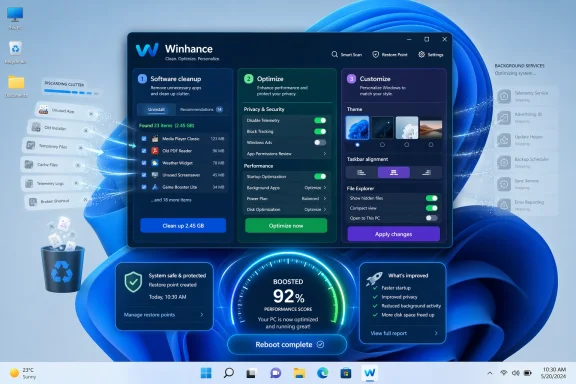
Winhance is best understood as a centralized control panel for three jobs: uninstalling unwanted software, applying performance and privacy tweaks, and customizing the Windows shell. The appeal is not that it invents new capabilities. It is that it gathers a wide range of existing Windows settings into one interface and makes them easier to act on.
The article’s test remoWeather, Skype, Xbox, Sound Recorder, and Clipchamp, while also uninstalling iTunes and adding other apps like Paint.NET, Notepad++, and Zoom. That mix is revealing: Winhance is not just for removing Microsoft clutter, but also for shaping the machine around a user’s actual workflow. The ability to remove and install in the same place makes it feel more like a setup assistant than a cleanup tool.
The app also shows each setting’s current state and, crucially, recommends whether to change it. That recommendation layer is subtle but important because most users do not want a brute-force tweak list; they want guidance. Winhance is trying to reduce uncertainty, not just add checkboxes.
Microsoft’s own documentation shows why this matters. Storage Sense can automate cleanup, Windows Update can include recom and Windows keeps a reserved storage pool to stabilize maintenance operations. In other words, the platform already contains a lot of tuning logic, but Winhance presents it in a form that is easier to navigate and faster to apply.
The article highlights comtching between light and dark mode, aligning the Taskbar to the left, hiding Recommended items, and restoring the classic context menu in File Explorer. Those are exactly the kinds of changes that can make a desktop feel less arbitrary. They are also the kinds of changes users often want to apply repeatedly after each reinstall.
The article’s own advice is measured: do not blindly apply hundreds of changes at once. That is the right instincteatures that are useful only in certain setups, and the wrong combination of tweaks can create odd side effects that are harder to diagnose later.
Microsoft’s own documentation reinforces the need for restraint on system changes. BitLocker, for instance, is a serious security feature with hardware and configuration implications, and Windows Update is tightly coupled to driver and maintenance behavior. Toggling those settings with a tool can be useful, but it can also affect how the system behaves in ways that are not obvious immediately.
There is also an official Windows explanation for why this matters. Storage Sense is designed to autorom temporary files and the Recycle Bin, and Windows reserves storage to keep updates and maintenance predictable. Less disk clutter and fewer startup items can make the system feel smoother, even if the underlying hardware is unchanged.
Microon work underscores the same point. Fast Startup, for example, is a real boot performance feature, but it works by saving system state for faster resume rather than by making the machine intrinsically stronger. Likewise, driver updates and Storage Sense help the platform behave better, but they are refinements, not miracles.
That transparency is useful because many Windows users know they want a more private or less intrusive PC, but they do not want to hunt through every policy and settings page to get there. Winhance reduces friction without fully abstracting away the consequences. That is a better balance than the usual “apply our privacy pack” approach.
The same caution applies to update-related options. Windows Update is not just a patch pipeline; it is tied to driver delivery and long-term platform reliability. Tweaks that affect update cadence or driver behavior may improve short-term comfort, but they can also complicate maintenance later.
Windows has increasingly standardized some of its own interface changes, but not always in a way that power users love. That is why customization utilities keep finding an audience. They give users a way to say, with some precision, “I know what I want this PC to look like.”
Microsoft itself has recently invested in Explorer and shell responsiveness, including startup behavior and folder consistency. That tells you the shell remains one of the most important places to improve perceived quality. If the OS feels smoother there, the whole machine gets a better reputation.
This also matters for support-minded users, because repeatability makes troubleshooting easier. If a machine is configured from a known baseline, it becomes easier to identify what went wrong later. That is a classicon advantage, and it explains why configuration export is more powerful than it sounds.
This kind of tooling is especially attractive in lab, repair, and provisioning scenarios. If you can customize installation media and reduce manual setup prompts, you save time on every machine. That is why IT pros care about unattended setup files: they formalize the procer, and make deployment repeatable.
At the same time, Microsoft is not standing still. Built-in features like Storage Sense, startup improvements, driver management, and shell refinements show that the company knows quality-of-life issues matter. The question is whether Microsoft can make the stock experience quiet and flexible enough that fewer users feel compelled to reach for third-party cleanup.
What to watch next is whether Winhance keeps expanding into a more complete setup platform or remains a niche utility for enthusiasts who want a cleaner desktop. Its future depends on whether users treat it as a one-time debloater or as a reusable configuration system. If the latter wins, it could become one of those quietly indispensable tools that power users install early and forget they ever had to need.
Source: ZDNET I tried this free Windows cleanup tool to see if it'd speed up my PC - and it worked
Winhance fits into an: when Microsoft exposes a setting in one menu, hides a related control in another, and buries a third behind a registry tweak, users eventually build a third-party layer to make the system more understandable. The tool began life as a PowerShell script and later matured into a desktop app, which is exactly the kind of evolution you would expect when a script becomes too useful to stay a script. That trajectory signals demand for repeatable setup workflows, not one-off tinkering.
The idea is especially attractive to peopls often. Hardware swaps, failed updates, repairs, and fresh image builds all create the same problem: hours spent undoing settings that should probably have been optional from the start. Winhance positions itself as a way to compress that labor into a reusable process, which is far more compelling than yet another “optimize your PC” banner ad.
There is also a broader historical pattern here. Windows users have repeatedly relied on third-party utilities to compensate for gaps between what Microsoft exposes in Settings and what power users actually want to change. Winhance does not try to reinvent the operating system; it tries to surface the controls that already exist, then organize them into something closer to a deployment workflow. That distinction is important because it makes the app feel more like a configuration console than a gimmick.
Microsoft itself has acknowledged the value of some of these underlying behaviors. Storage Sense,lt-in feature that can automatically free up disk space by removing temporary files and Recycle Bin contents, and Windows reserves storage to help updates and maintenance run more predictably. In other words, the ecosystem already contains many of the ideas Winhance packages together; the difference is how accessible and centralized they are.
 What Winhance Actually Does
Winhance is best understood as a centralized control panel for three jobs: uninstalling unwanted software, applying performance and privacy tweaks, and customizing the Windows shell. The appeal is not that it invents new capabilities. It is that it gathers a wide range of existing Windows settings into one interface and makes them easier to act on.one view
The Software & Apps section lets users review built-in Windows components and third-party applications side by side. That matters because Windows cleanup is often tedious precisely because it forces users to search across multiple menus, power-user pages, and app-specific uninstallers. Winhance reduces that scavenger hunt to a list.The article’s test remoWeather, Skype, Xbox, Sound Recorder, and Clipchamp, while also uninstalling iTunes and adding other apps like Paint.NET, Notepad++, and Zoom. That mix is revealing: Winhance is not just for removing Microsoft clutter, but also for shaping the machine around a user’s actual workflow. The ability to remove and install in the same place makes it feel more like a setup assistant than a cleanup tool.
- Built-in apps and third-party software appean filter installed and not-installed items.
- Reversible and permanent removals are distinguished clearly.
- The tool supports both removal and addition of software.
- Cleanup runs quickly enough to feel practical for real use.
A cleaner map of Windows settings
The Optimize area is where Wnteresting than a simple uninstaller. It groups settings into categories such as Privacy & Security, Power, Gaming & Performance, Update, Notifications, and Sound, which is a much more human way to think about a PC than the fragmented structure most users encounter in Windows Settings. That organization lowers the mental cost of tuning the system.The app also shows each setting’s current state and, crucially, recommends whether to change it. That recommendation layer is subtle but important because most users do not want a brute-force tweak list; they want guidance. Winhance is trying to reduce uncertainty, not just add checkboxes.
Microsoft’s own documentation shows why this matters. Storage Sense can automate cleanup, Windows Update can include recom and Windows keeps a reserved storage pool to stabilize maintenance operations. In other words, the platform already contains a lot of tuning logic, but Winhance presents it in a form that is easier to navigate and faster to apply.
Customizing the shell
Winhance’s Customize section targets the parts of Windows users see every day: the theme, Taskbar, Start menu, and File Explorer. These are not cosmetic details in the narrow sense. They are the surfaces through which users judge whether Windows feels efficient or annoying.The article highlights comtching between light and dark mode, aligning the Taskbar to the left, hiding Recommended items, and restoring the classic context menu in File Explorer. Those are exactly the kinds of changes that can make a desktop feel less arbitrary. They are also the kinds of changes users often want to apply repeatedly after each reinstall.
- Taskbar alignment changes daily muscle memory.reduces visual noise.
- File Explorer tweaks improve perceived control.
- Theme changes alter the feel of the entire desktop.
- Context menu restoration helps power users move faster.
Installation and Safety
One of the smartest parts of the workguidance. Winhance recommends creating a restore point before making changes, and that is not just polite software behavior; it is essential when a tool is capable of modifying system-level options. A restore point turns experimentation into something that can be rolled back if the result is not what you expected.Why elevation matters
The developer recommends running Winhance as administrator, whichhe app needs elevated access to remove software and change settings that ordinary apps cannot touch. That also means users need to treat it with the same caution they would give any admin-level utility. Convenience is the point, but elevated access is never trivial.The article’s own advice is measured: do not blindly apply hundreds of changes at once. That is the right instincteatures that are useful only in certain setups, and the wrong combination of tweaks can create odd side effects that are harder to diagnose later.
The case for caution
This is where Winhance separates itself from the more aggressive “debloat script” genre. Scripts often promiseon while hiding what they actually alter. Winhance, by contrast, leans on visible categories, labels, and recommended actions, which makes it feel more transparent and less like a black box. That does not eliminate risk, but it lowers the odds of accidental self-sabotage.Microsoft’s own documentation reinforces the need for restraint on system changes. BitLocker, for instance, is a serious security feature with hardware and configuration implications, and Windows Update is tightly coupled to driver and maintenance behavior. Toggling those settings with a tool can be useful, but it can also affect how the system behaves in ways that are not obvious immediately.
- Create a restore point before making changes.
- Use administrator rights only when necessary.
- Change one category first, then test.
- Avoid a “turn everything on” mentality.
- Treat recommendations as guidance, not commandments.
Performance Gains: Real, But Measured
aim is not that Winhance turns a slow PC into a fast one. It says the system felt slightly faster after reboot, and that is exactly the right expectation to have. Cleanup tools can improve responsiveness around the edges, but they cannot fix a weak CPU, too little RAM, or a bad SSD.Where the speedup likely came from
The most plausible improvement came from reducing startup load and freeing storage. The article notes that Storage Sense cleared disk space and that startup time improved after delaying the launch of certain apps. Those are believable gains because startup bloat creates friction that compounds every time the machine boots.There is also an official Windows explanation for why this matters. Storage Sense is designed to autorom temporary files and the Recycle Bin, and Windows reserves storage to keep updates and maintenance predictable. Less disk clutter and fewer startup items can make the system feel smoother, even if the underlying hardware is unchanged.
Limits of optimization
Still, it is worth being honest about the ceiling here. Winhance can trim visible clutter and tune certain behaviors, but it cannot overcome architectural bottlenecks. If the bottleneck is memory pressure, a constrained SSD, or a driver issue, no cleanup front end will conjure extra hardware performance. That is a very different problem from shaving seconds off startup.Microon work underscores the same point. Fast Startup, for example, is a real boot performance feature, but it works by saving system state for faster resume rather than by making the machine intrinsically stronger. Likewise, driver updates and Storage Sense help the platform behave better, but they are refinements, not miracles.
- Faster startup apps can improve the first minute of use.
- Storage cleanup can reclaim breathing room.
- Small gains matter more on older or midrange PCs.
- Major bottlenecks require hardware or driver fixes.
- Perceived speed often matters as much as benchmark speed.
Privacy, Security, and System Control
Winhance’s privacy and security section is one of the reasons it feels more useful than a plain uninstaller. It lets users line up settings that are normally spread across separate Windows pages and see them in context. That is a meaningful improvement because privacy is often a category of small decisions that u once and review later.The appeal of visible recommendations
The tool can recommend actions such as enabling BitLocker, turning off personalized ads, disabling Fast Startup, and adjusting update behavior. Some of those suggestions make clear security sense, while others reflect a preference for tighter control and less background activity. The important part is that Winhance shows the state of each setting befo.That transparency is useful because many Windows users know they want a more private or less intrusive PC, but they do not want to hunt through every policy and settings page to get there. Winhance reduces friction without fully abstracting away the consequences. That is a better balance than the usual “apply our privacy pack” approach.
BitLocker deserves extra respect
BitLocker is a good example of why cleanup tools need to be used thoughtfully. Microsoft describes BitLocker as a major protection layer for Windows devices, and its behavior depends on hardware and platform capabilities. Enabling it through a third-party utility can be perfectly reasonable, but it is not a casual toggle in the same way wallpaper or icon alignment is.The same caution applies to update-related options. Windows Update is not just a patch pipeline; it is tied to driver delivery and long-term platform reliability. Tweaks that affect update cadence or driver behavior may improve short-term comfort, but they can also complicate maintenance later.
- Privacy tweaks can reduce annoyance and visible tracking surfaces.
- Security tweaks can improve baseline protection.
- Update changes should be handled more conservatively than appearance changes.
- BitLocker is valuable, but it should be enabled with understanding.
- Faster boot options may trade convenience for other considerations.
The Customization Story Is Bigger Than It Looks
One reason Winhance stands out omization as part of system hygiene rather than as an afterthought. That is a smart framing. Users do not just want a faster machine; they want one that feels predictable, familiar, and aligned with how they work every day.Start menu and Taskbar control
The ability to align the Taskbar to the left, remove pinned items, and hide recommended content is not flashy. But affect daily flow in a way that is easy to underestimate. Every extra visual distraction in Windows adds a little more friction, and friction is what users remember when they call a system “cluttered.”Windows has increasingly standardized some of its own interface changes, but not always in a way that power users love. That is why customization utilities keep finding an audience. They give users a way to say, with some precision, “I know what I want this PC to look like.”
File Explorer still matters
File Explorer is still the center of gravity for many Windows workflows, and Winhance’s Explorer tweaks tap into that reality. Restoring the classic context menu, adding compression options, and reducing clutter iall fit a workflow-first mindset. These are not vanity features; they are the sort of adjustments that can make repeated file work feel smoother.Microsoft itself has recently invested in Explorer and shell responsiveness, including startup behavior and folder consistency. That tells you the shell remains one of the most important places to improve perceived quality. If the OS feels smoother there, the whole machine gets a better reputation.
- Interface stability shapes user trust.
- Taskbar acle memory.
- Start menu cleanup reduces visual overload.
- Explorer tweaks can speed up common tasks.
- Customization becomes more valuable after each reinstall.
Reusability and the Real Power User Angle
Winhance becomes much more interesting once you treat it as a repeatable setup system instead of a one-off cleanup app. The ability to export a configuration is what pushes it into real power-user territory, because repeatability is where time savings become durable.Configuration export changes the value proposition
A saved profile means users can define their ideal Windows setup once and then reuse it on later installs. That is a meaningful shift from “I cleaned up this PC” to “I have a standard forone who reinstalls often, that is much more useful than another little utility that merely trims a few apps.This also matters for support-minded users, because repeatability makes troubleshooting easier. If a machine is configured from a known baseline, it becomes easier to identify what went wrong later. That is a classicon advantage, and it explains why configuration export is more powerful than it sounds.
Beyond post-install cleanup
The article points out that Winhance also includes advanced tools such as WIMUtil and an Autounattend XML generator. Those features move the app from post-install cleanup into pre-install engineering. That is a significant step because it lets users shape the installation experience itself, not just the aftermath.This kind of tooling is especially attractive in lab, repair, and provisioning scenarios. If you can customize installation media and reduce manual setup prompts, you save time on every machine. That is why IT pros care about unattended setup files: they formalize the procer, and make deployment repeatable.
Why this matters commercially
There is also a broader market signal here. A tool like Winhance is popular because it solves the annoyance tax of Windows, and that tax keeps rising as the OS becomes more service-heavy and opinionated. The more users want a standard setup that feels calm and controlled, the more likely they are to adopt tools that reduce noise.- Exportable profiles save repeated setup time.
- Repeatability helps support and troubleshooting.
- Preinstall tooling reduces postinstall labor.
- Power users gain a deployment workflow.
- The utility becomes more than a cleanup app.
Strengths and Opportunities
Winhance’s biggest strength is that it addresses a real, recurring frustration without pretending to solve every Windows problem. It is practical, relatively transparent, and broad enough to be useful for both casual enthusiasts and more technical users. Its best opportunities lie in repeatability, clearer configuration, and helping people turn a messy reinstall into a predictable routine.- It centralizes common cleanup tasks.
- It exposes settings in plain language.
- It creates restore points and backup paths.
- It can streamline repeated Windows installs.
- It supports both consumer tinkering and IT-style workflows.
- It makes Windows feel more personal and less cluttered.
- It offers a gentler on-ramp than raw scripts.
Risks and Concerns
The main risk is the familiar one for any deep system tool: users may change more than they fully understand. Even a well-designed cleanup app can create support headaches if someone indiscriminately applies every recommendation, touches update behavior, or relies on the tool as a substitute for basic system maintenance. The gains are real, but so is the possibility of overreach.- Broad changes can be hard to unwind.
- Registry and policy tweaks can have side effects.
- Update or driver changes may affect stability later.
- Security features should not be disabled lightly.
- Too much automation can hide bad assumptions.
- A prettier desktop can disguise a less maintainable system.
- Users may forget what was changed after the fact.
Looking Ahead
The broader lesson from Winhance is not that Windows is broken, but that many users still find its default experience too noisy. That is why cleanup utilities continue to attract attention: they compress a frustrating series of manual decisions into a structured workflow. The more Windows leans into cloud integration, promotional surfaces, and default services, the more attractive tools like this become.At the same time, Microsoft is not standing still. Built-in features like Storage Sense, startup improvements, driver management, and shell refinements show that the company knows quality-of-life issues matter. The question is whether Microsoft can make the stock experience quiet and flexible enough that fewer users feel compelled to reach for third-party cleanup.
What to watch next is whether Winhance keeps expanding into a more complete setup platform or remains a niche utility for enthusiasts who want a cleaner desktop. Its future depends on whether users treat it as a one-time debloater or as a reusable configuration system. If the latter wins, it could become one of those quietly indispensable tools that power users install early and forget they ever had to need.
- Watch for more profile/export features.
- Watch for safer deployment and imaging workflows.
- Watch for tighter integration with modern Windows settings.
- Watch for Microsoft to expose more native controls.
- Watch for user demand to stay strong around cleaner defaults.
Source: ZDNET I tried this free Windows cleanup tool to see if it'd speed up my PC - and it worked
