

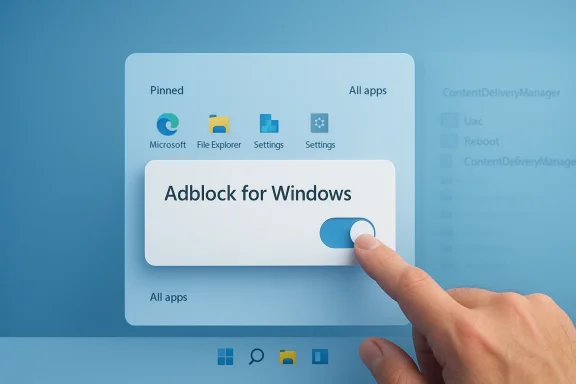
Winpilot’s new in‑OS ad‑blocking toggle is a small, sharp response to a much larger trend: as Microsoft moves promotional content deeper into Windows 11, third‑party tools are automating the tedious work of neutering those prompts — and the result could meaningfully change how everyday users reclaim control of the operating system’s UI.
Microsoft’s Windows 11 has evolved from a pure operating system into a hybrid platform that surfaces product suggestions, app recommendations, and promotional content in a growing number of places: the Start menu, Settings app, Lock screen, File Explorer, the out‑of‑box experience (OOBE), and assorted “tips and suggestions” dialogs. Those elements range from benign “tips” to direct commercial pushes for Microsoft services, and for many users they represent noise, distraction, and an unwelcome monetization of the desktop itself.
Over the past two years a steady stream of community responses — scripts, registry tweaks, Group Policy templates and small utilities — has tried to push back. Some of these techniques have been one‑off guides (manual registry edits or policy changes), while other projects have produced easy GUI tools that wrap multiple hardening steps into a single click. The latest wave takes that convenience one step further: instead of pointing users at ten separate toggles and registry values, these tools offer a single “Adblock for Windows” module that flips a curated set of switches and removes common promotional artifacts automatically.
Winpilot — the well‑known debloater/maintenance utility maintained by the community developer sometimes credited as builtbybel (formerly associated with Bloatynosy) — recently integrated exactly this kind of module. The developer framed the update as “Adblock for the Windows 11 UI,” and the feature’s goal is simple: provide a one‑stop way to remove Start menu recommendations, Settings ads, welcome/setup prompts, File Explorer banners, lock‑screen tips and other consumer‑facing promotional surfaces without forcing the user to comb multiple settings pages.
What’s not verifiable in advance is whether the tool will catch every future promotional surface Microsoft introduces, or whether a Windows update will later reapply settings. Those outcomes depend on Microsoft’s future choices and the third‑party tool’s maintenance cadence. Treat claims of “completely kills all Windows ads forever” with skepticism; a more realistic expectation is “significantly reduces the most common current promotional items and automates the known registry and policy tweaks.”
From Microsoft’s practical perspective, the company already exposes toggles and policy settings to control many of these behaviors, indicating the company accepts user desire for control. What third‑party tools do is reduce friction and consolidate those controls into a convenient interface. Ethically, this aligns with user autonomy: if an OS exposes settings, users should have practical ways to enforce their preferences.
That said, altering or removing components that Windows considers part of the consumer experience can complicate support relationships. Enterprises have official mechanisms (Intune, Group Policy) to do this at scale; consumer tools exist precisely because many users don’t have or can’t use those management platforms.
Proceed with reasonable caution:
Source: Neowin This Windows 11 ad blocker explains how its new feature could be a bit of a game changer
 Background
Microsoft’s Windows 11 has evolved from a pure operating system into a hybrid platform that surfaces product suggestions, app recommendations, and promotional content in a growing number of places: the Start menu, Settings app, Lock screen, File Explorer, the out‑of‑box experience (OOBE), and assorted “tips and suggestions” dialogs. Those elements range from benign “tips” to direct commercial pushes for Microsoft services, and for many users they represent noise, distraction, and an unwelcome monetization of the desktop itself.Over the past two years a steady stream of community responses — scripts, registry tweaks, Group Policy templates and small utilities — has tried to push back. Some of these techniques have been one‑off guides (manual registry edits or policy changes), while other projects have produced easy GUI tools that wrap multiple hardening steps into a single click. The latest wave takes that convenience one step further: instead of pointing users at ten separate toggles and registry values, these tools offer a single “Adblock for Windows” module that flips a curated set of switches and removes common promotional artifacts automatically.
Winpilot — the well‑known debloater/maintenance utility maintained by the community developer sometimes credited as builtbybel (formerly associated with Bloatynosy) — recently integrated exactly this kind of module. The developer framed the update as “Adblock for the Windows 11 UI,” and the feature’s goal is simple: provide a one‑stop way to remove Start menu recommendations, Settings ads, welcome/setup prompts, File Explorer banners, lock‑screen tips and other consumer‑facing promotional surfaces without forcing the user to comb multiple settings pages.
What the Winpilot “Adblock for Windows” module does
At a high level, the module automates a laundry list of existing Windows controls, policy entries and package removals so users don’t need to perform dozens of manual steps. In practice, the module typically performs these actions:- Turn off the Start menu’s “show suggestions” and remove promoted tiles or recommendations.
- Disable “Show me suggested content” in the Settings app and other suggestions/tips toggles.
- Remove or prevent automatic installation of certain preinstalled promotions (where feasible).
- Disable or clear welcome/finish‑setup promotional prompts shown after updates or during first setup.
- Remove UI banners that appear in File Explorer or Settings that promote Microsoft services.
- Offer a UI to re‑enable specific items if the user prefers to keep particular Microsoft suggestions.
How it works (the technical side)
Under the hood, nothing mystical is happening: the module aggregates a set of well‑known, repeatable operations that power users and sysadmins have used for years. These operations include:- Registry edits. Many Windows UI suggestion settings are controlled via the ContentDeliveryManager keys and related registry values. The module writes or modifies DWORD values in HKEY_CURRENT_USER and, in some managed scenarios, under HKLM or Group Policy keys to disable consumer features that surface suggestions and promoted content.
- Policy toggles. Where Group Policy or MDM settings exist to control promotional behavior, the module can set equivalent policy values to make changes more persistent for admin accounts.
- Package removal and cleanup. Some promotions arrive as preinstalled or suggested packages; the module may remove or suppress those packages where Windows allows it.
- Shell and service tweaks. In certain cases the module adjusts or restarts shell components (like Explorer or specific ExperienceHost elements) so UI changes take effect immediately.
- Optional profiles and toggles. Instead of a single "nuclear" approach, the module typically exposes a set of toggles so users can choose a middle ground — for example, disable Start suggestions but keep helpful tips.
Why this could be a game changer
At first glance, automating a set of settings changes sounds trivial. The difference lies in three practical realities:- Scale of annoyance. Microsoft’s promotional surfaces are numerous and fragmented — they live in different apps and menus and sometimes reappear after updates. Users who care enough to disable one setting often miss three or four others. A one‑click profile removes that friction and reduces toggling fatigue.
- Accessibility for average users. Many people aren’t comfortable editing the registry or navigating Group Policy. Providing a safe, GUI‑driven method for those users brings control to a much broader audience without the technical barrier.
- Speed and repeatability for power users and admins. IT pros building clean images, repair technicians, or power users reinstalling systems benefit from a tested automation script that reliably produces the same ad‑free state across devices — faster than following a checklist every time.
Strengths and strong points
- Convenience: The module turns a complex, multi‑step process into a small set of toggles. That alone is valuable to users who want a cleaner desktop without becoming Windows experts.
- Consolidation: By bundling registry and policy changes into a single profile, Winpilot reduces human error and ensures related toggles aren’t missed.
- Reversibility (usually): Many well‑designed utilities expose options to revert changes. When the tool simply toggles supported Settings or policies, the impact is reversible without destructive operations.
- Transparency for knowledgeable users: Because the actions are generally the same registry or policy changes power users perform manually, experienced admins can inspect or reproduce them if they prefer.
- Community maintenance model: Winpilot and similar projects are maintained by community developers who iterate quickly. That agility helps tools adapt when Microsoft changes which keys or packages are responsible for promotion surfaces.
Risks, tradeoffs and limitations
No automated ad‑blocking module for an operating system is free of tradeoffs. Here are the key risks readers should weigh before running a one‑click ad removal tool:- Updates can reintroduce behavior. Microsoft can, and sometimes does, reset certain settings during major updates or change how a promotional surface is delivered. That means tools that toggle registry keys may need updates themselves to keep up. Some changes can be re‑applied by Windows at runtime, forcing repeated intervention.
- Breakage risk from aggressive removals. Removing packages, services, or components can sometimes have side effects. In rare cases, suppressing or uninstalling certain “consumer experiences” may impact related UI components or user flows, especially on heavily customized systems or in managed enterprise images.
- Support and warranty concerns. Using third‑party debloaters can make troubleshooting harder with official support channels; Microsoft Support will typically troubleshoot on extensively modified machines differently than on stock installs.
- Security and trust. Any tool that edits the registry, removes packages or modifies system policies requires elevated privileges. Users must trust the developer and verify the code or distribution channel. Closed‑source executables require extra caution.
- Not a web ad replacement. Importantly, these modules target in‑OS promotional surfaces, not browser ads or third‑party app ads. System‑level ad removal does not replace browser extensions, DNS‑level blockers, or network filtering for web content.
- False advertising in third‑party marketing. Some community tools use bold marketing language like “removes all ads.” Users should be wary: there are always edge cases and dynamic, server‑driven promotions that a local toggle can’t control.
Verifying the claims: what is realistic
When a developer says “Adblock for Windows,” parse that as shorthand for “automated suppression of known in‑OS promotional features.” That claim is verifiable because the underlying toggles and registry keys are public knowledge: Windows exposes settings such as “Show suggestions occasionally in Start” and “Show me suggested content in the Settings app,” and those settings can be changed by GUI, policy, or registry edits. Community release notes and GitHub changelogs for Winpilot and similar projects typically list the exact items they target — Start suggestions, ContentDeliveryManager values, certain preinstalled promotion packages, and so on.What’s not verifiable in advance is whether the tool will catch every future promotional surface Microsoft introduces, or whether a Windows update will later reapply settings. Those outcomes depend on Microsoft’s future choices and the third‑party tool’s maintenance cadence. Treat claims of “completely kills all Windows ads forever” with skepticism; a more realistic expectation is “significantly reduces the most common current promotional items and automates the known registry and policy tweaks.”
Alternatives and complementary approaches
A healthy ecosystem of approaches exists for users who want fewer promos in Windows:- Manual Settings and Group Policy. For users comfortable with Windows management, turning off Start suggestions, disabling ContentDeliveryManager values and applying Group Policy or MDM profiles is a fully supported approach that keeps you within documented controls.
- Registry script packs. Some communities share small registry files or PowerShell scripts that toggle the relevant keys. These are lightweight, audit‑friendly, and reversible if well‑constructed.
- Host/DNS‑level blocking. Network or DNS solutions (Pi‑Hole, DNS over HTTPS with blocklists, or private DNS services) can block outbound telemetry or ad domains, though they don’t control UI elements driven locally by the OS.
- Browser and app ad blockers. For web ads and in‑app ad surfaces, browser extensions (uBlock Origin, AdGuard, etc.) and app‑level filters remain necessary; they address a separate problem from in‑OS promotions.
- Vendor tools (e.g., enterprise MDM). Organizations can use Intune/Group Policy to lock down consumer experiences at scale and ensure users don’t see those promotions in corporate environments.
How to evaluate and use tools like Winpilot safely
If you’re considering Winpilot’s adblock module or a similar one, follow these practical steps to minimize risk:- Inspect the changelog and release notes.
- Check what the tool will change. A responsible developer lists the exact registry keys, packages and policies targeted. Prefer transparency and clear documentation.
- Prefer open or auditable code when possible.
- Open‑source tools allow community review. If the project is closed‑source, look for a reputable distribution channel, a strong change history and a well‑documented rollback path.
- Back up before you run anything that changes system state.
- Create a System Restore point, an image backup, or at least export affected registry keys. That makes it much simpler to revert if something looks off.
- Use selective profiles rather than a wholesale “everything off” toggle.
- Good tools expose granular toggles. Disable only what you need at first and confirm there are no unpleasant side effects.
- Test in a safe environment.
- If you manage multiple systems, test on a single non‑production machine or a virtual machine before wide deployment.
- Monitor for update resets.
- Expect Windows updates to occasionally reset toggles. Keep the tool updated or enforce Group Policy equivalents for persistence in managed environments.
- Maintain an audit trail.
- Record what the tool changed and when. That’s invaluable if you later need to explain unusual behavior to support staff.
- Understand the boundaries.
- Recognize that system‑level ad blocking doesn’t replace browser ad blockers or network filters. Keep the appropriate layers of protection in place.
The ethics and Microsoft’s perspective
There’s a legitimate debate about whether Microsoft should be allowed to surface promotional content inside a paid operating system. On one side, Microsoft argues product discovery and promotion help users discover useful services. On the other, users and many IT professionals view persistent promotions as a poor UX decision — something that blurs the line between operating system and advertising channel.From Microsoft’s practical perspective, the company already exposes toggles and policy settings to control many of these behaviors, indicating the company accepts user desire for control. What third‑party tools do is reduce friction and consolidate those controls into a convenient interface. Ethically, this aligns with user autonomy: if an OS exposes settings, users should have practical ways to enforce their preferences.
That said, altering or removing components that Windows considers part of the consumer experience can complicate support relationships. Enterprises have official mechanisms (Intune, Group Policy) to do this at scale; consumer tools exist precisely because many users don’t have or can’t use those management platforms.
Long‑term outlook: will these tools force change?
The short answer: probably not immediately, but cumulatively yes.- Microsoft has continued to push promotional content because the company has a commercial interest in surfacing Microsoft products and services to billions of users. That incentive isn’t likely to vanish.
- Community tools, however, create a visible pushback. When thousands of users adopt simple toggles that remove promotional content, the company faces increased noise in feedback channels and pressure from media and privacy advocates.
- The larger effect is cultural: users who experience a clean desktop will expect the same on new devices and may favor OEMs or configurations that ship without heavy promotions.
- If these tools grow popular and reliable, Microsoft could be incentivized to provide clearer, easier built‑in controls or to restrict how invasive promotions are delivered — especially where enterprise or accessibility concerns are implicated.
Final verdict and practical recommendation
Winpilot’s “Adblock for Windows” module is not a magical ad‑annihilator, but it is a meaningful convenience layer that turns a scattered, manual chore into something approachable for a broad audience. For users who are tired of Start menu suggestions, Settings ads and repeated “welcome” promotions, the module delivers immediate, observable results and lowers the technical barrier to a cleaner desktop.Proceed with reasonable caution:
- Treat third‑party system tools the same way you treat any elevated software: audit the change list, back up, and run in a test environment where possible.
- Combine system UI cleanup with browser and network ad‑blocking for a comprehensive ad‑free experience.
- Expect to reapply or update tools when Windows introduces new promotional surfaces in future releases.
Source: Neowin This Windows 11 ad blocker explains how its new feature could be a bit of a game changer
