

Winpilot’s latest update adds an “Adblock for Windows” module that promises to rout Microsoft’s in‑OS promotional content with a single set of toggles — and for many Windows 11 users that convenience could feel like a genuine game changer. What started as a popular debloating and setup assistant has quietly grown into a swiss‑army knife of registry switches, PowerShell removals, and WebView‑based tooling that aims to automate many of the manual tweaks power users have been performing for years. That automation — if it works reliably and safely — is why this small open‑source project is suddenly getting attention from mainstream tech outlets and the wider Windows community.
That lineage matters because it shows two things: first, the work is community‑driven and iterates quickly; second, users must be careful to download official releases only, because forks and mirrored packages can contain altered binaries. The developer has warned publicly about unofficial copies and strongly urges users to rely on the project’s official release artifacts.
But the promise comes with caveats. Authenticity of downloads, the potential for false positives from security systems, update regressions after feature upgrades, and the limits of a configuration‑only approach all argue for caution. Users who try the module should do so with standard safety practices: verify releases, back up systems, test on spare devices, and pair this approach with browser and network filters where broader ad coverage is required.
If you spend lots of time in Settings, the Start menu, or Windows‑branded app surfaces and you’ve been manually battling recommendations and promotions, a well‑made automation that safely reverses those choices will feel transformational. Just remember: convenience is only useful when it’s built on trust, verification, and a plan for recovery.
Source: Neowin This Windows 11 ad blocker explains how its new feature could be a bit of a game changer
 Background
Why users care: Windows 11 and the steady creep of promotions
Windows has never been a purely advert‑free platform, but over the past few years Microsoft has increased the number of promotional surfaces inside the OS. Users regularly encounter:- “Suggested” content in Start and Settings,
- Promotional banners advertising Microsoft services (Game Pass, Copilot, Office, OneDrive),
- Preinstall prompts for apps such as Outlook or Microsoft Store suggestions,
- Targeted in‑shell recommendations that make use of an advertising ID and diagnostic/tailored experiences.
The rise of “debloat” and system‑level tools
A cottage industry has grown up around lightweight debloaters and utilities that automate these tweaks. Historically these tools traded convenience for risk: poorly written scripts can remove required components, and unofficial binaries bring supply‑chain concerns. In this environment a widely used, responsibly transparent utility that can toggle many ad surfaces with clear undo steps could be genuinely useful — if it maintains safety, transparency, and careful change management.What Winpilot is — and how it got here
From Bloatynosy to Winpilot to FlyOOBE and beyond
Winpilot is the evolution of several community projects, shepherded by a small developer known in the GitHub community for debloat and setup utilities. The project has been rebranded and restructured over time: early builds were known under other names, later releases integrated the Winpilot module into a larger setup tool (branded in places as FlyOOBE), and the author has since migrated or forked parts of the work into other projects.That lineage matters because it shows two things: first, the work is community‑driven and iterates quickly; second, users must be careful to download official releases only, because forks and mirrored packages can contain altered binaries. The developer has warned publicly about unofficial copies and strongly urges users to rely on the project’s official release artifacts.
What the new “Adblock for Windows” feature actually does
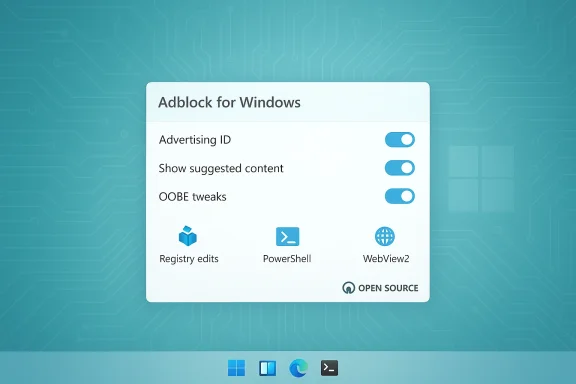
According to the project’s release notes and the module’s user interface, the new functionality is not a network‑level ad blocker (it doesn’t intercept HTTP traffic). Instead, it automates a wide range of local changes that collectively reduce the number of Microsoft‑hosted ads, promotions, and recommended content seen inside the shell:- It toggles privacy and personalization settings such as the advertising ID and show suggested content in Settings switches.
- It uses PowerShell commands to uninstall or block specific preinstalled apps or promotional packages.
- It applies registry edits to disable certain UI surfaces that show recommendations.
- It can disable or pin certain default behaviors in the OOBE/Out‑Of‑Box Experience path that introduce promotional content during setup.
- The UI integrates WebView2 in parts of the app for interactive content, but the actual ad‑blocking logic is primarily local configuration changes rather than HTTP filtering.
A technical deep dive: how the module works and why that matters
The mechanism: registry keys, PowerShell, and targeted removals
The ad‑suppression approach is deliberately low‑level:- Registry switches. Windows exposes several keys that govern advertising personalization and the presence of suggested content. Winpilot automates toggles that users normally find in Settings but implements them via registry writes for completeness and consistency across accounts.
- PowerShell uninstalls. Some of Microsoft’s “promotional” components are surface‑level app installs or preinstalls. The module runs controlled PowerShell uninstalls for packages that are safe to remove or that users commonly want gone.
- Behavioral toggles. Settings such as Tailored experiences, Advertising ID, and Show suggested content in Settings are switched off centrally by the tool, which can help prevent reappearance across minor updates.
- OOBE/installer tweaks. The module can alter how the initial setup behaves (what suggestions it presents during out‑of‑box configuration) so new machines are less likely to receive promotional nudges.
- These changes take place on the local machine and do not intercept network traffic or alter remote ad feeds. That means browser‑surfaced ads and third‑party app ads must still be handled by browser extensions or system traffic filters.
- Because the changes are local and reversible, a well‑architected tool can provide granular undo and restore points — a crucial safety net.
Where it’s not magic: limitations of a local approach
The tool cannot:- Block ads delivered through encrypted traffic at the network level unless paired with system‑wide filtering tools.
- Prevent Microsoft from reintroducing certain promotional elements during major Windows feature updates or product changes.
- Guarantee forever silence: some promotional surfaces are hardwired into new components and may require updated toggles after feature updates.
Strengths — why this could be a real “game changer” for many users
- Convenience at scale. For users who reinstall Windows often, run multiple devices, or manage lab environments, automating dozens of manual toggles is a big productivity win.
- Low barrier to entry. Instead of editing the Registry or running bespoke PowerShell, non‑technical users get a GUI that makes the changes safer and repeatable.
- Undoability and transparency. Mature community tools include rollback options and clear changelogs. When the app documents each change, it reduces the risk of surprise breakage.
- Community‑driven agility. Open‑source projects can respond quickly to new ad surfaces and share updates through releases; that pace may outstrip slower vendor support cycles.
- Selective scope. Because the module focuses on OS‑level promotional surfaces rather than web traffic, it addresses a specific pain point for users frustrated by in‑shell promotions rather than replacing browser ad‑blocking ecosystems.
Risks and downsides — what to watch out for
Supply‑chain and binary authenticity
Unofficial tools attract imitators. The developer has explicitly warned about mirrored or modified downloads. Running an unofficial or tampered binary can introduce malware, backdoors, or unwanted telemetry. Always verify checksums and use official release artifacts.SmartScreen, Microsoft Defender, and false positives
Windows Defender or SmartScreen may flag debloaters or tools that modify system behavior. Historically, such utilities have sometimes been labelled Potentially Unwanted Applications (PUAs). While recent release notes indicate efforts to avoid aggressive mechanisms that trigger flags, users should be prepared to:- See SmartScreen prompts,
- Temporarily whitelist binaries only after verifying trust,
- Understand that enterprise policies may block such tools outright.
Stability concerns and update regressions
Editing registry keys and uninstalling optional packages is inherently risky if not performed cautiously. Possible consequences include:- Breaking third‑party software that relies on certain Windows components,
- Unexpected behavior after major feature updates that reintroduce components,
- The need to reapply toggles after Windows feature upgrades or Insider Preview builds.
Support and warranty ambiguity
There’s no explicit law against editing your own OS, but extreme modifications can complicate vendor or enterprise support. Organizations with managed devices should avoid running unconstrained third‑party debloaters without an approved change process. For consumer devices, using such tools typically won’t void hardware warranties, but it may make troubleshooting more complex if support personnel need to reverse custom changes.Not a total replacement for ad‑blocking
Remember that Winpilot’s module focuses on Microsoft’s in‑OS promotional surfaces. Web and streaming advertising, app‑delivered promotions, and some in‑game ads still require:- Browser extensions like uBlock Origin, or
- System‑level apps such as AdGuard or AdLock, or
- Network solutions such as Pi‑hole for LAN‑level DNS filtering.
Alternatives and how they compare
If your goal is a quieter, less promotional Windows experience, you have a few complementary approaches:- System configuration (manual): The most transparent but most time‑consuming — toggling advertising ID, suggested content, and diagnostic personalization off in Settings.
- Browser extensions: uBlock Origin, Adblock Plus (careful with defaults), and other popular open‑source extensions provide robust page‑level filtering but do not affect in‑OS promotions.
- System ad blockers: AdGuard and AdLock offer system‑level interception on Windows desktop and can block ads in non‑browser apps as well as browsers. These are commercial or freemium products and may perform deeper filtering than a registry toggler.
- Network/DNS filtering: Pi‑hole or DNS‑based ad filters remove ads across an entire network but require network configuration and may not intercept TLS‑protected ad content without additional TLS interception.
- Hybrid approach: Use a tool like Winpilot to remove in‑OS promotions, a browser extension for web content, and a DNS or system filter for app and network ads.
Practical guidance: how to approach Winpilot or similar tools safely
- Verify the source.
- Download only official release artifacts. Confirm checksums if provided.
- Read the changelog.
- Confirm exactly which registry keys and apps the tool will modify or remove.
- Create a backup.
- Make a system restore point or full image backup before running mass changes.
- Test on a non‑critical machine.
- Run it in a VM or spare PC to observe effects before applying to your primary device.
- Use granular mode if available.
- Apply changes step‑by‑step and verify user experience before proceeding further.
- Keep a rollback plan.
- Ensure the tool provides a clear revert path or document the exact steps required to restore changed values.
- Watch for updates.
- Reapply or revise toggles after major Windows feature updates; community tools often publish updated flags quickly.
- Consider enterprise implications.
- Don’t run such tools on corporate devices without IT approval; they may conflict with management profiles or security policies.
What this change means for Microsoft, users, and the ecosystem
- For users, the key benefit is agency. A polished automation that safely toggles dozens of ad‑surface settings can dramatically reduce friction for privacy‑minded users who lack the time or expertise to manually tweak each control.
- For Microsoft, community pressure and tooling like this signal a user preference for a less promotional, more private experience. Expect a tug–of–war: Microsoft may harden certain behaviors against third‑party toggles, or it may offer clearer settings to reduce friction for users who want fewer promotions.
- For the broader ecosystem, the split approach — local configuration helpers vs. traffic filters — will likely remain. Third‑party tools will keep iterating to respond to new ad surfaces as Windows evolves.
Final assessment: practical, promising — with caveats
Winpilot’s Adblock for Windows module is not a miracle cure for all ads; rather it’s a focused, pragmatic tool that automates a trove of local changes aimed squarely at Microsoft’s in‑OS promotional surfaces. That scope is precisely why it could be a game changer for many users: it removes the friction of dozens of small tweaks and packages them into a repeatable, GUI‑driven process.But the promise comes with caveats. Authenticity of downloads, the potential for false positives from security systems, update regressions after feature upgrades, and the limits of a configuration‑only approach all argue for caution. Users who try the module should do so with standard safety practices: verify releases, back up systems, test on spare devices, and pair this approach with browser and network filters where broader ad coverage is required.
If you spend lots of time in Settings, the Start menu, or Windows‑branded app surfaces and you’ve been manually battling recommendations and promotions, a well‑made automation that safely reverses those choices will feel transformational. Just remember: convenience is only useful when it’s built on trust, verification, and a plan for recovery.
Source: Neowin This Windows 11 ad blocker explains how its new feature could be a bit of a game changer
