

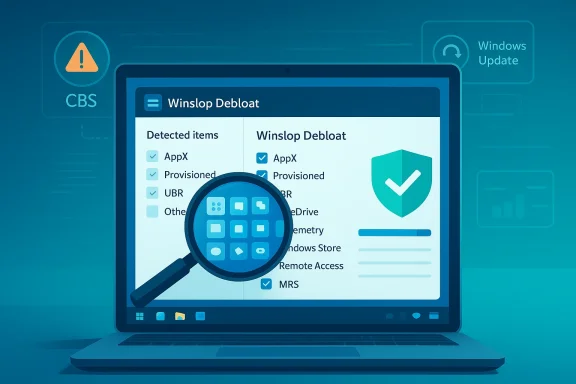
A new, compact utility promising to “detect and remove hidden bloat” — promoted in a Neowin post as Winslop — has landed on the community radar, but the details are clouded: the original Neowin page is gated and could not be retrieved for a direct read, so the specific claims in that story require verification before acting on them. ([]
What follows is a full, practical feature: a clear summary of the available reporting and how Winslop fits into the broader debloating ecosystem, an independent technical cross‑check using community tools and repositories, and a detailed, cautious playbook for safely removing unwanted Windows baggage. The analysis highlights strengths, identifies the real operational risks (especially servicing/upgrade fragility), and gives a conservative, defensible path for power users and sysadmins who want to reclaim control of their Windows installs.
Windows users have a long history of fighting preinstalled apps, provisioning packages, and hidden services that consume storage, run background tasks, and increase the system attack surface. Community projects — from GUI helpers to aggressive PowerShell scripts — aim to automate aspects of that cleanup, and the space continues to evolve as Microsoft adds new OS features (notably AI‑surface additions) that are sometimes deeply integrated into Windows servicing and provisioning. These advances mean simple uninstalls may not be durable: packages can be re‑provisioned on new profiles or reinstalled by Windows Update. Winslop — as described in the Neowin headline — is presented as another entrant in this toolkit: a small, user‑facing utility that scans for “hidden” bloat and offers removal. Because I could not directly load the Neowin article to verify the exact feature list, this article places the Winslop claims in context with widely used community tools (WinDebloat, Winpilot/BloatyNosy/Winpilot, RemoveWindowsAI, NoBloatbox, etc. and emphasizes which parts of the problem are straightforward to fix and which are inherently risky. ([]
Benefits:
That said, the key trade‑offs are well understood: convenience vs. durability, and power vs. upgrade‑safety. The most attractive short‑term gains are often achieved by removing visible apps and cleaning caches and restore points — actions that are reversible or well documented. The most tempting but dangerous gains come from touching the servicing store to “lock out” re‑provisioning; those should be avoided for production devices and only attempted by experienced sysadmins with solid rollback plans.
Practical next steps for the reader who wants results but not risk:
Additional resources and commands (quick reference)
Source: Neowin https://www.neowin.net/software/winslop-detect-and-remove-hidden-bloat/
What follows is a full, practical feature: a clear summary of the available reporting and how Winslop fits into the broader debloating ecosystem, an independent technical cross‑check using community tools and repositories, and a detailed, cautious playbook for safely removing unwanted Windows baggage. The analysis highlights strengths, identifies the real operational risks (especially servicing/upgrade fragility), and gives a conservative, defensible path for power users and sysadmins who want to reclaim control of their Windows installs.
 Background / Overview
Windows users have a long history of fighting preinstalled apps, provisioning packages, and hidden services that consume storage, run background tasks, and increase the system attack surface. Community projects — from GUI helpers to aggressive PowerShell scripts — aim to automate aspects of that cleanup, and the space continues to evolve as Microsoft adds new OS features (notably AI‑surface additions) that are sometimes deeply integrated into Windows servicing and provisioning. These advances mean simple uninstalls may not be durable: packages can be re‑provisioned on new profiles or reinstalled by Windows Update. Winslop — as described in the Neowin headline — is presented as another entrant in this toolkit: a small, user‑facing utility that scans for “hidden” bloat and offers removal. Because I could not directly load the Neowin article to verify the exact feature list, this article places the Winslop claims in context with widely used community tools (WinDebloat, Winpilot/BloatyNosy/Winpilot, RemoveWindowsAI, NoBloatbox, etc. and emphasizes which parts of the problem are straightforward to fix and which are inherently risky. ([] What winslop reportedly promises — and why we need to verify
The Neowin headline suggests Winslop detects and removes “hidden bloat.” Without the full article text, we must read that phrase conservatively: it can mean several things in practice.- It might scan for obvious, user‑facing store apps and OEM utilities and uninstall them (a low‑risk, high‑value outcome).
- It might target provisioned Appx/MSIX packages so they won’t be reinstalled for new users (more invasive but often necessary for durable removals).
- It might attempt deeper servicing‑store or Component‑Based Servicing (CBS) edits — the single biggest source of upgrade fragility if done incorrectly.
The debloat landscape: proven approaches, community projects, and common patterns
To evaluate Winslop, compare it to established community tools and the technical techniques they use. This helps set realistic expectations and reveals where toolmakers typically trade convenience for risk.Low‑risk: manual UI removals and winget automation
For most users, the safest path is manual cleanup via Settings > Apps, followed by targeted use of Windows Package Manager (winget) for bulk uninstallations. Tools and scripts that call winget to remove named packages are predictable and reversible: you can reinstall from the Store or the vendor installer if needed. The WinDebloat project exemplifies this pattern: it is a dotnet-based tool that uninstalls and disables a curated list of nonessential components by invoking winget and registry changes where appropriate. Benefits:- Minimal servicing risk
- Easy to reverse
- Works reliably across Windows versions that provide the same package names
Medium‑risk: Appx / provisioned Appx removal and PowerShell
PowerShell cmdlets (Get‑AppxPackage, Remove‑AppxPackage, Remove‑AppxProvisionedPackage) let you remove both user packages and the provisioning manifests that cause apps to reappear for new users. This is necessary for durable removals but becomes riskier when a provisioned package is shared by multiple features. Community guides show step‑by‑step usage, and the approach is widely used in curated scripts and GUI wrappers.Benefits:
- Durable removals for new profiles
- Relatively scriptable and automatable
- Removing the wrong provisioned package can break other features
- Reversing changes is sometimes nontrivial (reprovisioning requires re‑adding the package manifest via DISM or store reinstallation)
High‑risk: CBS/servicing store edits, blocker packages, and upgrade fragility
The most powerful debloat tactics touch the Component‑Based Servicing store (WinSxS/CBS). Some community projects attempt to neutralize hidden servicing artifacts or install custom “blocker” packages that prevent Windows Update from re‑provisioning removed components. This is effective in the short term but can cause feature update failures, repair rollbacks, or broken servicing states if Windows’ servicing expectations diverge from the modified store. Independent reviews and community tests consistently flag CBS edits as the primary vector for long‑term fragility. If Winslop claims to manipulate CBS, that requires strong caution and verification.What independent sources say about aggressive debloat strategies
- Hands‑on reviews and community testing of aggressive scripts (for example, projects in the RemoveWindowsAI family) confirm they can hide or remove UI surfaces and many provisioned packages, but outcomes vary across Windows builds and OEM customizations. The community repeatedly warns that modifying the servicing store is the most fragile operation.
- Practical guidance across forums and community write‑ups recommends a safety checklist for any mass removal operation: full backup or system image, create a System Restore point, test in a VM first, and prefer moving installer caches rather than deleting them outright. The consensus is to treat registry cleaners and reckless one‑click “fixers” with suspicion.
- Trusted tooling approaches (WinDebloat, BloatyNosy/Winpilot, NoBloatbox) show the spectrum of UI convenience vs. invasiveness: many GUI tools let you remove visible apps and toggle privacy settings safely, while providing options to avoid invasive servicing edits. Winpilot (formerly BloatyNosy) bundles many conveniences and is a good example of a lower‑to‑medium‑risk GUI approach.
Strengths we expect from a responsible Winslop design (if implemented correctly)
If Winslop is built as a modern, community‑minded debloater, here are the strengths we should expect in the app design and delivery:- Transparent filters: community or GitHub‑hosted JSON filter lists that enumerate exactly what will be detected and removed. That makes audits and peer review possible.
- Preview and selective removal: rather than a one‑click mass purge, the tool should let users preview items, see the exact commands it will run, and opt in to specific removals.
- Restore options and backups: create a System Restore point, optionally export any removed package manifests or logs, and offer an “undo” or re‑provision guide.
- Non‑destructive defaults: avoid CBS edits or blocker packages by default; expose them only behind an “advanced” or “danger” toggle with a clear warning.
- Open source and signed releases: publishing source code and signed binaries helps build trust and enables community verification.
Key risks and failure modes — what to watch for before you click ‘Remove’
- Servicing/Upgrade Breaks (CBS edits): if a tool writes to the Component‑Based Servicing store or installs a blocker package, future cumulative updates or feature upgrades may detect the mismatch and fail to install, or may silently re‑provision removed features in an inconsistent state. This is the single biggest reported risk for aggressive debloaters.
- Loss of functionality due to shared packages: removing a provisioned Appx package that other features rely on (for example, certain image or media components) can cause subtle breakage that’s hard to roll back without a full image restore.
- False positives and accidental removals: automated lists may flag runtime libraries, device helpers, or OEM utilities that are important. Always review a tool’s detection list and cross‑check names you don’t recognize.
- Antivirus/false‑positive or supply‑chain concerns: some debloaters have been flagged by AV engines either due to heuristic removal behavior or because an executable is bundled in release archives. Prefer to fetch code from the canonical GitHub repo and verify checksums or build from source where feasible.
- Irreversible data loss: operations that delete Recall/Timeline snapshots or scheduled tasks remove user history permanently if not backed up. Tools that wipe local indices should require a clearly presented confirmation describing the permanence of the action.
A conservative, step‑by‑step playbook for safe debloating (what to run, in order)
This sequence balances safety and efficacy — it’s what seasoned forum experts recommend as the default approach before trying any third‑party tool that claims one‑click fixes.- Create a full backup (image) or at minimum an external copy of Documents, Desktop, and any irreplaceable data. Make sure File History or your cloud backup is current.
- Create a System Restore point: open Create a Restore Point → System Protection → Create. This provides a rollback target for registry changes and many uninstall operations.
- Survey disk usage with a visualizer: run WinDirStat or TreeSize Free to identify obvious storage hogs (Downloads, large VHDX files, Windows.old). This gives concrete targets and often delivers the biggest reclaimed space for the least risk.
- Manual removals via Settings:
- Open Settings > Apps > Installed apps (or Apps & features).
- Uninstall known nonessential apps (games, OEM trial software, media apps you never use).
- Reboot and verify workflows still function.
- Remove large system leftovers safely:
- Run Disk Cleanup as Administrator → Clean up system files → remove “Windows Update Cleanup,” “Previous Windows installations,” etc.
- Analyze component store: DISM /Online /Cleanup-Image /AnalyzeComponentStore. If it reports reclaimable space, run DISM /Online /Cleanup-Image /StartComponentCleanup (and only use /ResetBase if you accept irreversible removal of the ability to uninstall older updates). These commands are powerful and supported; use patience — DISM can run for many minutes to hours on large stores.
- Check Volume Shadow Copy / restore points:
- Elevated command prompt: vssadmin list shadowstorage and vssadmin list shadows.
- If you have many snapshots and you don’t need restore points, use vssadmin delete shadows /for=C: /all or use Disk Cleanup → System Restore and Shadow Copies → Clean up (aware this is irreversible).
- Use a vetted, transparent tool for leftover store or mass UI removals:
- Prefer solutions that show exactly what actions they will run, allow per‑item opt‑out, and create a restore point automatically.
- Examples: WinDebloat for scriptable, auditable removals; Winpilot/BloatyNosy for GUI‑driven workflows with community‑tested presets. Always run these tools in a VM or on a test machine first if you’re unsure.
- If you consider aggressive servicing edits (CBS/blocker packages), stop and validate:
- Read the project README and issue tracker.
- Ask the project maintainers how they protect update pathways and how to recover from an update failure.
- If you proceed, document every change (export registry keys, save logs) and have a full image backup ready.
- Final verification:
- Reboot.
- Check device drivers, GPU, network, audio, and any mission‑critical apps.
- Run Windows Update to ensure updates install without error; if errors appear, revert to the image and retry with a less aggressive approach.
If you must try Winslop (or any one‑click debloater): a preflight checklist
- Verify the publisher and canonical repo; prefer signed releases or build from source.
- Read the changelog and the default filter list thoroughly.
- Run the tool in a VM first and observe what it removes.
- Ensure the tool creates a System Restore point automatically or do it manually first.
- Avoid enabling any option called “Fix servicing store” or “Install blocker package” unless you understand the consequences.
- Keep bootable recovery media and a full image so you can roll back if updates fail.
Verdict: practical recommendation for Windows users and IT
- For most users: stick to the built‑in Settings flow plus Disk Cleanup and the DISM cleanup commands for component store cleanup. These are supported, recoverable, and avoid servicing store risks.
- For power users who want automation but prefer safety: use WinDebloat or a GUI like Winpilot/BloatyNosy that exposes per‑item selection and is transparent about provisioned vs. user package removals. Avoid defaults that touch CBS.
- For admins and fleet managers: rely on MDM/Intune policy‑based provisioning to control what appears on new profiles. Provisioning and image customization remain the supported way to ensure durable, safe configurations across devices.
- For enthusiasts tempted by Winslop: consider Winslop as a candidate tool only after confirming its exact capabilities and whether it edits CBS or installs blocker packages. Until that verification, treat any “hidden provisioning removal” claim as unverified and proceed with the safety checklist above. ([]
Closing analysis — strengths, risks, and how to move forward
The problem Winslop claims to solve is real: Windows ships with a variety of apps and provisioning mechanisms that clutter fresh installs and can reappear after updates. The solution space includes many mature, safe techniques (manual removals, winget, DISM cleanup) and numerous community projects offering added convenience. A responsible Winslop would be a welcome addition if it adheres to transparency, preview‑first design, and non‑destructive defaults.That said, the key trade‑offs are well understood: convenience vs. durability, and power vs. upgrade‑safety. The most attractive short‑term gains are often achieved by removing visible apps and cleaning caches and restore points — actions that are reversible or well documented. The most tempting but dangerous gains come from touching the servicing store to “lock out” re‑provisioning; those should be avoided for production devices and only attempted by experienced sysadmins with solid rollback plans.
Practical next steps for the reader who wants results but not risk:
- Follow the conservative playbook above.
- If you’re curious about Winslop specifically, inspect its GitHub (or vendor) repository, read the filter list, and test in a VM.
- Prefer tools that publish an audit log and create restore points automatically.
- If you manage many devices, standardize debloat actions into your imaging or MDM configuration rather than relying on one‑off tools.
Additional resources and commands (quick reference)
- WinDirStat / TreeSize Free — visualize disk usage before deleting large items.
- DISM component store cleanup:
- DISM /Online /Cleanup-Image /AnalyzeComponentStore
- DISM /Online /Cleanup-Image /StartComponentCleanup
- DISM /Online /Cleanup-Image /StartComponentCleanup /ResetBase (irreversible).
- Volume Shadow Copy (review before deleting): vssadmin list shadowstorage ; vssadmin list shadows ; vssadmin delete shadows /for=C: /all.
- Winget for uninstall: winget uninstall --name "PackageName" --exact --all-versions.
Source: Neowin https://www.neowin.net/software/winslop-detect-and-remove-hidden-bloat/
