

WinToys squeezes the everyday friction out of Windows settings by gathering hidden toggles, repair utilities, and performance switches into a single, approachable interface—so much so that many users say they rarely open the built-in Settings app anymore.
Windows has collected more controls, panels, and buried switches than most modern operating systems can comfortably show in a single unified UI. Microsoft’s split between the modern Settings app and legacy Control Panel, plus command-line-only utilities and scattered Registry keys, means routine tasks can require jumping between multiple places—or memorizing arcane commands. That gap is what WinToys aims to close: a lightweight, store-distributed utility that exposes frequently needed controls, automates common diagnostic commands, and surfaces rare-but-useful options in a single window.
WinToys is developed and published by Bogdan Pătrăucean and distributed through the Microsoft Store as an MSIX package; the developer maintains an authoritative site and a public changelog detailing features, release notes, and offline-install instructions. The app is built on WindowsAppSDK and .NET, and recent releases show explicit minimum OS and servicing requirements to guarantee safe elevation behavior.
Caveat: changing global background behavior may interact with system group policies or registry keys that the Settings app expects to manage per‑app controls for; community reports show WinToys’ blanket toggles can hide or override the per‑app background controls until the related registry value is removed. Treat global toggles as powerful but potentially disruptive.
Downloads and distribution metrics reported on third‑party portals (for example, Uptodown) show tens of thousands of downloads for recent releases and an SHA‑256 fingerprint published for at least one package, which helps with verification when using non‑Store installers. However, always prefer the Store for automatic updates and signature verification when possible.
The biggest open concerns are trust and long-term governance: the app is closed-source, has planned monetization signals, and has triggered a small number of antivirus false positives after updates. Those are manageable but real considerations for IT teams and privacy-conscious users. For most readers looking to reduce friction in managing Windows, WinToys is worth trying—just do the standard due diligence before applying system-wide tweaks.
Conclusion: WinToys is not a magic bullet, but it is a refined Swiss Army knife for everyday Windows maintenance—one that saves clicks, consolidates knowledge, and lowers the barrier to troubleshooting. With careful verification and sensible rollback plans, it’s a useful addition to any Windows toolkit.
Source: MakeUseOf I barely open the Windows Settings app anymore thanks to this free tool
 Background
Windows has collected more controls, panels, and buried switches than most modern operating systems can comfortably show in a single unified UI. Microsoft’s split between the modern Settings app and legacy Control Panel, plus command-line-only utilities and scattered Registry keys, means routine tasks can require jumping between multiple places—or memorizing arcane commands. That gap is what WinToys aims to close: a lightweight, store-distributed utility that exposes frequently needed controls, automates common diagnostic commands, and surfaces rare-but-useful options in a single window.WinToys is developed and published by Bogdan Pătrăucean and distributed through the Microsoft Store as an MSIX package; the developer maintains an authoritative site and a public changelog detailing features, release notes, and offline-install instructions. The app is built on WindowsAppSDK and .NET, and recent releases show explicit minimum OS and servicing requirements to guarantee safe elevation behavior.
What WinToys actually does — a feature tour
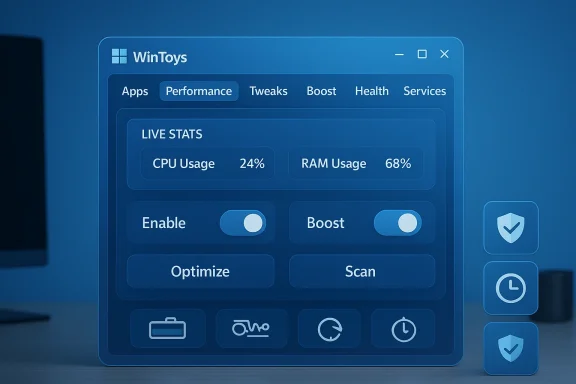
WinToys groups controls into coherent sections: Apps, Performance (startup management), Tweaks (privacy, ads, system behaviors), Boost (game and power optimizations), Health/Cleanup (repair tools and disk cleanup), Services, and more. The polished UI presents device information and live statistics on a compact Home page, then exposes one‑click actions and toggles for tasks that otherwise require multiple screens or a terminal. The following breakdown covers the most impactful capabilities you’ll notice first.Centralized app management (uninstall, size, runtime control)
- The Apps view lists installed packages and shows storage use so you can hunt down the largest offenders quickly.
- It offers uninstaller controls for both Store and many Win32 apps—even some that lack a direct uninstall entry in Windows Settings.
- Startup app management is consolidated in Performance so you can toggle autorun permission without navigating to Task Manager > Startup.
Background apps and privacy toggles
WinToys exposes a global Background apps toggle that disables background execution for apps en masse—something the modern Settings UI doesn’t make easy for mixed Win32/UWP environments. It also gathers telemetry/privacy options into a single Tweaks > Privacy area and provides ad-related switches that aggregate the settings Microsoft usually scatters across multiple pages. That makes privacy hardening fast for users who don’t want to hunt through nested pages.Caveat: changing global background behavior may interact with system group policies or registry keys that the Settings app expects to manage per‑app controls for; community reports show WinToys’ blanket toggles can hide or override the per‑app background controls until the related registry value is removed. Treat global toggles as powerful but potentially disruptive.
Hidden or command-line-only features made one click
WinToys wraps a number of items that normally require a command prompt or PowerShell:- Enabling the Ultimate Performance power plan (the scheme used by enthusiasts to unlock peak throughput) is exposed as a toggle rather than requiring the powercfg duplicate-scheme command.
- Generating a Windows battery report (powercfg /batteryreport) becomes a button rather than a terminal command. The same is true for running system repair utilities like SFC and DISM.
- Fast startup, hibernation, and other lower-level power behaviors are managed in a single place under Boost or Power settings.
Repair and diagnostics toolkit
WinToys places common troubleshooting commands in one pane:- Restart the graphics driver (a useful step for screen flicker/black screen scenarios).
- Network cleanup options such as flushing DNS and resetting TCP/IP.
- One-click SFC and DISM scans, memory diagnostics, and app reset/clear-cache actions.
Services management
A Services tab lets you inspect and stop/start services without opening the separate Services MMC snap-in. It bundles basic dependency information and safe stop/start actions—helpful for temporary diagnostics but not a substitute for deep service analysis or guided remediation in enterprise environments.Cleanup and storage helpers
WinToys includes disk cleanup routines, temporary-file removal, and an update-cleaning tool that can remove old Windows Update payloads to reclaim space. The Cleaner includes browseable categories and quick estimates before deletion. These features mirror (and in some cases simplify) existing Windows tools but in one place.System state restoration
Crucially, WinToys includes a Restoration capability that snapshots the set of toggles it changes and can revert to defaults. That safety net matters because the app touches policies and registry entries that affect system behavior—if something goes wrong, the restore path dramatically reduces risk. The developer documents and highlights this feature in changelogs and release notes.How WinToys compares with built-in Windows options
Windows provides the underlying APIs and commands WinToys calls; the difference is UX and convenience.- The Settings app and Control Panel still host the canonical configurations, and Microsoft’s Power Options and Group Policy remain the authoritative control points.
- WinToys does not replace these, but it streamlines common workflows into a single window and removes the need for terminal steps for many users. Reviews and hands‑on writeups note that WinToys is best seen as a superset of convenience rather than a substitute for everything.
- Open an elevated command prompt.
- Run: powercfg -duplicatescheme e9a42b02-d5df-448d-aa00-03f14749eb61
- Select the plan in Power Options.
Verification and provenance — important technical facts you should know
Before installing any system utility, verify the following details. These items are significant because they affect trust, update behavior, and compatibility.- Publisher and distribution: WinToys is published by Bogdan Pătrăucean and is available as an MSIX package in the Microsoft Store. The developer maintains a public "about" page and a changelog that lists features and minimum OS requirements. Verify the publisher name in the Store or in the UAC prompt before granting administrative rights.
- Packaging and minimum OS: The offline-install documentation and the changelog list a minimum supported Windows servicing level (Windows 10 build 19041.0 or more recent; some updates require 19044.1706). If you run an older build, the MSIX installer may be blocked. The developer’s instructions show the MSIX-based offline install process if you need to migrate packages manually.
- Binary signatures and checksums: Some third‑party download portals (for example, Uptodown) publish file metadata including SHA‑256 values for releases. If you download outside the Store, verify the file’s checksum against an authoritative value where provided to prevent tampered binaries. Uptodown lists an SHA‑256 for a recent release, which can be used as an extra verification step.
- Closed-source model: The developer has stated publicly that WinToys is not open source and that premium add‑ons are planned. That means the community cannot audit the code directly; updates and any future monetization should be judged accordingly. Closed-source does not automatically imply maliciousness, but it does require greater diligence from administrators.
- Antivirus and false positives: Community reports describe isolated antivirus flags (Kaspersky and others) after certain updates. Those reports look like typical false-positive behavior for small, frequently updated signed apps. Nevertheless, expect to test the app with your endpoint protection and be prepared to raise a vendor false-positive request if necessary.
Strengths — where WinToys shines
- Time savings and reduced cognitive load. By centralizing scattered controls, WinToys removes dozens of clicks and mental context switches. For technicians and power users, this is a measurable productivity boost.
- One-click access to advanced tools. Utilities like battery report generation, SFC/DISM invocation, memory diagnostics, and the Ultimate Performance toggle are presented in the UI so the user doesn’t need to memorize commands. This makes advanced diagnostics accessible to less experienced users while saving time for experts.
- Safety net with restoration. The app’s built-in restoration feature that records the state before changes is a thoughtful guardrail that lowers the risk of a tweak cascade. The changelog and release notes call out this feature explicitly.
- Active development and responsive changelogs. WinToys’ developer maintains a detailed changelog and iterates on compatibility with Windows updates, including support notes for major feature updates. The pace of development and public release history is a good sign for long‑term viability.
Risks and weaknesses — what to watch out for
- Closed source and trust model. Because WinToys is not open source, you must trust the developer for correct behavior and safe updates. For enterprise use or sensitive environments, prefer vetted tools or isolate the app in a test image before wide rollout.
- Potential for hidden side effects. Broad toggles that change registry keys or group policies can temporarily remove UI options or cause unexpected interactions with Windows features. Community reports show that registry values altered to implement a “stop background apps” policy can hide per-app background controls in Settings until cleaned up. Use the restoration or manual cleanup instructions if you observe missing settings.
- Antivirus false positives and update churn. Small, frequently updated utilities can trip heuristic detections after new builds. Multiple community threads document isolated detections. These tend to be false positives, but they are disruptive if you manage many endpoints. Test and whitelist where appropriate, and contact vendors for investigations.
- Not a replacement for certain Settings domains. WinToys deliberately leaves personalization (wallpapers, themes, accent colors), Bluetooth device pairing, and full user-account management to the native UI. Expect to keep the Settings app for those scenarios. Reviews and hands-on accounts emphasize WinToys’ role as a productivity complement, not a full Settings clone.
Practical guidance: how to evaluate and adopt WinToys safely
If you’re interested in adding WinToys to your toolbox, follow these practical steps to reduce risk and ensure recovery options.- Verify the publisher before installing.
- When UAC prompts for elevation, confirm the publisher is listed as the developer name Bogdan Pătrăucean or the Microsoft Store listing. This prevents accidentally running a similarly named but malicious installer.
- Use the Microsoft Store or trusted distribution.
- Prefer the Microsoft Store or the developer’s documented channels for MSIX bundles rather than unverified third‑party executables. The MSIX packaging adds a layer of signing and automatic cleanup on uninstall.
- Create a system restore point or image before making broad changes.
- Although WinToys offers a restoration feature, do a full system image or create a restore point prior to applying widespread tweaks, especially on production machines. This provides an extra safety net against unforeseen interactions.
- Test in a VM or on a secondary machine first.
- If you manage multiple devices, try WinToys in a virtual machine that mirrors the target environment to see how its toggles behave with your specific build and installed drivers.
- Scan with your security stack and check checksums.
- After downloading, verify file checksums (when available) and run a manual scan before installation. If your AV flags the installer, check vendor advisories and the developer’s channels for warnings or updated signatures.
- Use the restoration feature and log changes.
- If you plan to run multiple tweaks, create a known-good snapshot with WinToys’ restoration tool and keep notes about which toggles you enabled. This makes targeted reversion faster if something behaves oddly.
- For enterprise deployments, restrict usage or sandbox.
- In managed environments, treat WinToys like any third-party admin tool: pilot it in a constrained OU, perform compliance scans, and decide whether its convenience justifies the trust model.
Real-world reports and community signal
The community discussion around WinToys is instructive. Early releases drew praise for design, scope, and utility across enthusiast communities and tech outlets; print and online reviewers highlight how the app collates many useful actions into a single UX. At the same time, public threads document expected wrinkles: AV heuristic detections after updates (often resolved by signature updates), and a small number of interactions with Windows settings that require cleaning registry keys to restore full native UI behavior. Those observations mirror what one would expect when a user-space app manipulates system policies and hidden flags for convenience.Downloads and distribution metrics reported on third‑party portals (for example, Uptodown) show tens of thousands of downloads for recent releases and an SHA‑256 fingerprint published for at least one package, which helps with verification when using non‑Store installers. However, always prefer the Store for automatic updates and signature verification when possible.
When WinToys is the right tool — and when to avoid it
Choose WinToys if:- You want fast, repeatable access to advanced Windows toggles without memorizing commands.
- You do frequent troubleshooting tasks and prefer a single toolbox instead of switching between Settings, Task Manager, Control Panel, and Command Prompt.
- You appreciate an integrated “restore to defaults” option and a polished UI for each capability.
- You must maintain a fully auditable and open-source stack (WinToys is closed-source).
- You manage enterprise endpoints where third-party admin tools require rigorous vendor approval and inbound signature verification.
- You have strict compliance constraints that require every tweak be processed via centralized configuration management.
Final verdict: a pragmatic recommendation
WinToys is one of the better‑executed third‑party Windows utilities I’ve used in recent years: it’s focused, actively maintained, and it delivers pragmatic time savings by surfacing controls and repair utilities that should be easier to find in Windows itself. For home users, enthusiasts, and small IT teams, it’s a valuable productivity multiplier—if you adopt sensible safety practices: install from the Store where possible, verify the publisher, snapshot the system first, and be prepared to revert changes.The biggest open concerns are trust and long-term governance: the app is closed-source, has planned monetization signals, and has triggered a small number of antivirus false positives after updates. Those are manageable but real considerations for IT teams and privacy-conscious users. For most readers looking to reduce friction in managing Windows, WinToys is worth trying—just do the standard due diligence before applying system-wide tweaks.
Conclusion: WinToys is not a magic bullet, but it is a refined Swiss Army knife for everyday Windows maintenance—one that saves clicks, consolidates knowledge, and lowers the barrier to troubleshooting. With careful verification and sensible rollback plans, it’s a useful addition to any Windows toolkit.
Source: MakeUseOf I barely open the Windows Settings app anymore thanks to this free tool
