

The ATI Mobility Radeon X1400 and X1350 are relics of a mid‑2000s mobile graphics era, but their lingering presence in clearance and “hotsell” laptop inventories makes them worth a second look for budget or legacy‑use systems; this feature compares their hardware, explains what to expect under Windows 10, and gives a practical, risk‑aware guide for drivers, installation, and whether buying one today is a sensible choice.
The Mobility Radeon X1400 and X1350 were released in 2006 as low‑power notebook GPUs targeted at basic multimedia and office workloads. Both are DirectX 9 era parts built on 90 nm processes and appear in many budget notebooks sold during that generation. TechPowerUp’s GPU database captures their published clocks, memory interfaces, and shader counts — concrete baseline specs that still determine their real‑world capabilities today. Because these GPUs predate modern driver frameworks and modern Windows releases by a decade, their support model has long since moved into “legacy” territory. AMD’s published guidance and community experience both recommend relying on Microsoft‑supplied drivers or OEM drivers for stability on newer Windows versions; full Catalyst/Adrenalin feature parity is unlikely and often requires manual, advanced steps. The practical consequences matter: graphics drivers operate at kernel level, so installing unsigned or repackaged legacy drivers can expose systems to stability and security risks.
Both the ATI Mobility Radeon X1400 and X1350 are interesting historical footnotes and useful for certain constrained use cases, but their place in modern computing is limited by driver support, security posture, and raw capability; treat clearance purchases as niche buys, rely on Microsoft/OEM drivers for stability, and plan a hardware refresh when practical.
Source: Born2Invest https://born2invest.com/?b=style-236897812/
 Background
The Mobility Radeon X1400 and X1350 were released in 2006 as low‑power notebook GPUs targeted at basic multimedia and office workloads. Both are DirectX 9 era parts built on 90 nm processes and appear in many budget notebooks sold during that generation. TechPowerUp’s GPU database captures their published clocks, memory interfaces, and shader counts — concrete baseline specs that still determine their real‑world capabilities today. Because these GPUs predate modern driver frameworks and modern Windows releases by a decade, their support model has long since moved into “legacy” territory. AMD’s published guidance and community experience both recommend relying on Microsoft‑supplied drivers or OEM drivers for stability on newer Windows versions; full Catalyst/Adrenalin feature parity is unlikely and often requires manual, advanced steps. The practical consequences matter: graphics drivers operate at kernel level, so installing unsigned or repackaged legacy drivers can expose systems to stability and security risks. Overview: X1400 vs X1350 at a glance
Key hardware differences
- ATI Mobility Radeon X1400
- GPU family: M54
- Release: January 2006
- Pixel/Vertex shaders: 4 / 2
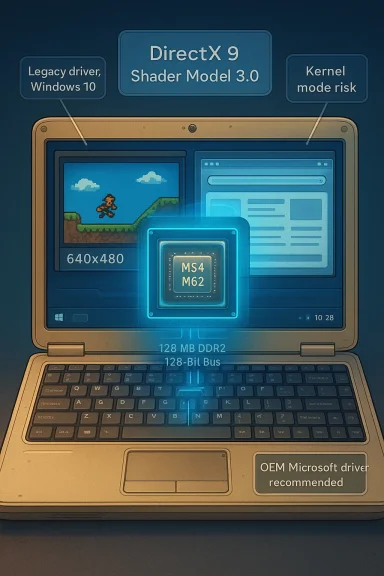
- Memory: typically 128 MB DDR2, 128‑bit bus (notebooks vary)
- GPU clock example: ~445 MHz; memory ~250 MHz (500 MHz effective).
- ATI Mobility Radeon X1350
- GPU family: M62 (M62‑CSP64 variant common in laptops)
- Release: September 2006
- Pixel/Vertex shaders: 4 / 2
- Memory: typically 128 MB DDR2, commonly 64‑bit bus
- GPU clock example: ~371 MHz; memory ~324 MHz (648 MHz effective).
What those numbers mean in practice
- Expect both GPUs to handle:
- Desktop composition and Windowed UI acceleration
- Legacy video codecs (MPEG‑2, older H.264) at low to moderate resolutions
- Very light gaming at low resolution (640×480 to 1280×720) for older titles
- Do not expect:
- Modern GPU accelerated HEVC/AV1 playback
- Contemporary DirectX 11/12 game performance
- Smooth high‑resolution gaming or modern driver features (FSR, raytracing, etc.
Windows 10 compatibility: reality vs. marketing
Official stance and practical reality
AMD moved many pre‑HD and early HD Radeon families into legacy support years ago. For legacy products, AMD’s guidance is explicit: use the final available drivers or rely on Microsoft/OEM drivers, because modern Adrenalin releases no longer target those chip families. On Windows 10 systems configured with mixed legacy and modern AMD hardware, AMD documents recommended behavior and installation caveats. In short: do not expect out‑of‑the‑box Adrenalin feature parity for X‑series parts. Community and archival testing repeatedly shows that Windows Update often supplies a Microsoft‑signed, generic display driver that provides a stable desktop and basic acceleration for legacy GPUs. OEM drivers (from Dell, HP, Lenovo, etc. are often the best bet on laptops because vendors tailor their drivers for hybrid graphics, power management, and hotkeys. Manual installation of archived Catalyst packages is possible but advanced, fragile, and sometimes impossible if the extracted INF files do not list the laptop’s exact hardware IDs.Why driver strategy matters
Graphics drivers run in kernel mode; a flawed or unsigned driver can cause blue screens, memory integrity conflicts, or create a kernel‑level attack surface. Windows 10’s lifecycle position also matters: with mainstream support ended, vendors deprioritize Windows 10 specific QA, and public driver releases increasingly focus on Windows 11. That changes the risk calculus for anyone attempting to run legacy installer bundles on modern kernels. Community best practice therefore emphasizes Microsoft/OEM drivers first, archival Catalyst rollback plan.Installing or updating drivers on Windows 10: a conservative workflow
The following is a practical, risk‑aware sequence to get an X1400 or X1350 working on Windows 10. It prioritizes stability and security and reflects community‑verified practices.- Inventory and backup
- Record the GPU manager → Display adapters → Properties → Details → Hardware Ids, copy the PCI\VEN_1002&DEV_xxxx string.
- Create a System Restore point and, if the machine is important, make a full disk image. Kernel driver changes capable.
- Try Windows Update (safest)
- Settings → Update & Security → Windows Update → Check for updates → View optional updates → Driver updates.
- If Windows Update offers a Microsoft‑signed display driver, install and validate resolution, multi‑monitor behavior, and video playback. Stop here if results are acceptable.
- Check OEM/vendor support
- If the laptop is branded, prefer the OEM’s driver package for that exact model — OEM installers often handle switchable graphics and power features better than generic Catalyst builds.
- Advanced: manual legacy driver install (only for experienced users)
- Use Display Driver Uninstaller (DDU) in Safe Mode to clean prior driver artifacts.
- Download the archived AMD/Catalyst package and extract it (many installers extract to C:\AMD).
- Inspect Display.Driver*.inf for your PCI VEN/PID. If the INF does not include your device, you know how to sign drivers and accept the security risk.
- Install via Device Manager → Update driver → Browse my computer → Have Disk → point to the extracted INF. Reboot and test. If Windows Update reverts the driver, temporarily pause updates during testing.
- Rollback plan
- Keep the wohe DDU tool. If problems appear, restore the system image or use the System Restore point. Never leave driver signature enforcement permanently disabled on a production machine.
Practical performance expectations on Windows 10
- Desktop and UI: both GPUs will handle Windows desktop at standard resolutions, but expect less fluid animations and slower hardware acceleration compared to modern iGPUs. Windows Update driver typically yields acceptable desktop behavior.
- Video playback: older codecs will play reasonably at lower resolutions. Hardware decode for modern codecs (HEVC, AV1) is not available on these chips; software decode will tax the CPU.
- Gaming: playable only for very old titles and only at low resolutions and detail settings. The X1400’s slightly faster memory bus and clocks give it a small advantage, but neither will handle in modern or even many late‑2000s games without drastic settings reductions.
Security and lifecycle risks you must accept
- Kernel‑level risk: installing unsigned or repackaged drivers is inherently risky. These drivers operate at the kernel level and have historically been a vector for severe vulnerabilities. Always prefer signed binaries from Microsoft, AMD, or the OEM.
- OS support timeline: Windows 10’s mainstream lifecycle hr documentation shows a transition to Windows 11‑focused development. Expect reduced QA and fewer driver updates for legacy hardware over time; consider upgrading hardware for long‑term security.
- Unverified drivety “one‑click” updaters and unverified repackagers frequently bundle extraneous code, altered INFs, or unsigned binaries—avoid them. Verify digital signatures and checksums for any binary you download.
- Windows Update revert behavior: if you manually install a legacy driver, Windows Update may reinstall Microsoft’s generic driver automatically. Be prepared to pause updates while testing and re‑enable afterward.
Buying advice for clearance / hotsell units
If you find a clearance or “hotsell” laptop listing advertising an ATI Mobility Radeon X1400 or X1350, evaluate these factors before purchase:- Use case: buy only if your needs are strictly legacy — basic web browsing (with lightweight browsers), office productivity, vintage gaming, or for a hardware collector/test bench. Neither card is suitable for modern multimedia or gaming workloads.
- Battery health and system age: these laptops are old; bage lifespan, and thermal paste condition are likely degraded. Factor in the cost of a new SSD and battery if you plan to use it daily.
- Driver expectations: accept that you will likely rely on the Microsoft/OEM driver and that advanced Catalyst features probably won’t be available on modern Windows 10 builds. Plan for a conservative setup and keep driver installers and recovery media handy.
- Security posture: if the laptop will hold sensitive data or connect to untrusted networks, avoid using unsupported drivers or an unsupported OS long‑term. Consider installing a lightweight Linux distribution as an alternative for secure, low‑resource tasks when the Windows driver story is unacceptable.
When and how to upgrade instead
Given the limited performance envelope and security considerations, a modest hardware refresh will often deliver far more value than struggling with legacy laptop drivers.- Upgrade paths:
- Replace the laptop with a modern low‑cost laptop that includes an integrated Intel or AMD iGPU with current codec support and driver maintenance.
- For desktop replacement, a sub‑$100 modern discrete GPU or current integrated CPU graphics will dramatically outpand add modern codec acceleration.
- Cost‑benefit: Even low‑end current hardware provides HEVC/AV1 decode, modern browser acceleration, and active vendor driver support — features legacy GPUs cannot gain through driver tricks. For users who rely on their machines for work or tethered connectivity, the productivity gains and security improvements justify the upgrade cost.
Strengths, limitations, and a final verdict
Strengths
- Low power draw and simple hardware design made these parts reliable in their era.
- For very specific legacy needs (running older Windows games, retro computing), they remain functional and sometimes preferred for authenticity.
- Widely available on the used market and occasionally in clearance hotsell lots, offering cheap entry points for disposable or experimental systems. ([)
Limitations / Risks
- Legacy driver status: no modern feature sets, limited or no Adrenalin support, and reliance on Microsoft/OEM drivers for Windows 10 stability.
- Security exposure: kernel‑level driver installation risks and reduced vendor QA for Windows 10 create ongoing risk for production machines.
- Performance ceiling: insufficient for modern multimedia decoding and contemporary gaming; limited VRAM and memory bandwidth hamper even mid‑2000s titles at comfortable settings.
Verdict
For hobbyists, collectors, or strictly legacy workloads, the Mobility Radeon X1400 (modestly) outpaces the X1350 and can be a defensible buy at clearance prices — but only with the explicit understanding that driver options are limited, driver installation may require advanced steps, and long‑term security and multimedia needs are unmet. For any user relying on daily productivity, streaming modern video, or connected to untrusted networks, investing in a more recent machine is the safer, more productive choice.Quick checklist before you buy or attempt a driver install
- Verify the laptop model and check OEM support pages for a Windows 10 driver.
- Backup the current system image and create a System Restore point.
- Record PCI\VEN_1002&DEV_xxxx from Device Manager.
- Try Windows Update first — accept Microsoft’s signed driver if adequate.
- If you must use a legacy Catalyst package: extract, confirm INF contains your VID/PID, use DDU in Safe Mode, and install via Device Manager → Have Disk only on a test machine first.
- Avoid third‑party driver repackagers unless you can verify digital signatures and cryptographic hashes.
Both the ATI Mobility Radeon X1400 and X1350 are interesting historical footnotes and useful for certain constrained use cases, but their place in modern computing is limited by driver support, security posture, and raw capability; treat clearance purchases as niche buys, rely on Microsoft/OEM drivers for stability, and plan a hardware refresh when practical.
Source: Born2Invest https://born2invest.com/?b=style-236897812/
