

Start with the individual file that will not save, not the entire drive or user profile. Confirm the exact error message and location first. A document in Documents, Desktop, or a OneDrive folder has different possible causes from a file inside C:\Program Files, C:\Windows, or a network share.
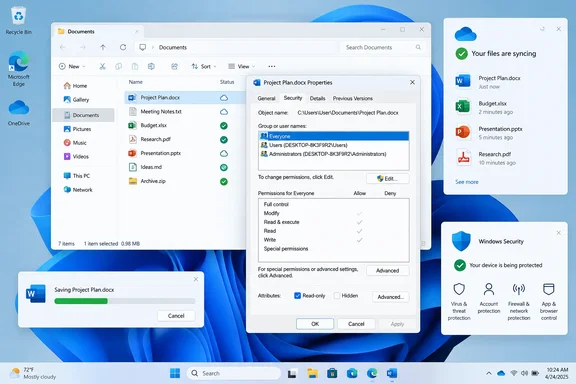 Identify whether the file or folder is actually read-only
The Read-only check box means different things for a file and a folder.
For an individual file, it represents the actual Read-only attribute. If the check box is selected, many applications cannot overwrite that file.
For a folder, the check box on the General tab is not a reliable indication that the folder itself blocks writing. Windows does not honor the Read-only attribute on directories as an access-control mechanism. The box can appear selected or indeterminate again after you clear it because File Explorer also uses folder attributes for customization information. Do not treat that box as proof that the folder is preventing saves.
Quick walkthrough

- Close the application that has the document open.
- In File Explorer, right-click the affected file, then select Properties.
- On the General tab, look under Attributes.
- If Read-only is checked, clear it.
- Select Apply, then OK.
- Reopen the file and make a small change.
- Save the file, close the application, then reopen it to confirm the change remains.
If the Read-only box was already clear, or it clears but the application still cannot save, leave the attribute alone and continue to permissions.
Check and clear an attribute from Command Prompt
This is useful when a file attribute keeps returning or when you need to inspect the result directly.
- Search for Command Prompt and open it normally. Administrator rights are not needed merely to inspect a file you already own.
- Type the following command, replacing the example path with the full path to your file:
attrib "C:\Users\YourName\Documents\Example.docx" - Look for an
Rat the beginning of the output.Rmeans the file has the Read-only attribute. - To remove only that attribute from that one file, run:
attrib -r "C:\Users\YourName\Documents\Example.docx" - Run the first command again. The
Rshould no longer appear. - Try saving the document again.
Warning: Do not run a broad recursive attribute command against C:\, C:\Windows, C:\Program Files, or an entire external drive just to fix one document. System and application files may intentionally use attributes, and changing them in bulk can create update or repair problems.
If several ordinary documents in one known data folder are genuinely marked read-only, use a deliberately narrow command only after backing up the folder:
attrib -r "D:\Work\*.*" /s
The /s option includes files in subfolders. It does not need /d here because the goal is to clear the attribute from files, not alter directory attributes.
Check whether your account has permission to save
A Read-only attribute is separate from NTFS permissions. You can have a writable file attribute but still be denied permission to modify, delete, rename, or create files in its folder.
- In File Explorer, right-click the affected file. If the problem occurs when creating new files, right-click its parent folder instead.
- Select Properties, then open the Security tab.
- Under Group or user names, select your Windows account.
- Under Permissions for <your account>, check the Allow column.
- For an existing document, your account normally needs Write or Modify to save changes.
- For a folder where you create, save, or rename documents, Modify is usually the appropriate permission. It includes the normal write and delete capabilities needed for routine work.
If your account already has Modify and the application still cannot save, do not grant broader permissions yet. Move on to the security and application checks later in this guide.
Add or restore normal write access
Only change permissions on files and folders you own or administer, such as a personal data folder, an external work drive, or a folder you created. Do not add yourself to system folders simply to make an application work.
Warning: Permission changes can expose documents to other accounts or break a shared-folder design. Before editing access, note the existing users and groups shown on the Security tab. On a work or school PC, stop if the folder is owned by your organization, is on a server, or displays management-related messages. Contact the administrator instead.
- Right-click the affected file or folder and select Properties.
- Select Security.
- Select Edit.
- Select your account from the list.
- In the Allow column, select Modify. For a single file, Write may be enough, but Modify is generally needed when an application saves by creating a replacement file and renaming it.
- Select Apply, then OK.
- Close the Properties windows.
- Test by creating a small text file in the folder, saving it, renaming it, and deleting it.
If Windows asks for administrator approval and you do not have administrative credentials, do not attempt to work around it. The account does not have authority to make that change.
Look for a Deny entry and inherited access
On the Security tab, a clear Deny permission is significant. A deny entry can take precedence over a corresponding allow entry. Do not simply add Full control to counteract it; identify why the deny entry exists first.
To inspect the full permission configuration:
- Right-click the file or folder and select Properties > Security > Advanced.
- Review the entries under Permission entries.
- Check whether your account, a group you belong to, or an organization-managed group has an explicit Deny entry.
- Check the Inherited from column. Inherited entries come from a parent folder.
- If the problem began after moving the files, compare the affected folder’s permissions with a nearby working folder.
If inheritance is disabled, the Enable inheritance option may appear in Advanced Security Settings. Enabling it can materially change access for the folder and its contents. Use it only when you know the folder should inherit access from its parent and you have recorded the current entries.
Take ownership only when ownership is the actual problem
Ownership lets a permitted owner control how permissions are assigned. It is not a routine fix for a document that will not save, and it should not be used on Windows system folders or application installation folders.
Use this procedure when all of the following are true:
- The file or folder is yours to administer.
- The Security tab shows that you cannot modify its permissions.
- The current owner is an old account, a removed account, or another local account that should no longer control the item.
- The folder is not an organization-managed location or a shared resource administered by someone else.
Warning: Taking ownership of a shared or managed folder can disrupt access for other users and removes a useful security boundary. Record the current owner before changing it. An administrator may be required.
- Right-click the affected file or folder and select Properties.
- Select Security > Advanced.
- At the top of the window, find Owner and select Change.
- Enter your Windows account name, then select Check Names.
- When Windows resolves the name, select OK.
- For a personal folder tree that you are responsible for, select Replace owner on subcontainers and objects. Leave it unchecked when changing ownership of only one item.
- Select Apply, then OK.
- Return to Properties > Security and grant your account Modify permission if it is still missing.
- Test saving a copy before editing the original document.
To reverse the change, return to Security > Advanced > Change beside Owner and enter the original owner or the correct administrator-managed group. Restore only permissions you understand; do not use broad permission resets on personal, shared, or application folders.
Check Windows Security ransomware protection
Controlled folder access is a Microsoft Defender protection that can block an untrusted application from changing files in protected folders. It can look like a read-only-file issue because the document opens normally but the application cannot save it.
This is especially likely when the problem happens only in Desktop, Documents, Pictures, Music, or Videos, and only with one application.
- Save a copy of any unsaved work to a location the application can write to, if possible.
- Open Windows Security.
- Select Virus & threat protection.
- Under Ransomware protection, select Manage ransomware protection.
- Check whether Controlled folder access is turned on.
- If it is on, look for a Windows Security notification or Protection History entry indicating that the application was blocked.
- Select Allow an app through Controlled folder access.
- Select a recently blocked application if it is listed. Otherwise, choose Browse all apps and select the application’s
.exefile. - Reopen the application and try saving the document again.
Warning: Allow only an application you recognize, trust, and intended to use. An allowed application can modify files in protected folders. Do not turn off Controlled folder access permanently just to accommodate one program; allowing the specific legitimate application is the safer response.
Check app permissions and protected locations
Microsoft Store applications can be blocked from general file-system access even when your Windows account has normal folder permissions.
Windows 11
- Open Settings.
- Select Privacy & security.
- Select File system.
- Make sure Let apps access your file system is turned on.
- If the affected app appears in the list, turn on its individual access setting.
Windows 10
- Open Settings.
- Select Privacy.
- Select File system.
- Make sure Allow apps to access your file system is turned on.
- Turn on access for the affected app if it is listed.
Traditional desktop programs may not appear in this list. For those applications, check the program’s own save location, security settings, and any message it displays. As a quick test, use Save As and choose a folder inside your own user profile, such as Documents. If that works while the original location fails, the issue is location-specific rather than a document format issue.
Rule out OneDrive, sharing, and application locks
A cloud or shared document can appear read-only because the restriction is outside the local file attribute.
- In File Explorer, check whether the file is inside a OneDrive folder.
- Select the OneDrive cloud icon in the taskbar notification area and check for sync errors.
- Close the document in every application that may have it open. OneDrive cannot sync a file while another application is actively using it.
- Right-click the affected file, select Properties > Security, and verify your account has both Read and Write allowed.
- If the file belongs to a shared OneDrive, SharePoint, or network location, confirm that the owner granted you edit permission rather than view-only access.
- If the document opens read-only only in one application, use Save As to create a new local copy. If the local copy saves normally, investigate the shared location, cloud permissions, or the original document’s application-specific protection.
For Office documents, also check the application’s own information and protection controls. A document can be opened as read-only because another user has it checked out, the author marked it final, the file is opened from an email attachment or temporary location, or the document has editing restrictions. Changing NTFS permissions will not remove those document-level restrictions.
Verify the repair and know when to escalate
The repair is complete only when the file can be changed, saved, closed, and reopened with the change intact.
Use this final check:
- Open the affected file from its original location.
- Add a short, harmless test change.
- Select Save rather than Save As.
- Close the application.
- Reopen the same file from File Explorer.
- Confirm the change is still present and no duplicate or conflict copy was created.
Escalate rather than changing ownership or permissions further when:
- The item is in
C:\Windows,C:\Program Files, or another application installation folder. - The device or folder is managed by an employer, school, domain, or device-management service.
- A network server, SharePoint site, or OneDrive owner controls the file.
- The file immediately becomes read-only again after a sync completes.
- The application reports a document password, editing restriction, check-out requirement, licensing issue, or file-format error.
- You see a storage error, disk error, or repeated “Access denied” messages across unrelated folders.
Those symptoms point to a storage, synchronization, policy, document-protection, or application problem—not a simple Read-only attribute.