

The quickest fix is to establish whether this is a compatibility problem, a permissions problem, or a connection problem—in that order.
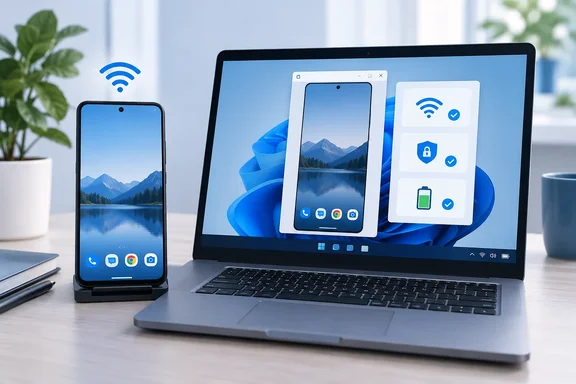 First: confirm that Phone screen is actually supported
Microsoft’s Phone screen feature is not enabled for every Android phone that can use Phone Link.
For full phone-screen mirroring, Microsoft specifies:
Quick walkthrough
- A PC running Windows 10 version 1809 or later, or Windows 11

- A DirectX 11-capable graphics adapter
- An Android phone running Android 10 or later
- Phone and PC connected to the same Wi‑Fi network
- A supported Android device with Link to Windows pre-installed, in an eligible market
Supported families include many Samsung Galaxy, Surface Duo, HONOR, OnePlus, OPPO, Realme, ASUS ROG, and vivo models, but support varies by model and region. A phone can successfully sync texts and photos while still lacking the hardware or vendor integration needed for the Phone screen button. That distinction is the small print that likes to hide behind the sofa.
If Apps is available but the phone screen itself seems to have vanished, open Phone Link > Apps, then select Open phone screen above the app list. Microsoft moved the mirror into its own window on newer Phone Link experiences.
Bottom line: A successful Phone Link connection does not, by itself, prove that full Android screen mirroring is supported.
Wi‑Fi matters more than Bluetooth for screen mirroring
For Android Phone screen and Apps, the live display session uses Wi‑Fi. Bluetooth pairing can be important for Phone Link calls, but it is not the core transport for Android screen mirroring.
Check both ends:
- On the Android phone, open Settings > Wi‑Fi and note the connected network.
- On Windows, open Settings > Network & internet > Wi‑Fi.
- Confirm both devices are on the same network name.
Watch for common gotchas:
- One device is on mobile data while the other is on Wi‑Fi.
- The router separates 2.4 GHz and 5 GHz into different guest or isolated networks.
- The phone is connected to a guest Wi‑Fi network.
- A work, hotel, school, or public network blocks device-to-device traffic.
- A VPN or security product is filtering local-network communication.
Temporarily disconnecting a VPN on both devices is a sensible test. If Phone screen immediately starts working afterward, the VPN or its local-network setting is the likely obstacle—not an invitation to permanently abandon security.
What about Bluetooth pairing?
If Phone Link calls are also failing, verify Bluetooth is on at both ends and that Windows still lists the phone under Settings > Bluetooth & devices. But if only Phone screen is broken, avoid randomly removing Bluetooth pairings first. That can create a second problem while doing nothing for the Wi‑Fi-based mirror session.
Review Link to Windows permissions
Open Link to Windows on the phone and confirm it is signed in with the same Microsoft account used in Phone Link on the PC. Then review any permission prompts that were skipped during setup.
On Android, go to:
Settings > Apps > Link to Windows
The exact menu labels differ by phone maker, but look for these areas:
- Notifications: Allow notifications for Link to Windows.
- Notification access: Search Android Settings for Notification access, then ensure Link to Windows is enabled. If it already appears enabled but notifications or cross-device features are acting odd, turn it off, turn it back on, and approve the confirmation dialog.
- Permissions: Allow the permissions you are comfortable granting when Phone Link requests them. Photos, contacts, messages, and phone permissions affect their respective Phone Link features.
- Battery: Set Link to Windows to Unrestricted, Don’t optimize, or the vendor equivalent where available.
Battery optimization is a particularly frequent troublemaker. Android vendors are understandably aggressive about preserving battery life, but an overzealous power manager can close Link to Windows in the background and make mirroring fail as soon as the phone is locked or idle.
Microsoft specifically recommends exempting Link to Windows from battery optimization when persistent connection problems occur.
Update both sides before rebuilding the connection
Before unlinking anything, update the components:
- On the PC, open Phone Link > Settings > General and check for updates.
- On the phone, open Link to Windows > Settings > About Link to Windows > Check for updates.
- Install pending Windows updates from Settings > Windows Update.
Then close Phone Link on the PC, force-close Link to Windows on Android, restart both devices, and try Phone screen again.
This is not just the traditional “have you tried turning it off and on again?” ritual. It clears a stale session without erasing your pairing, permissions, or feature settings.
Reconnect safely if the link is stuck
If Phone Link asks you to scan a QR code again, or continuously reports that the device cannot be found, use the built-in relinking flow.
- In Phone Link on Windows, open Settings > Devices.
- Select Add new device.
- On the phone, open Link to Windows.
- Confirm the Microsoft account is correct.
- Use Link to Windows to scan the QR code shown by Phone Link.
- Approve the requested Android permissions.
If the connection remains unreliable, sign out and unlink from Link to Windows on the phone first, then add the device again in Phone Link. This is cleaner than deleting Bluetooth records at random because it rebuilds the Microsoft-account link and app permissions that Phone Link actually uses.
For stubborn cases, Microsoft’s reset procedure is the final escalation:
- On Android: Settings > Apps > Link to Windows > Force stop
- On Windows: Settings > Apps > Installed apps > Phone Link > Advanced options > Reset
- Unlink the old phone from your Microsoft account and from Settings > Phone in Windows, then pair it again
Use the reset route only after checking compatibility, Wi‑Fi, updates, and permissions. It works, but it is the digital equivalent of moving house because you misplaced the TV remote.
If only one app shows a black screen
A black window does not always mean Phone Link is broken. Some Android apps deliberately prevent screen capture or casting, often to protect paid video, financial information, passwords, or other sensitive content. Microsoft notes that apps which block casting cannot be used through Phone Link on the PC.
Test the mirror with a basic app such as Settings, a browser, or the phone’s app drawer:
- Phone screen works elsewhere: the individual app is blocking casting.
- Every app is black or the mirror never opens: return to Wi‑Fi, permissions, battery optimization, and device compatibility.
Also avoid running Samsung DeX and Phone Link screen mirroring at the same time. Microsoft warns that the two can interfere with each other; close one before launching the other.
What success looks like
Once repaired, Phone Link > Apps > Open phone screen should open a separate window showing the Android display. You should be able to use the PC mouse, keyboard, touchpad, or touchscreen to tap, type, scroll, and navigate. Audio from Android apps generally remains on the phone, so silence from the PC speakers is not automatically a mirroring failure.
For related troubleshooting, WindowsForum readers may also want to review Phone Link notification fixes, Windows 11 Wi‑Fi connection troubleshooting, and methods for managing Android battery optimization.