

.heic is associated with Photos, and check whether the file itself copied from the phone successfully. This guide applies to Windows 11 and to Windows 10, although Windows 10 reached end of support on October 14, 2025 and no longer receives free security updates or technical support from Microsoft.
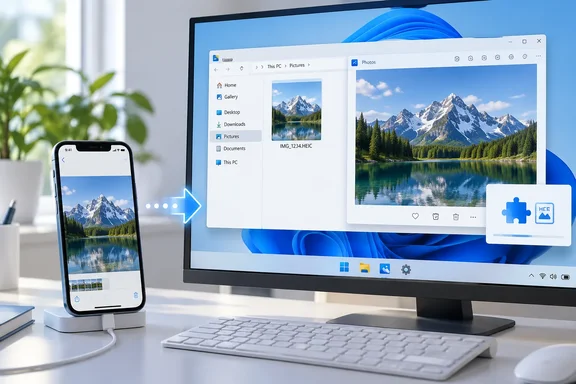
HEIC is the filename extension commonly used by iPhone photos saved in the HEIF image format. A .heic file is not necessarily damaged simply because Windows displays a blank thumbnail, a codec message, or an “unable to open” error. Windows needs the appropriate image extension to decode the file. Videos from an iPhone may also need a separate HEVC video extension, but do not install a video codec merely to solve a photo-opening problem unless Photos specifically asks for it.
 Check that the file is really a HEIC image
Before changing apps or installing extensions, confirm the file type. A failed import, an incomplete cloud download, or a video with a similar-looking filename can produce symptoms that resemble a missing codec.
Quick walkthrough
- Open File Explorer with Windows key + E.
- Browse to the folder containing the image.
- Turn on visible filename extensions.
- Windows 11: Select View > Show > File name extensions.
- Windows 10: Select the View tab, then select File name extensions.
- Look at the end of the file name.
- A photo should normally end in
.heicor sometimes.heif. - A video may end in
.movor.mp4. An HEVC video needs different support from an HEIC still image. - Do not rename
.heicto.jpg. Changing the filename extension does not convert the photo and can make it harder for apps to identify the file correctly. - Right-click the image and select Properties. Check that the file size is plausible. A file showing 0 KB, or a much smaller size than other photos from the same transfer, may be incomplete rather than unsupported.
If only one file fails while other HEIC images open normally, skip to the troubleshooting section and test the affected file by copying it from the iPhone again.
Install the HEIF Image Extensions codec
The required component for HEIF and HEIC still images is HEIF Image Extensions from Microsoft. It is available through the Microsoft Store.
- Close Microsoft Photos and any other image editor that is attempting to open the file.
- Select Start, type Microsoft Store, and open it.
- In the Store search box, type HEIF Image Extensions.
- Select the result named HEIF Image Extensions. Confirm that it is the Microsoft listing rather than an unrelated third-party viewer or converter.
- Select Get or Install.
- Wait for the Store to report that the installation is complete.
- Close Microsoft Store.
- Reopen the HEIC file by double-clicking it, or right-click it and select Open with > Photos.
The expected result is that the image opens in Microsoft Photos and File Explorer can generate a usable thumbnail. It is normal for the first thumbnail generation to take a moment after installing the extension.
If Photos asks for an HEVC extension
Some Apple media uses HEVC compression. Microsoft’s guidance for its older Photos video workflow indicates that HEIF and HEVC extensions can both be necessary for HEIF/HEVC media. The HEIF Image Extensions listing is the correct first installation for still photos. If Microsoft Photos displays a message specifically requesting an HEVC extension, follow that prompt in the Microsoft Store.
Do not confuse this with a general requirement to purchase an HEVC extension for every .heic photo. Test the photo again after installing HEIF support first. HEVC support is primarily relevant when you also need to open or edit HEVC video, such as iPhone .mov clips.
Update Microsoft Photos and the HEIF extension
An outdated Photos app or extension can continue to fail after the codec is installed. Update both through Microsoft Store before repairing or resetting anything.
- Open Microsoft Store.
- Select Check for updates. Depending on the Store version, this command may appear in the library or update area.
- Let updates finish for:
- Microsoft Photos
- HEIF Image Extensions
- Any Microsoft Store components offered as updates
- Restart Windows:
- Select Start > Power > Restart.
- After signing in, open the same HEIC image again.
A restart is not always required for an extension installation, but it closes any background Photos processes and reloads file-type components cleanly.
Repair Microsoft Photos without deleting its app data
If the HEIF extension is installed but Photos closes, freezes, opens a blank window, or continues to say it cannot view the file type, use Windows’ built-in repair option first. Repair is the least disruptive option.

Windows 11: Repair Photos
- Select Start > Settings > Apps > Installed apps.
- Find Microsoft Photos.
- Select the More button beside it, then select Advanced options.
- Scroll to the Reset section.
- Select Repair.
- Wait for Windows to complete the repair.
- Open Photos from Start, then try the HEIC image again.
Windows 10: Repair Photos
- Select Start > Settings > Apps > Apps & features.
- Select Microsoft Photos.
- Select Advanced options.
- Under the Reset section, select Repair.
- Open the HEIC image again after repair completes.
Repair attempts to correct the Photos app installation while preserving its app data. It does not convert, delete, or modify the original HEIC photo.
Reset Photos only if repair did not work
Warning: Reset removes Microsoft Photos app data and returns the app to its default state. It does not delete picture files stored in your Pictures folder, OneDrive, iCloud Photos folder, external drive, or phone. However, you may need to sign in again and reconfigure Photos preferences or connected services afterward.
Use the same Advanced options page reached in the repair procedure.
- Under Reset, select Reset.
- Select Reset again when Windows asks for confirmation.
- Open Microsoft Photos from the Start menu.
- Allow the app to finish its initial setup.
- Open the HEIC file again.
If the photo opens now, the problem was with Photos rather than the image file or codec. If it still fails, continue with the file association check.
Set Microsoft Photos as the default app for HEIC files
A working codec does not guarantee that double-clicking an HEIC image uses the correct app. Another image program may have claimed the .heic association, or Windows may have no default set.
Set the association from the file
- In File Explorer, right-click a
.heicfile. - Select Open with > Choose another app.
- Select Photos.
- Enable Always use this app to open .heic files if you want Photos to open every HEIC photo by default.
- Select OK.
Test by closing Photos and double-clicking the same file.
Set the association from Settings
Use this method when the Open with dialog does not show Photos or when you want to review the assigned app directly.
- Open Settings.
- Select Apps > Default apps.
- Search for
.heic. - Select the current default app, or select the file-type entry if no default is assigned.
- Choose Photos.
- Repeat the process for
.heifif you also receive files with that extension.
Do not select a program merely because it appears in the list. If Photos does not open the image after the HEIF extension is installed, choose another installed photo viewer only as a diagnostic test. A different app opening the file proves that the file is likely intact, but it does not repair Photos.
Verify that the fix worked in both Photos and File Explorer
A successful repair should work in more than one place.
- In File Explorer, switch the folder to Large icons or Extra large icons.
- Confirm that the HEIC file displays a thumbnail rather than a generic icon.
- Double-click the image and confirm that it opens in Microsoft Photos.
- In Photos, use the next and previous controls to move between several HEIC images from the same folder.
- Close Photos, then open the same image again from File Explorer.
If thumbnails remain generic but Photos opens the image, the important decoding problem is resolved. Restart File Explorer or restart Windows before assuming the thumbnail cache is permanently broken.
Fix common HEIC opening failures
“You need an extension to use this file”
Install HEIF Image Extensions from Microsoft Store, then close and reopen Photos. If the message explicitly names HEVC, install the extension indicated by the prompt and test again. Ensure that you are opening a still-image .heic file rather than an HEVC video.
HEIF Image Extensions is installed, but Photos still cannot open the image
- Update Photos and HEIF Image Extensions through Microsoft Store.
- Restart Windows.
- Repair Photos.
- Reset Photos only if repair does not solve the issue.
- Test a different HEIC image from the same iPhone.
If other HEIC images work but one does not, recopy that one image. A partial transfer cannot be repaired by reinstalling a codec.
Microsoft Store will not install or update the extension
First, make sure the PC is online and has free disk space. Then clear the Store cache:
- Press Windows key + R.
- Type
wsreset.exe. - Select OK.
- Wait for Microsoft Store to reopen.
- Search again for HEIF Image Extensions and retry the installation.
On a work or school PC, Microsoft Store access or app installation may be controlled by the organization. Contact the IT administrator rather than attempting unofficial codec downloads or registry changes.
The photo was imported from iCloud but will not open
The file may be an online-only item or the original may not be present locally. Make sure the photo is fully downloaded before opening it. Apple also notes that, when iCloud Photos is enabled, original full-resolution photos may need to be downloaded to the iPhone or iPad before importing them to a PC.
New iPhone photos work, but older transferred images do not
Try transferring one affected image again using a data-capable USB cable. Unlock the iPhone, approve the Trust This Computer or Allow prompt if shown, then import through Microsoft Photos by selecting Import and choosing the connected device. A cable that only supplies power will not reliably transfer photos.
You need JPEG files instead of HEIC in the future
This is an alternate workflow, not a repair for existing files. On the iPhone or iPad, open Settings > Camera > Formats, then select Most Compatible. New photos will use JPEG and new videos will use H.264, which are more widely compatible with older software. This setting does not convert HEIC images already captured; keep HEIF support installed if you need access to your existing library.