

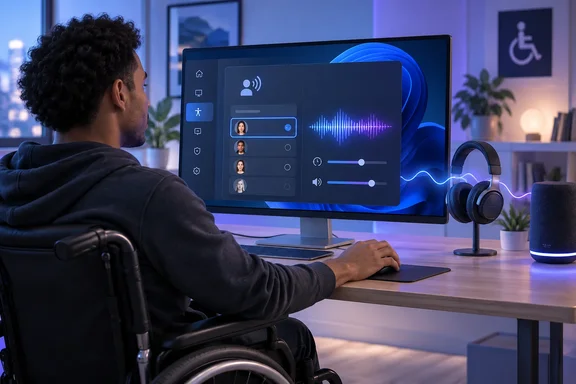
 Check Windows 11 compatibility and prepare for the download
Before installing a voice, confirm that the PC is running a supported Windows 11 release and can access Microsoft’s online services.
- Open Start > Settings > System > About.
- Under Windows specifications, check the installed Windows 11 version.
Natural Narrator voices are available on Windows 11, version 22H2 and later. If the PC is on an earlier version, install the latest available Windows updates before continuing. - Confirm that the PC is connected to the internet.
The selected voice model must be downloaded before it can be used. The download may take several minutes, depending on the connection. - If this is a work or school PC, make sure Microsoft Store downloads are permitted.
Some organizations block access to Microsoft Store services. If the natural-voice download reports that it cannot connect or cannot install, the organization’s IT administrator may need to allow or deploy the voice package. - Connect the speakers, headphones, or headset you intend to use.
Narrator can use a different audio output device from the rest of Windows, so having the intended device connected before configuring Narrator can make testing easier.
Open Narrator settings
You do not need to leave Narrator enabled permanently to download a voice, but turning it on can help you hear the voice preview and immediately test the result.
- Press Windows key + Ctrl + N.
This opens the Narrator page in Settings. - If Narrator is off and you want spoken guidance while working, turn on Narrator near the top of the page.
You can also start or stop Narrator at any time with Windows key + Ctrl + Enter. - If Narrator starts reading more than you want while you configure it, press Ctrl once to stop the current speech.
This stops the current announcement without turning Narrator off. - Find the voice area. Depending on the Windows 11 build and the wording used on your device, it may be labeled Narrator’s voice or Personalize Narrator’s voice.
Look for Choose a voice, speed, pitch, volume, and an Add button for natural voices. If those controls are collapsed, select Show all settings below the voice chooser.
Download a natural Narrator voice
Windows displays voices appropriate for the current display language first. You can also browse the available languages before choosing a voice.
- In Settings > Accessibility > Narrator, find Add natural voices.
- Select Add.
If you opened Narrator and heard an announcement that more natural voices are available, selecting Install now in that announcement also opens the relevant Narrator settings area. - Review the available voices.
The list can vary as Microsoft adds voice models and language support. Common natural-voice options include: - English (United States): Guy, Jenny, and Aria
- English (United Kingdom): Ryan and Sonia
- English (India): Prabhat and Neerja
- Chinese: Yunxi and Xiaoxiao
- Spanish (Spain): Alvaro and Elvira
- Spanish (Mexico): Jorge and Dalia
- Japanese: Keita and Nanami
- French: Henri and Denise
- Portuguese: Antonio and Francisca
- German: Conrad and Katja
- Korean: InJoon and SunHi
- To look beyond the current display language, select Choose a language.
- Choose the language or regional voice set you want, then select Next.
- Move through the displayed voice choices and listen to the preview.
Windows automatically plays a preview as you browse the list. Listen through the audio device you plan to use day to day; a voice that sounds clear through speakers may sound different through a headset. - Select the voice you want, then select Install.
Windows downloads each natural voice separately. You can install multiple voices, but repeat this process one voice at a time. - Wait for the download to complete.
The new voice should become available in Narrator settings after installation finishes. There is no normal restart step for this process.
If you see HD voices
Some current Windows 11 installations also offer newer HD voices in the same natural-voice area. In English (United States), these may include Andrew and Ava. Windows may also show HD voice choices for French or Chinese, depending on the installed Windows release and available language support.
The installation process is the same: select Add natural voices, choose the voice, download it, and select it as Narrator’s active voice. If an HD voice appears and you prefer its preview, you can use it; it is an additional option rather than a requirement for using Narrator.
Select the downloaded voice and adjust how it sounds
Installing a voice does not always switch Narrator to it automatically. Return to Narrator’s main settings and choose it explicitly.
- Return to Settings > Accessibility > Narrator if you are not already there.
- Under Narrator’s voice or Personalize Narrator’s voice, open the Choose a voice drop-down list.
- Select the natural or HD voice you installed.
Narrator should begin using the selected voice for subsequent announcements. - Adjust Speed until speech is comfortable.
Start at a moderate rate and make small changes. A lower rate can be easier while learning Narrator or reviewing dense material; a higher rate can be more efficient once you know an app well. - Adjust Pitch if the selected voice offers the control and the default pitch is uncomfortable.
- Adjust Volume to set Narrator’s own speech level.
This is separate from the master Windows volume. If you cannot hear Narrator even at a suitable Narrator volume, also check the taskbar speaker control, the physical headset volume, and the selected audio output device. - If Narrator needs to be easier to hear over a video, meeting, or other software, enable Lower the volume of other apps when Narrator is speaking.
This temporarily reduces other application audio while Narrator talks. It is useful for spoken instructions and reading, but you may prefer to turn it off when working with audio-editing, music, or calls where uninterrupted app sound matters. - If you have more than one playback device, use Narrator audio output device or Select where you hear Narrator’s voice to choose the correct speakers or headset.
This can let Narrator speak in a headset while other sound continues through speakers, or the reverse.
Use keyboard shortcuts for quick speech adjustments
The Settings sliders are the best place to establish a comfortable default. These shortcuts are useful when you need a temporary adjustment while reading:
- Narrator + Plus (+): Increase speaking rate.
- Narrator + Minus (-): Decrease speaking rate.
- Narrator + Ctrl + Plus (+): Increase Narrator volume.
- Narrator + Ctrl + Minus (-): Decrease Narrator volume.
In these shortcuts, Narrator means the Narrator modifier key. By default, either Caps Lock or Insert can serve as that key. The plus and minus commands refer to the physical keys; you do not need to add Shift merely to type a plus sign.
Reduce or increase Narrator’s verbosity
A natural voice changes how Narrator sounds; verbosity changes how much Narrator says. If Narrator feels too chatty or leaves out information you need, change the detail level rather than replacing the voice.
- Open Settings > Accessibility > Narrator.
- Find the section for Verbosity or Change what you hear when reading and interacting.
- Set the detail level that fits the task:
- Text only: Best for fast reading in familiar apps, articles, books, and webpages. Narrator omits many control and formatting details.
- Some control details: A middle ground for people who know the app but still want some interface information.
- All control details: The default full-control experience for navigating unfamiliar apps and dialogs.
- Some text details: Adds information about text characteristics while retaining a balanced amount of control detail.
- All text details: Provides the most descriptive reading experience.
- Use the verbosity shortcut when you want to test levels without returning to Settings:
- Press Narrator + V to move through verbosity levels.
- Press Narrator + Shift + V to move in the opposite direction.
Narrator announces the newly selected level, making it practical to compare settings while reading the same page.
- Open Show all settings in the verbosity area for additional choices, where available.
Useful adjustments include: - Read phonetically when reading by character for spelling names, passwords, codes, or file names.
- Read advanced detail, like help text, on buttons and other controls when you need more guidance in unfamiliar dialogs.
- Read hints on how to interact with buttons and other controls when learning an app.
- Tell me why actions can’t be performed for additional feedback when a command is unavailable.
- Play sounds instead of announcements for common actions to reduce repetitive speech for actions such as landing on links or changing scan mode.
- Tell me details about buttons and other controls before or after the control, depending on your preference.
- Have Narrator announce when I type to choose whether it reads letters, words, function keys, navigation keys, toggle keys, or modifier keys.
Natural-voice limitations to expect
Some verbosity effects are unavailable with natural voices. In particular:
- Emphasize formatted text is not available when using a natural voice.
- Pause slightly when reading punctuation is not available when using a natural voice.
- For capitalization, the Increase pitch option is not supported with a natural voice.
If you rely on capitalization feedback while using a natural voice, choose Say cap rather than Increase pitch. If a punctuation or formatting setting is grayed out or does not change the spoken result, this can be a normal limitation of the selected natural voice rather than an installation problem.
Verify that the new voice is installed and working
- In Narrator settings, open Choose a voice.
- Confirm that the newly installed voice appears in the list and is selected.
- Turn Narrator on with Windows key + Ctrl + Enter if it is not already running.
- Open a familiar document, Settings page, or webpage and move through a few controls with Tab or the arrow keys.
- Confirm all of the following:
- The new voice is speaking.
- The speed and volume are comfortable.
- Narrator is using the intended speaker or headset.
- The amount of control detail matches the verbosity level you chose.
- Disconnect from the internet briefly only if you need to verify offline use.
After the voice has fully downloaded, Narrator should continue to use it on-device. Reconnect afterward if you need to install another voice or obtain Windows updates.
Install a standard voice in another language instead
Natural voices are not available for every language and region. If your needed language is absent from the natural-voice list, Windows can install standard text-to-speech voices separately.
- Open Settings > Accessibility > Narrator.
- In the voice section, select Add legacy voices or Add more voices.
Windows opens the Speech settings page. - Under Manage voices, select Add voices.
- Choose the language you need, then select Add.
- Wait for the language voice to download.
- Return to Settings > Accessibility > Narrator.
- Open Choose a voice and select the newly installed voice.
Standard voices are a useful fallback for languages that do not yet have a natural Narrator model. They also remain useful when you need a particular legacy voice for compatibility or personal preference.
Fix common natural-voice download and playback problems
The Add natural voices button is missing
- Confirm the PC is running Windows 11 version 22H2 or later in Settings > System > About.
- Install available Windows updates, restart if Windows Update requests it, then return to Settings > Accessibility > Narrator.
- Select Show all settings below Choose a voice. On some versions, the Add button appears after the speed, pitch, and volume controls rather than beside the voice chooser.
Windows says to check the internet connection or says it cannot install the voice
- Confirm the device has an active internet connection.
- Open Microsoft Store and try downloading an ordinary free app. This tests whether the PC can reach the Microsoft Store catalog used during voice setup.
- If Store downloads are blocked on a managed work or school device, contact the IT administrator. Microsoft documents an enterprise deployment route for voice packages when direct Store access is unavailable.
- If Store downloads work but the voice still fails, use Feedback Hub to report the Narrator installation problem.
The voice installed, but it is not speaking
- Return to Settings > Accessibility > Narrator and select it manually in Choose a voice.
- Check Narrator audio output device or Select where you hear Narrator’s voice. The speech may be directed to another connected display, dock, Bluetooth headset, or audio interface.
- Check Windows master volume and the selected device’s own volume.
- Press Windows key + Ctrl + Enter twice: once to stop Narrator and once to start it again. Then test the selected voice.
Narrator is too verbose, too quiet, or difficult to follow
- Use Narrator + V to move toward a less detailed verbosity level, or use Narrator + Shift + V to restore more detail.
- Reduce Speed in Narrator settings or use Narrator + Minus (-).
- Raise Narrator’s own Volume, then check the Windows speaker volume separately.
- Turn on Lower the volume of other apps when Narrator is speaking if background audio masks Narrator.
- If a natural voice does not respond to a formatting, punctuation-pause, or pitch-based capitalization setting, choose a compatible setting such as Say cap, or switch to a standard voice if that specific speech behavior is essential.