

Microsoft Support documents lid behavior through the classic Power Options control panel, while Microsoft Learn identifies powercfg as the built-in way to check available sleep states and diagnose Modern Standby. Dell and ASUS support guidance reaches the same practical conclusion: start with the configured action, then identify wake sources, then update the platform-specific drivers and BIOS rather than applying random registry tweaks.
Before changing anything, save open work and reproduce the problem once with the laptop disconnected from docks, USB receivers, external storage, and external displays. A dock, mouse receiver, Ethernet adapter, or monitor can either generate wake activity or mask the laptop’s normal lid behavior.
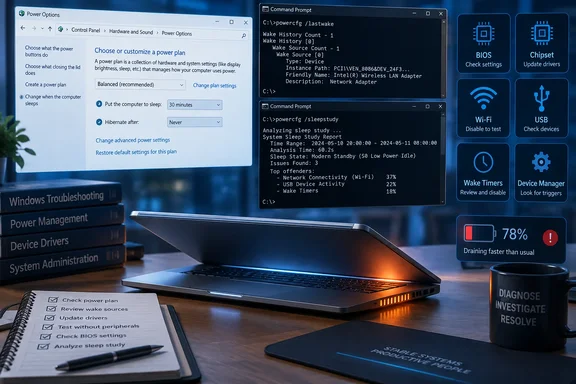 Set the lid-close action for battery and AC power
Windows keeps separate lid settings for battery and plugged-in operation. It is common to find that one is set to Sleep while the other is set to Do nothing—especially on a laptop previously used with an external monitor or dock.
- Press
Win + R, typecontrol, and press Enter. - Open Hardware and Sound > Power Options.
- Select Choose what closing the lid does in the left pane.
- Under When I close the lid, set the desired behavior separately for On battery and Plugged in.
- Choose Sleep for normal short breaks, or Hibernate if the laptop will travel in a bag or sit unused for hours.
- Select Save changes.
If the controls are greyed out, select Change settings that are currently unavailable first. Microsoft’s documented options are Do nothing, Sleep, Hibernate, and Shut down.
For most people, Sleep is appropriate while working at a desk, but Hibernate is safer for travel. Sleep preserves the session in RAM and still consumes a small amount of power. Hibernate writes the session to disk and uses effectively no battery power afterward. If a laptop has a history of overheating in a backpack, setting lid close to Hibernate while on battery is often the most reliable workaround while the underlying Modern Standby issue is investigated.
Do not assume the visible Windows 11 Settings page is the whole story. Settings can configure idle timers, but the specific lid-switch action remains most consistently exposed in the legacy Power Options panel. Windows 10 and Windows 11 both use the same underlying lid action setting.
Check which sleep design the laptop actually supports
A newer laptop may not support traditional S3 sleep at all. Instead, it may use Modern Standby, also shown as S0 Low Power Idle. In that design, closing the lid initiates a screen-off-to-low-power transition; Windows and hardware may still briefly perform controlled background work before reaching the deepest idle state.
Open Command Prompt as administrator, then run:
powercfg /a
Read the output carefully.
If it lists Standby (S0 Low Power Idle) Network Connected or Standby (S0 Low Power Idle) Network Disconnected, the PC uses Modern Standby. If it lists Standby (S3), it supports the older sleep model. The command also explains why other states are unavailable, which is more useful than attempting to force an unsupported sleep mode through registry changes.
Modern Standby can make a working laptop look suspiciously awake. A keyboard backlight may linger briefly, a network adapter may remain active, and the system can wake for permitted maintenance or network activity. Microsoft’s own design documentation says Modern Standby should spend most of a session in its deepest low-power state. A laptop that becomes unusually warm, drains a large amount of battery, or wakes fully and repeatedly is not exhibiting the intended result.
For a Modern Standby laptop, generate a report after a failed lid-close test:
powercfg /sleepstudy /output "%USERPROFILE%\Desktop\sleepstudy.html"
Open the resulting sleepstudy.html file from the desktop. Look for the session that covers the period when the lid was closed. The report can show excessive drain and identify top offenders—drivers, devices, or software that kept the PC from spending enough time in low power.
SleepStudy is designed for Modern Standby systems. If the command says it is unsupported, rely on the wake and power-request checks below instead.
Find what woke the laptop—or what prevented sleep
When the laptop sleeps and immediately wakes, do not disable devices blindly. First identify the wake source.
Open an elevated Command Prompt and run:
powercfg /lastwake
This reports information about the most recent wake event. Then check which devices Windows currently allows to wake the PC:
powercfg /devicequery wake_armed
Common entries include a USB mouse, USB keyboard, Bluetooth adapter, Ethernet controller, or Wi-Fi adapter. A wake-capable network adapter is useful for Wake-on-LAN in a managed environment, but it is not necessary on most personal laptops.
To stop one listed device from waking the system, use its name exactly as returned:
powercfg /devicedisablewake "device name"
For example, disabling wake on a wireless mouse receiver can stop a desk vibration or slight mouse movement from immediately resuming the laptop. Leave the built-in keyboard and essential input devices alone until you have tested the change; disabling the wrong device can make normal wake behavior less convenient.
Also check for scheduled wake events:
powercfg /waketimers
A wake timer can be associated with maintenance, update activity, backup software, or a third-party scheduler. If a timer names a specific application, change that application’s scheduling settings before turning off wake timers globally. Disabling every wake mechanism may interfere with managed updates, backups, or remote administration.
If the laptop will not sleep at all, run:
powercfg /requests
Dell’s Windows sleep troubleshooting guidance uses this command to identify processes, drivers, or devices actively blocking sleep. Entries under SYSTEM, DISPLAY, or AWAYMODE are the most relevant. Close or update the named application first. If the request is tied to an audio, display, network, or USB driver, move directly to driver and firmware maintenance.
Review wake permissions in Device Manager
Device Manager provides a graphical way to review some wake-enabled hardware, although the available controls depend on the device driver and the laptop’s power design.
Right-click Start, select Device Manager, and inspect these categories:
- Network adapters, especially Wi-Fi and Ethernet devices.
- Mice and other pointing devices, including USB receiver entries.
- Keyboards and USB input devices.
- Universal Serial Bus controllers, particularly hubs and docks.
- Bluetooth adapters.
Open a device’s Properties window and look for a Power Management tab. If present, clear Allow this device to wake the computer for nonessential devices that appeared in powercfg /devicequery wake_armed or powercfg /lastwake.
Do not treat a missing Power Management tab as proof of a fault. Microsoft notes that the tab appears only when the driver exposes the relevant power-management controls. On Modern Standby hardware, changing every available checkbox can also worsen battery life or disrupt the manufacturer’s intended power policy.
For network adapters, consider whether Wake-on-LAN is required. On a work laptop, IT may need it for remote maintenance. On a personal system, disabling wake from the Wi-Fi or Ethernet adapter can eliminate unexplained wake-ups. If the setting returns after a driver update or corporate policy refresh, it may be managed centrally rather than locally.
Update the drivers that control power transitions
The lid itself is only one input. A successful sleep transition depends on firmware, chipset power management, graphics, storage, network, Bluetooth, USB, and sensor drivers working together. An outdated graphics or chipset driver can cause a machine to fail entering sleep, resume to a black screen, or awaken unexpectedly.
Start with Settings > Windows Update > Advanced options > Optional updates, then install relevant driver updates. Since Windows 10 version 2004, Device Manager generally does not search Windows Update broadly on its own; Microsoft’s driver-distribution documentation directs users toward Windows Update’s optional driver updates when a manual driver is available.
For persistent problems, use the laptop maker’s support page for the exact model and install updates in this order:
- Install the latest BIOS or UEFI firmware offered for the exact model.
- Install the chipset or platform power-management package.
- Install graphics drivers, including integrated graphics drivers even if the laptop also has a discrete GPU.
- Install current Wi-Fi, Bluetooth, and storage-controller drivers.
- Restart after the updates, then test lid close on battery and AC power separately.
Use the manufacturer’s package rather than a generic driver-download site. Dell and ASUS both recommend updating BIOS, Windows packages, and model-specific drivers for sleep and resume problems. Firmware is especially important when the lid sensor, embedded controller, or Modern Standby implementation is involved.
A BIOS update is not routine housekeeping: keep the laptop on AC power, do not interrupt the update, and use only firmware intended for the exact model. If the lid action worked until a BIOS or driver update, record the installed version before changing anything so that you can report a reproducible regression to the manufacturer.
When the lid still does nothing
If Sleep or Hibernate is selected for both power conditions but closing the lid produces no change, test whether Windows can sleep normally from the Start menu. Select Start > Power > Sleep, wait 30 seconds, then wake the laptop with the power button.
If Start-menu Sleep works but lid close does not, the fault is more likely in the lid sensor, embedded controller, chassis hardware, or vendor-specific firmware than in the basic Windows power plan. Test with all accessories removed and check the manufacturer’s diagnostics utility if it provides one. A loose magnet, damaged hinge area, or failed Hall-effect lid sensor can prevent Windows from receiving a lid-closed event at all.
If Start-menu Sleep also fails, focus on powercfg /requests, powercfg /lastwake, SleepStudy where available, and the driver stack. Do not reset Windows before collecting those results; the command output and SleepStudy report can identify a specific driver or process and provide useful evidence for OEM support.
The practical endpoint is simple: closing the lid should either enter the exact state you chose or reveal a traceable exception. Once the lid action is correct, wake sources are narrowed, and chipset, graphics, network, and firmware updates are current, a laptop that still remains awake is no longer a generic Windows settings problem—it is a model-specific driver, firmware, or hardware case that the manufacturer needs to address.


