dxdiag, can tell you in a few minutes whether your Windows PC clears a game’s basic graphics requirements—or whether a driver, the wrong GPU, or a missing hardware capability is likely to stop it before performance is even relevant. It is built into Windows 10 and Windows 11, requires no download, and produces a shareable text report that is far more useful than a screenshot of a GPU name.
Microsoft Support documents dxdiag primarily as a way to identify the installed DirectX version and collect audio and video troubleshooting information. Microsoft’s Direct3D documentation adds the part game requirement pages often fail to explain: the Windows DirectX runtime version and the GPU’s feature level are separate checks. A PC can report DirectX 12 while its installed graphics hardware lacks the feature level a particular game requires.
For a first compatibility pass, use dxdiag to confirm four things: the graphics adapter Windows is actually using, its available dedicated graphics memory, its Direct3D feature levels, and the display-driver version and date. Then compare those results against the game publisher’s requirements—not only against a storefront badge saying “DirectX 12.”
 Open dxdiag and let it finish loading
Press Windows key + R, type dxdiag, and press Enter. You can also type dxdiag into the Start menu search box and choose DirectX Diagnostic Tool.
The first launch may ask whether the tool should check whether your drivers are digitally signed. Choose Yes. This does not benchmark the GPU or modify the system; it checks whether Windows can verify the driver publisher. An unsigned, generic, or unexpectedly old display driver can be a compatibility problem in its own right.
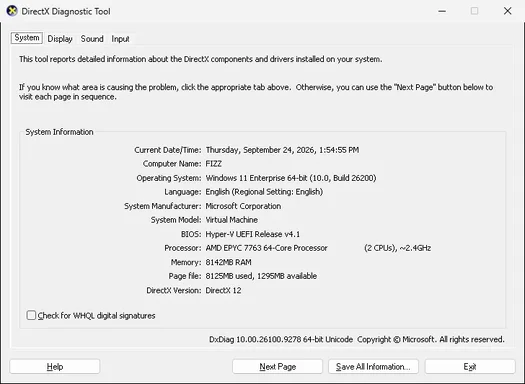
Give the tool a moment to populate the tabs. The first page, System, identifies the Windows edition and build, processor, installed memory, BIOS information, and DirectX runtime version. For a game compatibility check, record these entries:
Quick walkthrough

- Operating System confirms whether you meet a Windows 10 or Windows 11 requirement and whether you are on a 64-bit installation.
- Processor and Memory help with the rest of the game’s minimum specification, although
dxdiagdoes not replace a full CPU benchmark. - DirectX Version reports the DirectX runtime included with Windows.
Microsoft says Windows 10 and Windows 11 already include the latest DirectX version available for those operating systems through Windows Update. That makes the System-tab version useful for catching an outdated Windows installation, but it is not proof that the GPU supports every DirectX 12 game feature.
A game might list “DirectX 12” as a software requirement, yet also require Direct3D Feature Level 12_0, Shader Model 6, hardware ray tracing, mesh shaders, or a particular amount of video memory. Those are hardware and driver questions, and the Display tab is where dxdiag becomes more valuable.
Find the GPU Windows will use
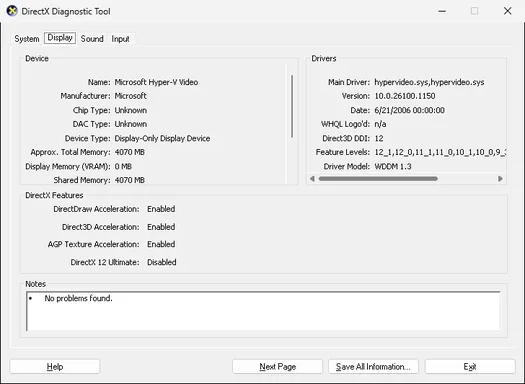
Open the Display tab. Desktop PCs with one graphics card normally show a single primary display adapter. Laptops and some desktops may show multiple Display, Render, or similar adapter tabs because they include both integrated graphics and a discrete NVIDIA, AMD, or Intel GPU.
Under Device, note the following:
- Name is the GPU model as identified by its driver.
- Manufacturer identifies the graphics vendor.
- Chip Type may provide another model-family identifier.
- Display Memory or Dedicated Memory is the GPU memory reserved for that adapter.
- Shared Memory is system RAM that Windows can make available to an integrated GPU when necessary.
Do not treat “Approx. Total Memory” as the same thing as VRAM. Windows often adds dedicated graphics memory and shared system memory into that number. If a game requires 8 GB of VRAM, compare that requirement with Dedicated Memory or Display Memory, not an inflated total that includes ordinary system RAM.
This distinction is especially important on laptops. An integrated GPU may show modest dedicated memory plus several gigabytes of shared memory, while a separate discrete GPU has its own dedicated VRAM. A game may technically launch on the integrated adapter but perform poorly, lack required feature support, or default to a lower graphics preset. The game should be configured in Windows Graphics settings or the GPU vendor’s control panel to use the high-performance discrete GPU when one is available.
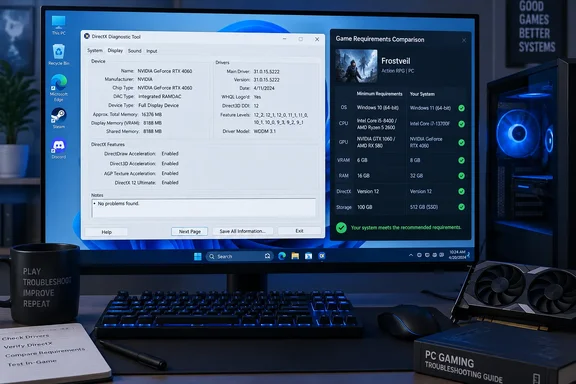
The GPU name alone is only a starting point. A game requirement such as “GeForce GTX 1060 or Radeon RX 580” is a shorthand for a performance class, driver support, and memory configuration—not a universal one-to-one guarantee. Compare your exact model and VRAM capacity with the publisher’s listed minimum and recommended GPUs, then check the remaining DirectX fields before assuming the result.
Read DirectX version and feature levels correctly
In the Display tab’s Drivers section, look for Feature Levels. It typically lists several values, such as 12_1, 12_0, 11_1, 11_0, and lower levels. Read the first or highest entry as the highest Direct3D feature level exposed by that GPU-driver combination.
Microsoft’s Direct3D documentation describes feature levels as defined sets of graphics functionality. A device supporting Feature Level 12_1 also supports lower levels; however, a feature level describes capability, not performance. Passing a Feature Level 12_0 requirement means the required Direct3D capability is present. It does not mean the GPU will deliver acceptable frame rates at 1440p, ultra settings, or with ray tracing enabled.
Use this simple comparison rule:
- If the game requires DirectX 11 and Feature Level 11_0, the Feature Levels line must contain
11_0or a higher value. - If it requires DirectX 12 and Feature Level 12_0, look specifically for
12_0,12_1, or12_2. - If the requirement page names a separate technology—hardware ray tracing, mesh shaders, DirectStorage GPU decompression, or a particular Shader Model—do not assume it is covered simply because
dxdiagsays DirectX 12. Check the game publisher’s exact requirement and the GPU manufacturer’s specifications.
The DDI Version field may also appear. DDI, or Device Driver Interface, indicates the Direct3D interface level the display driver exposes. It can help diagnose an outdated or fallback driver, but Feature Levels are usually the more practical field when matching a game’s stated GPU requirement.
A common bad conclusion is: “My System tab says DirectX 12, so the game must work.” Windows can have the DirectX 12 runtime installed even where the hardware exposes only lower feature levels. Conversely, a GPU that meets an API requirement can still miss a game’s VRAM, CPU, operating-system, storage, or online-service requirements.
Check the driver before blaming the hardware
Still in the Drivers section, record Driver Date, Driver Version, Driver Model, and the WHQL Logo’d status if shown.
An old driver can cause a game to refuse to start, crash during shader compilation, display missing textures, or misidentify available features. Windows Update supplies working display drivers for many systems, but it may not always deliver the newest game-ready release from NVIDIA, AMD, or Intel. If a game specifically recommends a newer driver branch, update from the GPU manufacturer or, for a laptop with customized graphics switching, check the PC maker’s support page first.
The Driver Model field identifies the Windows Display Driver Model, or WDDM, used by the adapter. This is chiefly diagnostic information for ordinary players, but it matters when a game or feature requires a newer Windows release and driver stack. If dxdiag shows the Microsoft Basic Display Adapter instead of the expected NVIDIA, AMD, or Intel model, Windows is running a fallback driver. Do not judge GPU compatibility from that result; install the proper graphics driver and run dxdiag again.
At the bottom of the Display tab, also read the Notes box. “No problems found” is reassuring, but it is not a certification that every game will run. It means dxdiag did not identify a DirectX diagnostic fault with that adapter. A warning there—especially one involving the driver, acceleration, or device status—should be resolved before treating a game failure as a hardware shortfall.
Save a report before asking for help
Select Save All Information at the bottom of dxdiag, choose a location, and save the text file. Microsoft Support recommends this option because the tool’s report is designed to be shared during audio and video troubleshooting.
The report is more complete than the visible tabs and preserves the details that change after a driver update or Windows update. Before posting it publicly, review it: it can include the PC name, Windows build, display hardware, driver data, monitor details, and input devices. Share only the relevant portions with a game support team or forum when possible.
For a concise compatibility note, provide the game title and these fields from the report:
- The GPU Name, Dedicated Memory, and highest Feature Level.
- The Driver Version and Driver Date.
- The DirectX Version, Windows version, and system memory.
- The game’s exact error message or point of failure, if there is one.
This turns “Can my PC run it?” into a question someone can answer from evidence rather than guesswork.
Use dxdiag as a gate, not a performance forecast
dxdiag is excellent at identifying a missing DirectX capability, an unsupported feature level, the wrong active adapter, or a stale driver. It cannot tell you whether a game will maintain 60 fps in a crowded scene, whether a mobile GPU is power-limited, or whether a title’s newest patch has performance problems on a particular architecture.
If the tool shows the required feature level, adequate dedicated VRAM, the intended GPU, and a current driver, the PC has cleared the basic graphics compatibility gate. Compare the exact GPU against the game’s recommended specification next, then use reputable benchmarks for the game at your intended resolution and settings. If dxdiag instead exposes a lower feature level or a fallback display driver, changing graphics settings will not create missing hardware support; the practical fix is a proper driver, use of the discrete GPU, or different hardware.