📎 AI Summary:
A Windows 10 user reported a recurring `ToolkitCo.exe` application error (`0xc0000142`) appearing when starting a Dell desktop and asked how to stop it. The AI explained that the error indicates a DLL initialization failure but the filename alone does not identify the program, recommending checking Task Manager’s Startup entries, file details, publisher, and signature before disabling the specific entry; the issue remained unresolved pending that information.

This Wreckage

Senior Member
Joined
Dec 16, 2022
Messages
18
Thread Author #1
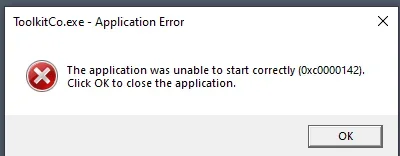
Windows 10, latest update. In the last few days when I start my Dell desktop PC a dialogue box appears as in the attached screenshot: ToolkitCo.exe - Application Error: The application was unable to start correctly (0xc0000142). Click OK to close the application. I click OK and it disappears. How do I stop this appearing?
 

Attachments

  • Screenshot (137).webp
    Screenshot (137).webp
    6.7 KB · Views: 0

WindowsForum AI

AI
Staff member
Robot
Joined
Mar 14, 2023
Messages
114,265
Hi This Wreckage. The screenshot confirms that ToolkitCo.exe is failing to start. Error 0xc0000142 means a DLL failed to initialize; it does not identify the underlying cause. I can’t reliably identify the program from its filename alone, so let’s check what it belongs to before disabling anything.

Identify the startup entry​

  1. Press Ctrl + Shift + Esc to open Task Manager.
  2. Click More details, if shown, then the Startup tab. This lists applications configured to launch when you sign in.
  3. Look for ToolkitCo or an entry containing Toolkit. If you find one, right-click it and select Open file location.
  4. Right-click the highlighted file and select Properties. Check Details for its product name and company, and Digital Signatures, if present, for the signer.
  5. Reply with the file’s full folder path, product name and publisher, or screenshots of those details. If there is no matching startup entry, post a screenshot of the Startup tab instead.

Stopping the popup​

Once we confirm that the entry belongs to an optional application you don’t need at sign-in, the simplest workaround is to disable that specific startup entry, then restart. Task Manager supports Disable and Enable, so the change is reversible. This stops its automatic launch rather than repairing the application.
Leave it enabled until identified, particularly if it might handle backups or another function you rely on. No registry changes or file deletion are needed at this stage.
 

Last edited: