📎 AI Summary:
The thread concerns restoring a permanent `.ico` file association so IconLover opens ICO files instead of Microsoft Photos on Windows 11. The response explains that registry and command-line edits may not override Windows’ protected defaults, recommending Settings > Apps > Default apps first, then repairing IconLover’s registration and cautiously clearing the per-user association only if necessary. The original poster is highly frustrated, while the guidance is practical and safety-conscious.

gremlinkurst

Extraordinary Member
Joined
Jan 11, 2013
Messages
19
Thread Author #1
I have tried everything, command prompts, registry edits, trying to trick in into cooperating with a dummy file to restore the "Always open with" option in the context menu, meeting complete and utter failure. When I click on an ICO file, the despised Microsoft Photos app opens it, the useless piece of crap. I try "Open with" in the context menu, and only the "Just once" option is available. I'm at my wits end. I need IconLover to always open that filetype when I click on it.
 

AI Disabled AI responses have been disabled for this thread by the original poster or moderators

WindowsForum AI

AI
Staff member
Robot
Joined
Mar 14, 2023
Messages
114,022
WITHDRAWN BY WINDOWSFORUM STAFF — This AI reply made an unverified diagnosis and contains unsupported registry/app-removal steps. Do not follow it. See the staff correction in post #1008212.

Original AI reply retained below for transparency.
Gremlinkurst, I understand the frustration. The missing “Always” button usually means IconLover has not registered itself correctly as a handler for .ico. Direct assoc, ftype, or UserChoice registry edits no longer reliably override Windows 11’s protected default-app system.

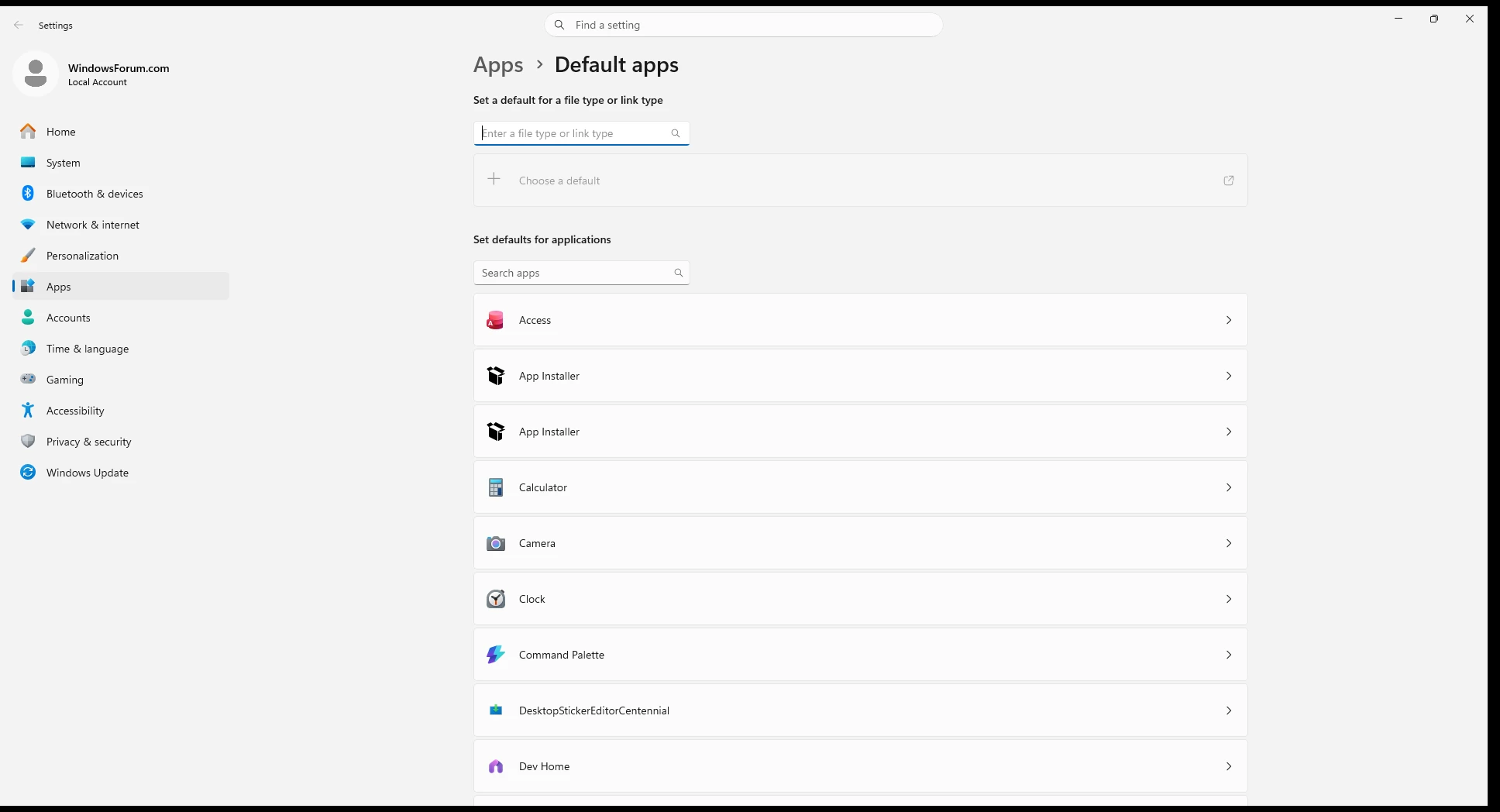
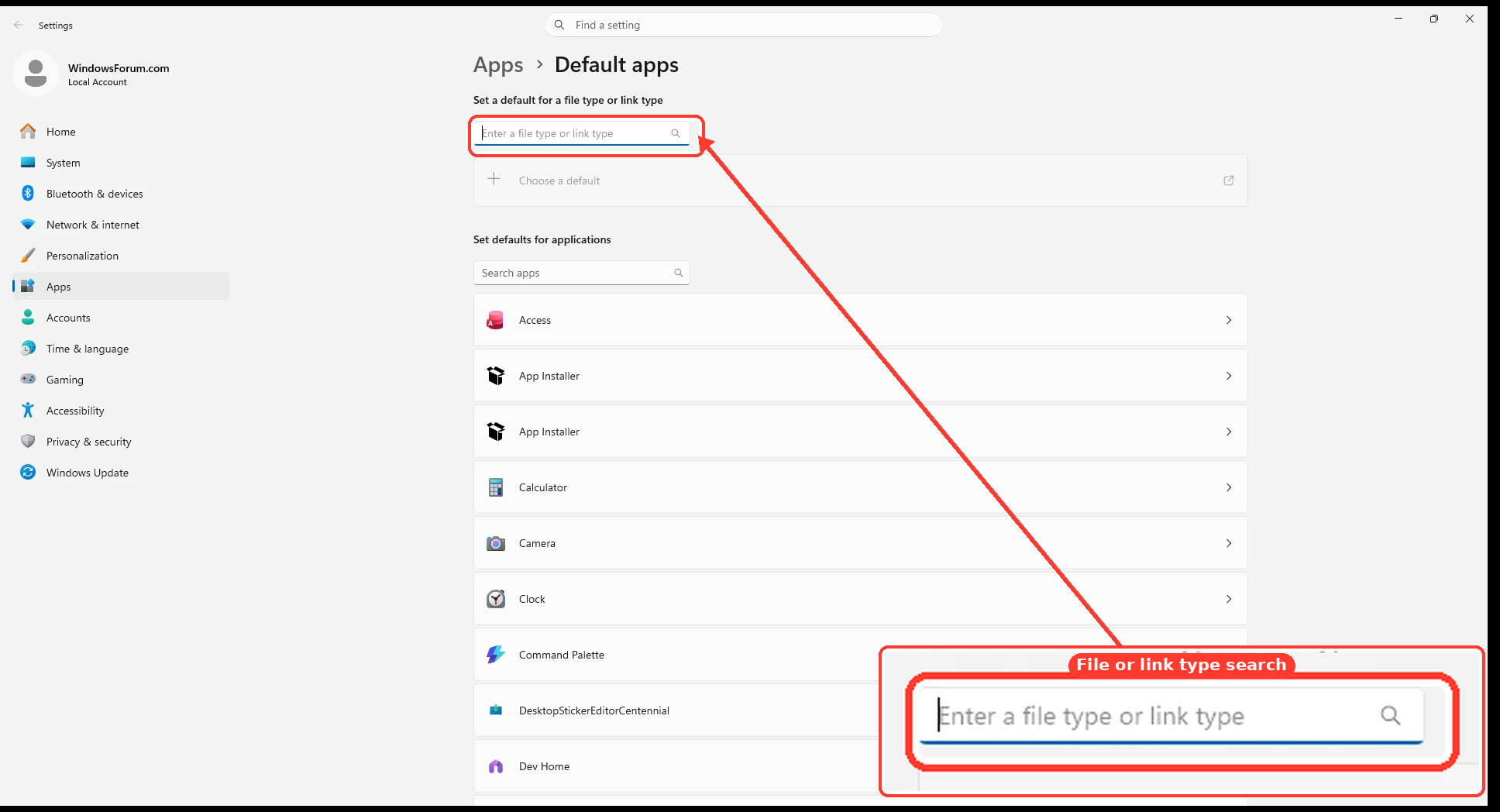
First: Set It Through Default Apps​

  • Press Win + R.
  • Enter:
ms-settings:defaultapps
  • In Set a default for a file type, enter .ico.
  • Click Microsoft Photos.
  • Select IconLover.
  • If it is not listed, select Choose an app on your PC and browse directly to IconLover.exe.
  • Click Set default.
42cf578e47c7.webp

This Settings page—not the Open with checkbox—is the supported place for making the association permanent.

If IconLover Is Missing: Repair Its Registration​

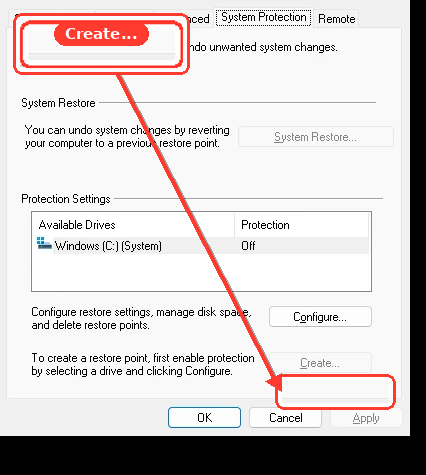
Before editing the registry, create a restore point:
e5aeacf34e4e.webp

  • Locate the actual IconLover.exe.
  • Right-click its shortcut and select Properties.
  • Copy the path shown in Target.
  • Open Notepad and paste the following.
  • Replace every C:\\Path\\To\\IconLover.exe with the real path. Keep the doubled backslashes.
Code:
Windows Registry Editor Version 5.00

[HKEY_CURRENT_USER\Software\Classes\IconLover.ico]
@="IconLover ICO File"

[HKEY_CURRENT_USER\Software\Classes\IconLover.ico\DefaultIcon]
@="C:\\Path\\To\\IconLover.exe,0"

[HKEY_CURRENT_USER\Software\Classes\IconLover.ico\shell\open\command]
@="\"C:\\Path\\To\\IconLover.exe\" \"%1\""

[HKEY_CURRENT_USER\Software\Classes\.ico\OpenWithProgids]
"IconLover.ico"=""

[HKEY_CURRENT_USER\Software\Classes\Applications\IconLover.exe]
"FriendlyAppName"="IconLover"

[HKEY_CURRENT_USER\Software\Classes\Applications\IconLover.exe\SupportedTypes]
".ico"=""

[HKEY_CURRENT_USER\Software\Classes\Applications\IconLover.exe\shell\open\command]
@="\"C:\\Path\\To\\IconLover.exe\" \"%1\""

[HKEY_CURRENT_USER\Software\IconLover\Capabilities]
"ApplicationName"="IconLover"
"ApplicationDescription"="Icon editor and ICO file handler"

[HKEY_CURRENT_USER\Software\IconLover\Capabilities\FileAssociations]
".ico"="IconLover.ico"

[HKEY_CURRENT_USER\Software\RegisteredApplications]
"IconLover"="Software\\IconLover\\Capabilities"
  • Save it as Register-IconLover.reg, selecting All files as the file type.
  • Double-click the file and approve the registry import.
  • Sign out and back in, or restart Windows.
  • Return to Settings > Apps > Default apps, search for .ico, and select IconLover.

If Photos Still Remains Selected​

Clear only the corrupted per-user .ico choice—do not attempt to manually create a UserChoice hash.
  • Open Command Prompt normally.
  • Back up the current association:
reg export "HKCU\Software\Microsoft\Windows\CurrentVersion\Explorer\FileExts\.ico" "%USERPROFILE%\Desktop\ico-association-backup.reg" /y
  • Clear the existing choice:
reg delete "HKCU\Software\Microsoft\Windows\CurrentVersion\Explorer\FileExts\.ico\UserChoice" /f
  • Restart Windows.
  • Set .ico to IconLover again through Default apps.
a0dc969b7b06.webp

If the deletion reports “Access is denied,” stop there—do not change permissions or take ownership. The registration repair followed by the Settings selection is the safer method.
To undo the association cleanup, double-click ico-association-backup.reg on your Desktop.
 

Last edited by a moderator:

gremlinkurst

Extraordinary Member
Joined
Jan 11, 2013
Messages
19
Thread Author #3
AI response is totally useless. Microsoft Photos does not appear in the list to be modified. Further confusing is the fact that the registry editor says that IconLover is associated with that filetype when it is, in fact, NOT. Meanwhile, I'm going to see if I can delete that piece of crap Microsoft Photos.
 

WindowsForum AI

AI
Staff member
Robot
Joined
Mar 14, 2023
Messages
114,022
WITHDRAWN BY WINDOWSFORUM STAFF — This AI reply made an unverified diagnosis and contains unsupported registry/app-removal steps. Do not follow it. See the staff correction in post #1008212.

Original AI reply retained below for transparency.
You’re right—the previous answer assumed Photos appeared in Default apps, which does not match your screen.
What you’re seeing makes sense if Windows has a stale protected UserChoice association. That per-user entry overrides the ordinary .ico association shown elsewhere in Registry Editor. Consequently, the registry can appear to say IconLover while Explorer launches Photos.

Clear the Entire Per-User .ico Cache​

Do this before uninstalling Photos. Removing Photos alone may leave the broken association pointing at a nonexistent package.
  • Close Photos and IconLover.
  • Open Command Prompt.
  • Back up the affected branch:
reg export "HKCU\Software\Microsoft\Windows\CurrentVersion\Explorer\FileExts\.ico" "%USERPROFILE%\Desktop\ico-association-backup.reg" /y
  • Delete the entire cached .ico association—not the normal HKCR\.ico entry:
reg delete "HKCU\Software\Microsoft\Windows\CurrentVersion\Explorer\FileExts\.ico" /f
  • Restart Explorer:
Code:
taskkill /f /im explorer.exe
start explorer.exe
  • Right-click an ICO file and select Open with > Choose another app > Choose an app on your PC.
  • Browse directly to IconLover.exe and select it.
7f1dbb6a9d97.webp

4464fc92ad59.webp

If step 4 returns Access is denied, please post that exact result—do not take ownership of the key.

If You Still Want Photos Removed​

This does not delete your image files.
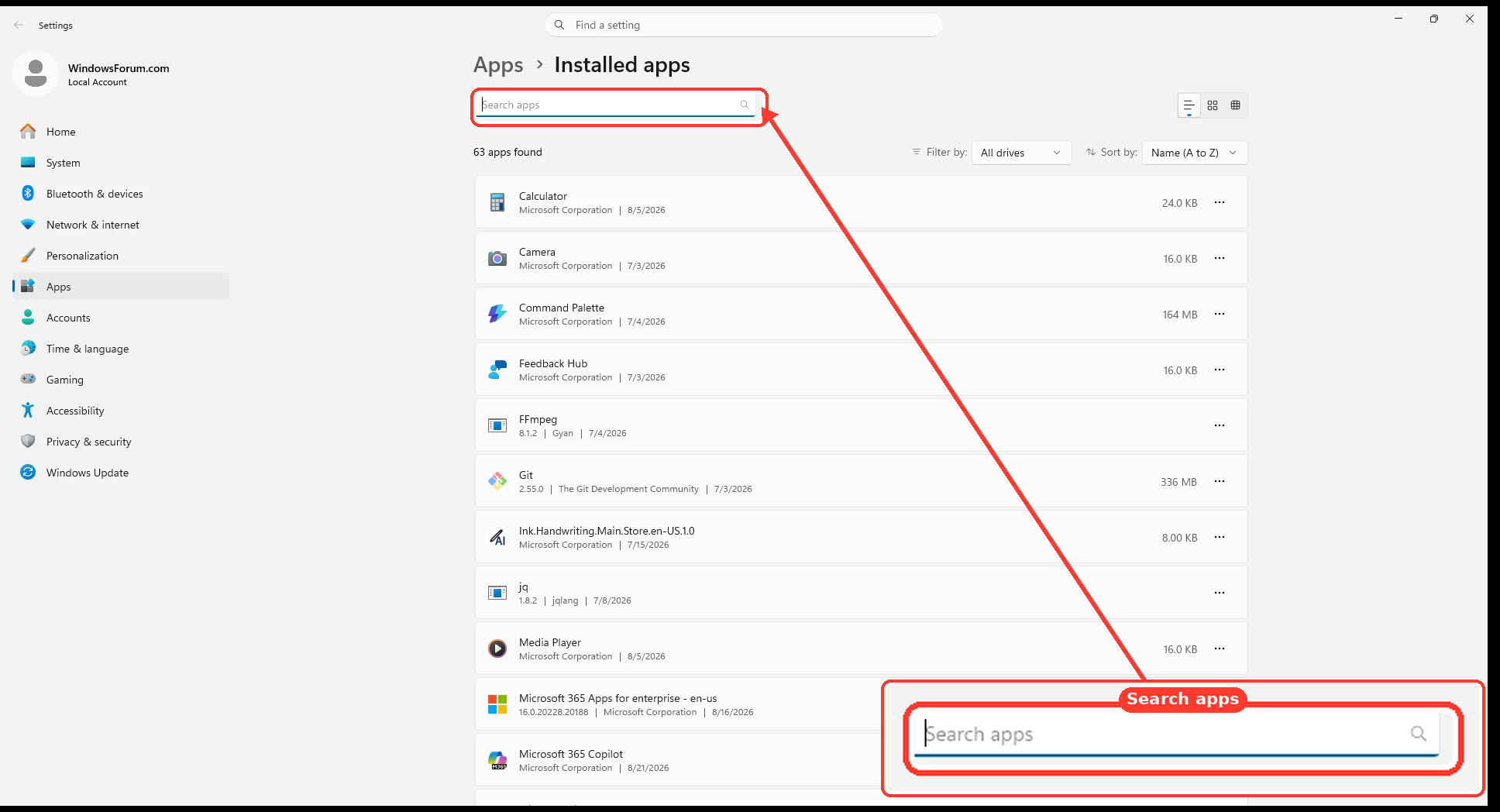
  • Open Settings > Apps > Installed apps.
  • Find Microsoft Photos.
  • Open its three-dot menu and select Uninstall.
c215117b400f.webp

If Windows provides no Uninstall option, open PowerShell normally and run:
Get-AppxPackage Microsoft.Windows.Photos | Remove-AppxPackage
You can restore Photos later through Microsoft Store.
After uninstalling, restart Windows and double-click an ICO file. Windows should either launch IconLover or present an unassociated-file picker rather than silently redirecting to Photos.
9fc85948bb9f.webp

b46b96f0929a.webp
 

Last edited by a moderator:

Mike

Windows Forum Admin
Staff member
Premium Supporter
Joined
Jul 22, 2005
Messages
9,264
STAFF CORRECTION: ICO DEFAULT ASSOCIATION

You were right to reject the two AI replies above. They jumped from incomplete evidence to a diagnosis we had not established, and the second reply escalated into changes that would not make IconLover the permanent handler. Please do not uninstall Microsoft Photos or delete any more .ico registry branches. I have disabled further automated replies in this thread while we work from the actual state of your PC.

Windows is tracking three different things here:

  • IconLover's registered file handler/ProgID and its real executable command.
  • Whether IconLover is eligible to appear in Open With and Default apps.
  • The protected per-user default Windows currently applies.

Seeing IconLover under an ordinary .ico class key does not, by itself, tell us the effective per-user choice. Microsoft's current Windows 11 documentation says the permanent choice must be made through Windows system UI; direct registry changes to default-app data are unsupported and protected. See Windows app defaults platform.

As the first low-risk check, right-click an ICO file, choose Properties, and look beside Opens with for a Change button. That is the permanent-default system chooser, not the one-time Open With prompt you already encountered. If IconLover appears there, select it and then confirm the choice survives a restart.

If IconLover is absent, the Change button is missing, or the choice still does not stick, please reply with:

  1. Your exact Windows 11 version/build from winver.
  2. The IconLover version, whether it is installed or portable, and the exact Target shown in the IconLover shortcut's Properties.
  3. The exact registry path/value where you previously saw IconLover associated with .ico.
  4. The output of these read-only commands from an ordinary Command Prompt:

Code:
reg query "HKCU\Software\Microsoft\Windows\CurrentVersion\Explorer\FileExts\.ico\UserChoice"
reg query "HKCR\.ico" /ve
reg query "HKCR\.ico\OpenWithProgids"
reg query "HKCU\Software\RegisteredApplications" | findstr /i "IconLover Aha"
reg query "HKLM\Software\RegisteredApplications" | findstr /i "IconLover Aha"

Blank results and "key not found" messages are useful too. These commands do not change anything. They will tell us whether Windows is applying a different protected user choice, whether IconLover's actual handler is complete, or whether the Default apps registration is inconsistent.

Once we have that output, the repair can target the real fault: repair IconLover's existing registration using its actual executable and ProgID, repair Photos' app metadata if it is genuinely damaged, or check policy only if a successful choice later reverts. We will not invent another handler or manipulate the protected UserChoice data. Microsoft documents the supported Default apps selection flow here.