
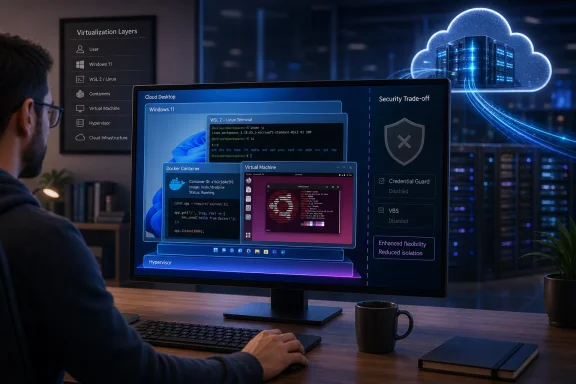
The practical change is real: a virtual desktop can now act as a host for another virtualization layer. But the feature comes with a security trade-off AWS should make impossible to miss in rollout plans: enabling it on a Windows WorkSpace automatically disables Credential Guard and Virtualization-Based Security. For organizations that adopted WorkSpaces precisely to centralize endpoint controls, that turns nested virtualization into a policy decision rather than a developer convenience toggle.
 What AWS has actually enabled
Nested virtualization supplies hardware virtualization extensions from the AWS infrastructure to the guest operating system. Inside a Windows WorkSpace, that allows Hyper-V to start; inside a supported Linux WorkSpace, it enables KVM. AWS says the setting is available per WorkSpace through the console, API, and CLI, rather than being a one-way account-level setting.
That matters for administrators with mixed desktop populations. A standard knowledge-worker desktop need not inherit a developer workstation’s additional hypervisor capability or its reduced Windows security posture. Teams can target developers who need WSL 2, Docker Desktop, Android emulation, QEMU, or isolated execution environments while leaving the broader fleet unchanged.
AWS says support covers WorkSpaces Personal and Amazon WorkSpaces Core managed bundles using DCV or Bring Your Own Protocol. Supported guest systems are Windows Server 2019, Windows Server 2022, Windows Server 2025, Windows 11, Ubuntu 22.04 and later, Red Hat Enterprise Linux 8 and later, and Rocky Linux 8 and later. GPU bundles, Value bundles, PCoIP desktops, Windows 10, Windows Server 2016, and Amazon Linux 2 are excluded.
The company also recommends a Power bundle with four vCPUs or more. That is more than a suggestion about smoothness: WSL 2, a Docker Linux VM, or a nested Hyper-V guest competes directly with the WorkSpace’s Windows session for CPU and RAM. AWS does not charge a separate fee to enable nested virtualization, but moving users from a small bundle to Power or PowerPro still changes the economics of a desktop deployment.
The security control being switched off
AWS’s documentation says that enabling nested virtualization on Windows automatically disables Credential Guard and VBS. Those features use virtualization-based isolation to protect sensitive Windows processes and credentials; AWS’s own VBS guidance warns that disabling them reduces kernel-level protection, disables Hypervisor-Enforced Code Integrity, and makes extraction of credentials from LSASS more feasible after a host compromise.
This is the part of the launch that needs the most careful operational handling. The new feature does not remove AWS’s infrastructure isolation: AWS says the Nitro System continues to separate WorkSpaces at the cloud layer. But AWS also makes customers responsible for the Windows guest, the nested hypervisor, nested VMs, applications, and data inside the WorkSpace. In other words, AWS is protecting the outer tenancy boundary while customers take on the security implications of introducing an inner virtualization layer.
A sensible deployment should therefore begin with a separate developer WorkSpaces bundle or an explicit inventory group, not a blanket configuration change. Before enabling it, IT should identify machines using Credential Guard, VBS, or HVCI; decide whether those users handle privileged credentials; and review EDR coverage for activity occurring inside WSL distributions or nested VMs. A container or VM boundary inside a desktop is useful isolation, but it can also create places where ordinary host inspection has less visibility.
Docker’s documentation is especially relevant here. Docker says its WSL 2 backend uses a full Linux kernel in a lightweight VM, while its own networking documentation notes that file activity in the WSL 2 kernel does not have the same host visibility as the Hyper-V configuration. That does not make WSL 2 unsuitable for enterprise use, but it means WorkSpaces administrators should validate their security tooling with the selected Docker backend rather than assume Windows-side telemetry sees the entire workload.
Docker Desktop support does not extend to every supported Windows WorkSpace
AWS’s launch material lists Windows Server 2019, 2022, and 2025 among operating systems eligible for nested virtualization. That is feature support from AWS, not a blanket endorsement of every developer tool named in the announcement.
Docker’s current Windows installation guidance says Docker Desktop is not supported on Windows Server versions, explicitly including Windows Server 2019 and Windows Server 2022. Docker Desktop’s standard WSL 2 path is designed for supported Windows 10 and Windows 11 client editions, and its Windows-container path adds further requirements, including all-users installation, Hyper-V, Containers, and elevated administration.
The consequence is straightforward: a Windows Server WorkSpace can gain the hypervisor capability, but that alone does not put its Docker Desktop deployment inside Docker’s supported matrix. Organizations using Windows Server-based WorkSpaces should validate the supported container runtime and management model for that OS rather than installing Docker Desktop simply because nested virtualization is now available. Windows 11 WorkSpaces are the clearer route for users whose actual goal is a supported Docker Desktop plus WSL 2 developer environment.
Microsoft’s WSL documentation confirms that wsl --install enables the necessary Windows components, installs a Linux kernel and distribution, and sets WSL 2 as the default on supported Windows releases. The command is easy; the important prerequisite on WorkSpaces was the missing hardware virtualization exposure, which AWS has now added.
AutoStop changes the persistence calculation
AWS’s August 20 technical post identifies a limitation that will catch teams expecting a laptop-like workflow: AutoStop WorkSpaces using Windows Server 2025 or Windows 11 24H2 and 25H2 perform a full reboot instead of hibernating when nested virtualization is enabled. AWS recommends AlwaysOn where session persistence is required.
That changes more than login convenience. A full restart shuts down a running WSL environment, Docker Desktop engine, local containers, background language servers, emulator state, and unsaved work inside a nested VM. Developers accustomed to disconnecting from a WorkSpace and returning to an intact toolchain will instead need to plan for service startup, container recreation, and project-state persistence.
AlwaysOn avoids that particular workflow break, but it also means administrators need to compare bundle and running-mode costs against the alternative they were trying to replace: a physical developer PC, a separate EC2 instance, or a managed remote development service. There is no incremental charge for the nested-virtualization setting itself; the cost driver is the larger, longer-running desktop that a credible developer configuration may require.
AWS says the setting persists through Rebuild, Restore, and Migration operations. During a migration, however, the platform disables it if the destination bundle no longer meets the prerequisites. That is a detail worth putting into change-management checks: a bundle downgrade or move to a GPU or PCoIP configuration can quietly remove the virtualization capability that a developer’s workflow depends on.
AWS’s older support guidance has not caught up
At publication, AWS’s WorkSpaces troubleshooting documentation still contains an outdated statement saying nested virtualization, including Docker use, is not supported on Windows WorkSpaces. That directly conflicts with AWS’s August 18 launch announcement and its newly published nested-virtualization guidance.
The newer launch announcement is the relevant record for feature availability, but the contradiction is not trivial. Support teams often rely on troubleshooting pages during incidents, and internal runbooks may have copied the old restriction long ago. Administrators should update those documents before enabling the feature, or users may be told that a supported configuration is categorically unsupported when they request help.
The rollout should be treated as a controlled developer-platform change: provision a Windows 11 DCV WorkSpace at Power size or above, enable nested virtualization, confirm VBS and Credential Guard implications with security, install and update WSL, then test Docker or the intended emulator against real endpoint controls and AutoStop behavior. The capability removes a long-standing technical blocker, but it does not erase the operational differences between a managed cloud desktop and a physical developer machine.